Table of contents
Hide
Obsidian Notes and Knowledge Management Tool

Obsidian 1.15.1 Practical Tutorial: Managing Research Projects, Experiment Records, and Task Logs with Local Markdown
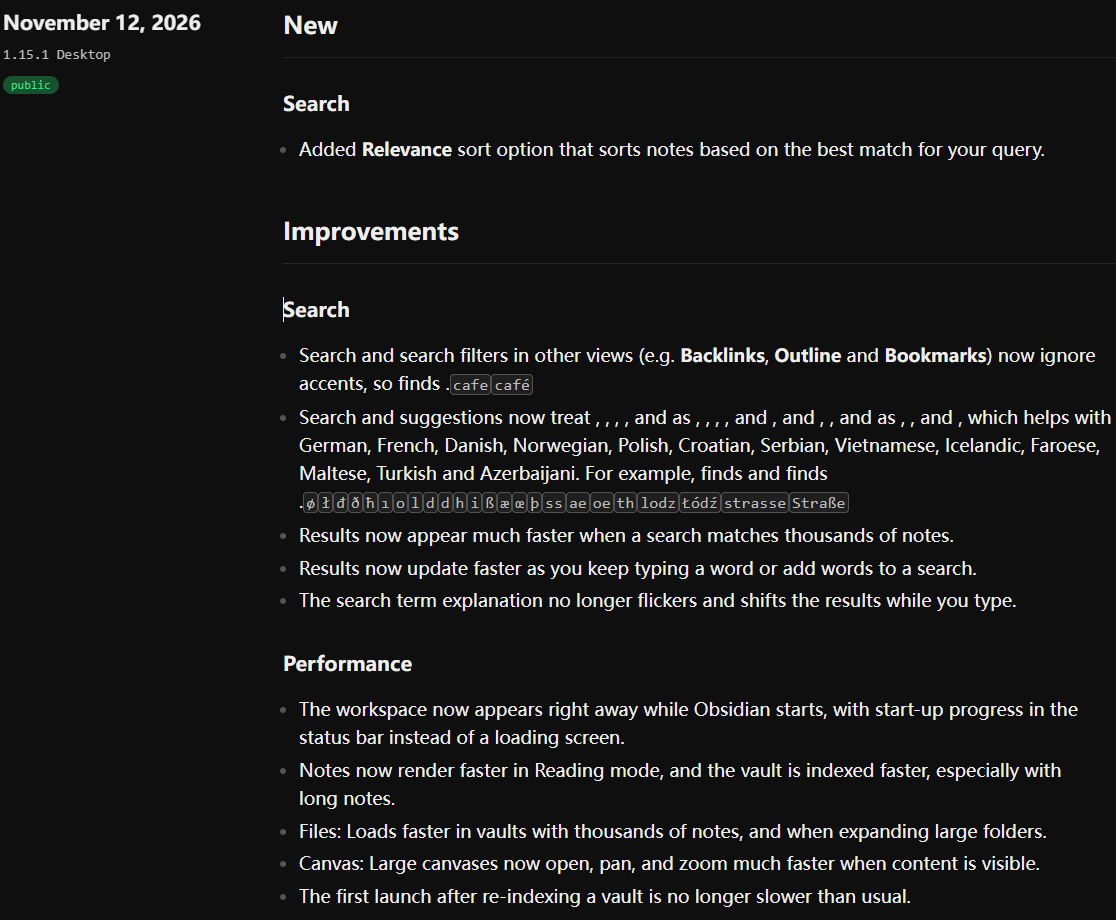
Version Notes: This article is based on the 1.15.1 Desktop public release by Obsidian on November 12, 2026. Desktop 1.15.0 was publicly released on November 2, 2026, adding CLI/URI appending by title, Bases filter sorting adjustments, and Mermaid chart rendering improvements; 1.15.1 further improves relevance search and indexing, startup, and Canvas performance for large Vaults. Different operating systems, installer versions, and community plugins may cause differences in menu details; please refer to the actual interface during actual operation.
In scientific research, experimental plans, progress records, instrument usage notes, group meeting minutes, project tasks, and methodological memos are often scattered across Word, Excel, chat logs, and folders. Obsidian saves these notes as local Markdown files and uses...bidirectional linkProperties, Bases, templates, and command-line interfaces enable the organization of scattered records into a searchable, associative, and sustainably maintainable project workspace. This article uses Obsidian 1.15.1 desktop as a benchmark, starting with setting up a Vault, designing file structures and note templates, demonstrating how to record experimental processes, associate projects and methods, create tabular ledgers, and use the CLI to integrate daily records into automated workflows.
Introduction to Obsidian
Obsidian is a note-taking and knowledge organization software based on local Markdown files. Each note created by a user is typically a regular Markdown file. .md The files are all stored centrally in a directory called... Vault The contents are located in the folder. Even without opening Obsidian, you can view these contents using a text editor or file manager.
Its value lies not only in providing a Markdown editing window, but also in combining links between notes, structured attributes, retrieval, visual views, and automated entry points. For researchers, suitable content for Obsidian includes:
- Background, objectives, and phased plan of the research project;
- Experimental plan, operating procedures, parameter changes, and abnormality records;
- Group meeting minutes, mentor feedback, and to-do list;
- Precautions for instrument use, reagent preparation methods and laboratory SOPs;
- Sample batch, experimental batch, data file path and its description;
- Software configuration, code snippets, analysis process, and project review.
Obsidian is not a Laboratory Information Management System (LIMS) or a compliant alternative to an Electronic Lab Notebook (ELN). It does not automatically provide the audit trails, electronic signatures, access authorization, or data integrity controls required for regulated lab records. For formal lab records involving GLP, GMP, clinical research, or institutional regulations, the laboratory-approved platform and procedures should be followed.
Problems with standard note-taking:
There are many records, but they are difficult to find again.
For example, if a research project lasts for several months, the researcher might leave behind:
2026-11-01.docxGroup meeting minutes;Experiment Records_Batch 2.xlsxExperimental parameters;Cultivation conditions revised version.docxOperating conditions;Project Phase A Summary.pptx: Progress report;仪器问题_聊天截图.pngFault handling record.
These documents aren't necessarily missing; the real problem is the lack of stable connections between them. After some time, researchers might remember that “a certain abnormal cell activity was related to a batch of culture medium,” but they wouldn't know which record contained this information.
Obsidian allows you to break these down into interconnected project notes, experimental records, methodologies, and daily logs. You can then access related experiments by starting with “Project A” and find experimental records that used that method by starting with “Cultivation Methods.”
Differences between Obsidian and other tools
These tools can be used together, but they should not be confused.
| Tools | Main problems to be solved | Its position in the research workflow |
|---|---|---|
| Obsidian | Project notes, experimental process records, method associations, task log | Knowledge and work records during management research |
| Zotero | Bibliographic information, PDF attachments, citations and reference formats | Managing formal publications and citations |
| Gemini Notebook | Source Q&A and content organization based on imported materials | Aid in understanding the specified materials |
| OpenMD | Markdown document editing and writing | Writing and organizing independent documents |
| Quarto | Organize code, text, tables, and graphics into a re-renderable report. | Generate analysis reports and technical documents |
| Positron | Python/R code, Notebook, data objects, and analysis environment | Perform data analysis tasks |
Existing on the site Zotero Document Management Tutorial Focus on the management of document entries and attachments;Gemini Notebook Tutorial The focus is on asking and answering questions related to the specified information.Positron Practical Tutorial The focus is on the Python/R data analysis environment. Obsidian's emphasis is on storing records of the research process in a local, linkable note-taking system. It does not need to replace the aforementioned tools.
Obsidian 1.15.1 Update
| Version and Date | Update content | The practical significance of research notes |
|---|---|---|
| Desktop version 1.15.0, November 2, 2026 | CLI/URI supports appending or prefixing content to a specified heading. | New tasks or log entries can be written to specific sections of the notes instead of always appending them to the end of the file. |
| Desktop version 1.15.0, November 2, 2026 | The Bases filter can be dragged and sorted, making filter management more flexible. | It's easier to adjust views when maintaining project, experiment, and task ledgers. |
| Desktop version 1.15.0, November 2, 2026 | Mermaid charts are now rendered using Pele, ensuring compatibility with Mermaid 12.1.0 syntax. | Flowcharts load faster and support zooming and panning. |
| 1.15.1 Desktop, 2026-11-12 | The search function now includes a Relevance sorting option. | In a large note library, it's easier to prioritize notes that match the most closely. |
| 1.15.1 Desktop, 2026-11-12 | Search speed, Vault indexing, long note rendering, and large Canvas performance optimizations. | When there are many notes, starting, searching, and viewing the relationship diagram is smoother. |
These are the changes explicitly listed in the official changelog, and do not mean that all users will experience the same level of performance improvement. Startup speed, in particular, is also affected by hard drive space, the number of plugins, the size of notes, and the system environment.
Downloading, installing, and creating Vault for the first time
Download from the official website
We recommend obtaining the installation package from the official Obsidian download page.
- Official website:https://obsidian.md/
- Official download page:https://obsidian.md/download
- Official update log:https://obsidian.md/changelog/
Obsidian is available for desktop versions on Windows, macOS, and Linux, as well as a mobile app. When downloading, select the installation package that matches your current operating system. After installation, open the software and check the version information to confirm that the desktop version is correct. 1.15.1。
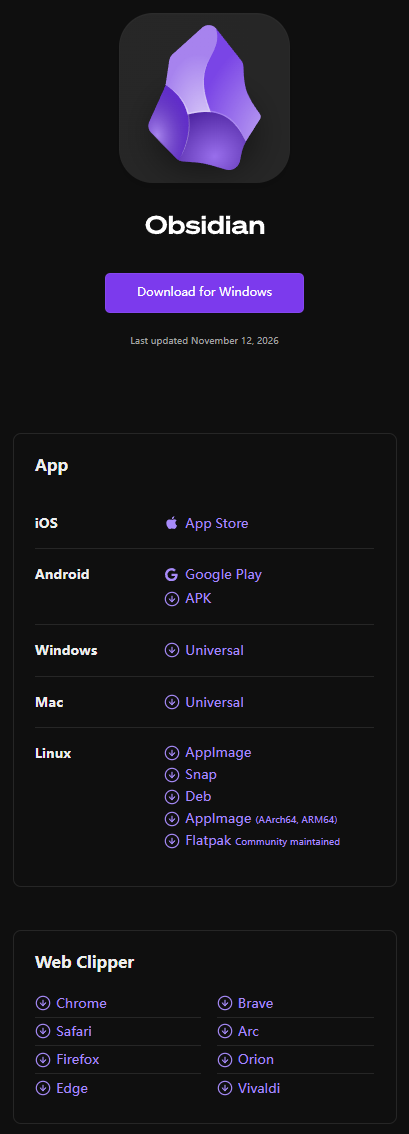
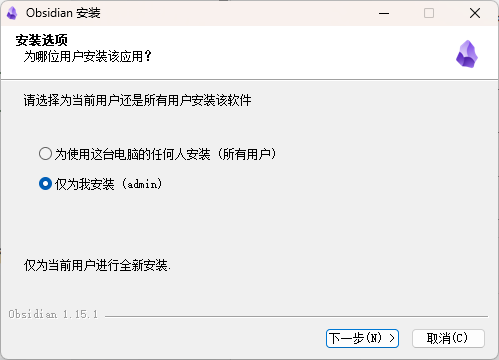
Installation method
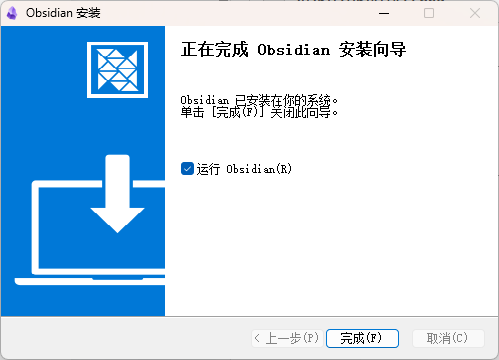
After downloading the installation package from the official website, double-click to open it, select "Install only for me", and click "Next".
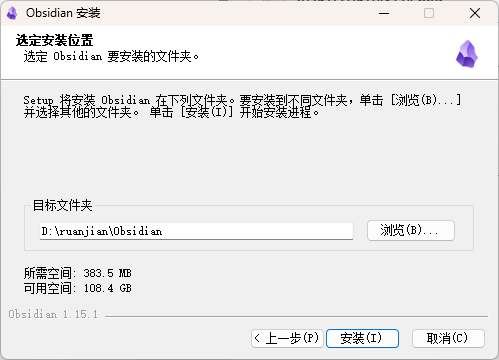
Click Browse to select a suitable installation location; it is recommended to choose an installation location other than the C drive. Click Install.
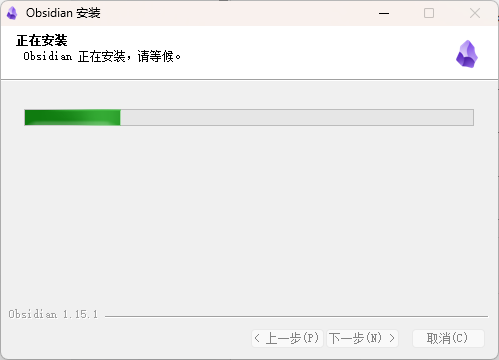
Wait for the installation to complete.
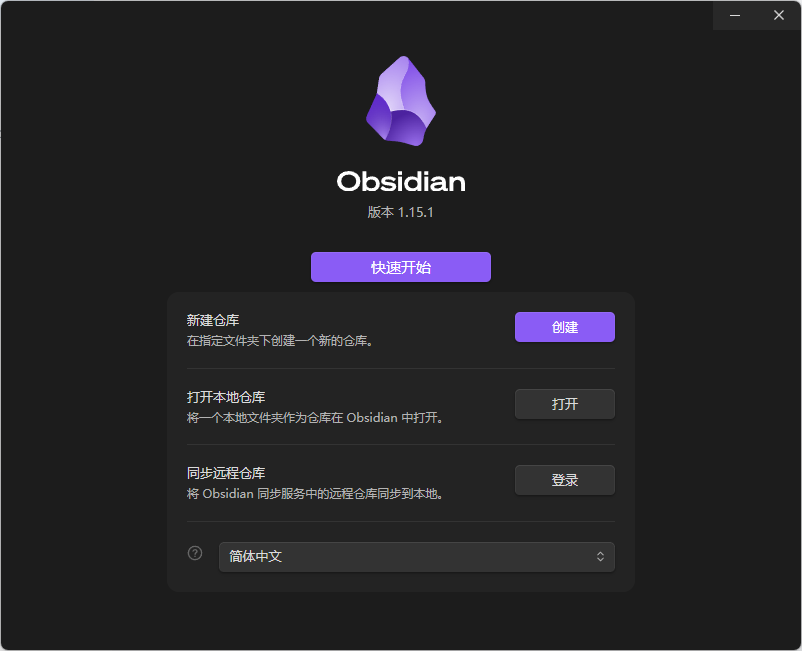
Start Obsidian.
Create an independent research Vault
When starting for the first time, choose to create a new Vault. It is recommended to create a separate Vault for a specific topic or long-term research direction first, rather than cramming all personal notes, lab materials, and course content into the same space from the beginning.
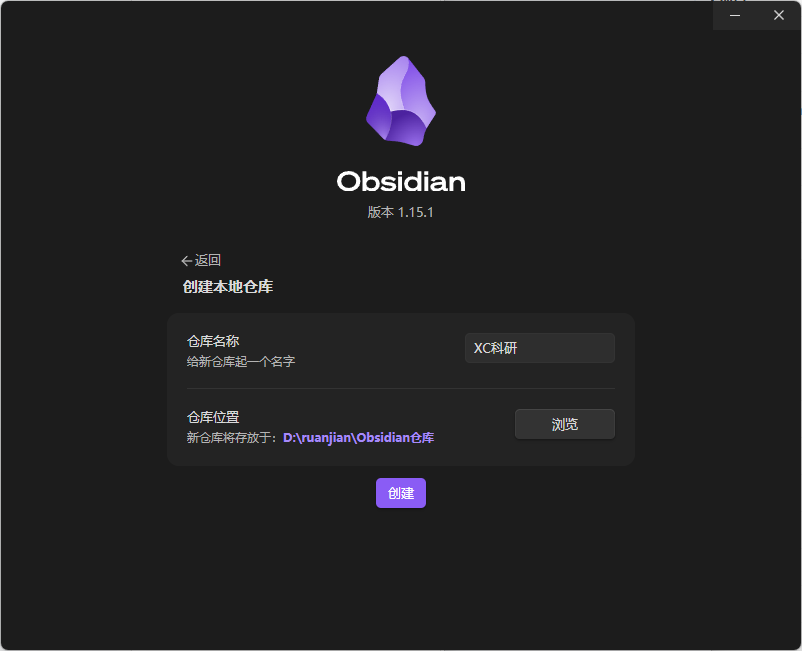
For example, create:
Research_VaultChoose a location that is stable in the long term and easy to back up your data to, for example:
D:\Research_VaultIt is not recommended to create a Vault in the Obsidian application installation directory or system configuration directory. The official documentation also warns against creating a Vault in the system application configuration directory to avoid data problems caused by software updates or changes in directory permissions.
Recommended folder structure
After creating the Vault, you can first create the following directories:
Research_Vault/ ├── 00_Inbox/ # Temporary collection, awaiting organization ├── 01_Projects/ # Project and research project homepage ├── 02_Experiments/ # Experimental records ├── 03_Methods/ # Experimental methods, SOPs, and operating instructions ├── 04_Meetings/ # Group meetings, discussions, and meeting minutes ├── 05_Resources/ # Software, equipment, reagents, and resource descriptions ├── 06_Daily/ # Daily work log ├── 90_Templates/ # Note templates └── 99_Archive/ # Completed or temporarily archived projectsThis isn't the only correct structure. Its purpose is to give new notes a clear default location, reducing the possibility of all files piling up in the root directory.
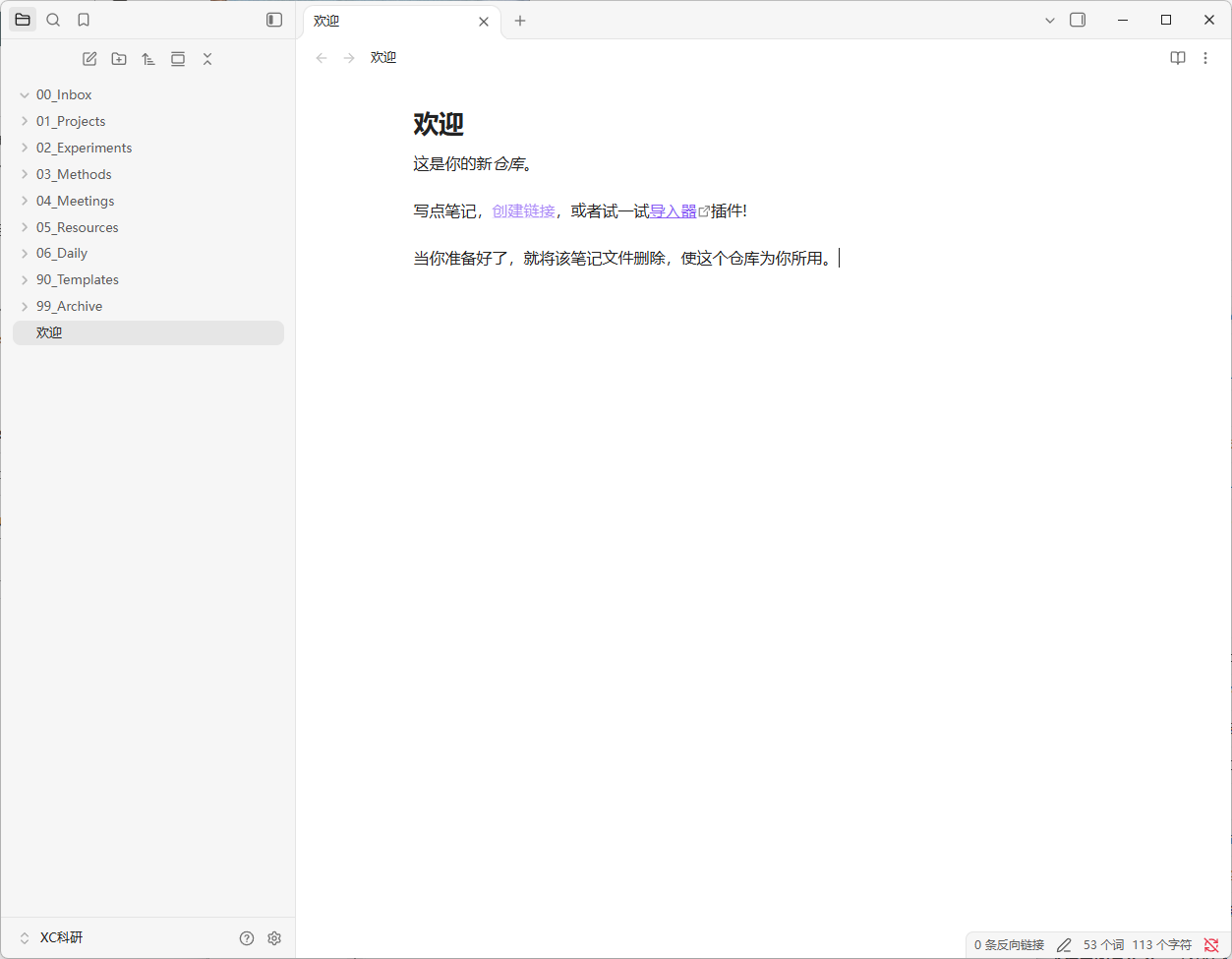
Do not create nested Vaults. Obsidian's internal links are typically limited to the current Vault. The official recommendation is not to create another Vault within a Vault, otherwise link resolution and file management may become chaotic.
Use Properties to create structured notes
ordinary Markdown NotesSuitable for recording main text, but if you want to filter by project, date, status, or experiment type later, you need to add structured attributes to the notes. Obsidian calls these fields... PropertiesThey are saved in YAML format at the beginning of the Markdown file.
Properties record content
Common attribute types include:
- Text: Text;
- List: a list;
- Number: a number;
- Checkbox: a check box;
- Date: Date;
- Date & time: Date and time;
- Tags: labels.
For example, an experiment record can include the project name, experiment date, status, operator, and data path. This makes it easy to read and also facilitates the subsequent creation of a Bases table view.
Create an experiment record template
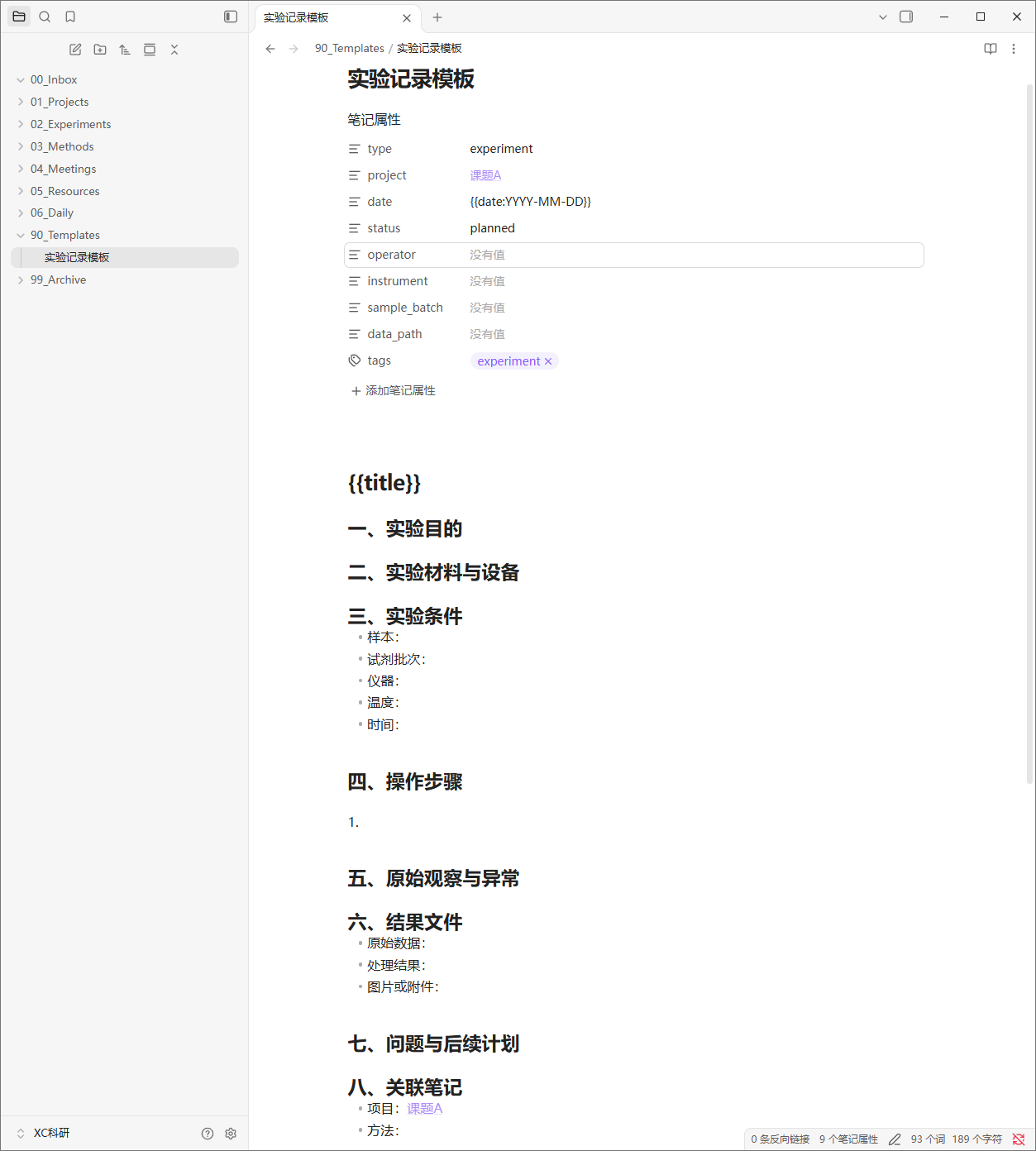
在 90_Templates/ Create a new file in China:
Experiment Record Template.mdWrite:
--- type: experiment project: "[[Project A]]" date: "{{date:YYYY-MM-DD}}" status: planned operator: instrument: sample_batch: data_path: tags: - experiment --- # {{title}} ## I. Experiment Objective ## II. Experiment Materials and Equipment ## III. Experiment Conditions - Sample: - Reagent Batch: - Instrument: - Temperature: - Time: ## IV. Operating Procedures 1. ## V. Original Observations and Anomalies ## VI. Result Files - Raw Data: - Processed Results: - Images or Attachments: ## VII. Problems and Follow-up Plans ## VIII. Related Notes - Project: [[Project A]] - Method:Here project Using quoted internal links is to ensure that YAML correctly stores the link text.date Using template variables, the date will be automatically filled in when creating a note.
Configure the Templates core plugin
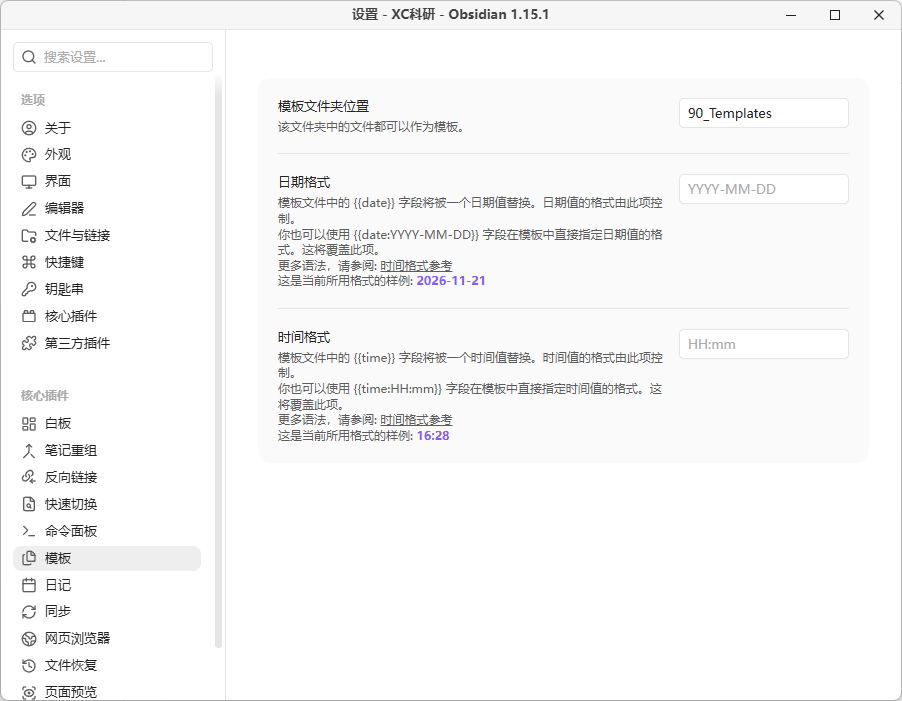
- Open
Settings。 - Enter
Core pluginsEnableTemplates。 - In the template settings,
Template folder locationpoint to90_Templates。 - Open a newly created experiment record.
- Use the command panel (Ctrl + P)search
Templates: Insert template。 - Select “Experiment Record Template”.
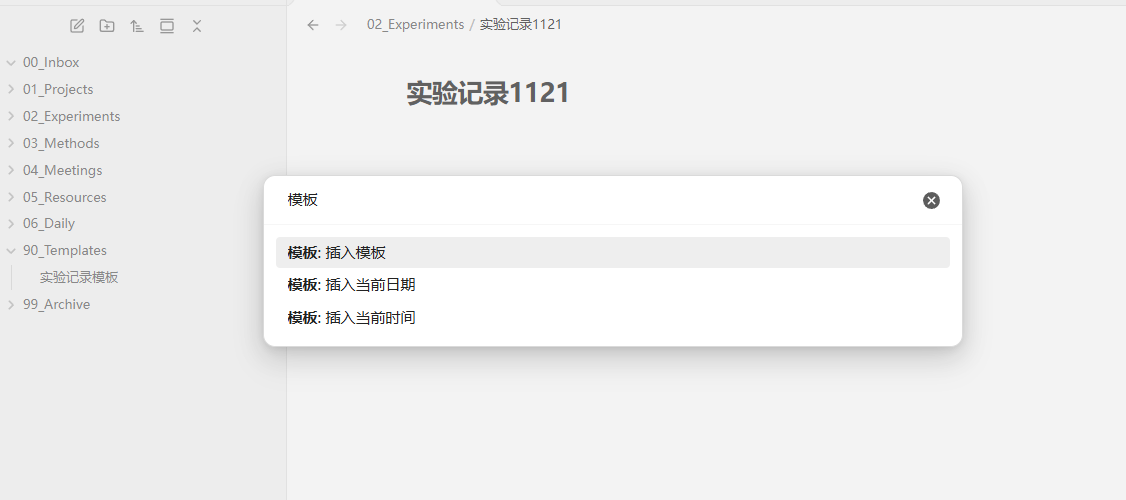
If the template does not automatically fill in the date, please check. {{date:YYYY-MM-DD}} Whether it is written in the body of the template, and confirm that the template is inserted through Obsidian's Templates feature, rather than simply copied and pasted.
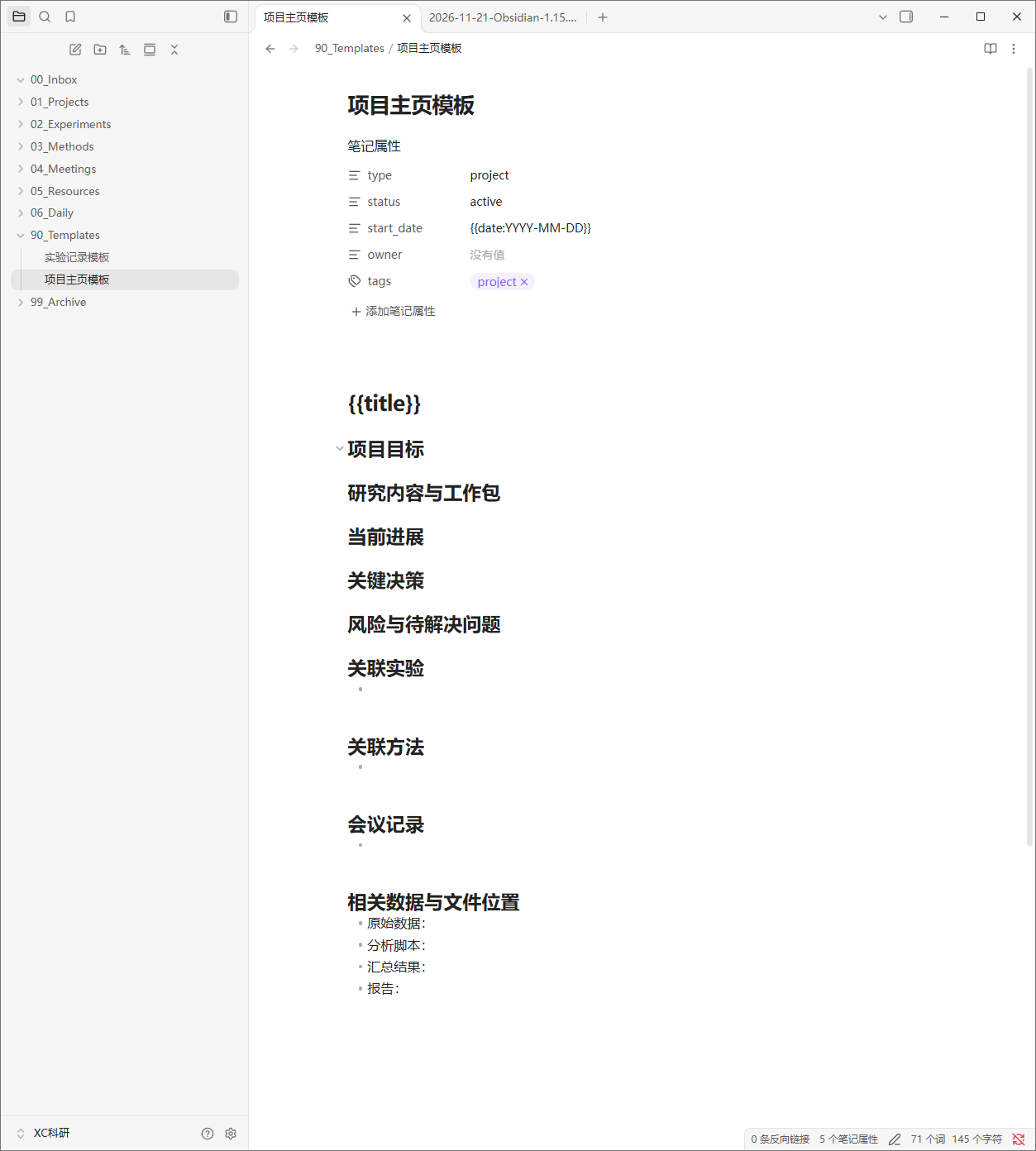
Create Project Homepage Template
Create new in the same template directory Project Homepage Template.md:
--- type: project status: active start_date: "{{date:YYYY-MM-DD}}" owner: tags: - project --- # {{title}} ## Project Objectives ## Research Content and Work Packages ## Current Progress ## Key Decisions ## Risks and Unresolved Issues ## Related Experiments - ## Related Methods - ## Meeting Minutes - ## Relevant Data and File Locations - Raw Data: - Analysis Script: - Summary Results: - Report:Each project should have its own homepage; other experimental records, meeting minutes, and method notes should be accessed through [the homepage]. [[Topic A]] The link leads back to the project homepage. The project homepage then becomes the entry point for viewing the project's progress.
Standardize attribute names to avoid maintenance difficulties later.
It is recommended to determine a limited set of attribute names in advance, for example:
| property | meaning | Example |
|---|---|---|
type | Note types | experiment、project、meeting |
project | Project | "[[Topic A]]" |
date | Record date | 2026-11-21 |
status | Current status | planned、running、done |
operator | Operators | Researcher A |
instrument | Using instruments | Confocal microscope |
sample_batch | Sample batch | Batch-03 |
Do not use it in different notes at the same time. project、Project、Research topic、Project Name This refers to the same field. Obsidian organizes data based on attribute names and types, and inconsistent naming can make filtering, sorting, and statistics difficult.
It's also important to note that Properties are suitable for storing short, atomic metadata, but not for including large blocks of Markdown text. Complex experimental procedures should be written in the main text.
bidirectional link association
Obsidian internal links are typically written as:
[[Topic A]]If you want the link to display under a different name, you can write:
[[Topic A | This Research Project]]To link to a specific section within a note, you can write:
[[Experiment Log - 2026-11-21 #Experimental Conditions]]Design a complete note relationship
For example:
- Project Homepage:
Topic A.md - Experimental Record:
2026-11-21 - Cell Viability Experiment.md - Method description:
Cell viability detection methods.md - Meeting Minutes:
2026-11-20 - Group Meeting Minutes.md
Add the following to the experiment record:
This experiment belongs to Project A. The experimental procedure is based on the Cell Viability Detection Methods. The adjustments to the conditions are based on the discussion in the Group Meeting Minutes of November 20, 2026.This establishes a relationship from project to experiment, method, and meeting.
Use Backlinks to view backreferences
Enable Backlinks After using the core plugin, when you open a note, you can see in the sidebar which other notes have linked to it.
For example, open Cell viability detection methods.mdThis will allow you to see which experimental records have referenced this method. When updating operating conditions in the future, you can first check the historical usage records and then determine whether additional explanations are needed.
Backlinks can also display mentions of the same name that are not linked to, helping to discover missed connections.
Use search to quickly locate records
Obsidian 1.15.1 adds relevance sorting and improves the search experience for numerous notes. Common search examples:
path:"02_Experiments"Locate the notes in the lab log directory.
tag:#experimentFind with experiment Tag notes.
content: "Instrument malfunction"Find notes in the text that contain the phrase “instrument malfunction”.
path:"01_Projects" [status:active]First, narrow down the search scope within the project directory, then combine attribute or text-based searches. The syntax can be adjusted based on the fields in the note library during actual queries.
If you have tens of thousands of notes in Vault, you can switch the search results to Relevance sorting to prioritize content that better matches your query.
Use Bases to create project and experiment ledgers
Properties address how to preserve structured information in a single note; Bases, on the other hand, allow these properties to be presented in a table, card, or board format.
Bases is the core plugin for Obsidian. It creates a database-style view based on the local Markdown file and its properties, rather than migrating all the data to a separate database. The note text and attributes are still stored in the original file.
Establish experimental record form
First, confirm that the experimental records contain the following attributes:
type: experiment project: "[[Project A]]" date: "2026-11-21" status: running instrument: Confocal microscopeThen:
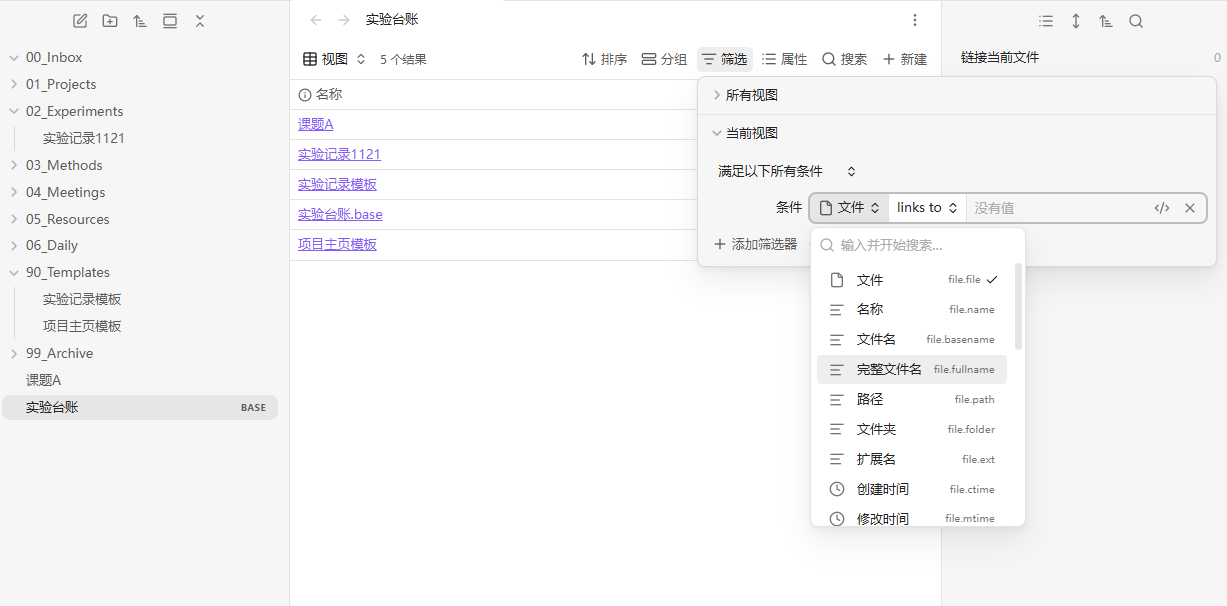
- Create a new Base file in Obsidian, for example
Experiment logbook.base。 - Select the Table view.
- Add filter criteria:
typeequalexperiment。 - Select the attribute columns you want to display, such as file name, date, project, status, instrument, and sample batch.
- Sort by date from newest to oldest.
- As needed
statusGrouping. - Save the Base file.
The final result is an experimental log: each row corresponds to one experimental record, and clicking on a row will open the original Markdown note.
Create a project progress view
Can be recreated Project progress.base,filter type equal project,show:
- Project Name;
status;start_date;owner;- Last modified time.
Then group by status to create views such as “Planned,” "In Progress," "Completed," and "Paused." Note that these status names need to be consistent throughout your project notes.
Bases can export CSV
The Table view allows you to copy the current view to the clipboard or export it as a CSV file. This allows you to submit project logs to Excel for further organization or use them as the basis for progress reports.
However, Bases should not be considered a complete electronic lab record system. It is suitable for managing note files and their attributes, but not for verifying, approving, or auditing raw lab data.
Obsidian plugin ecosystem:
Expanding the practical capabilities of the research note-taking system
Obsidian's basic functions can already meet the needs of daily Markdown note-taking, bidirectional linking, attribute management, and knowledge organization, but what truly makes it highly scalable is its rich community plugin ecosystem.
Unlike traditional note-taking software, Obsidian allows developers to extend its functionality through plugins. Users can add features such as task management, automated note-taking, data retrieval, literature management, PDF annotation, scientific drawing, and project progress tracking, tailored to their work habits.
For researchers, the value of plugins goes beyond simply adding buttons; it lies in connecting workflows that were previously scattered across different software. For example, Templater can be used to automatically generate experimental records, QuickAdd can be used to quickly collect experimental anomalies, Dataview can be used to automatically summarize experimental logs, and Tasks can be used to manage subsequent work in a unified manner.
It's important to note that Obsidian plugins are divided into official core plugins and third-party community plugins. Core plugins are provided by Obsidian, while community plugins are maintained by independent developers. Different plugins vary in update frequency, compatibility, and data processing methods; therefore, you should check the plugin's maintenance status and security before installation.
Install the Obsidian community plugin
Installing community plugins does not require downloading a separate installation package; it can usually be done directly through Obsidian's built-in community plugin marketplace.
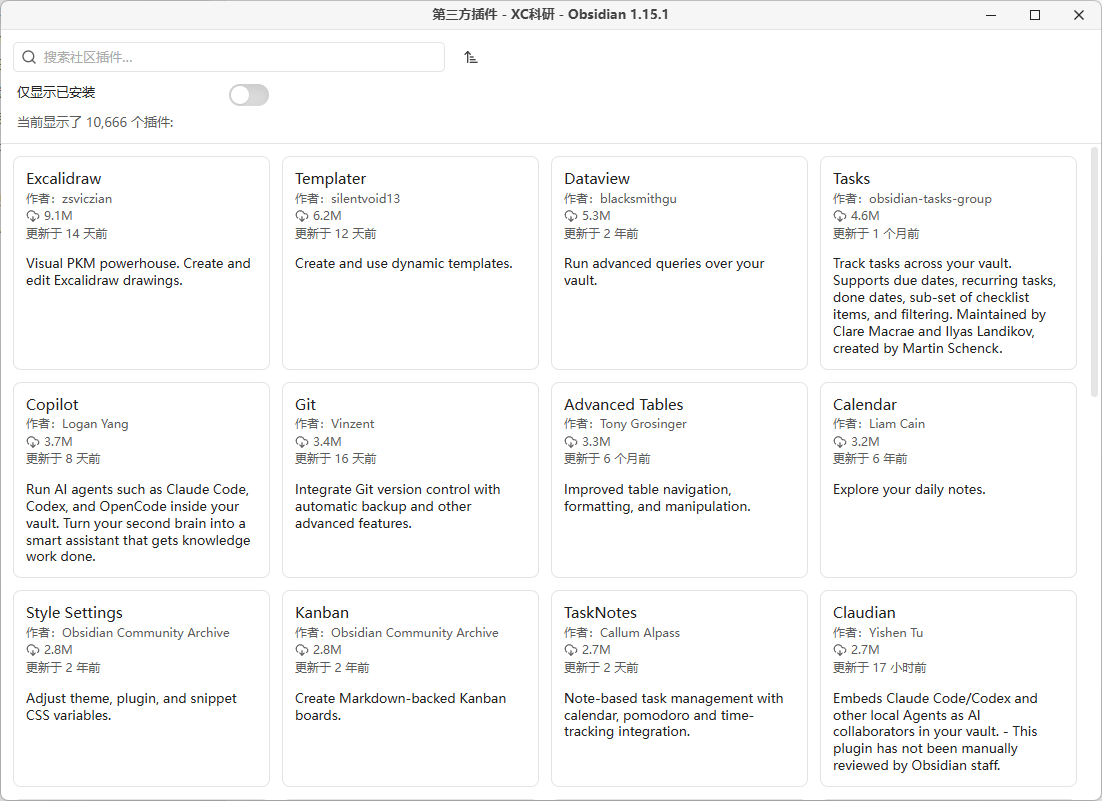
The specific operating steps are as follows:
- Open Obsidian, click the gear icon in the bottom left corner, and enter.
Settings。 - Find it in the settings list on the left.
Community plugins。 - If Restricted mode is currently enabled, you need to disable it first, following the prompts.
- Click
BrowseEnter the community plugin market. - Enter the plugin name in the search box, for example
Dataview。 - Click on the corresponding plugin to view the developer, version, update time, and plugin description.
- Click
InstallWait for the plugin to finish installing. - After installation, click
EnableEnable the plugin. - Return to the settings page, find the plugin's individual settings options, and configure them according to your needs.
Official plugin marketplace:https://obsidian.md/plugins
Safety Tips: With Restricted mode disabled, community plugins can run code within Obsidian. Some plugins may read or modify files in the Vault and may also access the network. Therefore, blindly installing a large number of plugins is not recommended. For Vaults containing unpublished research data, collaborative project information, or sensitive experimental information, plugin permissions, data processing methods, and developer credibility should be checked first.
Dataview:
Convert Markdown notes into a dynamic database
Plugin Name: Dataview
Project address: https://github.com/blacksmithgu/obsidian-dataview
Main uses: Structured note query, experiment record summary, project index and dynamic data table.
Dataview is one of the most representative plugins in the Obsidian community. It can read the properties, tags, and part of the text information of Markdown files in Vault, and organize this content into tables, lists, or task views through query statements.
In scientific research, experimental records are often scattered across different dates and project directories. Manually opening files to find the experiment date, sample batch, and experiment status each time would result in low management efficiency.
DataView can solve this type of problem.
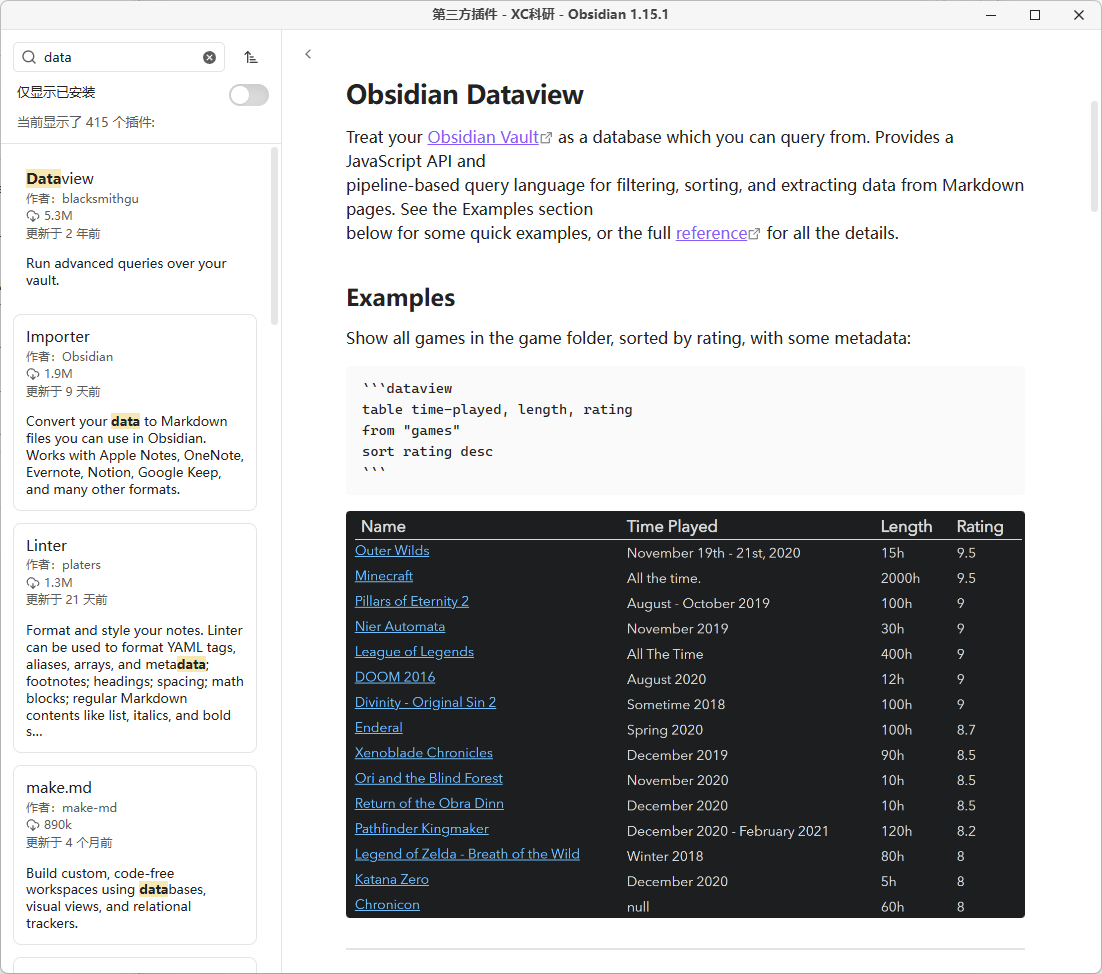
Step 1: Install the plugin
Enter Settings → Community plugins → Browse,search DataviewInstall and enable it.
Step 2: Standardize Experiment Record Attributes
For example, add the following Properties to the experiment log:
--- type: experiment project: "[[Project A]]" date: 2026-11-21 status: completed instrument: SEM sample_batch: Batch-03 tags: - experiment ---in:
typeDistinguish between experimental records, project homepage, and meeting minutes;project: Mark the topic to which it belongs;dateRecord the experiment date;statusRecord the current experimental status;instrumentRecord the instruments used;sample_batch: Record sample batches.
Step 3: Create an experiment record summary table
Create a new note, for example Experiment Record Overview.md,enter:
```dataview TABLE date AS experiment_date, project AS project, status AS experiment_status, instrument AS experiment_instrument, sample_batch AS sample_batch FROM "02_Experiments" WHERE type = "experiment" SORT date DESC ```Dataview will read 02_Experiments The experiment records in the folder are organized into a table, arranged from newest to oldest.
Step 4: Create a dedicated experiment view for the project
If you only want to view the experimental records for Project A, you can use:
```dataview TABLE date AS experiment_date, status AS status, instrument AS instrument FROM "02_Experiments" WHERE type = "experiment" AND project = [[Project A]] SORT date DESC ```This allows for the creation of an independent index of experimental records for each project.
Scientific research application scenarios:
- Automatically summarize experimental records from different dates;
- View the experiments that have already been conducted in a project;
- Search for historical experiments by instrument name;
- Establish a correlation between sample batches and experimental records;
- Generate a project phased work list.
Dataview is primarily used for reading and displaying information from notes, and is not suitable as a replacement for Excel, Python, or R for complex numerical calculations and large-scale experimental data analysis.
Templater:
Automatically generate standardized experimental records
Plugin Name: Templater
Project address: https://github.com/SilentVoid13/Templater
Main uses: Dynamic templates, automatic date filling, batch note generation, and automated note creation.
Obsidian's built-in Templates core plugin can insert templates with fixed formats, but if you want to automatically generate content based on date, time, or file name, Templater is more flexible.
For example, each time an experiment is conducted, it is necessary to record the experimental purpose, materials, equipment, operating conditions, experimental results, and any abnormal situations. Using Templater, this information can be created as a standardized template, avoiding formatting differences between various experimental records.
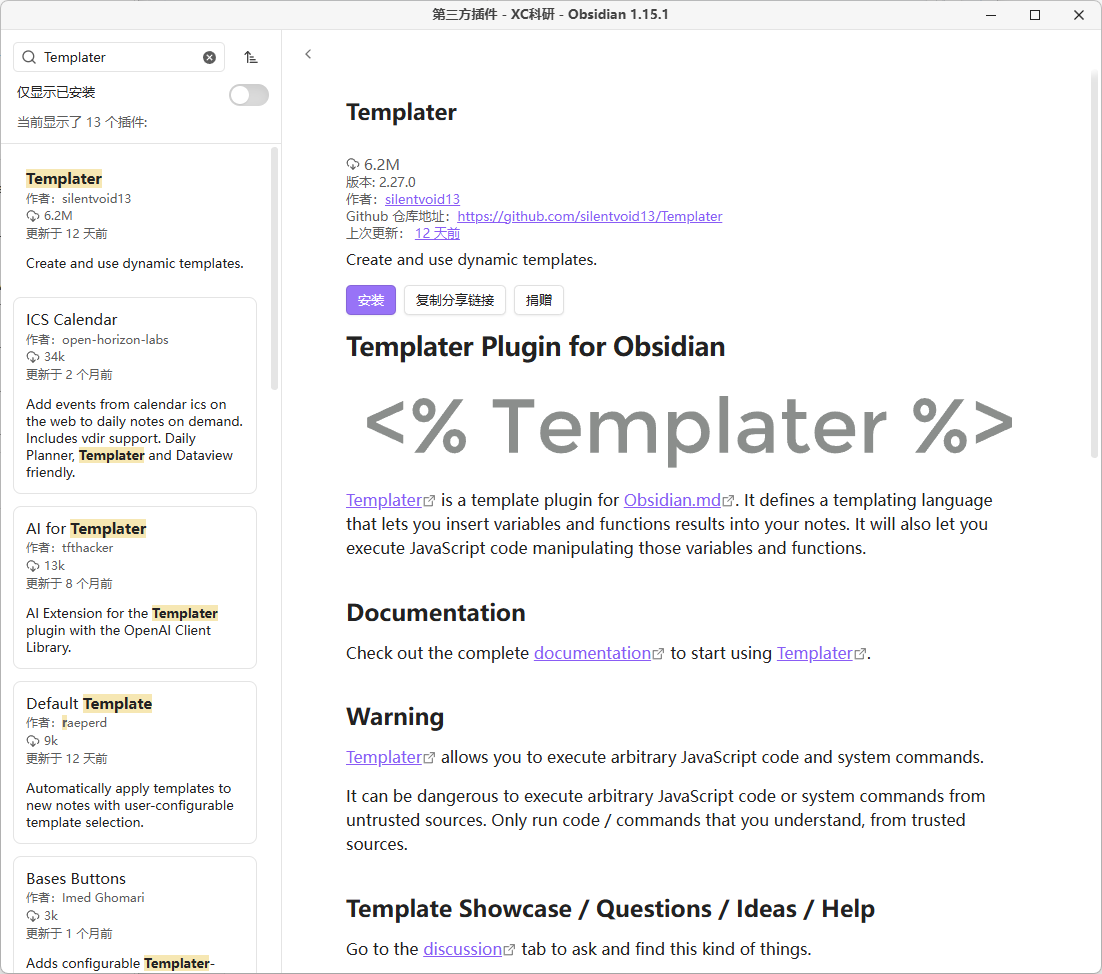
Step 1: Install Templater
Enter the community plugin marketplace and search. TemplaterInstall and enable it.
Step 2: Create a template folder
For example:
90_Templates/Enter the Templater settings and specify the template folder as... 90_Templates。
Step 3: Create an experiment record template
New Experiment Record Template.md,enter:
--- type: experiment date: <% tp.date.now("YYYY-MM-DD") %> created: <% tp.date.now("YYYY-MM-DD HH:mm") %> status: planned project: instrument: sample_batch: tags: - experiment --- # <% tp.file.title %> ## I. Experimental Objective ## II. Experimental Materials and Equipment ## III. Experimental Conditions - Sample: - Reagent Batch: - Instrument: - Temperature: - Time: ## IV. Experimental Steps 1. ## V. Experimental Observations and Results ## VI. Abnormal Situations and Problems ## VII. Data Files - Raw Data: - Processed Results: - Images: ## VIII. Follow-up Work - [ ]Step 4: Use the template
Create a new experiment record. Search for Templater-related commands in the command panel and select the template you just created.
The Templater will automatically fill in the date and creation time based on the dynamic expression in the template, while other fields can be added gradually during the experiment.
In addition to experimental records, we can also establish:
| Template Name | Main uses |
|---|---|
| Project Homepage Template | Record research objectives, work content, and progress at each stage. |
| Experiment Record Template | Record experimental conditions, procedures, and results. |
| Group meeting minutes template | Record the discussion content and tutor feedback |
| Literature Reading Template | Organizing research methods and personal reflections |
| Daily work template | Summarize the day's work and follow-up plans |
Tasks:
Establish a scientific research task management system
Plugin Name: Tasks
Project address: https://github.com/obsidian-tasks-group/obsidian-tasks
Main uses: To-do list management, due date reminders, recurring tasks, and task summaries.
Scientific research work is typically characterized by a high degree of continuity. For example, an experiment may require multiple stages, including sample preparation, instrument testing, data processing, result verification, and report compilation.
Relying solely on daily notes to record tasks can easily lead to omissions. Tasks can scan formatted Markdown to-do items in Vault and display them centrally.
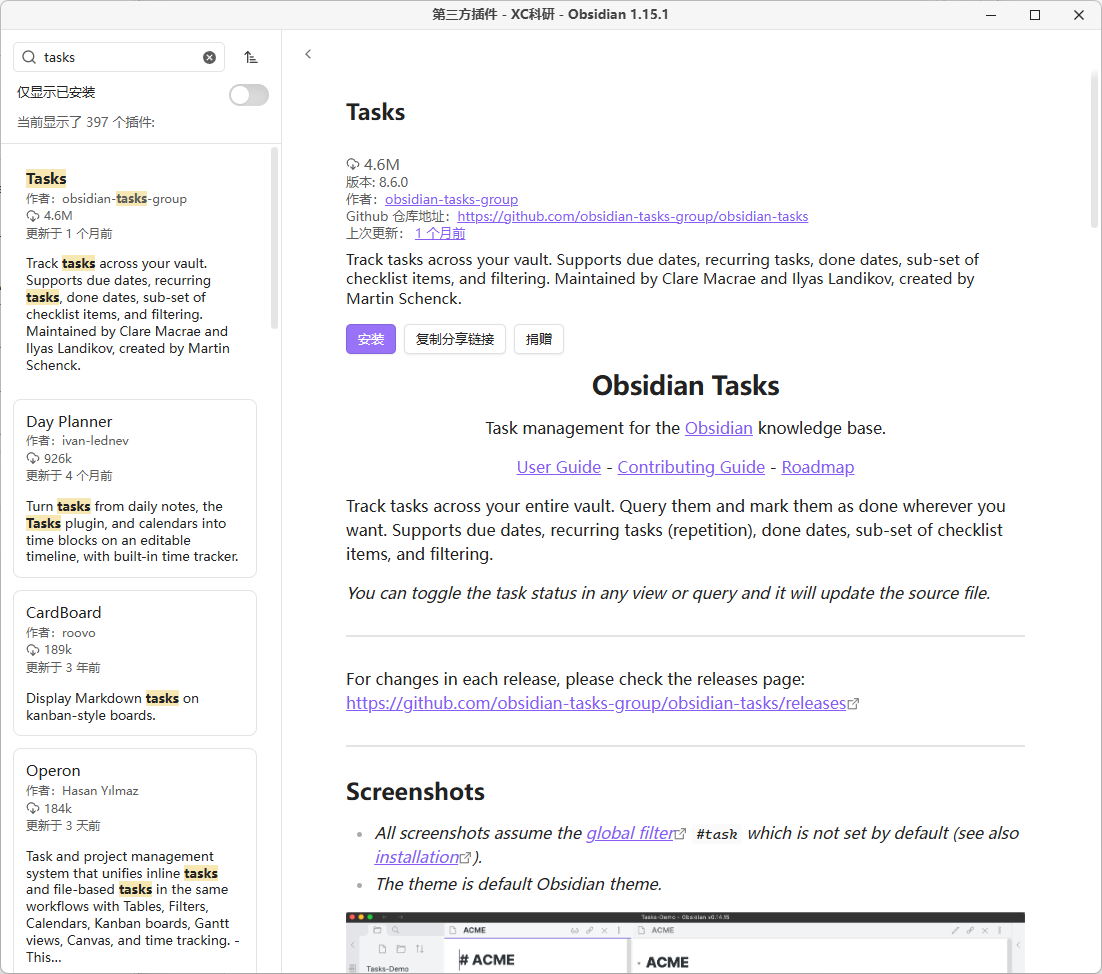
Step 1: Install Tasks
Enter the community plugin marketplace and search. TasksInstall and enable it.
Step 2: Add tasks to the experiment log
For example:
## Follow-up work - [ ] CompletedExperimental data processing 📅 2026-11-22 - [ ] Check SEM image quality 📅 2026-11-23 - [ ] Complete phase report 📅 2026-11-25in,📅 Enter the deadline below.
Step 3: Establish an overview of research tasks
New Research Tasks Overview.md,enter:
# Research Task Overview ## I. All Incomplete Tasks: ```tasks not done sort by due ``` ## II. Overdue Tasks: ```tasks not done due before today sort by due ``` ## III. Completed Tasks: ```tasks done sort by done reverse ```After saving, Tasks will organize all eligible tasks in the Vault according to the query criteria.
Scientific research application scenarios:
- Management of preparatory work before the experiment;
- Track the progress of data processing and chart creation;
- Managing thesis writing and progress report tasks;
- Check for work that is about to expire and that is already overdue;
- View completed tasks.
For long-term projects, it is recommended to write the specific tasks in the corresponding experimental records or project homepage, and then use Tasks to summarize them uniformly. This preserves the context of the tasks and facilitates centralized management.
QuickAdd:
Quickly collect experimental phenomena and temporary information
Plugin Name: QuickAdd
Project address: https://github.com/chhoumann/quickadd
Main uses: Quickly create notes, capture information, call templates, and simplify repetitive tasks.
During experiments, information that needs to be recorded immediately often arises. For example:
- An abnormal color appeared on the sample surface;
- An alarm was triggered during instrument operation;
- The experimental temperature was inconsistent with expectations.
- A certain experimental parameter was temporarily adjusted;
- A problem was found in a certain data processing step.
If you have to open the corresponding notes, find the chapter, and then enter the content every time, it is easy to interrupt the experimental operation.
QuickAdd allows you to quickly append temporary information to a specified note using the Capture function.
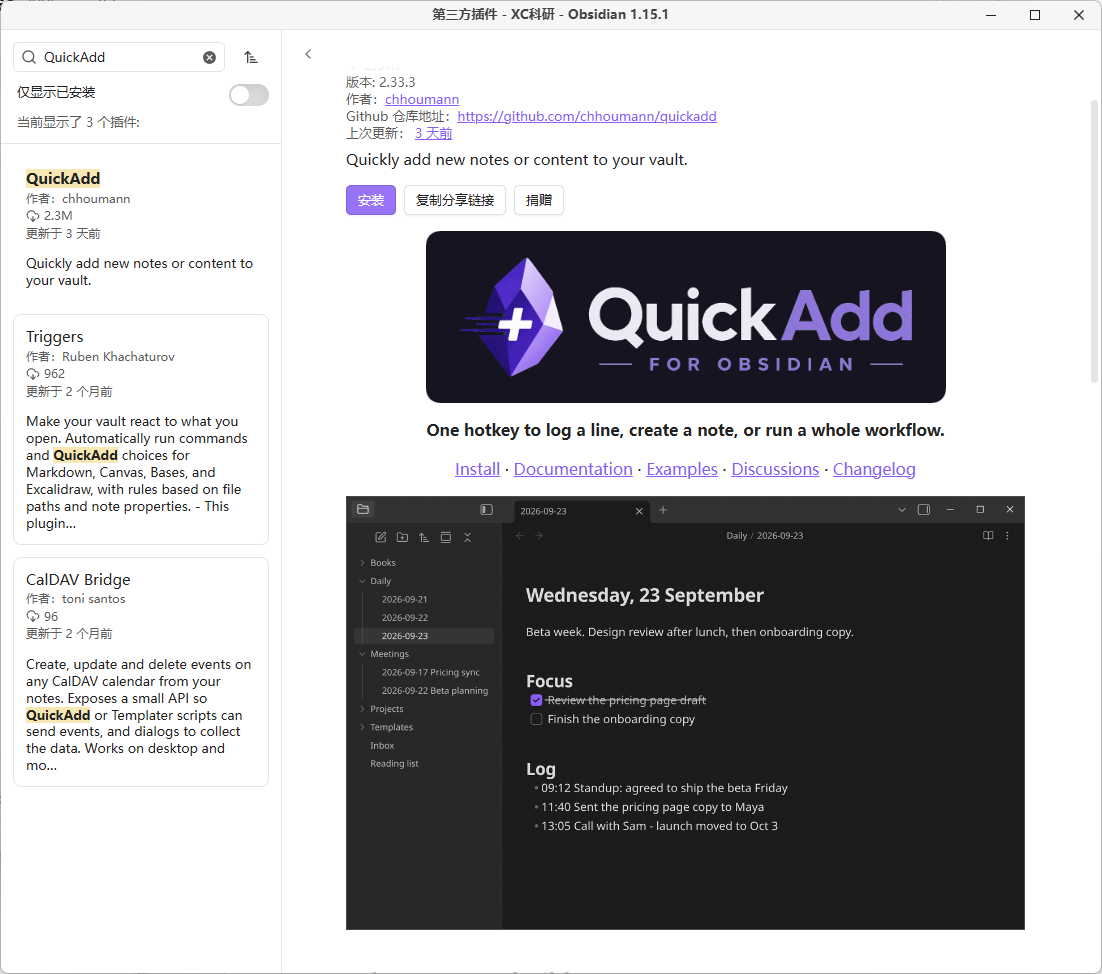
Step 1: Install QuickAdd
Search in the community plugin marketplace QuickAddInstall and enable it.
Step 2: Create a quick record command
Open QuickAdd settings and add a command of type Capture, for example:
Record experimental abnormalitiesSet the target file:
00_Inbox/Experimental Anomaly Collection.mdThe Capture format can be used with:
- {{DATE:YYYY-MM-DD HH:mm}} {{VALUE}}The specific variable format should be based on the official documentation for the current plugin version.
Step 3: Perform quick recording
Run “Record Experimental Abnormalities” through the command panel, and enter:
During SEM testing, some samples were found to have obvious charging phenomena at their edges, requiring further investigation into the conductivity treatment conditions.QuickAdd will write the content to the specified file.
You can organize it regularly afterwards. Experimental Anomaly Collection.mdThis allows you to move valuable information to the corresponding project or experiment record.
Scientific research application scenarios: Quickly record experimental anomalies, temporary ideas, equipment problems, pending tasks, and research inspirations.
Excalidraw:
Drawing scientific diagrams in Obsidian
Plugin Name: Excalidraw
Project address: https://github.com/zsviczian/obsidian-excalidraw-plugin
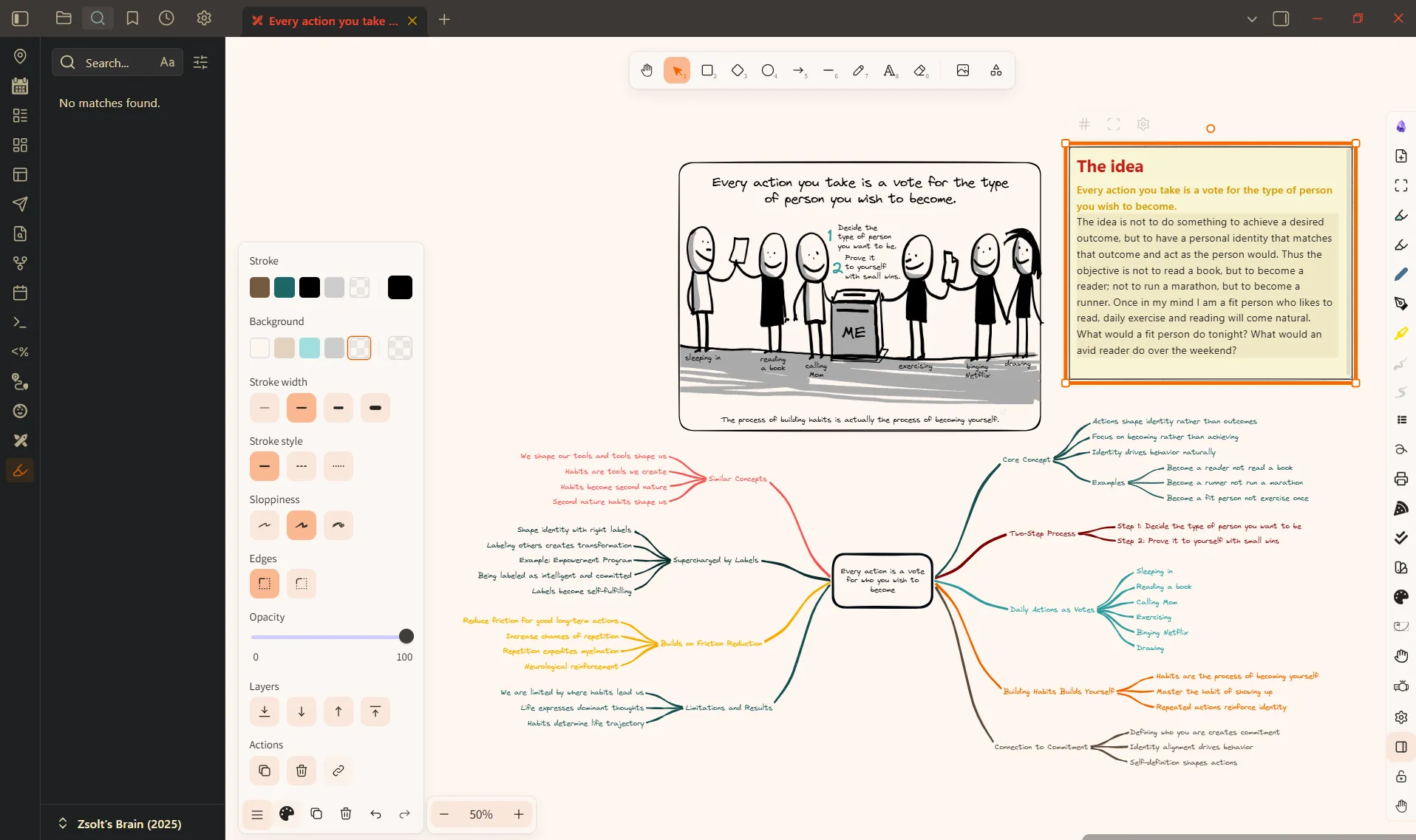
Main uses: Freehand drawing, research flowchart, experimental setup sketch, and knowledge relationship diagram.
For users who frequently need to organize their research ideas and experimental procedures, Excalidraw is a plugin worth learning about.
It allows you to create drawing files directly within Obsidian, placing graphics and notes in the same Vault for easy modification and association later.
Typical applications include:
- Experimental operation procedure;
- Sample preparation steps;
- Schematic diagram of the experimental setup;
- Research technical routes;
- The relationship between different research variables;
- Knowledge framework for the topic.
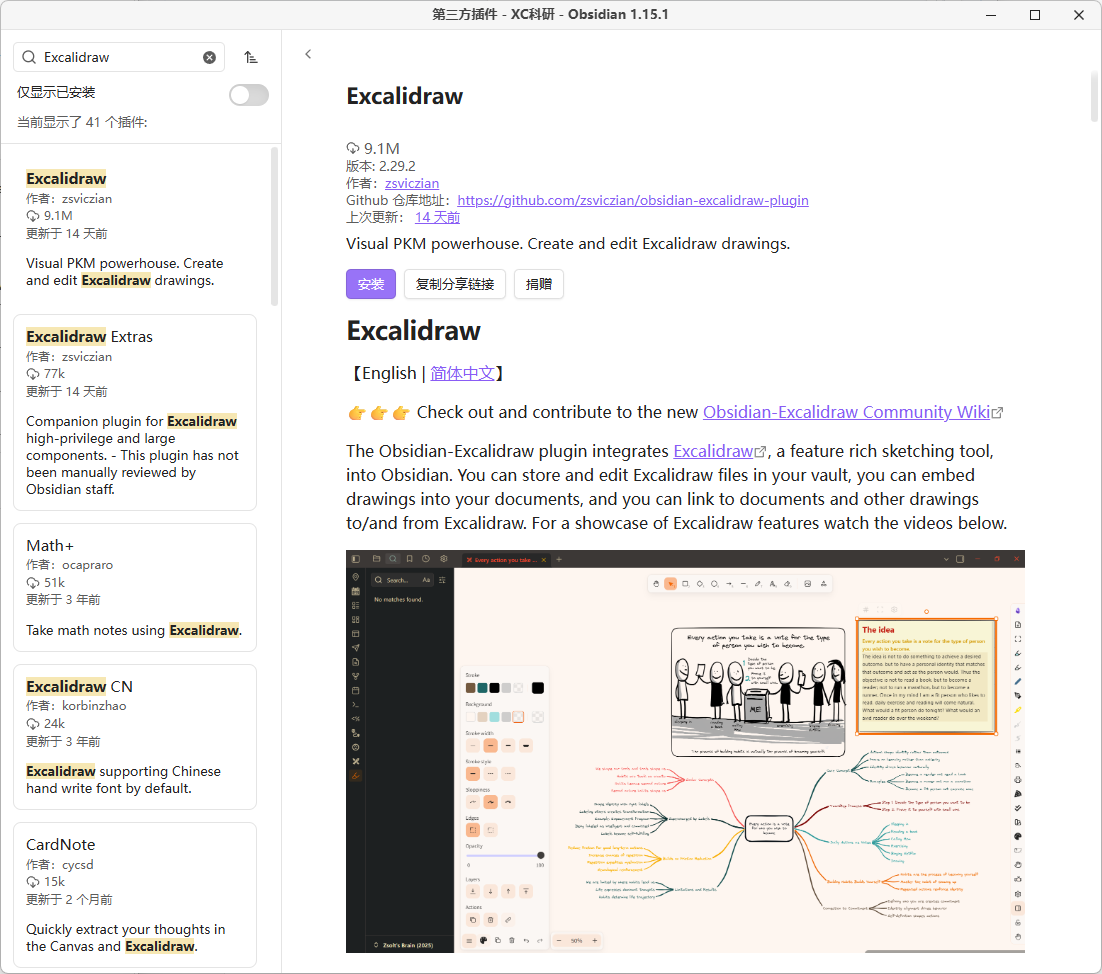
Usage steps:
- Search in the community plugin marketplace
Excalidraw。 - Install and enable the plugin.
- Use the command panel to create a new Excalidraw plot.
- Add text, arrows, rectangles, circles, and freehand lines using drawing tools.
- Save the drawing file.
- Embed drawings in regular Markdown notes.
For example:
# Experimental Procedure Design This experiment mainly includes three stages: 1. Sample preparation 2. Experimental testing 3. Data analysis ![[Experimental Procedure.excalidraw]]In this way, the experimental flowchart can be directly displayed in the corresponding notes.
It's important to note that Excalidraw is better suited for drawing research ideas, flowcharts, and sketches. For creating high-precision scientific illustrations, complex vector graphics, or 3D structural models, it's still recommended to use it in conjunction with professional software such as Illustrator, Inkscape, Origin, Blender, or Cinema 4D.
Zotero Integration:
Connecting literature management with research notes
Plugin Name: Zotero Integration
Project address: https://github.com/mgmeyers/obsidian-zotero-integration
Main uses: Get Zotero literature metadata, generate literature notes, and associate research topics.
For researchers, literature management and research process recording are usually two closely related work processes.
Zotero manages bibliographic records, PDF attachments, and citation information, while Obsidian is better suited for organizing reading notes, research ideas, and connections between projects.
Zotero Integration can obtain literature metadata through the data interface provided by Zotero and generate Obsidian literature notes based on templates.
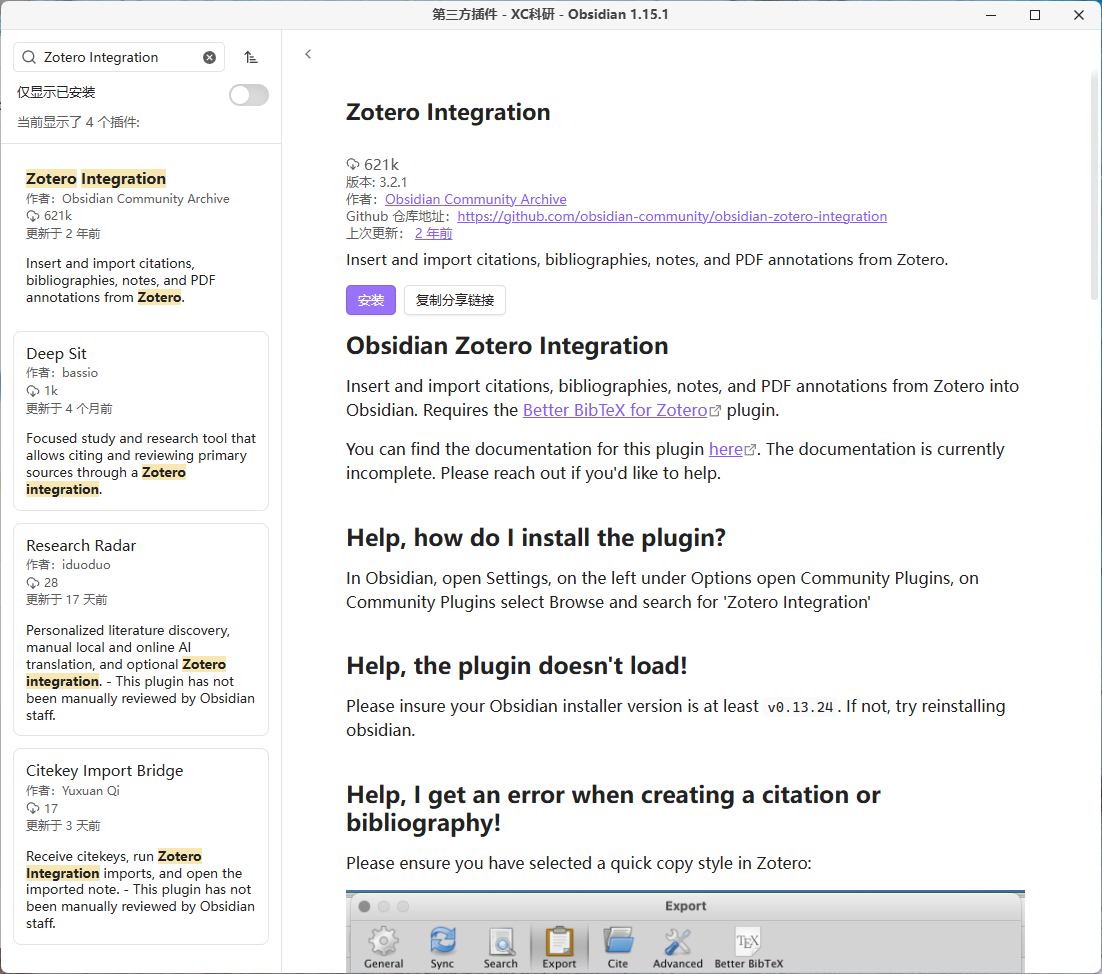
Preparations before use:
- Install the Zotero desktop client;
- Organize the reference entries in Zotero;
- Install Zotero Integration in Obsidian;
- Configure Zotero data connection and templates according to the plugin documentation.
Suggested literature note template:
--- type: literature title: authors: year: doi: tags: - literature --- # Literature Title ## Research Question ## Research Methods ## Main Content ## Important Figures and Tables ## Personal Reflections ## Inspiration for Current Research ## Related ProjectsAfter configuration, you can select Zotero literature using the import commands provided by the plugin and generate corresponding Markdown notes.
It's important to note that Zotero Integration is not a complete bibliographic management system. Formal bibliographic records, PDF attachments, and reference citations are still recommended to be managed primarily using Zotero.
Calendar:
Manage daily research logs via calendar
Plugin Name: Calendar
Project address: https://github.com/liamcain/obsidian-calendar-plugin
Main uses: Calendar navigation, access to daily notes, and research work records.
If you have already enabled the Obsidian Daily Notes core plugin, you can also install Calendar to quickly open notes for a specific date through the calendar view.
This feature is quite useful for researchers who need to record experimental processes over a long period of time.
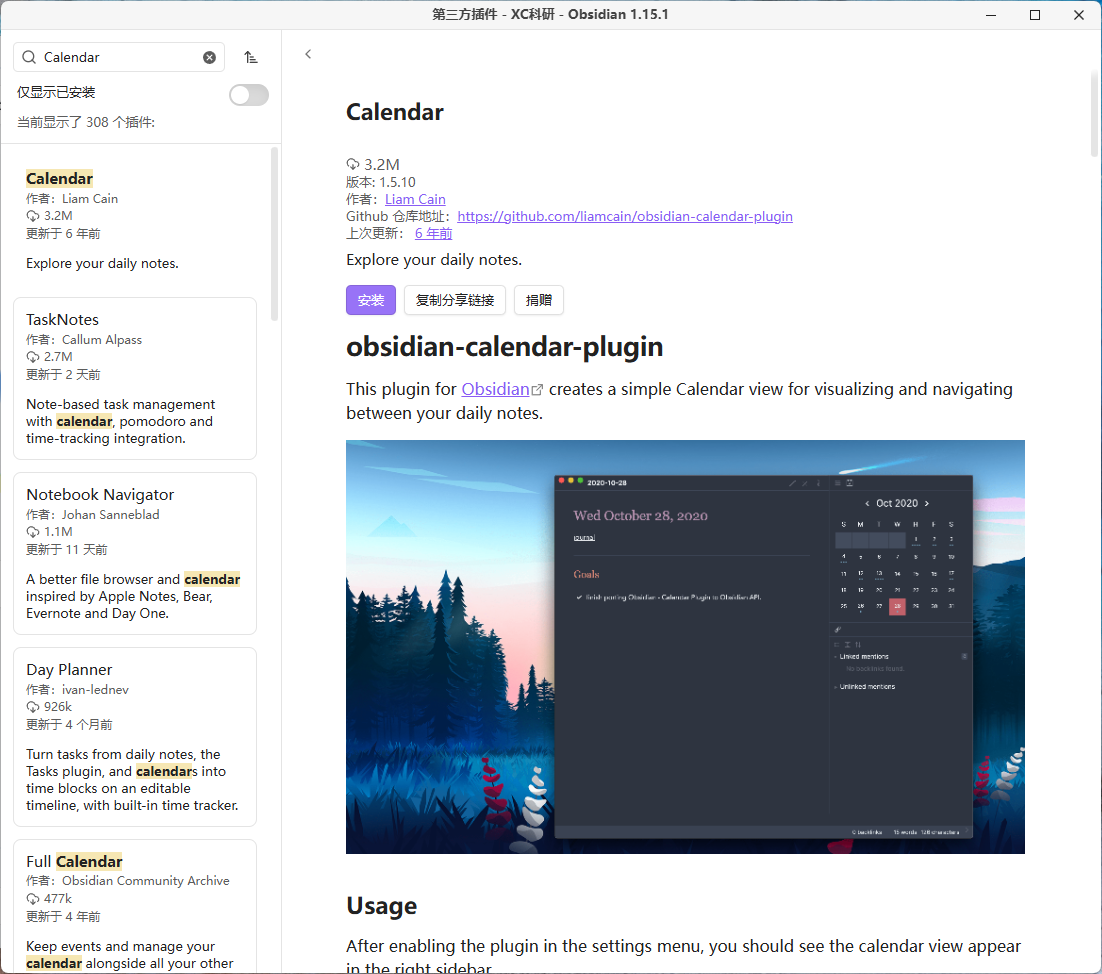
For example, you can view it through the calendar:
- On which dates were the experiments conducted?
- Which dates were recorded as instrument maintenance?
- Which dates were discussed in group meetings?
- Which dates were marked as important project milestones?
Calendar itself is mainly responsible for calendar navigation; the creation and saving of daily notes still rely on features such as Daily Notes.
Git:
Add version control to research notes
Plugin Name: Git
Project address: https://github.com/Vinzent03/obsidian-git
Main uses: Note version management, historical modification tracking, and Git remote repository synchronization.
Research projects typically have a long duration, and the project homepage, experimental methods, and interim summaries may be revised multiple times. If only the latest version is retained, it becomes difficult to trace changes to certain important information.
Git can help record the modification history of Markdown files.
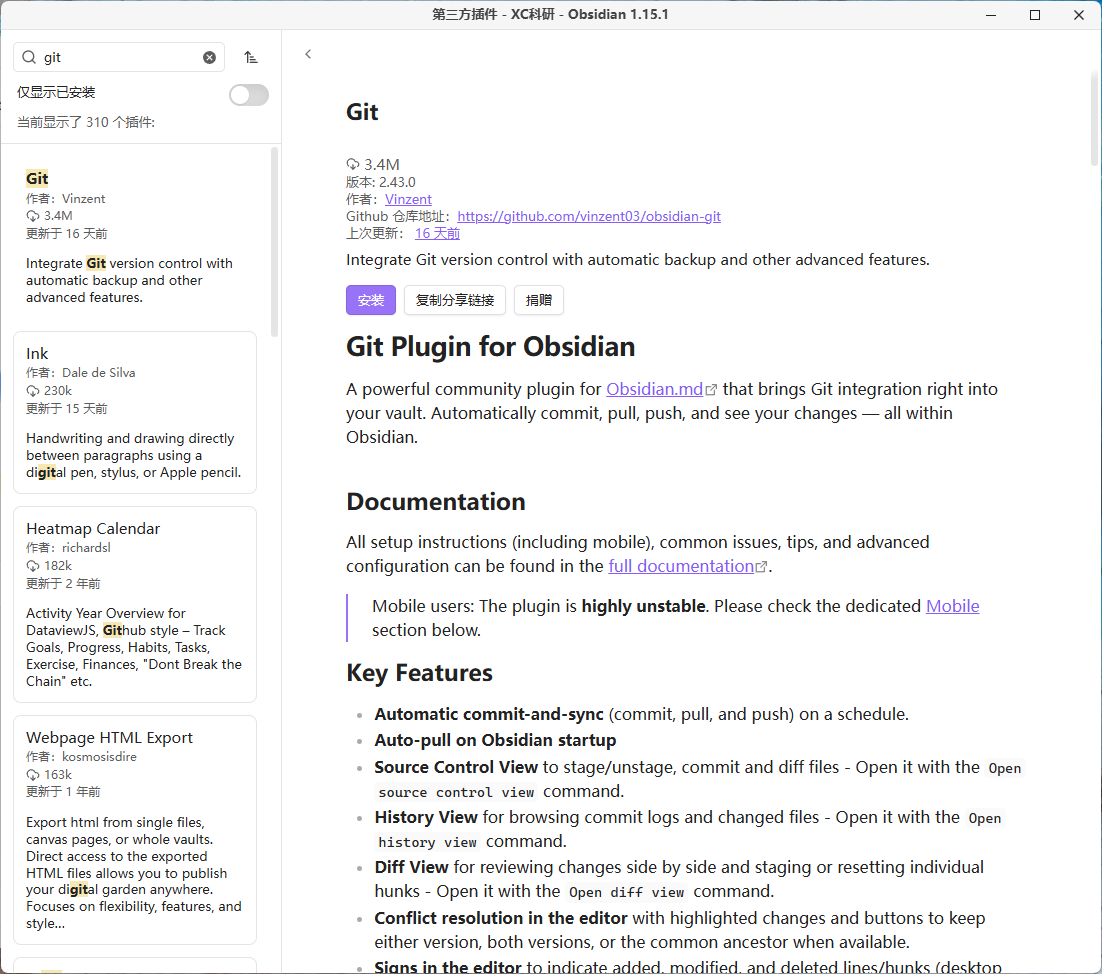
Before installing the Git plugin, you need to have Git installed on your computer and have basic knowledge of Git repository configuration.
The basic process is as follows:
- Install Git.
- Initialize the Git repository in the Vault directory.
- Configure Git user information.
- Install and enable the Git plugin in Obsidian.
- Configure automatic or manual submission based on plugin settings.
- Regularly check commit history and remote repository status.
For example, you can initialize a repository using the following command:
git init git add . git commit -m "Initialize research vault"After each revision of important notes, you can save the new version using Git.
It's important to note that Git is not a complete cloud backup solution. When dealing with large amounts of images, PDFs, and raw experimental data, consider repository size, file types, and remote repository privacy settings. Do not push confidential lab materials, personal information, passwords, or access keys to public repositories.
Annotator:
Reading and annotating PDF documents
Plugin Name: Annotator
Project address: https://github.com/elias-sundqvist/obsidian-annotator
Main uses: Reading and annotating PDFs and EPUBs.
In addition to Zotero, Obsidian can also read and annotate PDF and EPUB files using Annotator.
For laboratory staff, in addition to research papers, they often need to read instrument manuals, experimental operation manuals, equipment maintenance documents, and technical materials.
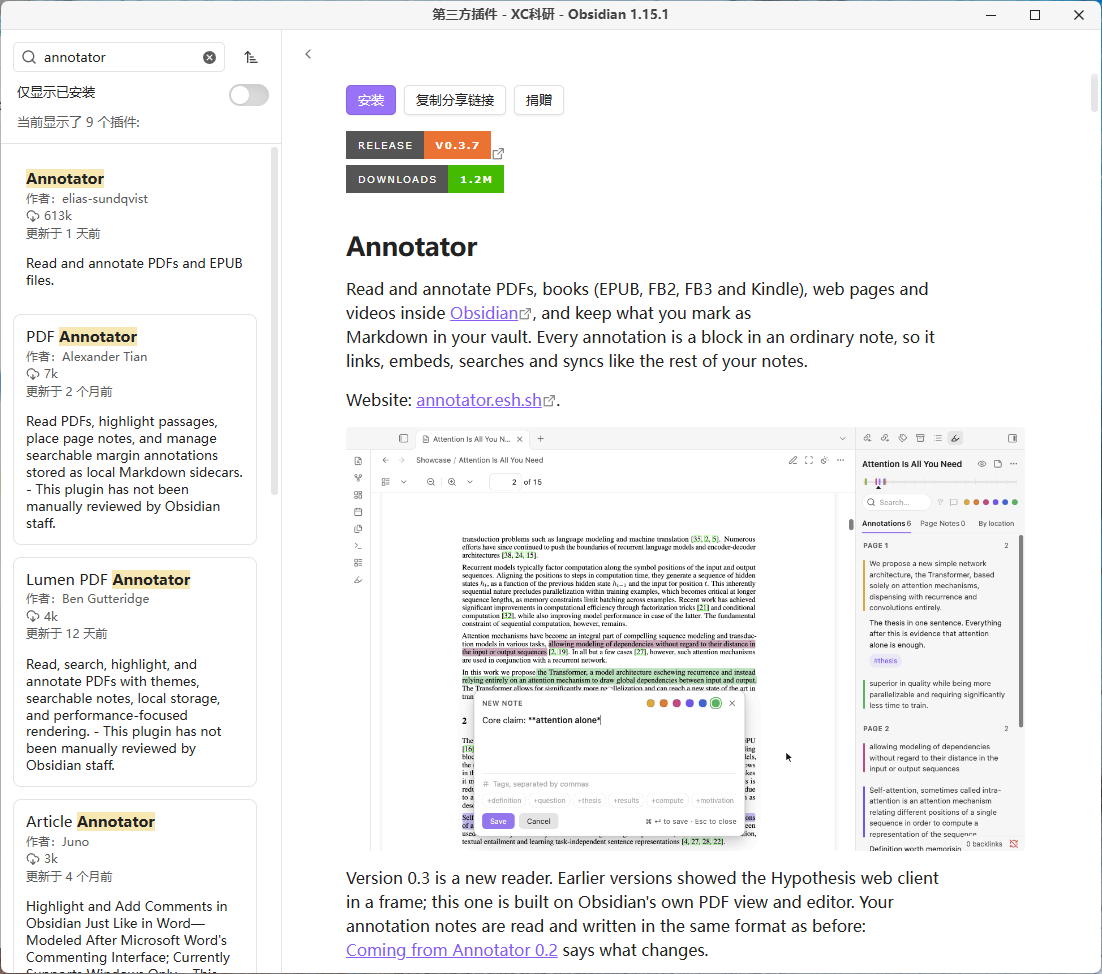
These materials can be saved in a specified directory and then read and annotated using Annotator.
Precautions should be taken when using:
- Check the file formats supported by the plugin;
- Confirm the annotation saving method;
- Preserve the original PDF file;
- Regularly check plugin compatibility;
- Do not consider Annotator a complete replacement for Zotero.
If your primary needs are formal document management and PDF document reading, Zotero is still recommended as the first choice.
Other noteworthy plugins
In addition to the key plugins mentioned above, you can also explore the following tools based on your specific needs:
| Plugin Name | Main functions | Recommended scenarios |
|---|---|---|
| Advanced Tables | Markdown table editing and formatting | Experimental parameter table, data recording |
| Linter | Automatically format Markdown | Standardized note format |
| Periodic Notes | Create weekly, monthly, and recurring notes | Weekly reports and monthly summaries |
| Natural Language Dates | Natural Language Date Parsing | Quickly create date links |
These plugins are not necessary for all users. It is recommended to first determine your work needs and then choose plugins that can solve your actual problems.
Recommended plugin combinations for different scientific research scenarios
Obsidian has many plugins, but it's unnecessary to install them all at once. For researchers, a more reasonable approach is to select plugin combinations based on their actual workflow.
Combination 1: Basic Scientific Research Recording System
Suitable for undergraduates, master's students, and lab staff who are just starting out with Obsidian.
Recommended plugins:
- Templater: Automatically generates experiment records;
- Calendar: View daily research logs;
- Tasks: Managing experimental tasks;
- Dataview: Automatically summarizes experiment records.
This combination can solve basic needs such as daily record keeping, experiment management, and task tracking.
Combination 2:Scientific research project managementsystem
Suitable for researchers working on long-term projects, multi-stage experiments, and those who need to track research progress.
Recommended plugins:
- Dataview: Creates project data summaries;
- Tasks: Centralized task management;
- QuickAdd: Quickly collect experimental information;
- Kanban: Managing project phases;
- Git: Record notes and modification history.
This approach places greater emphasis on ongoing project management and workflow tracking.
Combination 3: Scientific Illustration and Knowledge Organization
Suitable for readers who need to organize experimental procedures, technical routes, and research ideas.
Recommended plugins:
- Excalidraw: Creates scientific research flowcharts;
- Canvas: Organizes knowledge relationships;
- Advanced Tables: Organize experimental parameter tables;
- Templater: Generates standardized plot records.
This combination helps researchers combine textual records with visual content.
Combination 4: Literature and Research Knowledge Management
Suitable for researchers who need to read, organize, and connect literature over a long period of time.
Recommended plugins:
- Zotero Integration: Linking Document Metadata;
- Annotator: PDF and EPUB annotations;
- Dataview: Index for reference notes;
- Templater: Generates literature reading templates.
This combination allows you to connect literature reading notes with specific research projects.
Notes on using the plugin
The Obsidian community boasts a rich plugin ecosystem, but the number of plugins is not a measure of a knowledge management system's quality. More plugins mean more configuration to maintain, more compatibility issues, and more potential security risks.
The following principles are recommended:
- Use the core functionality first. Prioritize familiarizing yourself with Properties, Bases, Templates, Backlinks, and Daily Notes before considering installing third-party plugins.
- Prioritize plugins that are actively maintained. Before installation, check the developer, the last update time, compatibility, and issue feedback.
- Avoid functional duplication. For example, simple structured note summaries can be done using Bases first, without having to install Dataview for each table.
- Check plugins regularly. Plugins that are no longer in use can be deactivated to avoid unnecessary maintenance burdens.
- Back up Vault before installation. Especially before enabling plugins that can batch modify files or execute scripts.
- Handle sensitive data with care. Do not upload unauthorized lab data to third-party services, and do not keep passwords and API tokens in ordinary notebooks.
For beginners, it's recommended to start with the three plugins: Templater, Tasks, and Dataview. First, set up the experiment record templates, task management, and automatic summarization. After becoming familiar with the entire system, you can gradually add Excalidraw, QuickAdd, and Zotero Integration.
By combining core functions and community plugins in a reasonable way, Obsidian is not only a Markdown note-taking software, but also a personal scientific knowledge management platform that connects scientific research projects, experimental records, literature knowledge and daily work tasks.
Plugin official documentation and project address
The following links can be used to view the latest version of the plugin, installation instructions, configuration methods, and update history:
- Obsidian Community Plugin Marketplace:https://obsidian.md/plugins
- Dataview:https://github.com/blacksmithgu/obsidian-dataview
- Templater:https://github.com/SilentVoid13/Templater
- Tasks:https://github.com/obsidian-tasks-group/obsidian-tasks
- QuickAdd:https://github.com/chhoumann/quickadd
- Excalidraw:https://github.com/zsviczian/obsidian-excalidraw-plugin
- Zotero Integration:https://github.com/mgmeyers/obsidian-zotero-integration
- Calendar:https://github.com/liamcain/obsidian-calendar-plugin
- Kanban:https://github.com/mgmeyers/obsidian-kanban
- Obsidian Git:https://github.com/Vinzent03/obsidian-git
- Annotator:https://github.com/elias-sundqvist/obsidian-annotator
Version Note: Community plugin versions, features, and compatibility may vary independently of Obsidian 1.15.1 updates. The features listed in this article are based on the individual plugin project descriptions; please refer to the latest documentation in the community plugin marketplace and the corresponding GitHub repository before installation.
Record daily experimental progress using Daily Notes and CLI.
If you have to manually open the project homepage, find the corresponding section, and add notes after each experiment, it's easy to miss things over time. Obsidian's Daily Notes and CLI can reduce the cost of note-taking.
Configure daily note template
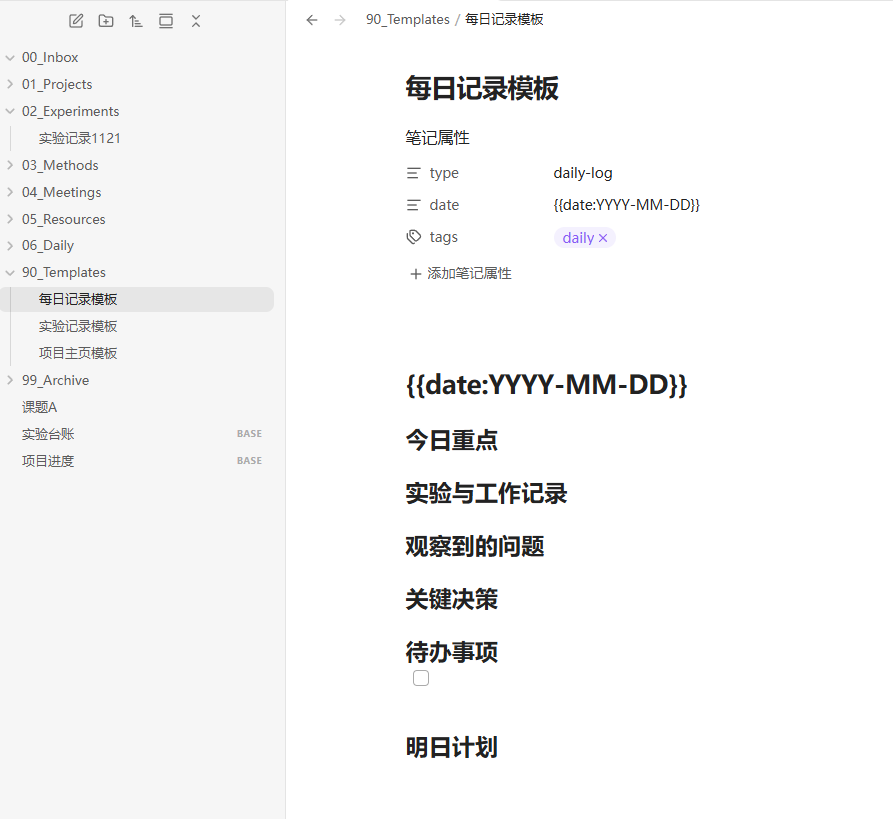
在 90_Templates/ New Daily Log Template.md:
--- type: daily-log date: "{{date:YYYY-MM-DD}}" tags: - daily --- # {{date:YYYY-MM-DD}} ## Today's Highlights ## Experiment and Work Records ## Observed Issues ## Key Decisions ## To-Do Items - [ ] ## Tomorrow's Plans在 Settings → Core plugins Enabling in China Daily notesAnd specify it in the Daily notes settings:
- New file location:
06_Daily - Date format:
YYYY-MM-DD - Template file location:
90_Templates/Daily Record Templates
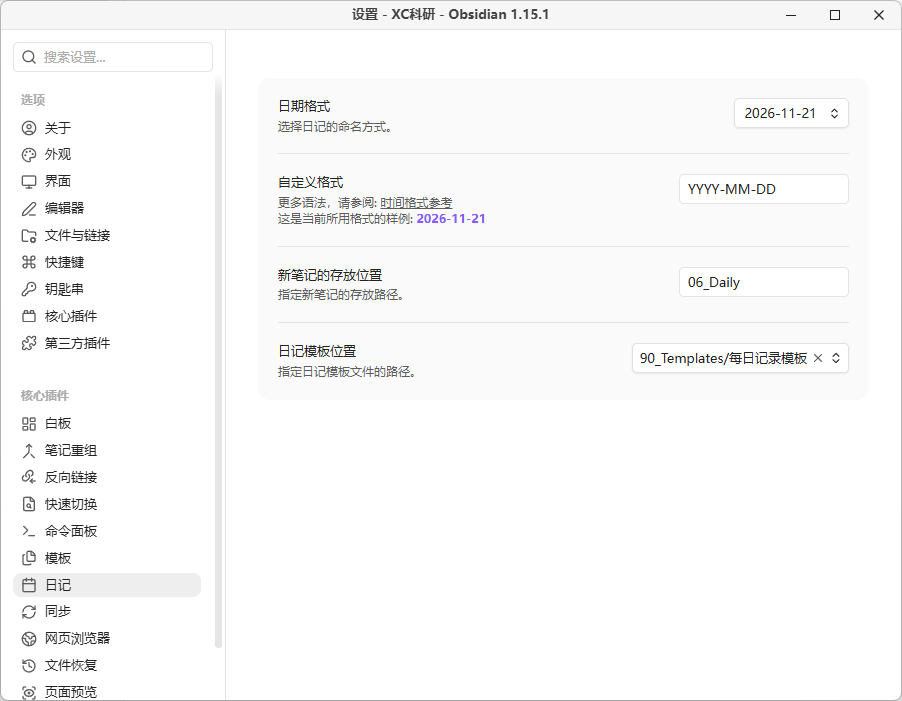
After that, opening the Daily Note for that day will generate a record structure based on the template.
Enable Obsidian CLI
The Obsidian CLI allows you to control a running Obsidian application from the terminal, making it suitable for scripting, shortcut launchers, and integration with external tools.
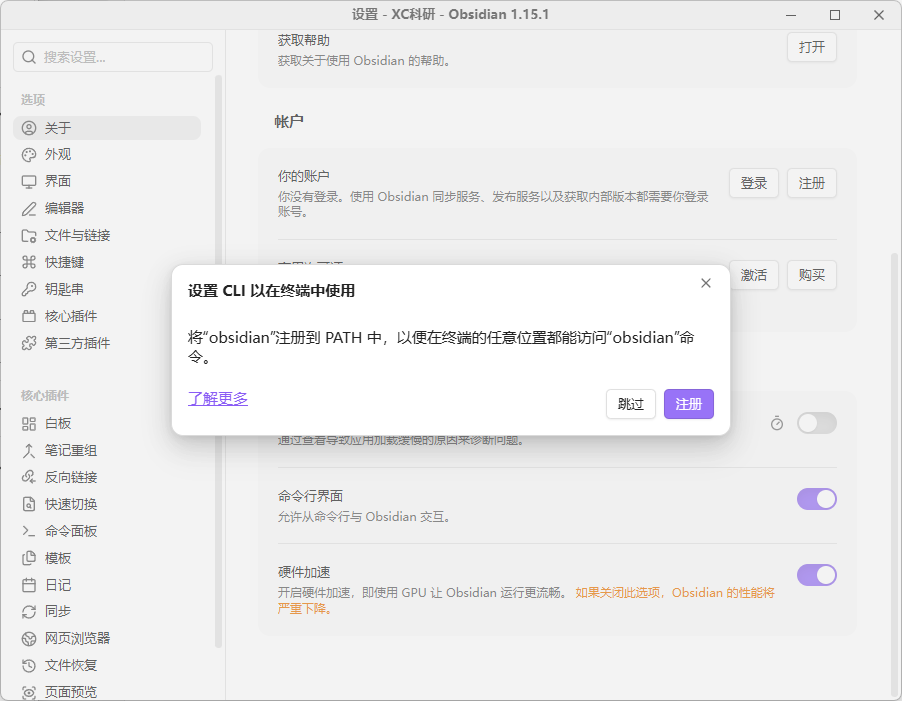
Activation steps:
- Update the Obsidian installer to the officially required version. The current CLI documentation requires the installer to be version [version number missing].
1.12.7Or higher. - Open Obsidian.
- Enter
Settings → General。 - Found
Command line interfaceAnd enable it. - Follow the prompts to complete CLI registration.
- Reopen the terminal and ensure that the PATH update takes effect.
- implement
obsidian helpCheck if the command is available.
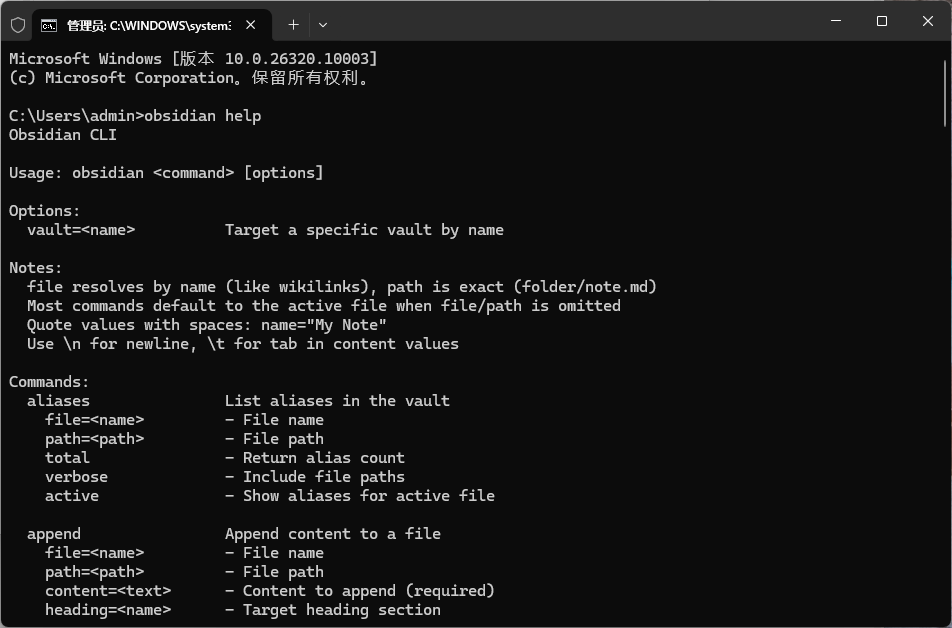
The CLI requires the Obsidian desktop application to be running. If the application is not running, it will attempt to start it on the first command call. Note:Application version number and installer version number are two different concepts.Don't 1.15.1 As required by CLI 1.12.7+ The installer versions are being used interchangeably.
Add the record to the specified section of today's log.
For example, after the experiment, execute the following command in PowerShell, Windows Terminal, or macOS/Linux terminal:
obsidian daily:append heading="Experiment and Work Record" content="- 09:30 Completed instrument calibration and recorded ambient temperature"This command will append the content to the “Experiments and Work Records” section of the day's notes, instead of simply writing it to the end of the entire file.
To add content to the “Key Progress” section of a project note, you can use:
obsidian append path="01_Projects/ProjectA.md" heading="Current Progress" content="- Completed preliminary quality control of the third batch of samples"The path must match the actual file path within Vault, and the title must match the chapter title in the notes. For multi-level headings, the append position will be determined based on the chapter containing the specified heading.
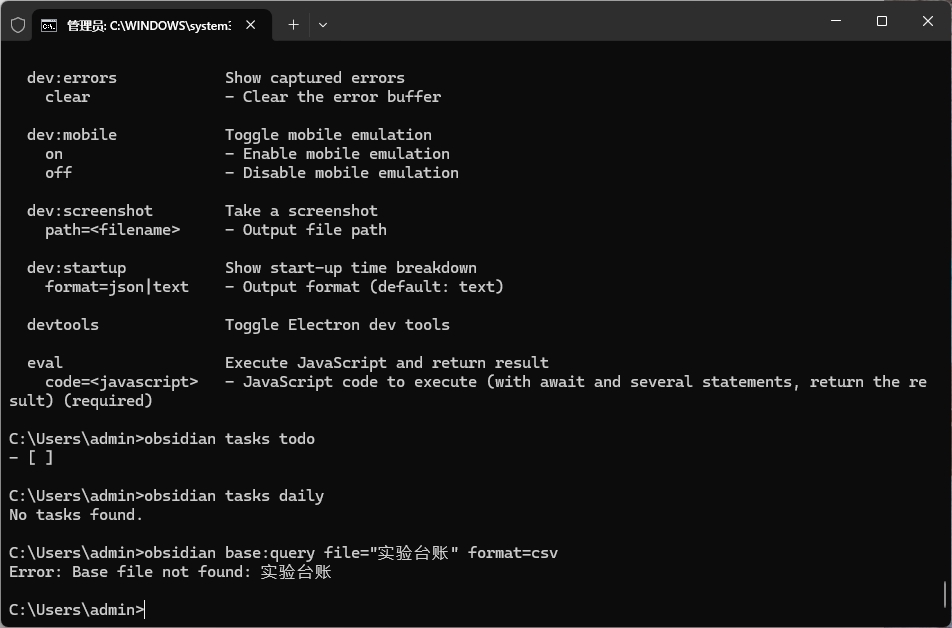
Query incomplete tasks
CLI can also list to-do items in Vault:
obsidian tasks to doView only the tasks in the log for that day:
obsidian tasks dailyTo read the experimental log in a script, you can also use the Bases command:
obsidian base:query file="Experiment Ledger" format=csvThese commands provide an entry point for automation, but it is recommended to first validate the paths, titles, and output formats in a test Vault. When dealing with bulk writes, keep backups and check the results after command execution to avoid appending content to incorrect notes.
Organize complex projects using Canvas and Mermaid
When a project involves multiple work packages, experimental routes, and analytical steps, simple folders and links may not be intuitive enough. Obsidian's Canvas allows you to place notes, images, PDFs, and text cards on an infinite canvas, making it ideal for creating project diagrams, experimental workflow planning, and phase discussions.
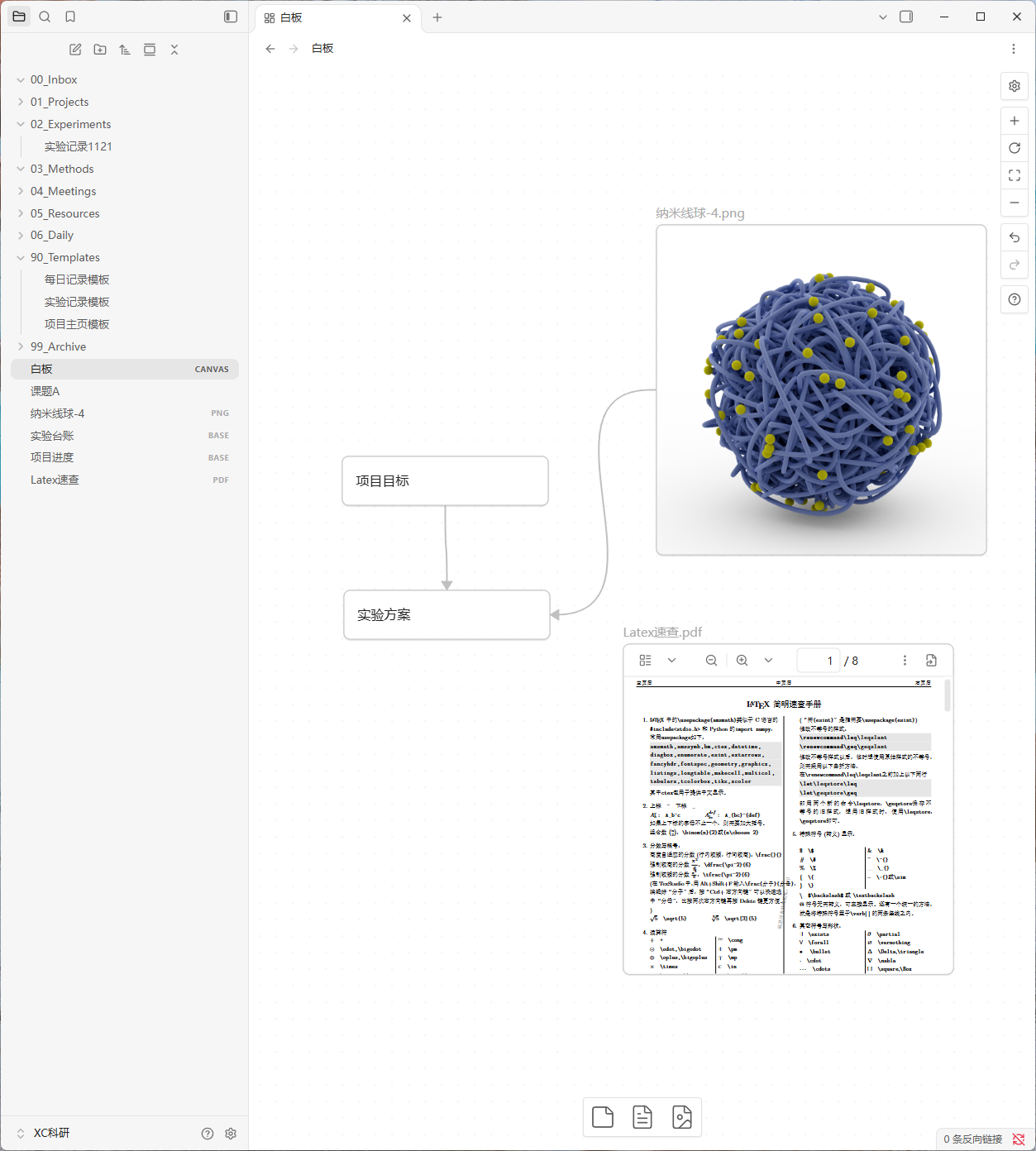
For example, the following nodes can be placed in the same Canvas:
- Project objectives;
- Experimental protocol;
- Sample preparation;
- Data collection;
- Data quality control;
- Statistical analysis;
- Interim report.
Each node can link to existing notes, avoiding redundant maintenance of the main text.
Using Mermaid to draw flowcharts
Inserting into a Markdown note:
Mermaid flowchart LR A [Experimental Plan] --> B [Sample Preparation] --> C [Data Acquisition] --> D [Data Quality Control] --> E [Statistical Analysis] --> F [Results Archiving]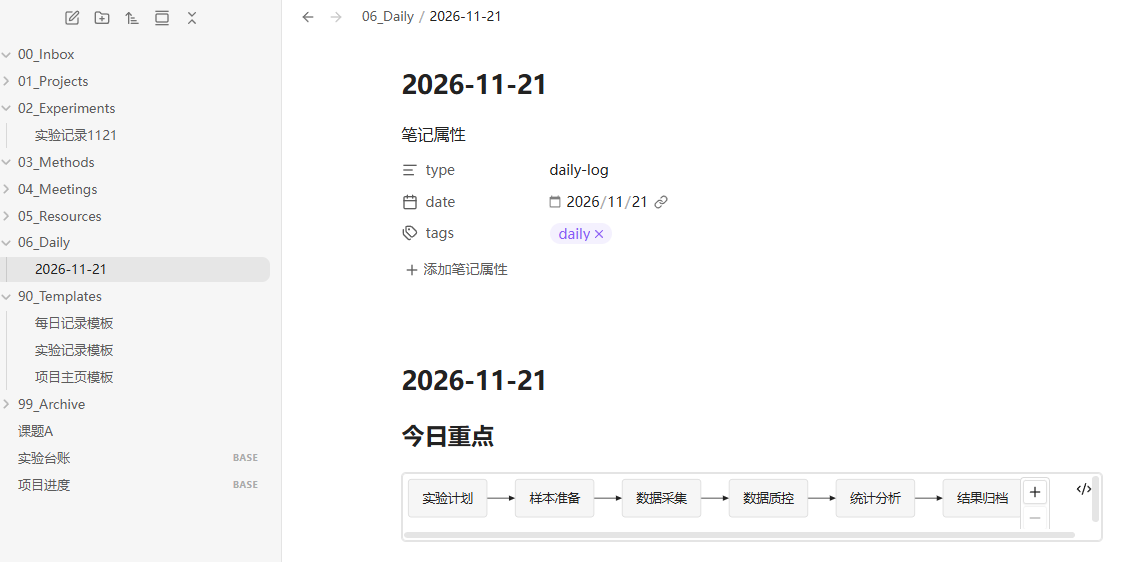
Starting with Obsidian 1.15.0, Mermaid diagrams are rendered by Pele. The official documentation states that it is compatible with Mermaid 12.1.0 syntax and supports zooming and panning. For projects with long workflows, Mermaid flowcharts can be placed on the project homepage as quick navigation in addition to text documentation.
Synchronization, Backup and Scientific Data Security
Obsidian's local file mechanism has a significant advantage: notes are not locked in a proprietary database and can be opened with a regular text editor. However, local saving is not the same as automatic backup, much less a natural way to meet the requirements of scientific research data management.
Choose a stable backup method
Choose according to your equipment and team conditions:
- Regularly copy the entire Vault to an external hard drive or a lab backup disk;
- Use sync services such as OneDrive, Dropbox, and iCloud that are permitted by the organization;
- Use Obsidian Sync to synchronize between devices;
- Use Git to manage the text-based Vault, recording Markdown and configuration changes.
It is not recommended to run multiple synchronization tools on the same Vault simultaneously without testing. Synchronization conflicts may result in duplicate files, overwrites, or version inconsistencies. Verify with a small test Vault before migrating production data.
Are Obsidian Sync and Publish free?
As of November 21, 2026, the basic Obsidian application listed on the official pricing page is free to use and requires no account registration. Optional services are priced as follows:
| Serve | Annual payment discount | Monthly Payment | use |
|---|---|---|---|
| Sync | $4 per user per month | $5 per user per month | Multi-device synchronization, end-to-end encryption, version history |
| Publish | $8 per site per month | $10/site/month | Publish the notes as a website |
The official website also lists optional Catalyst and Commercial support licenses. A commercial license is not mandatory for general work use; the official FAQ clearly states that commercial use does not require this license. Prices may vary depending on taxes, region, and payment method; please refer to the official pricing page before purchasing.
Do not indiscriminately include sensitive experimental information in your notes library.
For research data involving patients, clinical samples, confidential information from collaborating institutions, or data that has not yet been made public, the institution's data management policy should be followed.
suggestion:
- Obsidian records approved sample codes and document indexes, but does not directly store personally identifiable information;
- Raw measurement data, images, and restricted documents are stored in an institution-approved storage system;
- Do not write passwords, API tokens, and database keys into plain Markdown;
- Before installing community plugins, check the developer, permissions, and data processing methods.
- Before using cloud sync, Web Clipper, or third-party plugins, confirm whether the data will leave the local device.
While Obsidian core notes are saved as local files, this does not mean that all extensions, synchronization, and external integration features run only locally.
Example of a daily research workflow
After completing the previous configuration, you can use it as follows:
- Project Launch: 在
01_Projects/Create a project homepage, specifying the research objectives, phase tasks, and related methods. - Before the experiment: Create an experimental record from the template, and fill in the project, date, sample batch, instrument, and plan status.
- In the experiment: The experimental log should continuously record conditions, operational changes, and anomalies, not just the final results.
- After the experiment: Place the data files in the storage location specified by the organization, and record the file path, data version, and quality control status in your notes.
- Daily summary: Use Daily Notes to summarize your work for the day and link important content back to the project homepage.
- Phase review: Use Bases to filter records by project, date, and status to check for incomplete tasks.
- Report preparation: From the project homepage and experimental log to the progress of the compilation phase, use Quarto, PowerPoint, or other reporting tools to generate formal materials.
The key to this process is not to move all the data into Obsidian, but to have a clear record of “why we did it, what we did, where we saved the results, and what the next step is”.
Frequently Asked Questions
Can Obsidian completely replace Excel?
No. Obsidian's Properties and Bases are suitable for organizing notes and their metadata, but they are not a replacement for complex spreadsheets. For extensive numerical calculations, formula filling, statistical analysis, and data cleaning, tools such as Excel, Python, R, and DuckDB should still be used.
Can Obsidian replace Zotero?
Not recommended. Obsidian can be used to record reading notes, research questions, and project ideas, but Zotero is better suited for managing bibliographic records, PDF attachments, citations, and reference formats. The two can be used together via links or plugins.
10.3 Does Obsidian require an internet connection?
Creating and editing the core functions of a local Vault does not require a constant internet connection. However, downloading updates, installing community plugins, syncing, and publishing may require a network connection.
Will I still be able to open my notes after switching computers?
Markdown files can be opened with other text editors. However, if you want to retain Obsidian's themes, plugins, and keyboard shortcuts, you'll need to back up the Vault files as well. .obsidian Configure the directory. It's best to copy the entire Vault directory and verify it on the new device before migrating.
Should we install a large number of community plugins?
It's not recommended to install many plugins at the beginning. Focus on the core functionality for the project homepage, experiment logs, Properties, Bases, and Daily Notes. Only evaluate community plugins when a specific task truly cannot be accomplished with the existing functionality. The more plugins you have, the more work you'll have to do in terms of maintenance, compatibility, and data security assessment.
Can Obsidian be used as a formal electronic experimental record system?
Whether a document can be used for official documentation depends on institutional policies, the type of experiment, and compliance requirements. Standard Markdown files do not automatically provide audit trails, electronic signatures, approval workflows, or tamper-proof mechanisms. Regulated research should use institutionally approved ELN/LIMS or other compliant systems.
Conclusion
Obsidian's advantage lies not in integrating all research software into a single platform, but in providing a unified method for preserving and traceable text records generated throughout the research process. Project homepages, experimental records, method descriptions, meeting minutes, and daily logs can all be independent Markdown files, which are then combined into a continuously maintainable workspace through Properties, bidirectional links, and Bases.
For researchers just starting out, there's no need to pursue complex plugin combinations. First, create a Vault with templates for both projects and experiments, then use a Bases table to manage and record status. Once your notes have accumulated to a certain size, you can gradually add CLI, Canvas, Git, and synchronization solutions; this usually makes it easier to develop stable habits.
Obsidian is suitable for managing knowledge and work records in the research process, but it cannot replace formal literature management, data analysis, laboratory compliance systems, or raw data storage platforms. Placing each tool in its appropriate place will make the entire research workflow clearer and easier to review.
Reference Links
- Obsidian official website:https://obsidian.md/
- Obsidian official download page:https://obsidian.md/download
- Obsidian 1.15.1 Desktop Changelog (2026-11-12):https://obsidian.md/changelog/2026-11-12-desktop-v1.15.1/
- Obsidian 1.15.0 Desktop Changelog (2026-11-02):https://obsidian.md/changelog/2026-11-02-desktop-v1.15.0/
- Obsidian data storage instructions:https://obsidian.md/help/data-storage
- Obsidian Properties:https://obsidian.md/help/Editing%2Band%2Bformatting/Properties
- Obsidian Core plugins:https://obsidian.md/help/Plugins/Core%2Bplugins
- Obsidian Bases:https://obsidian.md/help/bases
- Obsidian Bases Views:https://obsidian.md/help/bases/views
- Obsidian Templates:https://obsidian.md/help/Plugins/Templates
- Obsidian Daily Notes:https://obsidian.md/help/plugins/daily-notes
- Obsidian Backlinks:https://obsidian.md/help/Plugins/Backlinks
- Obsidian Search:https://obsidian.md/help/Plugins/Search
- Obsidian CLI:https://obsidian.md/help/cli
- Obsidian URI:https://obsidian.md/help/uri
- Obsidian Canvas:https://obsidian.md/help/Plugins/Canvas
- Obsidian official pricing page:https://obsidian.md/pricing
- Discussion in the r/ObsidianMD community regarding the performance of version 1.15.1 (November 14, 2026):https://www.reddit.com/r/ObsidianMD/comments/1xwc2r3/obsidian_1151_loads_very_fast/