
Table of contents
Hide
Gemini Notebook Practical Tutorial

Gemini Notebook(Original NotebookLM) 2026 Practical Tutorial: Turning PDFs, Courseware, and User Manuals into a Traceable Knowledge Base
Faced with a wealth of course materials, PDFs, software manuals, lab operating procedures, and online tutorials, many people don't struggle with finding resources, but rather with the materials being scattered, difficult to locate, and hard to form a systematic knowledge structure after reading them. Google's... Gemini Notebook(Formerly NotebookLM) offers a different way of processing data: users can import multiple sources into the same Notebook, and then ask questions, compare, organize, and generate learning content around these materials. In 2026, this service was further integrated with the Gemini application, supporting the management and access of Notebooks across different entry points. This article, based on practical use, introduces its functions, data import methods, source citations, commonly used prompts, and a workflow suitable for research and learning scenarios.
Gemini Notebook Introduction
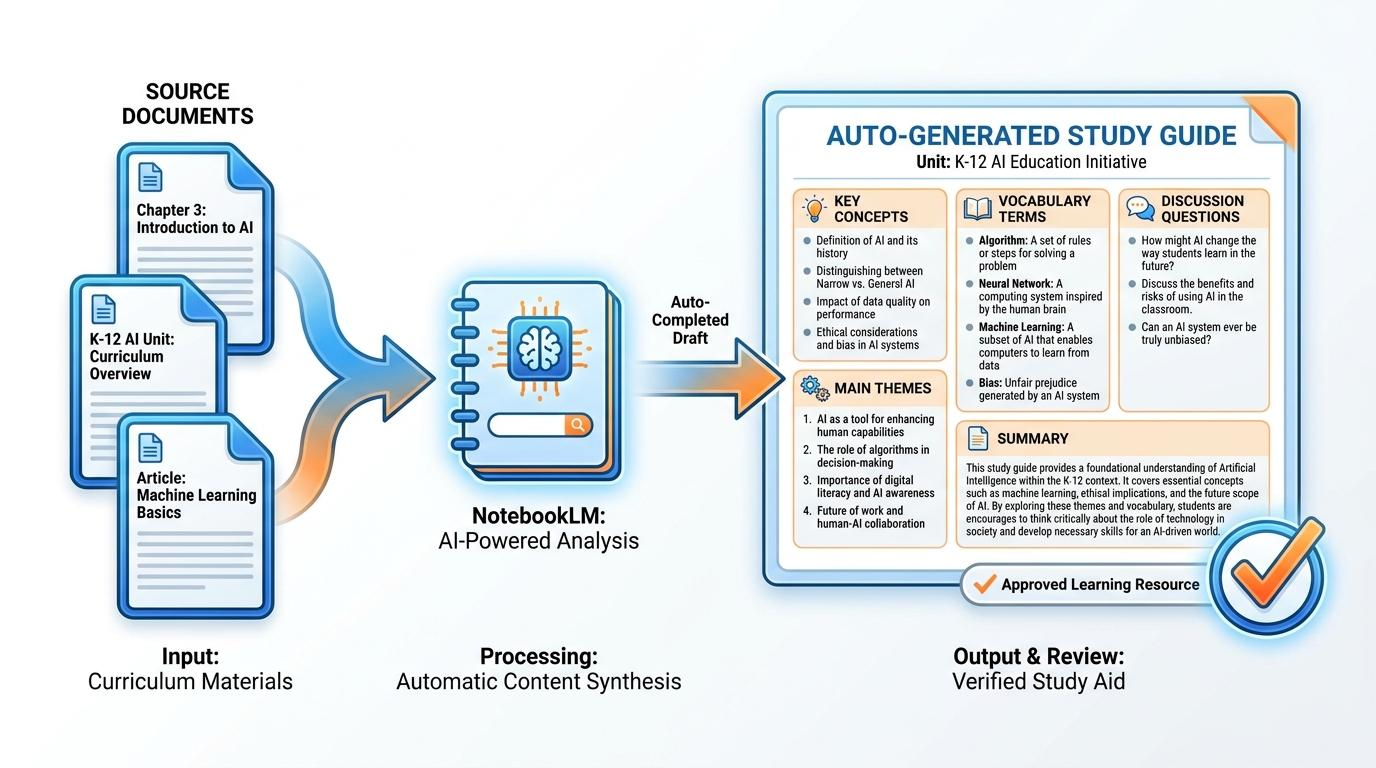
Gemini Notebook is an AI-powered data analysis and learning tool launched by Google. Originally launched as NotebookLM, it primarily helps users ask questions, summarize, and learn from materials they provide.
On July 16, 2026, Google officially renamed NotebookLM to Gemini Notebook and further strengthened its connection with the Gemini ecosystem. In the renaming announcement, Google stated that at that time, the product already had more than 30 million users, covering more than 600,000 organizations.
Its core usage can be summarized as follows:
- Collect information related to a particular study or research topic.
- Import the data into a Notebook.
- Let AI answer questions based on this information.
- Check the location of the original text on which the answer is based.
- Organize important information into notes, study guides, quizzes, reports, or other deliverables.
For example, if you are learning a certain experimental technique, you can put the instrument manual, course notes, open tutorials, and permitted laboratory operating materials into the same notebook. Later, when you encounter problems, you can directly ask the system for an explanation based on the imported materials.
Unlike chatting directly with a regular AI, Gemini Notebook emphasizes working around specific materials. It's suitable for learning tasks with a clearly defined scope, as well as for organizing project documents, course content, and technical manuals.
One point needs to be clarified: Gemini Notebook is not a replacement for reference management software like Zotero or EndNote. It is better suited for reading materials, understanding content, and organizing knowledge; metadata, reference formats, and formal citation management should still be handled by dedicated reference management tools.
New changes in 2026
If you've used NotebookLM before, you might notice that the name and function entry points have changed.
Renamed Gemini Notebook
In July 2026, Google renamed NotebookLM to Gemini Notebook, retaining it as a standalone product while enhancing its synchronization and integration with Gemini applications.
Therefore, if you search for tutorials online, you will still likely see many articles using the name NotebookLM. Their descriptions of basic data import and source Q&A functions are still valuable, but when it comes to the interface and new features, you should prioritize looking at the current ones.Official help documentation。
Learning functions have been further expanded
In September 2026, Google added a batch of learning-related features to the Gemini Notebook, including:
- Mobile recording allows you to capture lectures or personal thoughts.
- Engage in real-time voice conversations with the Notebook.
- Generate an interactive learning overview.
- Create fill-in-the-blank, multiple-choice, and short-answer questions.
- Based on the test results, we will continue to discuss the weak knowledge points.
- Generate a short video learning overview of approximately 60 seconds.
The purpose of these features is to allow users to understand the same set of information in different formats, rather than always relying on text reading. Whether a specific feature is already available in the account depends on the region, account type, and actual availability.
Interoperability with Gemini applications
In September 2026, Google further expanded the Notebook workspace to use cases in schools, organizations, and individual accounts.
On October 23, Google announced that the Gemini Notebook could be used as a Connected App within the Gemini application.
For eligible accounts, users can enter the following in the Gemini chat: @Gemini NotebookIt allows users to create notebooks, add or update information, view information lists, and access information from existing notebooks using natural language.
New process controls for slide and video generation
In October 2026, Gemini Notebook improved the process for generating slides and video overviews. Users can review outlines or video production instructions before final generation and provide feedback on content focus, visual style, and structure.
This is more suitable for preparing teaching materials and project presentations than directly generating an uncontrollable final result.
Overall, Gemini Notebook is gradually expanding from a Q&A tool into a workspace that includes information organization, learning assistance, and output generation.
How to access Gemini Notebook
Official access portal
Gemini Notebook is an online service and typically does not require downloading and installing Windows or macOS installation packages like traditional desktop software.
You can access it directly through your browser:
Gemini Notebook Official Access:
If using a mobile phone, the supported mobile functions can also be used through the official Android or iOS app.
Account and region requirements
You generally need to log in with a Google account. Personal, school, and organizational accounts may have different permissions and features.
If you are using a Google Workspace account provided by your school or organization, some features may require administrator activation. If you are unable to access the service, you should first check your account's region, age verification status, and your organization administrator's application access settings.
Free version usage restrictions
As of November 2026, the Standard plan listed on Google's official program description page includes:
| Project | Standard Plan |
|---|---|
| Number of Notebooks that each user can create | 100 |
| Sources that can be added to each Notebook | 50 |
| Content limits for a single source | 500,000 words |
| Single local upload file size | Up to 200 MB |
Please note that the official statement explicitly states that usage limits may be adjusted. Different subscription plans also differ in terms of the amount of data, model access permissions, and some generation capabilities. Before using the service, it is recommended to review the plan details for your current account.
For students or researchers just starting out, the Standard program is usually sufficient to experience basic data organization and Q&A processes.
Data import type
Gemini Notebook supports a wide range of document types, including common formats such as:
| Data type | Supported formats | Suitable for use |
|---|---|---|
.pdf | Course materials, technical manuals, and publicly available information | |
| Word | .docx | Course notes and documents |
| PowerPoint | .pptx | Courseware and training materials |
| Excel | .xlsx / Google Sheets | Table data, record information |
| Markdown | .md | Technical notes, knowledge organization |
| text | .txt | Textual materials and operating instructions |
| CSV | .csv | Structured data |
| picture | PNG, JPG, etc. | Illustrations, screenshots, scanned documents |
| audio | MP3, WAV, etc. | Course recordings and audio materials |
| Web page | URL | Official documentation, online tutorials |
| video | Public YouTube video URL | Open courses and operation demonstrations |
Google also officially supports Google Docs, Google Slides, some Google Play Books eBooks, and Gemini conversations. For specific support details, please refer to the official help page.
This means you don't have to convert all your data to the same file format first.
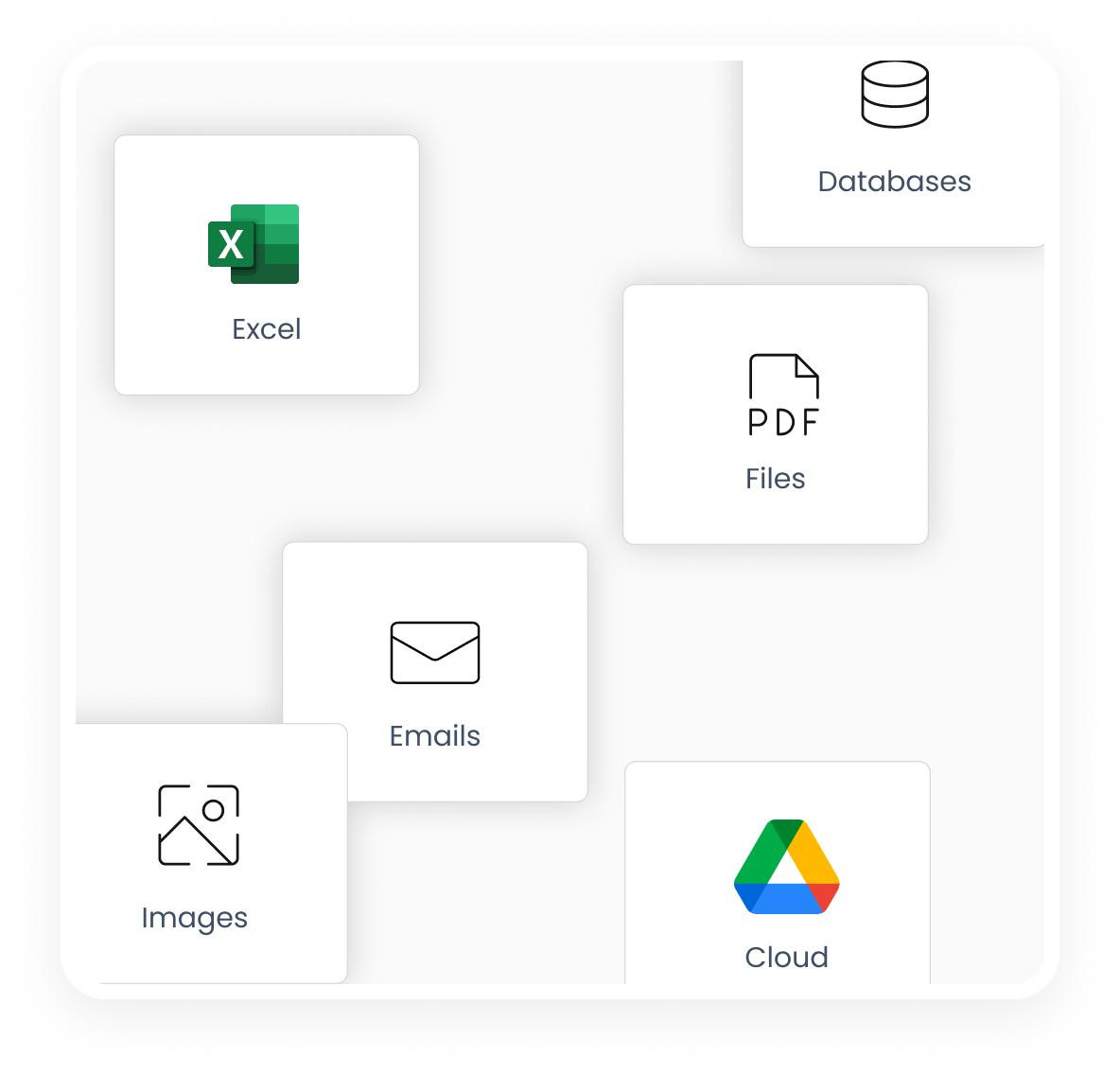
For example, when learning a new scientific research technology, you can import it at the same time:
- A technical manual in PDF format;
- A course handout in Word format;
- A structural diagram of the experimental setup;
- A publicly available demonstration video;
- A collection of my own Markdown notes.
The system can then conduct Q&A and content organization based on this information.
Starting from scratch: Creating your first Notebook
The following example demonstrates the complete operation process of establishing a “laboratory instrument learning resource database”.
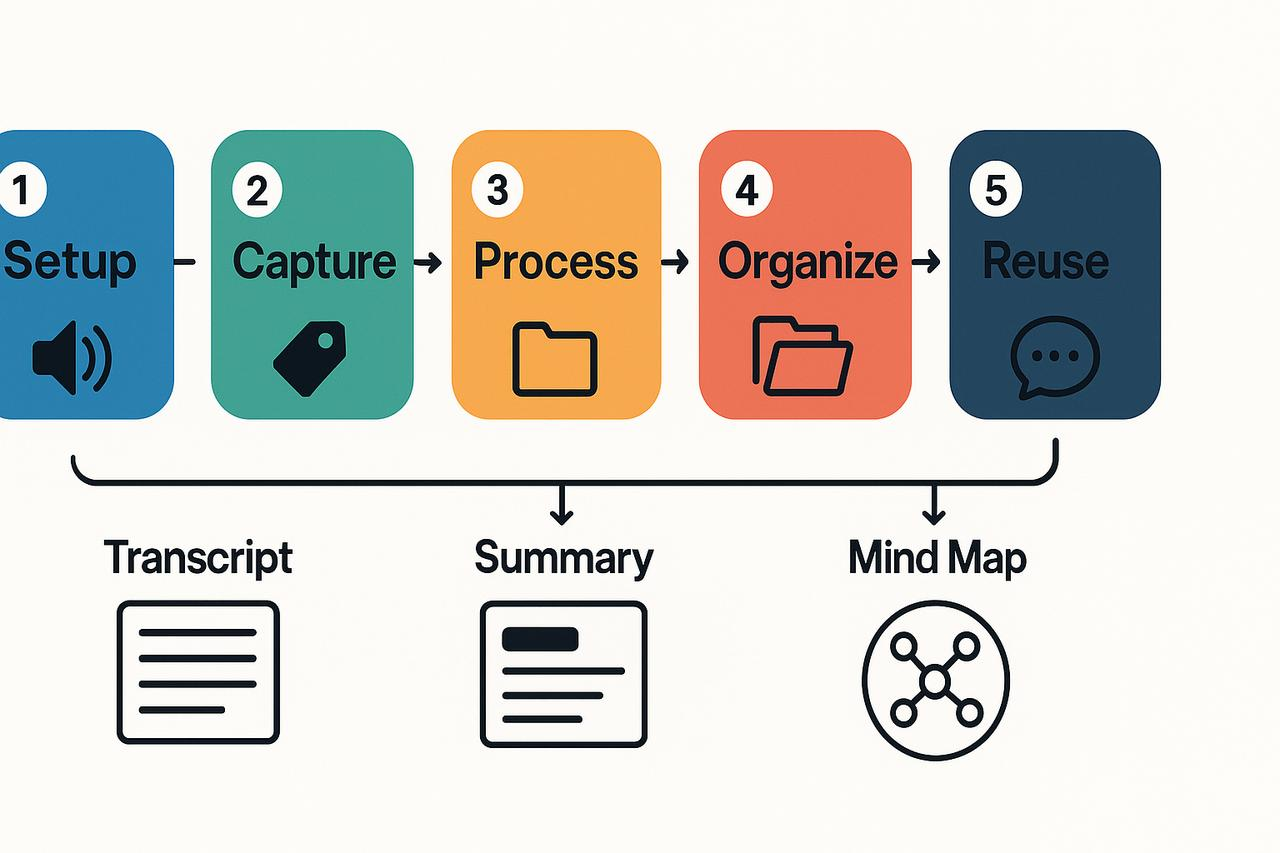
The recommended operating instructions here are publicly available instrument manuals, manufacturer technical documents, and authorized training materials.
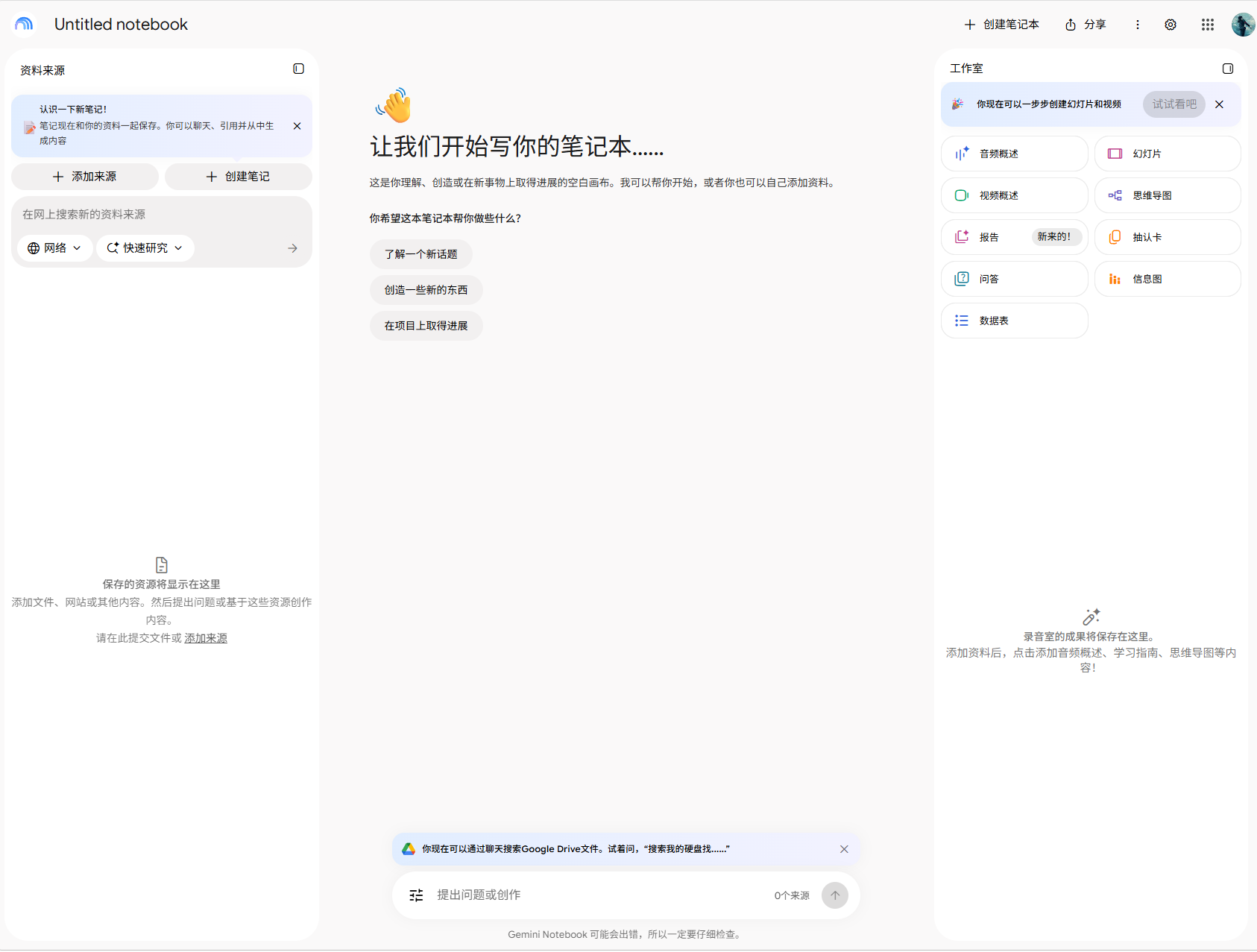
Step 1: Create a Notebook
Go to the official Gemini Notebook page and log in to your account.
Find it on the main interface:
Create new notebook
Click to create a new Notebook.
It is recommended to name the characters according to the specific task, for example:
- Laboratory instrument operation training
- Foundations of Bioinformatics
- Scientific Data Analysis Course
- C4D Scientific Modeling Learning
- Experimental Technique Training Materials
It is not recommended to put all your data into the same notebook.
Because each notebook is an independent collection of materials, the official help documentation states that the system cannot directly retrieve materials across multiple notebooks simultaneously. Creating separate spaces according to courses, projects, or technical areas will make management easier.
Step 2: Add source information
After entering the newly created Notebook, click:
Add sources
Choose a local file, web link, or other available source as needed.
Taking learning about laboratory equipment as an example, the following materials can be prepared:
| document | content | Function |
|---|---|---|
| Instrument Manual.pdf | Official instrument manual | Understanding equipment structure and function |
| Training Slides.pptx | Training materials | Understand the operating procedure |
| Safety Guide.pdf | Safety Usage Guide | Verification Instructions |
| Lab Notes.docx | Authorized training notes | Supplementing practical experience |
After uploading, the data will be displayed in the source area on the left.
If the amount of data reaches a certain scale, Gemini Notebook can also automatically tag and categorize the sources for easier subsequent management.
Step 3: Let AI create a data catalog
Once the data has been uploaded, it is not recommended to immediately ask a large number of detailed questions.
You can first have the system compile a data catalog to understand what each file contains.
For example, input:
Please create a resource index based on all the materials in your current Notebook. Requirements: 1. List the title of each resource. 2. Briefly describe the main content of each resource. 3. Mark the technical topics covered in the resources. 4. Indicate whether there is any content duplication between resources. 5. Indicate which content is suitable for learning and which content is suitable for practical reference. 6. If a resource is unidentifiable or incomplete, please clearly state this. Do not infer content not present in the document based on the title.This way, you can get an overview of the information first.
Step 4: Ask specific questions based on the information.
After the information is organized, we can move on to the main Q&A session.
The most important tip here is:The question should be specific, and it's best to clearly indicate which documents you would like to use.
For example:
Based on the *Instrument Manual.pdf* and *Training Slides.pptx*, please summarize the basic structure and main functions of this instrument. Please answer in the following order: 1. What are the main components of the instrument? 2. What is the function of each component? 3. What are the relationships between the different components? 4. What information is mentioned in both documents? 5. What information appears only in one document? Please provide corresponding references for each conclusion. If the information is not explicitly stated in the documents, please write “Not stated in the documents” and do not supplement it yourself.Compared to asking “Introduce this instrument,” this questioning method is more likely to yield results that are clearly structured and easy to verify.
Step 5: Check the citations in the answer.
This is a feature that the Gemini Notebook is very worthwhile to utilize.
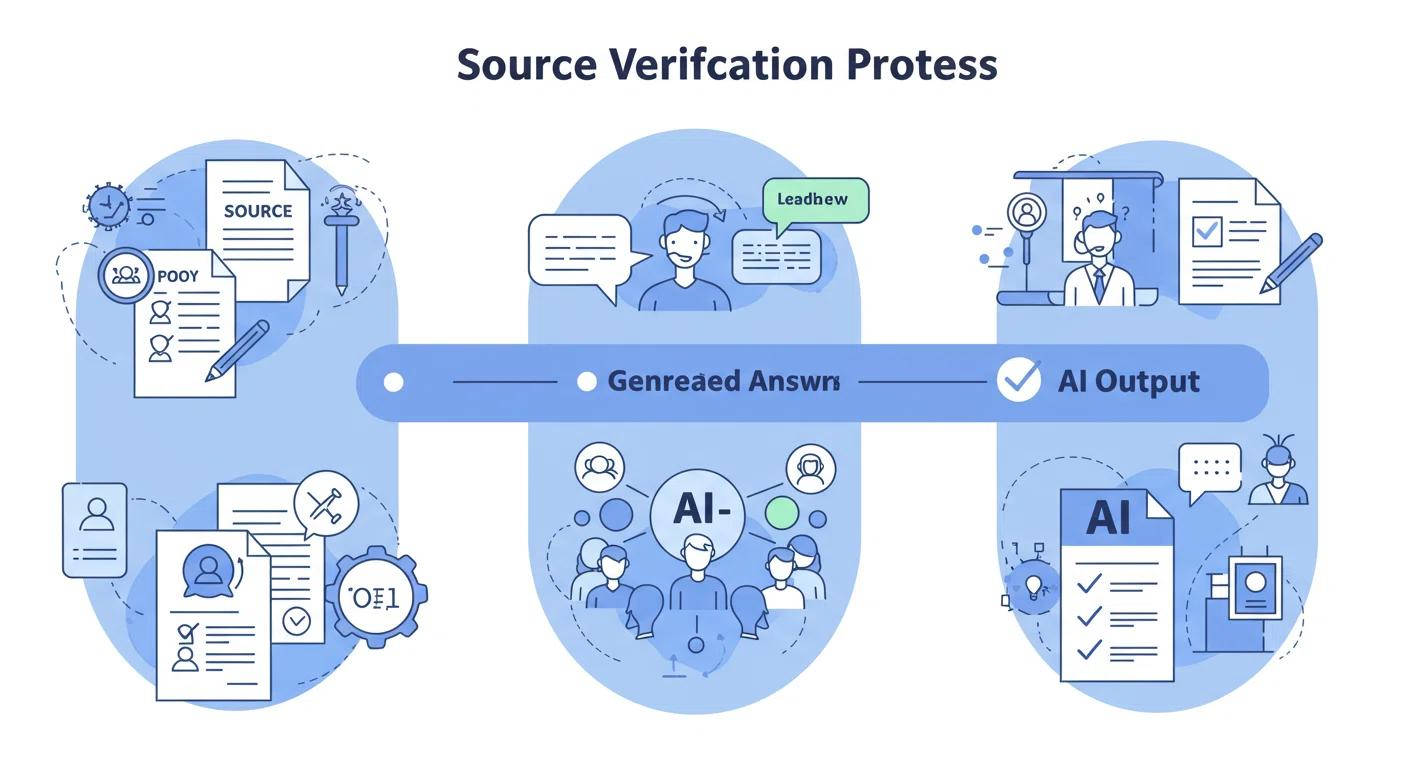
When the system answers, it can provide citation markers corresponding to the information provided. Clicking on a citation will take you to the original source document to view the relevant text or content.
Therefore, one should not only read the summary provided by the AI, but also check whether the citations truly support its conclusions.
Suitable prompts for scientific research and study
Below are several sets of prompts that can be used directly. Simply replace the document name in the prompts with the file name in your Notebook.
Organize multiple documents and build a knowledge framework.
Suitable for: course materials, technical manuals, training documents.
Based on the materials selected in your current Notebook, please create a complete knowledge framework. Requirements: 1. Divide the knowledge into modules by topic. 2. List the core concepts for each module. 3. Explain the logical relationships between the concepts. 4. Mark important content that appears repeatedly in different materials. 5. Mark any discrepancies or inconsistencies between the materials. 6. Provide source citations for each important conclusion. Do not add facts not found in the materials to make the framework complete.Comparison of technical parameters in different sources
Suitable for: equipment manuals, technical specifications, and software documentation.
Please compare the different sources in your current Notebook regarding this device or software. Focus on extracting: 1. Key technical specifications. 2. Parameter descriptions in different sources. 3. Units of measurement and applicable conditions. 4. Any differences in numerical values or wording between the different sources. 5. Which parameters require further verification from the official source documentation. Please present the results in a table, providing source citations for each row.Explain complex concepts in an easy-to-understand way
Suitable for: Undergraduate students and graduate students to supplement their basic knowledge.
Please act as a patient instructor. Based on the selected material, explain the core concepts. Requirements: 1. First, explain the concepts in simple language. 2. Then, introduce their basic principles. 3. Provide an example to aid understanding. 4. Explain its applications in research or practical work. 5. Point out the areas where beginners are most likely to misunderstand. All factual content must be supported by sources.Create a self-test based on the provided materials.
Suitable for: exam preparation, laboratory training, and course learning.
Please generate a set of self-assessment questions based on the materials in the current Notebook. The questions should include: - 5 multiple-choice questions - 5 true/false questions - 3 short-answer questions. Requirements: 1. The questions should cover different knowledge modules. 2. Do not test the same knowledge point repeatedly. 3. Provide a correct answer for each question. 4. Briefly explain the basis for your answer. 5. Indicate the corresponding source of the information. 6. Do not use knowledge outside the materials as the basis for your judgments.Compile the data into a laboratory training checklist
Suitable for: training new laboratory members, learning instruments, and streamlining operating procedures.
Please compile a training checklist based on the instrument manual, safety guidelines, and training materials selected in your current Notebook. Please divide it into: 1. Knowledge required before use. 2. Conditions requiring confirmation before use. 3. Precautions during operation. 4. Post-use checks. 5. Common errors and their corresponding documentation. For content related to safety and equipment operation, the original documentation and citations must be retained. Mark any matters not explicitly stated in the documentation as “To be confirmed.” Do not create your own operating parameters or safety procedures.The common principle behind these prompts is to require the AI to provide evidence while giving a conclusion, and to allow it to acknowledge that the answer is not found in the data.
This is more valuable than simply pursuing length in the answer.
Studio: Transforming materials into learning outcomes
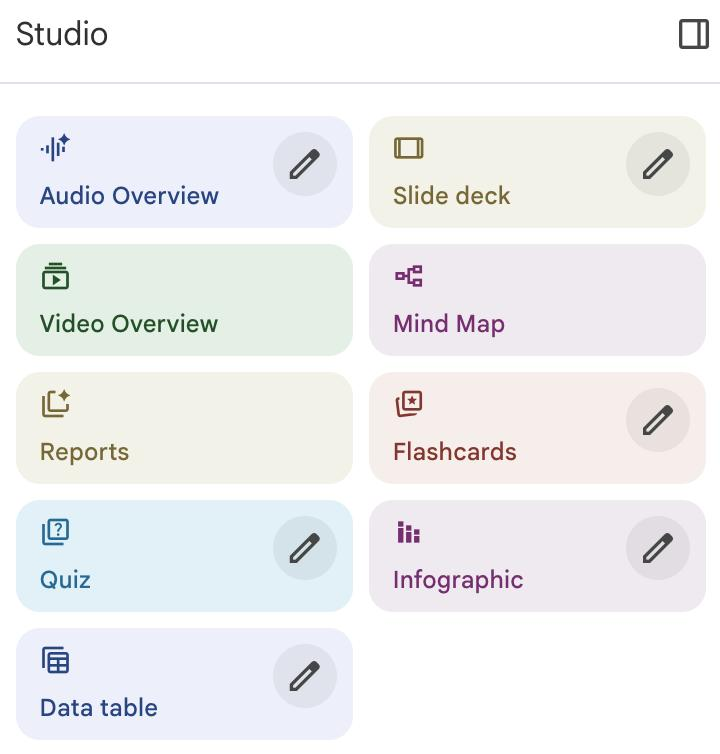
In addition to Q&A, Gemini Notebook also offers a Studio workspace for generating different types of deliverables based on source materials.
Currently, the official help documentation lists features including notes, audio overviews, video overviews, mind maps, reports, data tables, quizzes, flashcards, slideshows, and infographics. Specific features and usage limits may vary depending on account plans and availability.
Generate learning guide
If you import a large amount of course materials, you can generate a Study Guide.
Suitable for:
- Summarize the main knowledge points of a course;
- Organize the relationships between chapters;
- Mark the important points and the content that needs to be reviewed;
- Develop a phased learning plan.
Generate mind map
For courses with many concepts and complex hierarchical relationships, mind maps can help quickly establish an overall understanding.
For example, when learning bioinformatics, you can follow these steps:
- Data acquisition;
- Data preprocessing;
- Sequence analysis;
- Structural analysis;
- Results visualization;
Organize the knowledge modules.
It should be noted that automatically generated mind maps are mainly for understanding and organizing, and cannot replace your own judgment of the relationships between concepts.
Generate quizzes and flashcards
Flashcards and quizzes are suitable for repeatedly reviewing knowledge points.
For example, a course handout can be transformed into:
- Concept explanation questions;
- Key terminology memory card;
- Principle judgment questions;
- Operational sequence sequencing question.
After completing the test, you can continue to ask questions about your weak areas of knowledge.
Overview of audio and video generation
The audio overview is suitable for use while commuting, organizing lab materials, or reviewing lessons.
Video overviews can transform textual information into learning materials with explanations and visual content.
However, the audio and video formats do not necessarily guarantee the accuracy of the content. In particular, mathematical formulas, complex diagrams, experimental parameters, and technical terms should still be verified against the original source materials.
Generate reports, data tables, and slides.
If you wish to further organize the data into editable results, you can use the report, data table, and slideshow functions.
The official help documentation also provides ways to export parts of the report to Google Docs and export data tables to Google Sheets.
It should be noted that the exported Docs or Sheets files will not be automatically synchronized with the original Notebook; changes made after export will not be automatically written back to the Notebook.
Calling Notebook in Gemini
This is a recent change that deserves special attention.
In the past, users typically needed to go to the NotebookLM or Gemini Notebook page and then open the corresponding data space.
The Gemini Notebook can now be used as a Connected App within the Gemini application suite.
Specific operations
First, open the Gemini application and confirm that your account can be used with Gemini Notebook.
Enter the following in the dialog box:
@Gemini NotebookSpecific tasks can then be proposed.
For example:
@Gemini Notebook Please create a Notebook named “Study on Scientific Data Analysis” and explain how to add course materials and official software documentation.You can also ask it to search for existing information:
@Gemini Notebook Please check my Notebook titled “Learning Scientific Data Analysis” and list all the sources of information therein, as well as summarize the main knowledge modules that have been compiled so far.According to Google's update notes dated October 23, 2026, this Connected App integration supports creating, editing, and deleting Notebooks, adding, updating, and deleting sources, listing Notebooks and their materials, and answering questions based on existing Notebook content.
Dialogue differences:
The Gemini Notebook and Gemini Conversation are not entirely the same.
Although both entry points can access the same Notebook, the information they rely on for the answers may differ:
| User Entry | Answer basis |
|---|---|
| Chat on a separate page in Gemini Notebook | Based on the information in the Notebook |
| Notebook conversations in the Gemini app | It can be combined with Notebook data, web search, and other Gemini tools. |
Therefore, if you want the AI to answer strictly according to the given information, it is best to use Gemini Notebook's own Chat and check the citations.
If you wish to continue your web search or expand your tasks based on existing information, you can use the Notebook feature in the Gemini app.
This distinction is especially important when organizing technical specifications, course materials, and project documents.

Cases of Scientific Research and Learning Applications
Having introduced the various functions, we will now combine them into a workflow that more closely resembles actual work.
Suppose you've just entered a new research field and need to master a certain experimental technique in a short period of time.
In the past, it might have been necessary to:
- Open the different PDFs and courseware separately.
- Search for the same term in multiple documents.
- Manually compile the technical parameters.
- Copy information from different sources into your notes.
- When in doubt, consult the original source again.
Using Gemini Notebook allows you to organize this work into a relatively centralized process.
Step 1: Establish an independent learning space
Create a notebook named “Experimental Technology Learning”.
Step 2: Importing Basic Data
You can import:
- The manufacturer's publicly available instrument manual;
- Course handouts;
- Publicly available technical training materials;
- Authorized laboratory training documents;
- My own study notes.
Step 3: Organize technical knowledge
Let AI extract:
- Basic principles;
- Key components;
- Common terms;
- Main technical parameters;
- Differences between different sources.
Step 4: Create a learning checklist
Generate a learning guide and list out the knowledge points that are not yet understood.
Step 5: Self-test
Generate a quiz based on the data to check if you truly understand the relevant concepts.
Step 6: Create personal notes
Save the verified important information as notes in a notebook and add your own understanding.
In this way, a collection of information scattered across different files can gradually be transformed into a structured personal learning space.
It is important to emphasize that this process is suitable for data compilation, principle learning, and training preparation. When it comes to actual equipment operation, experimental safety, sample handling, and key parameters, officially approved operating procedures, equipment manuals, and laboratory management requirements must be followed. The checklist compiled by AI cannot be directly used as the official SOP.
Notes
Even after uploading the materials, errors may still occur in the answer.
Source citations can help with verification, but they cannot guarantee that the model fully understands the original text.
Especially the following:
- Multi-level tables;
- Scanning low-quality PDFs;
- Complex experimental flowchart;
- Chemical structural formula;
- Mathematical formulas;
- The diagram contains small annotations.
It is recommended to review the original text item by item for the content involving key parameters, values, and conclusions.
Questions that are too broad are likely to result in answers that lack focus.
For example:
“Help me summarize all the information.”
Since the objective is not clearly stated in this type of question, the system may generate a rather broad overview.
It can be changed to:
“Please compare the definitions of the same technical parameter in these three documents and list the inconsistencies.”
The clearer the problem, the easier it is to get useful results.
The specific references may not be visible.
According to Google's official explanation, if the source content is too short, the system may directly quote the entire document instead of quoting a specific paragraph.
In this situation, you can change the question to something more specific and clearly state the name of the data you want to analyze.
It cannot be used as a long-term document management system.
Gemini Notebook is suitable for temporary or ongoing analysis of data on a specific topic, but it does not handle complete management of literature metadata, formal citation formats, or maintenance of the paper's reference database.
A more reasonable division of labor is:
- Literature management software is responsible for saving literature information and managing citations;
- Gemini Notebook is responsible for understanding, comparing, and organizing knowledge based on selected materials;
- Word, Markdown, or other writing tools are responsible for the final content editing.
Privacy of personal research data
This is especially important.
Google's official privacy statement states that data in Gemini Notebooks will not be directly used to train its base models unless users actively submit feedback; however, when submitting likes or dislikes, related prompts, uploaded content, sources, and model outputs may be collected and reviewed by trained personnel.
For eligible Google Workspace and Google Workspace for Education accounts, Google states that uploaded materials, queries, and model outputs will not be manually reviewed and will not be used to train AI models.
In actual use, it is still recommended to follow these principles:
- Do not upload unauthorized materials belonging to others.
- Do not upload patient identification information indiscriminately.
- Do not upload unpublished research data without the permission of the research group or institution.
- For documents involving confidentiality agreements, ethical approvals, or intellectual property restrictions, first confirm the organization's policies.
- Do not confuse the privacy settings of personal accounts with the management policies of school or organization accounts.
Summarize:
Where should it be placed in the research and learning process?
The real value of Gemini Notebook lies in organizing scattered information into a space where you can continuously ask questions, check, and organize.
For students, it can help organize course notes, build knowledge frameworks, and review for exams; for teachers, it can be used to prepare teaching materials, design practice questions, and organize course resources; for researchers, it can be used to understand technical manuals, organize project documents, compare data content, and build training knowledge bases.
Several updates in 2026 further strengthened its connection with the Gemini app and expanded its audio, video, quiz, and results generation capabilities.
However, when using AI to organize data, the most important thing remains maintaining the habit of verifying the original sources. Citation marks should be the entry point for checking information, not a reason for people to stop reading the original text.
If placed in the right location, the Gemini Notebook can become a practical tool for daily study and research data processing.
Reference Links
- Google's official announcement: NotebookLM has been renamed Gemini Notebook (July 16, 2026)
Google's official name change announcement - Gemini Notebook Official Website
Gemini Notebook - Gemini Notebook Help Center: Add or discover sources
Add and discover sources - Gemini Notebook Help Center: Using Chat and References
Chat and Quote Function Description - Gemini Notebook Help Center: Creating a Notebook
Create Notebook with Studio functionality - Google Workspace Updates: September 2026 Learning Feature Update
Gemini Notebook Learning Features Update - Google Workspace Updates: October 2026 Connected App Updates
Gemini Notebook Connected App Update - Gemini Notebook Help Center: Usage Plans and Credit Limits
Gemini Notebook Project Description - Gemini Notebook Help Center: Privacy and Terms of Use
Privacy and Terms of Use