
2026 Edition of C4D + Redshift for Scientific Rendering

🎨 C4D 2026.3 + Redshift 2026.7 Scientific Rendering Workflow: Complete Installation Tutorial and Guide to Avoiding Pitfalls
Cinema 4D 2026.3.0 + Redshift 2026.7.0: Complete Installation Guide
Tested and Working · Illustrated Step-by-Step Guide · Troubleshooting · Designed Specifically for Research Visualization
📌C4D + Redshift Scientific Visualization
If you’ve followed the scientific models we’ve shared in the past—porous aerogels, nanoflowers, columnar graphene, spherical graphene, tumor vasculature, red blood cells, MOF materials, and Type A molecular sieves—they all use C4D + Redshift This suite handles both modeling and rendering. Here’s a look at version 2026.3.C4Dand Version 2026.7Redshift 。
C4D version 2026.3 features a complete overhaul of the UV Editor, introducing smart auto-unwrap, zero-overlap packaging, a texture density tool, and the ability to edit UVs directly in the viewport.. For scientific models that require fine texturing of nanoparticle surfaces or precise alignment when mapping to crystal structures, this meansNo need to switch from C4D to other software to handle UVs anymore...all tasks are completed in a closed-loop process within a single software application.
Redshift 2026.7 introduces NVIDIA OptiX 9.0 Support,Redshift Live Real-Time Depth of Field (Bokeh) and improvedHexagonal Tiling System. OptiX 9.0 takes full advantage of Tensor Core acceleration on RTX 40- and 50-series graphics cards, and when paired with the AI denoiser,There has been a significant improvement in single-frame rendering speed; Real-time depth of field lets you see the final bokeh effect during the preview stage, eliminating the need for repeated rendering tests. For scientific research scenarios that require a large number of renderings—such as a project that involves rendering dozens of structural models from different angles—these two features deliver tangible efficiency gains.
💻 Installation Requirements
Before you begin the installation, please check your computer against the configuration table below.Redshift's GPU requirements are much more stringent than those of C4D itself.... This is the most common cause of installation failure.
Cinema 4D 2026 System Requirements
| Project | Minimum Requirements | Recommended Configuration |
|---|---|---|
| Operating System | Windows 10 22H2 or Windows 11 (64-bit) | Latest Version of Windows 11 |
| CPU | 64-bit Intel/AMD with AVX2, or Snapdragon X Elite | Intel Core i7 / AMD Ryzen 7 or higher |
| Memory | 16 GB | 24 GB or more |
| Graphics Card (C4D Core) | NVIDIA Maxwell / AMD Polaris / Intel Kaby Lake or later, with DX12 support | Dedicated graphics card with 4GB+ of video memory |
| Maxon App | May 2024 or later | Latest Version |
C4D 2026 requires the following on Windows: 22H2 or laterIf your system is still running an older version of Windows 10, we recommend that you update your system before installing it.。
Redshift 2026.7 GPU Requirements
Redshift uses either a GPU or a CPU for rendering, and the GPU mode places far higher demands on the graphics card than C4D itself:
| Project | Minimum Requirements | Recommended Configuration |
|---|---|---|
| NVIDIA GPU | CUDA compute capability 5.0+, 8 GB of video memory, driver version 570+ | RTX series, CUDA 9.0+, 12 GB VRAM |
| AMD GPU | RDNA 2 or later, 8 GB of video memory, Driver 24.Q3+ | Navi Series, 12 GB of video memory |
| Mac | Apple M series or AMD Navi/Vega, 8 GB of video memory | M3 or higher, 16 GB of unified memory |
Redshift does not support Intel integrated graphics.. If you're using a laptop with only an Intel integrated graphics card, Redshift will not be able to enable GPU rendering. In this case, you can use Redshift's CPU backend for rendering, but it will be much slower.
🔔 Essential Steps Before Installation: Go to the NVIDIA website to download and install itLatest Graphics Card Drivers. Redshift has strict driver version requirements; if the driver is too old, the GPU will not be recognized.
📥 How to Get It
This tutorial covers Cinema 4D 2026.3.0 、 Redshift 2026.7.0 You can obtain installation packages, license keys, and software uninstallation tools using the following methods:
Method 1:
The resources have been uploaded to the cloud storage service. Here is the link:
You need to log in to view the full content
Method 2:
Follow our website or WeChat official account to get the download link for the installation package.

Usage tips: This tutorial is based on a personally tested installation process; the installation package is intended solely for educational and research purposes. If possible, we recommend obtaining an educational or commercial license through Maxon’s official channels. Redshift has specific GPU requirements; please be sure to check the system requirements above to confirm that your graphics card is compatible before installing.
📥 Complete Installation Instructions
Step 1: Uninstall and clean up the old version
Before installing this C4D and RS renderer, you must uninstall any previously installed versions and clear the following paths:
C:\Program Files\Maxon
C:\Program Files\Maxon Cinema 4D 202x
C:\Program Files\Red Giant
C:\ProgramData\Maxon
C:\Users\YOURUSERNAME\AppData\Roaming\MAXON\Maxon Cinema 4D 202x_XXXXXXXX
If C4D and the RS renderer have not been installed on your computer, you can skip this step.
You can completely uninstall the software and its directories using the resources available for download atHiBitUninstaller_v2.7.62.exeto implement it.
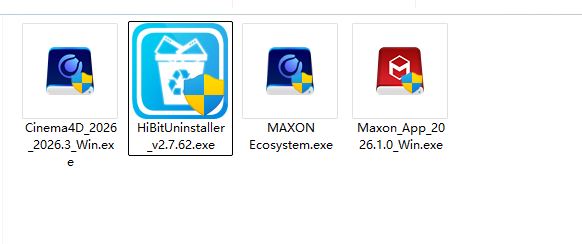
OpenHiBitUninstaller_v2.7.62.exeUninstall older versions of C4D and Maxon apps,Be sure to scan and clean up the registry and related files after uninstallation.。
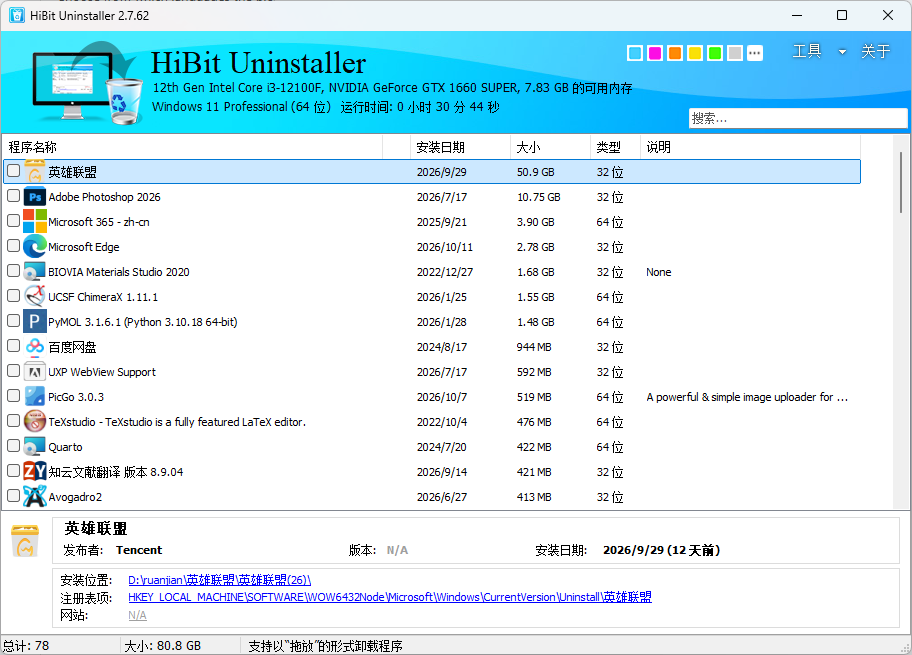
在Tools → Force UninstallIn the window, enter the aboveFile Path, and completely remove the old version.
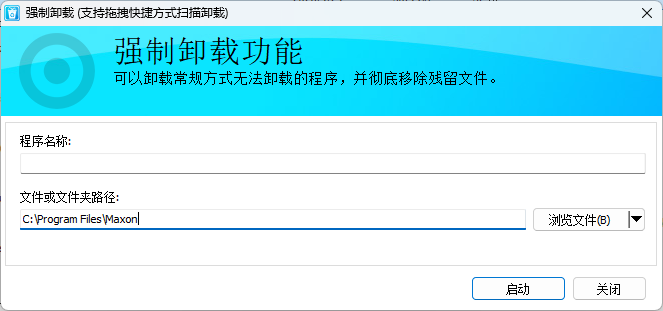
Step 2: Install the Maxon App
The Maxon App is a unified portal for installing and managing C4D and Redshift.Don't skip this step and install C4D right away., otherwise the Redshift plugin may not be recognized correctly.
Open the extracted download files and run them as an administrator.Maxon_App_2026.1.0_Win.exe。
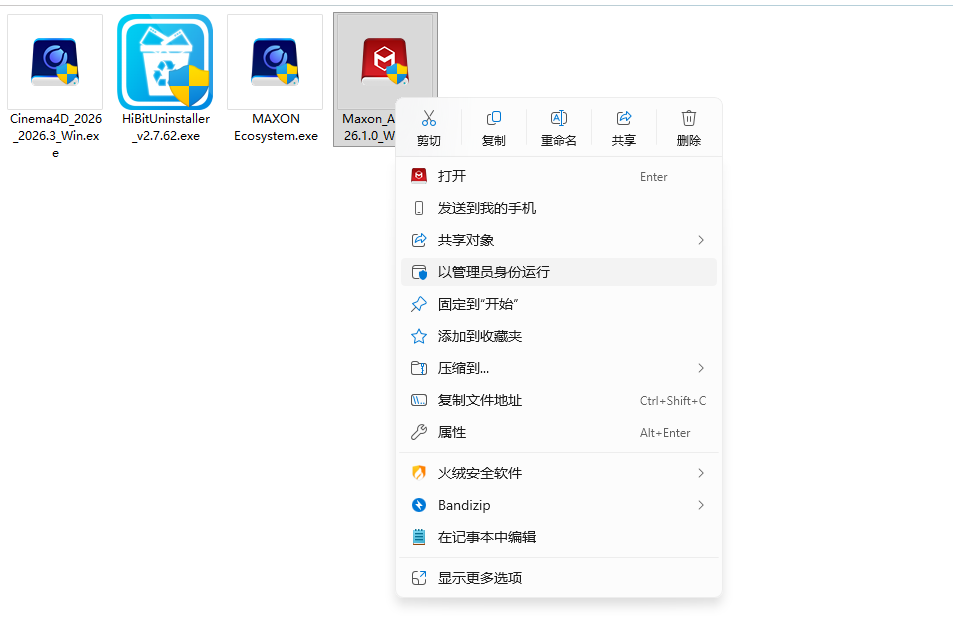
Click to continue.
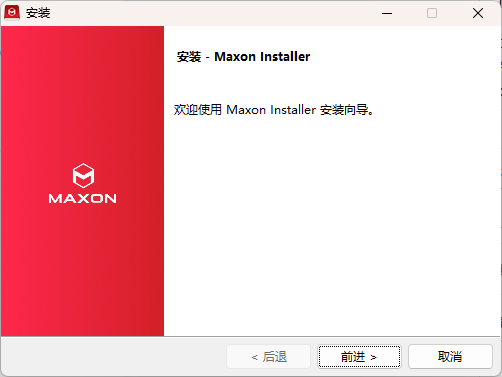
Click "Next" again.
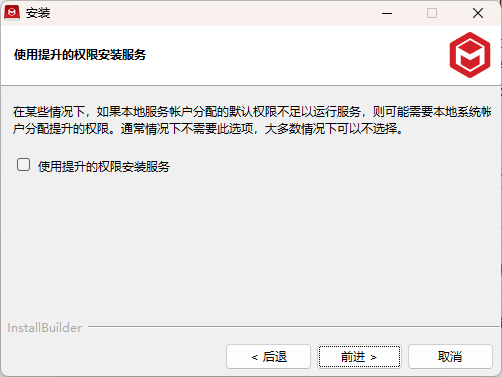
Wait for the installation to complete, then click "Finish." You can close the Maxon app that opens.
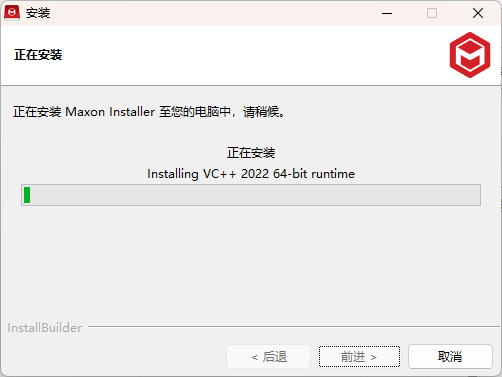


Step 3: Install Cinema 4D
Run as administratorCinema4D_2026_2026.3_Win.exe。
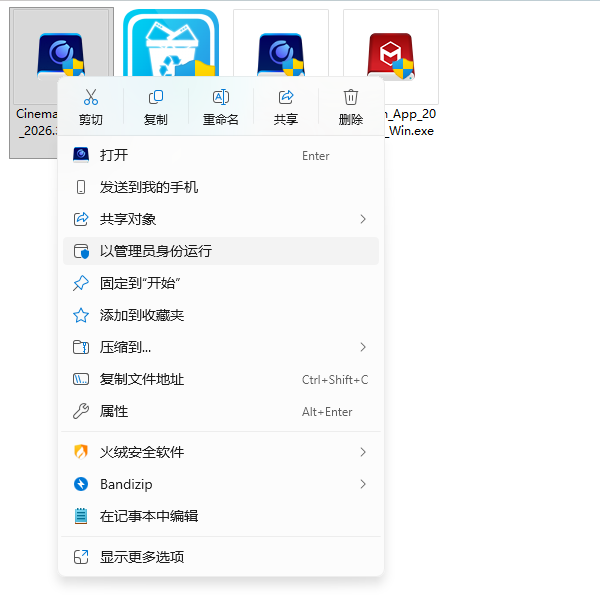
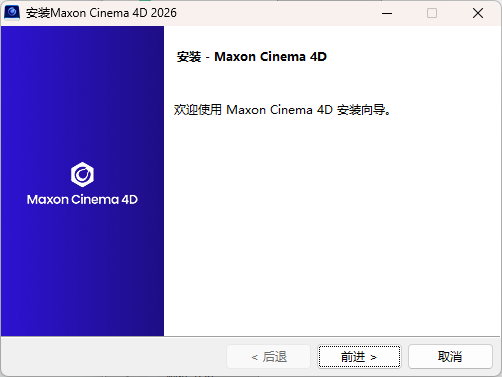
Exit the installation wizard and click Next.
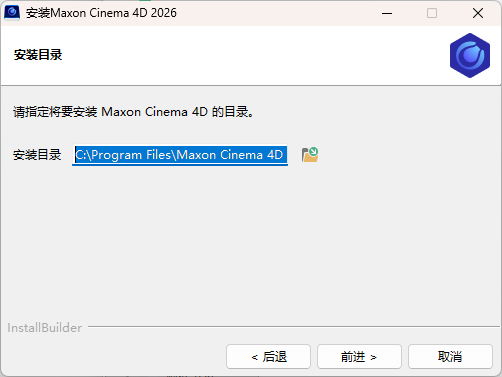
Use the default installation path and click Next.
Click to continue.
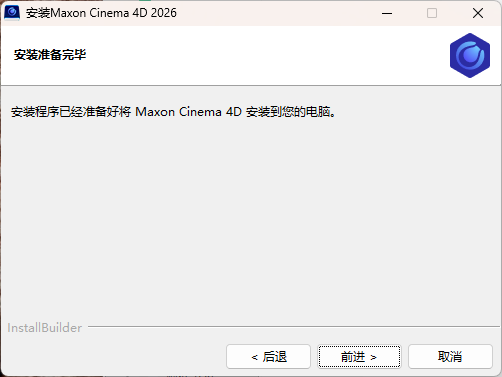
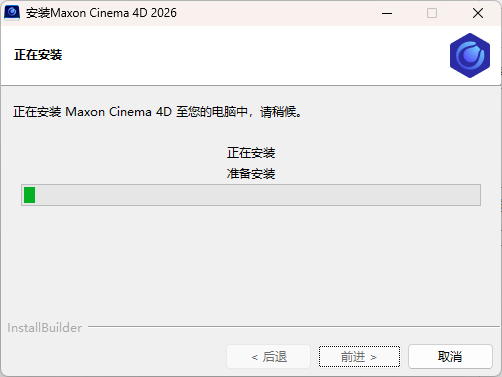
Wait for the installation to complete.
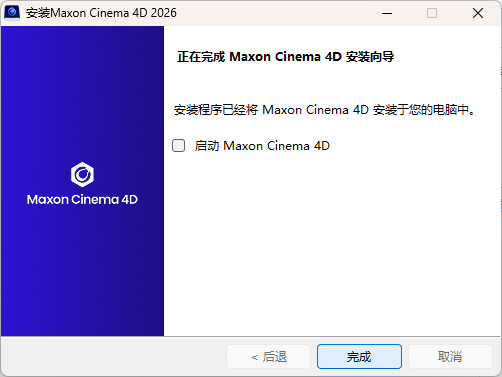
Once the installation is complete,Uncheck "Start", then click "Done."
Find "Maxon Cinema 4D 2026" in the Start menu and drag it to the desktop to create a shortcut.
Step 4: Update the C4D and RS licenses
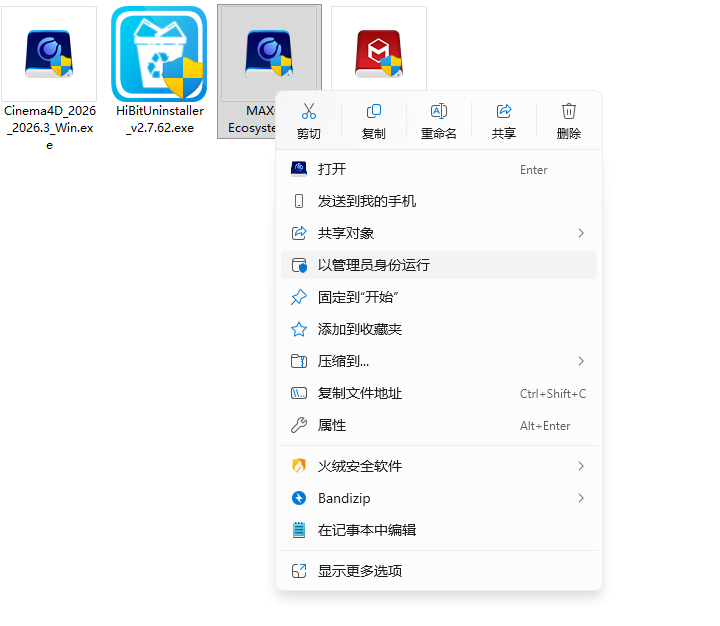
Run as administratorMAXON Ecosystem.exe。
After waiting a while, open the Maxon app; the license should now be available. Tap "Launch" there.
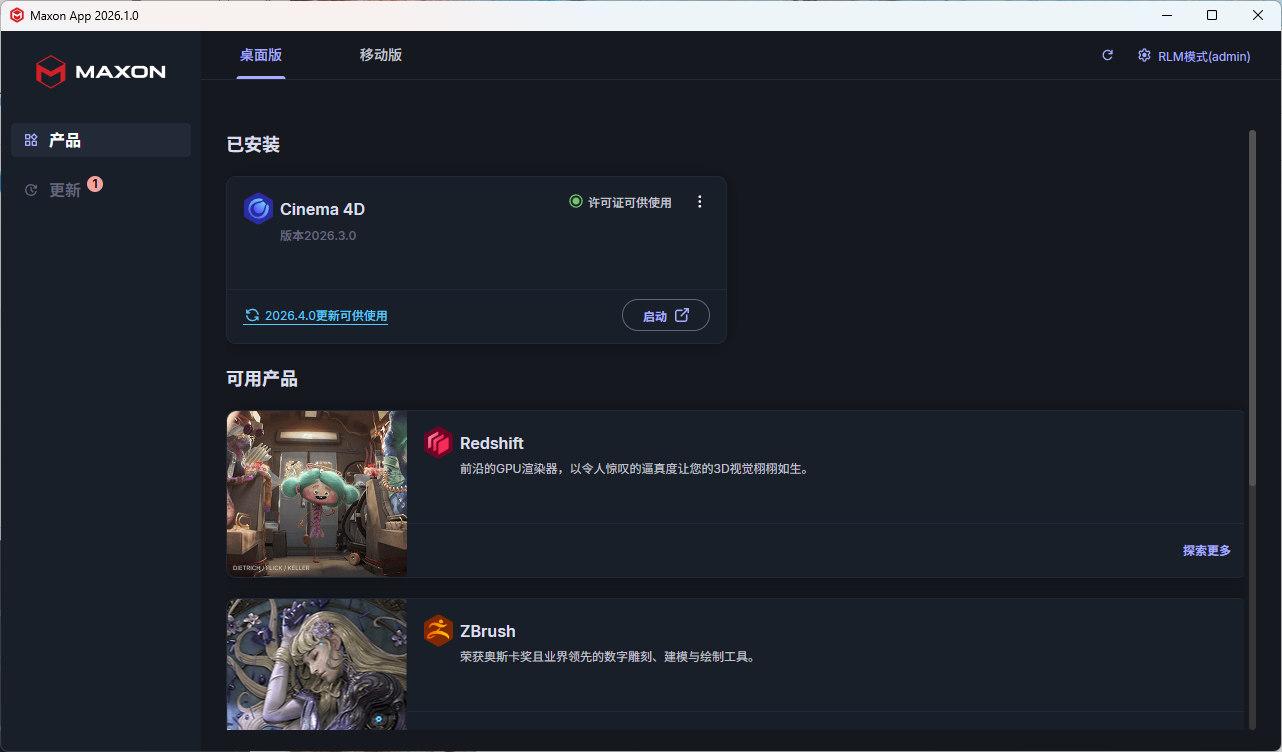
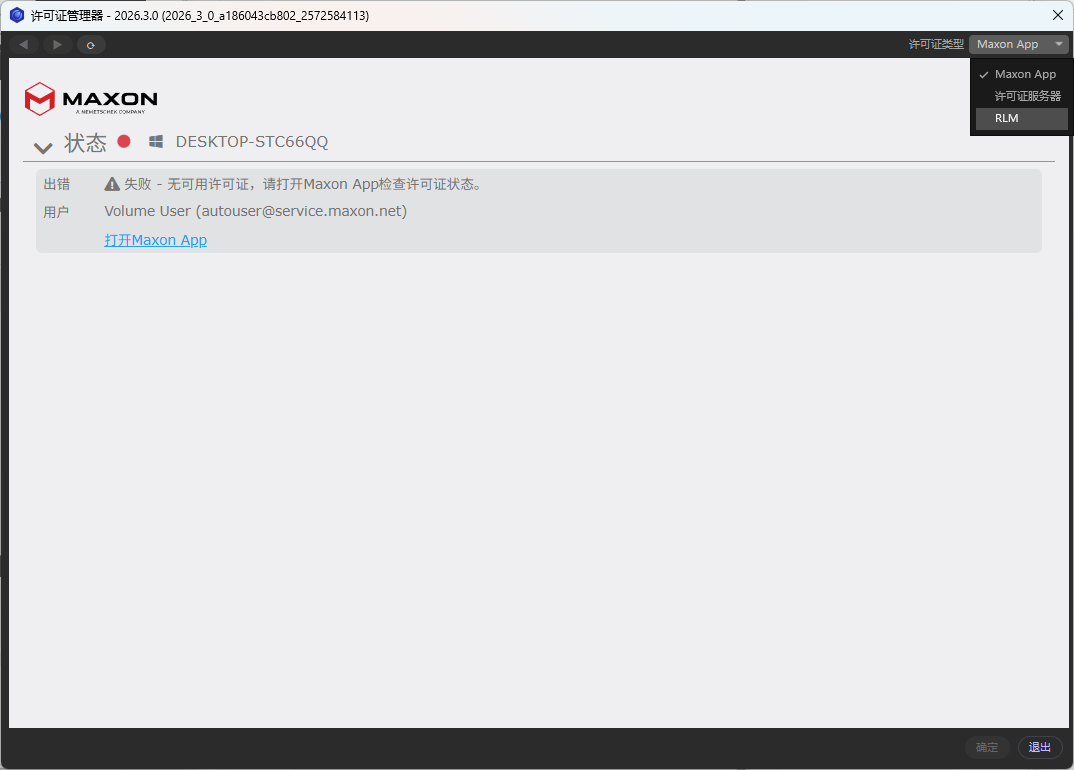
Open the License Manager window and click the button in the upper-right corner to change the license type from "Maxon app" to "RLM."
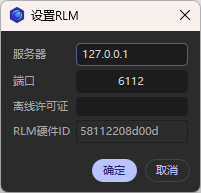
Configure RLM, enter 127.0.0.1 in the "Server" field, and click OK.
The license status here should turn green (OK). Click "OK" in the lower-right corner.
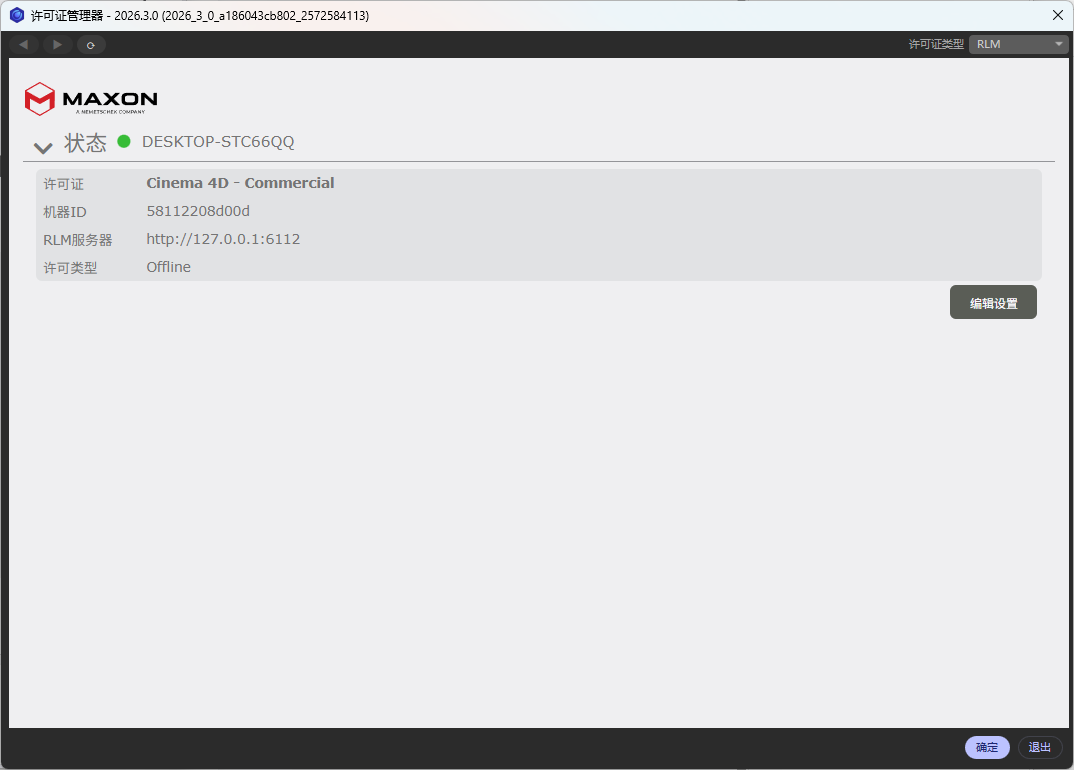
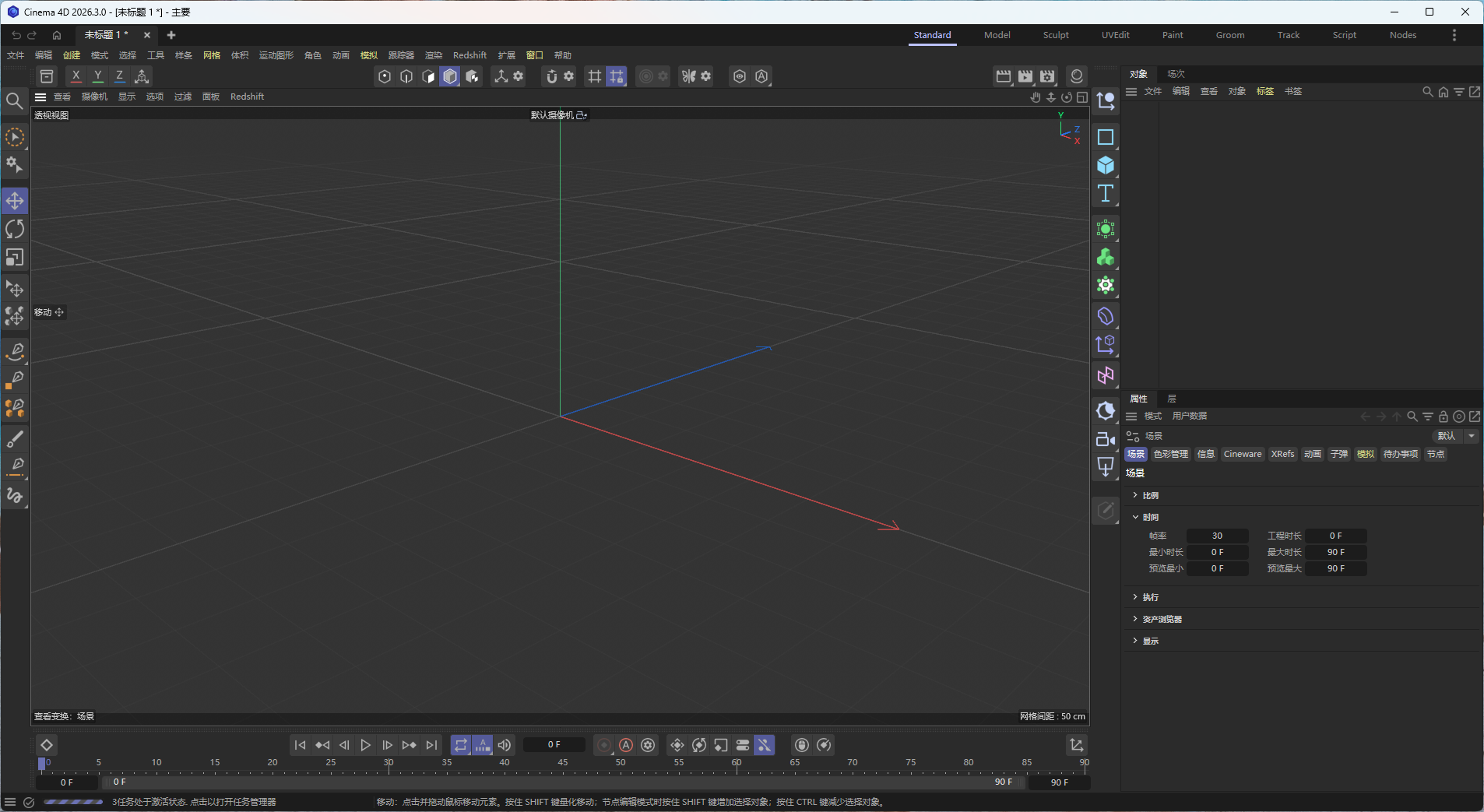
After clicking "Confirm," use C4D as usual.
Step 5: Modify the configuration folder (optional)
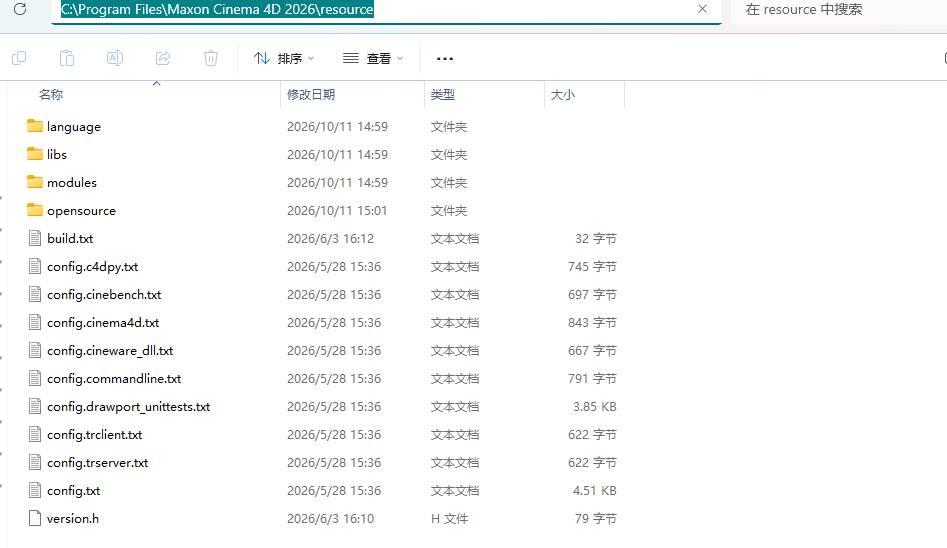
The default C4D configuration folder is located on Drive C. As you continue to use the software, resources such as assets, models, materials, and lights accumulate, putting increasing strain on Drive C’s storage capacity. Therefore, you can move the C4D configuration folder to another drive. Open the default directoryC:\Program Files\Maxon Cinema 4D 2026\resourceDownloadconfig.txtFile.
Foundconfig.txtIn the document,
// Override the default preference path
// g_prefsPath=[string](default "%{g_prefsPath}")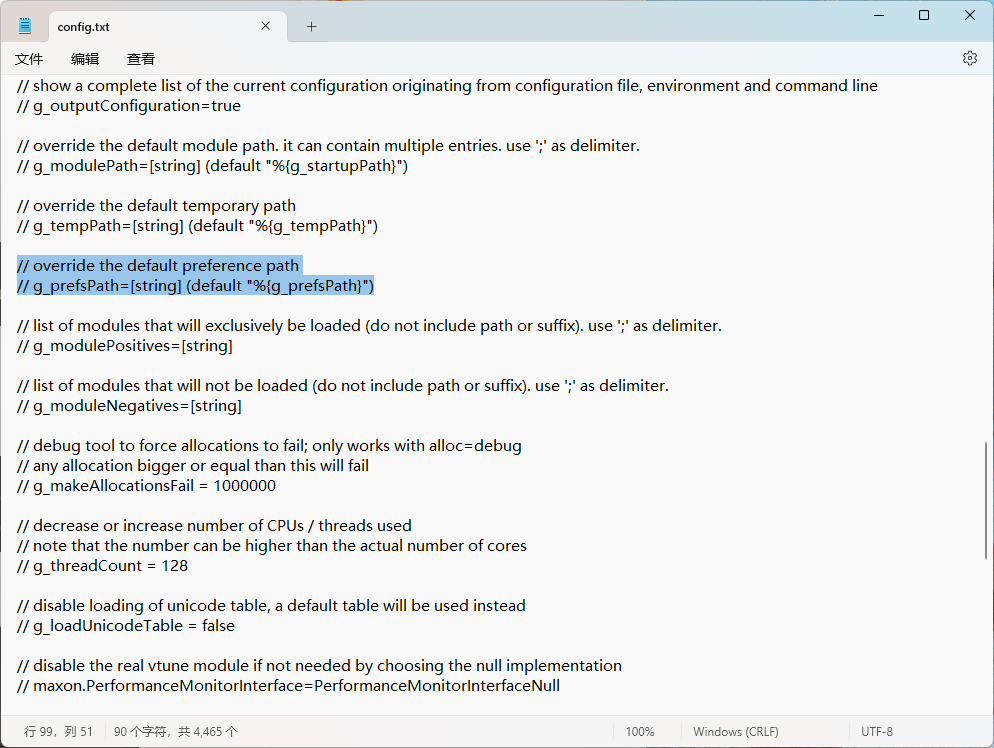
将//和[string]Delete and add after the "="“The path you want to modify“, for example, the path is D:\ruanjian\C4D-peizhi. Just save and close the file.
// Override the default preference path
g_prefsPath="D:\ruanjian\C4D-peizhi"(default "%{g_prefsPath}")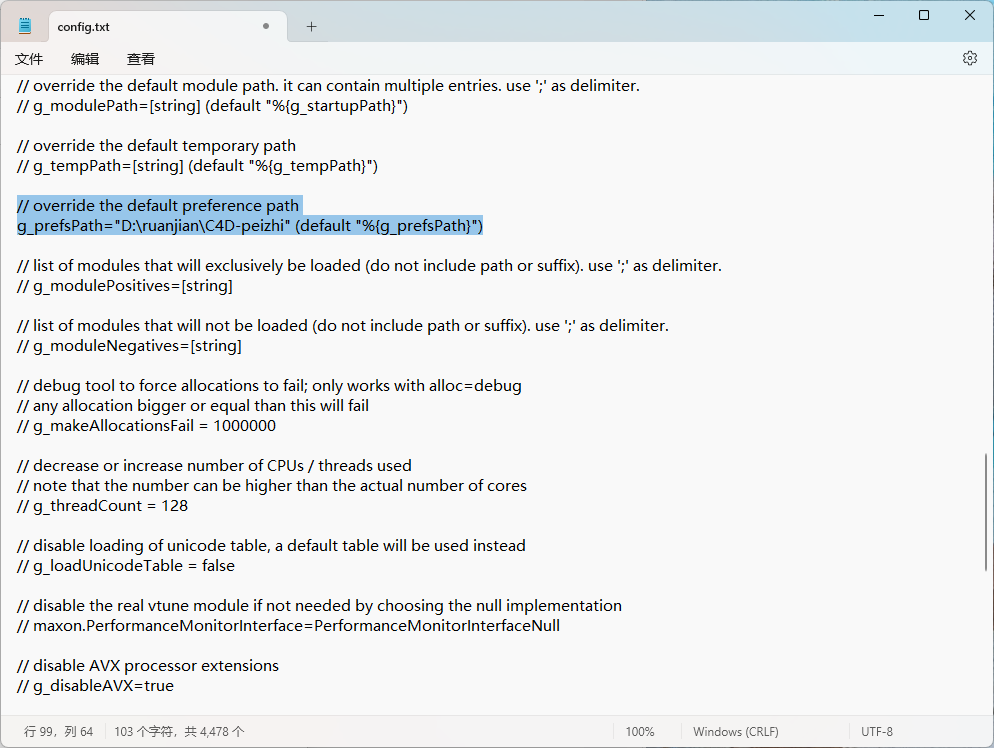
🖼️ Installation and Rendering Test
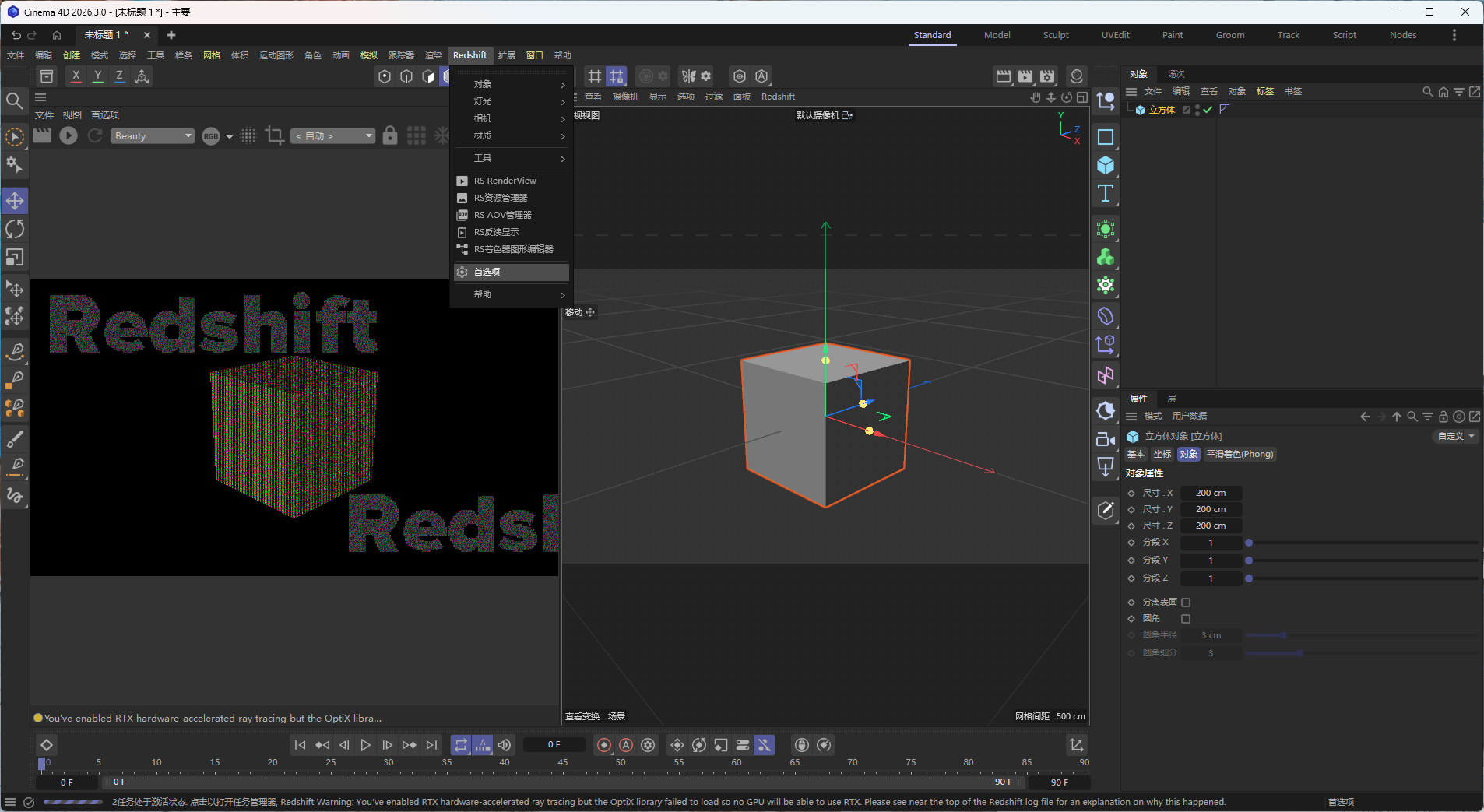
This guide covers the Redshift renderer built into C4D. Currently, it only supports CPU rendering; GPU rendering is not available (it displays a watermark and requires a purchase to function properly). Therefore, in the Redshift preferences, make sure to uncheck your graphics card—you’ll have to render using the CPU only.
Create a new cube model using the Redshift renderer. Redshift supports both GPU and CPU rendering; however, GPU mode is currently unavailable and displays a watermark—you must purchase a licensed copy to use it.
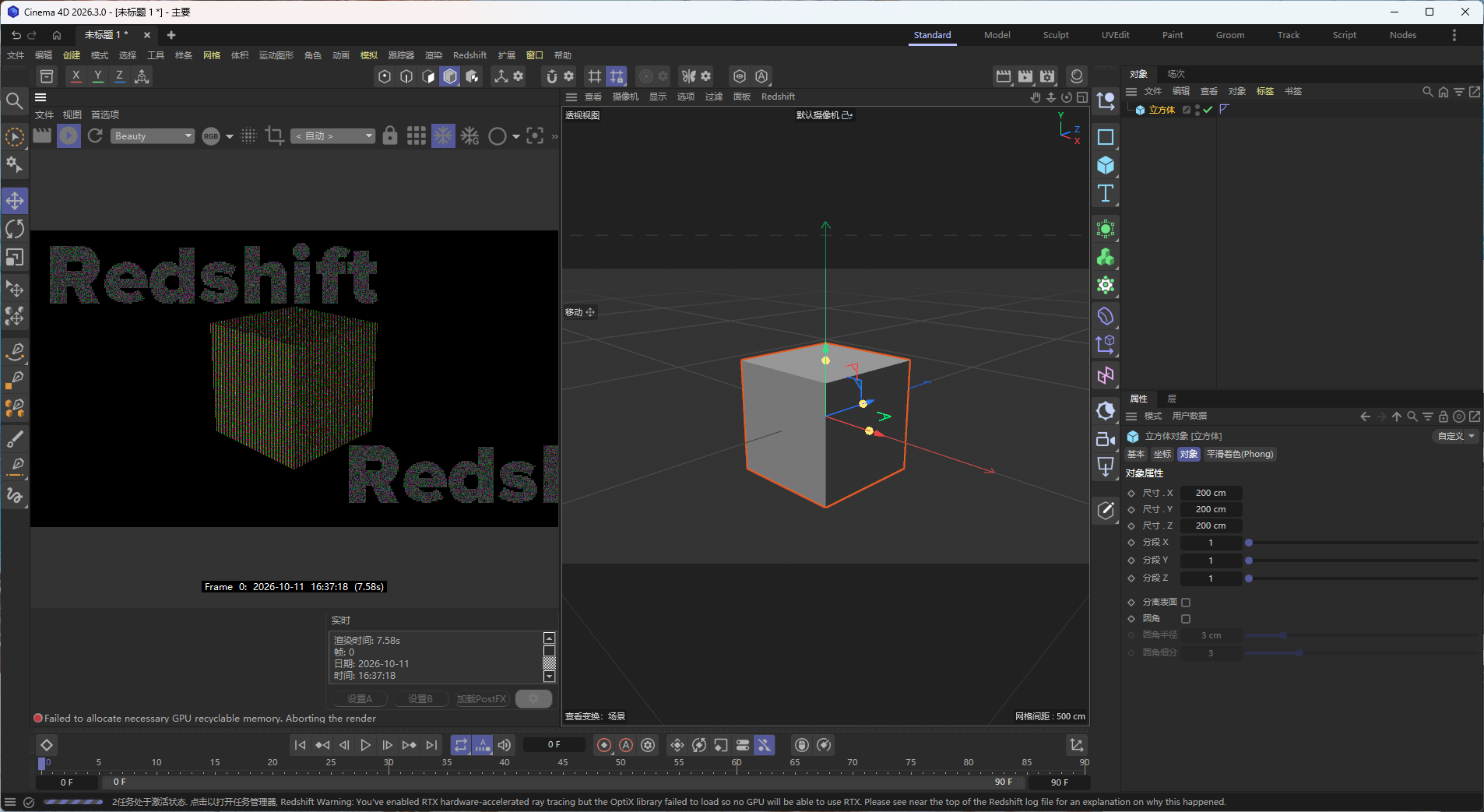
At this point, you can go to Redshift → Preferences → Compute Devices,Leave the "GPU" checkbox unchecked。
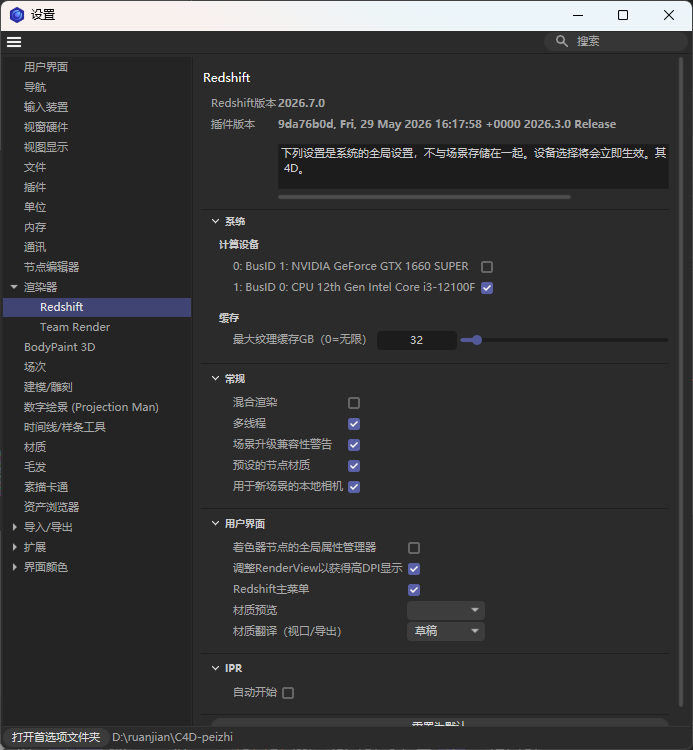
When using CPU-only mode, the model renders normally.
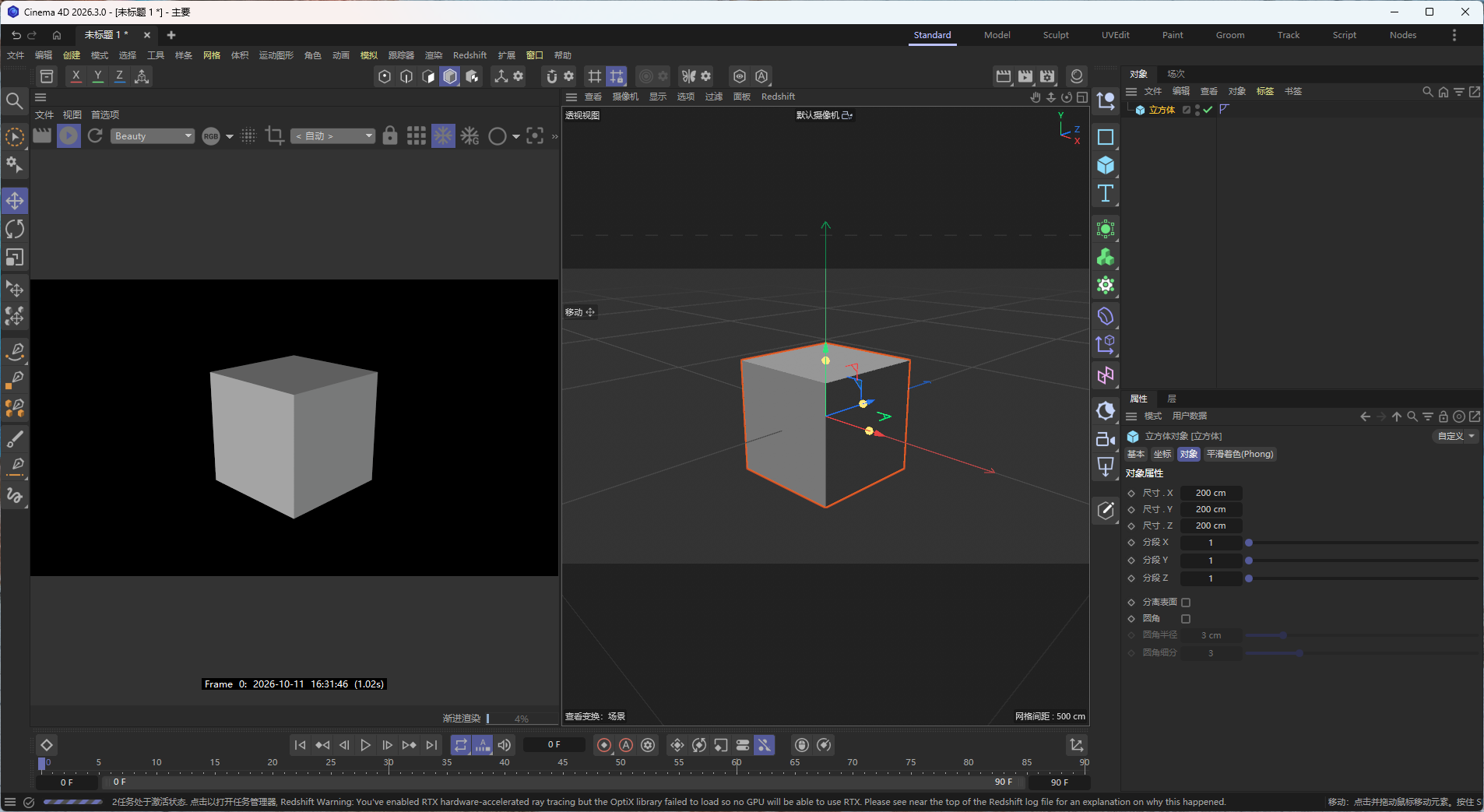
With this, the 2026 version of the C4D + Redshift scientific rendering workflow is now fully operational. You can now directly open and modify all the C4D source file models previously shared on this site, such as petri dishes, single-neck flasks, glass test tubes, laboratory stands, graduated cylinders, and more.
📋 Quick Overview of Version Highlights
New Features in Cinema 4D 2026.3
| Features | Help with Scientific Illustrations |
|---|---|
| Modern UV Editor | Nanoparticles and crystal surface mapping no longer require external software; they can be edited directly within the viewport. |
| Particle Properties Manager | More efficient viewing and adjustment of properties in simulated scientific research scenarios (such as fluids and particle accumulation) |
| MoGraph Advanced Distributions (Edge / Rivet / UV Projection) | Clones arranged along the edges and particles distributed along the UV surface, suitable for modeling nanostructured arrays |
UV Editor RefactoringThis is the most significant update in March 2026. The new UV editor supports seam editing, smart automatic unwrapping, zero-overlap packing, and texture density tools, andAll operations can be performed directly within the 3D viewport.. This means that when you're working on the UV unwrapping of nano-flower petals or performing precise texture alignment for columnar graphene arrays, you no longer need to switch to other software, resulting in a significant increase in efficiency.
New Features in Redshift 2026.7
| Features | Benefits for Scientific Visualization |
|---|---|
| NVIDIA OptiX 9.0 | RTX 40/50 Series Graphics Cards Offer Significant Improvements in Rendering Speed and Faster AI Noise Reduction |
| Redshift Live Real-Time Depth of Field | You can see the final bokeh effect right in the preview stage, so there's no need to repeatedly test the rendering. |
| Randomly Rotating Hexagonal Tiles | Avoids texture repetition and is suitable for rendering details on large surfaces (such as bases and film layers) |
| Autodesk Revit Support | If you're working on scientific visualization related to architecture or engineering, you can import directly from Revit. |
OptiX 9.0 is the most notable update in version 2026.7. It takes full advantage of the Tensor Cores in RTX graphics cards, making AI denoising significantly faster than in the previous generation of OptiX. For scientific models that require batch rendering of multiple viewpoints—such as generating 10 to 20 images of a structural model from different angles—this improvement results in a significant reduction in total rendering time.
💬 Final Thoughts
C4D + Redshift is currently one of the most efficient desktop workflow combinations in the field of scientific visualization. Improvements in both versions—including UV editing, particle management, GPU rendering speed, and real-time previews—have taken the practicality of this toolset to the next level in scientific applications.
The two biggest pitfalls to watch out for during installation—Redshift plugins are duplicated, causing them not to display和The GPU driver version is too old, preventing rendering.—This article provides detailed troubleshooting steps. If you encounter any other issues during installation or use, please feel free to contact us at any time. We regularly share scientific visualization resources, software tutorials, and productivity tools, and we’re constantly updating our content—stay tuned!
Make scientific rendering faster, more stable, and more hassle-free. 🎨✨