GitHub Desktop Practical Tutorial

GitHub Desktop Practical Tutorial: Managing with GitResearch CodeExperimental design and analysis results, with safety tracking for every modification.
This article is based on GitHub Desktop 3.6.11 Stable VersionThis guide provides a baseline for how to use a graphical interface to create version history, compare changes, create experimental branches, and sync projects to GitHub when needed. Even if you're unfamiliar with the command line, you can start with scripts, Markdown, configuration files, and small projects.
Research projects are rarely completed in one go: analysis scripts are constantly adjusted, parameter files require repeated experiments, and experimental designs and graphs may undergo multiple revisions. Relying solely on file naming conventions like “Save As Final Version 2” or “final_final” makes it difficult to accurately determine which version of code and parameters produced a particular result.
Git is a type ofVersion controlThe system can record changes to files at different points in time.GitHub Desktop This approach integrates commonly used Git operations into a visual interface, allowing users to view changes, fill in commit messages, switch branches, and synchronize remote repositories. This article uses a hypothetical scientific data analysis project as an example to establish a traceable project directory and complete the basic process from the initial commit to modification and rollback.
Suitable for: This tool is suitable for students, teachers, researchers, and lab staff who use Python, R, MATLAB, Jupyter Notebook, or other tools for scientific computing; it is also suitable for users who need to manage experimental protocols, project specifications, plotting scripts, and small data processing workflows.
Research Project Version Control
Version control is more than just a tool for programmers to manage software code. It's more like an inspectable record of changes: each time a meaningful stage is completed, a version with explanations is saved, and later the differences can be viewed to understand what was changed, when it was changed, and why it was changed.
For example, you are analyzing a set of experimental data:
- The baseline analysis was completed using the original parameters for the first time.
- The rules for handling outliers were later modified.
- The fitting model and plotting format were also adjusted.
- It was eventually discovered that a new parameter was causing the results to deviate, requiring a review of previous versions.
If an entire folder is copied at each stage, the directory will quickly expand, and it will be difficult to determine which file corresponds to which computation. Git records changes to text files and saves the state of multiple files at a certain point in time as a single entry. commitSubmission instructions can help you establish a clear project timeline.
It's important to distinguish that Git records file versions and does not automatically verify the correctness of experimental results or record the actual operating status of the instrument. To ensure reproducibility of the analysis, it's still necessary to organize the code, parameters, software version, data descriptions, and operating procedures properly.
Differences between Git and GitHub Desktop
| name | Function |
|---|---|
| Git | A local version control system is responsible for recording file changes, commits, and branches. |
| GitHub | An online platform for hosting Git repositories, enabling remote collaboration and backup-style synchronization. |
| GitHub Desktop | The official GitHub desktop client, allowing you to perform common Git operations through a graphical interface. |
Git repositories can be stored entirely on your local computer initially. When multiple people need to collaborate or access the repository from different locations, you can then connect the local repository to a remote platform such as GitHub.Local commit and remote push are two different things.The commit option saves the changes to the local history first, while the push option sends the commits to the remote repository.
Install GitHub Desktop
3.1 Download and Installation
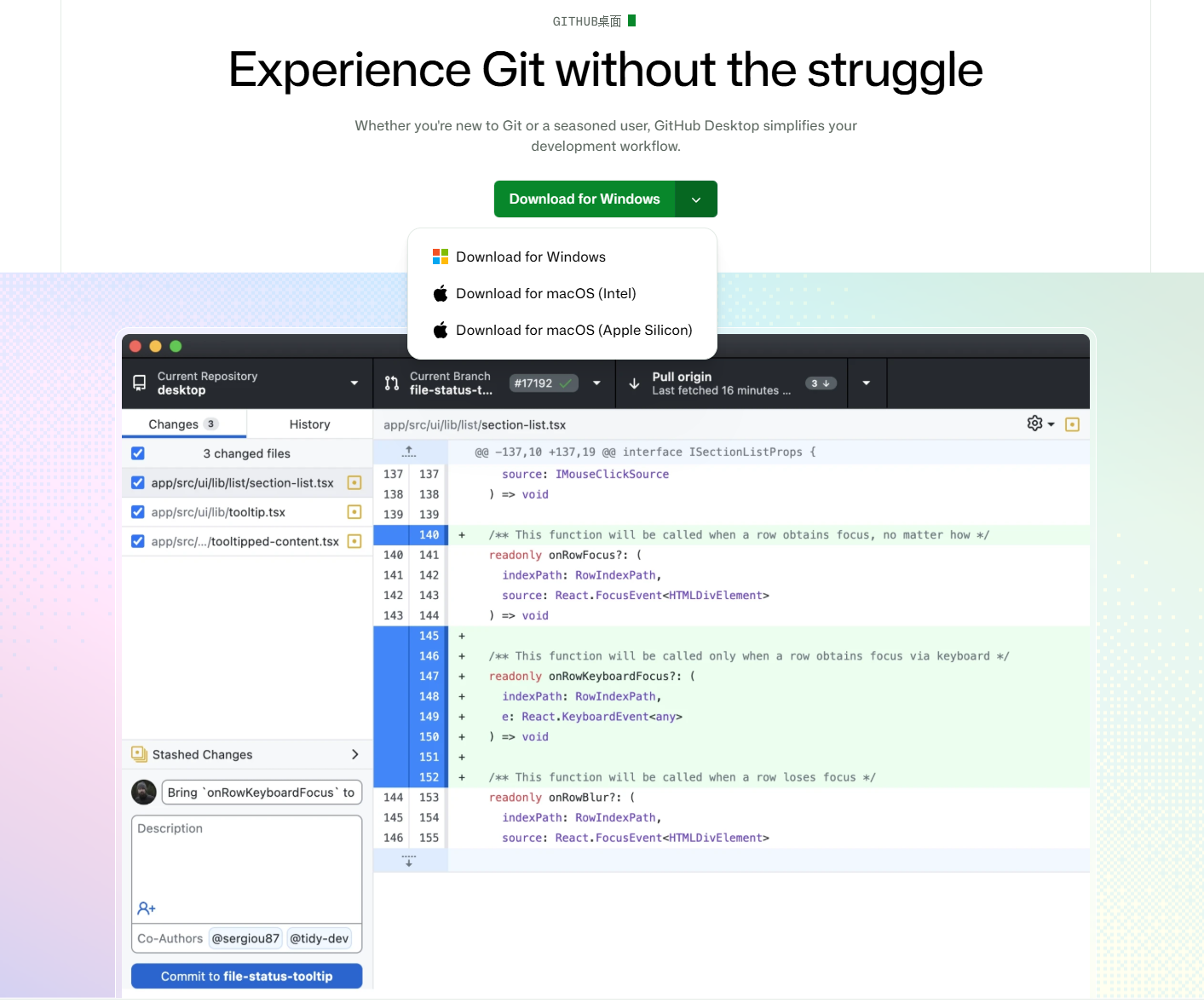
Official download and installation page:https://desktop.github.com/
As of November 26, 2026, the official GitHub Desktop release history shows... Version 3.6.11 is the latest stable version.The stable version was released on November 16, 2026; version 3.7.1-beta1 was released on November 24, and is a pre-release version. Regular users are advised to install the stable version first, unless they need to test new Beta features.
Windows users should download the Windows installer, run it, and follow the prompts to complete the installation; macOS users should download the corresponding installer and add the application to their Applications folder. The official GitHub Desktop does not currently provide native support for Linux; Linux users should consider community-maintained alternatives, which will not be discussed in this article.
Is it mandatory to register a GitHub account?
If you're only setting up and managing local repositories, you can start with a local project. Only log in to your account and connect to a remote repository when you need to publish the project to GitHub, use remote collaboration, or access an existing remote repository.
When research data involves privacy, ethical approvals, or institutional management requirements, do not assume that uploading is permissible simply because GitHub offers private repositories. Visibility settings for private repositories do not replace data management approvals; original patient data, personal information, unauthorized data, and laboratory secrets should remain in approved storage systems.
Create a research project repository
This example creates a fictitious “Experimental Data Analysis” project. It's recommended to keep the directory structure simple for now:
sample-analysis/ ├── README.md ├── analysis/ │ └── analyze.py ├── config/ │ └── parameters.yaml ├── docs/ │ └── workflow.md ├── results/ │ └── figures/ └── data/ ├── raw/ └── processed/in,analysis/ Save the analysis script.config/ Save the parameter file.docs/ Saving process instructionsresults/figures/ Smaller result graphs that require version tracking can be displayed. Whether to put the raw data in the repository depends on file size, privacy, and data management standards; in most cases, it is recommended to store the raw data in a dedicated data store, and only keep data descriptions, file lists, or verification information in the repository.
Create a new repository in GitHub Desktop
- Open GitHub Desktop.
- Choose File → New repository。
- Enter the project name in the Name field, for example...
sample-analysis。 - Select the parent directory where you want to save your project in Local path.
- Check the "Initialize README" box (if the interface provides this option), and select the appropriate language based on the project language.
.gitignoreTemplates; if there are no suitable templates available at the moment, you can create one manually later. - Click Create repository.
After creation, GitHub Desktop will display the repository's current branch, Changes, and History. At this point, the repository is already established locally and does not need to be published to the network immediately.
Add project files
Open the project directory you just created in your file manager, and place the scripts, parameters, and documentation files into the corresponding subfolders. After saving, GitHub Desktop will automatically detect the new or modified files and list them in Changes.
It is recommended to first create a simple one. README.mdWrite it clearly:
- What problem does the project aim to solve?
- What software and version to use;
- Where does the data come from, and where is it stored?
- How to run the analysis;
- Which directory should the output file be written to?
- Which content is not included in the repository?
The README doesn't need to be very long. The most important thing is that you can quickly understand the project's entry point when you reopen it a few weeks later.
First submission: Establishing a traceable baseline
Check changes
In GitHub Desktop Changes On the left side of the page, newly added, modified, or deleted files are listed. Clicking on a file will display the differences (diff): newly added and deleted content will be marked in different colors.
It is recommended to check each item one by one before submitting:
- Did you accidentally add raw data, temporary files, or passwords?
- Does it contain paths, accounts, or personal information that should not be made public?
- Should multiple unrelated changes be mixed into a single commit?
- Are there large binary files causing the repository to expand rapidly?
Fill in and submit instructions
Please fill in a brief description in the Summary section at the bottom of the Changes page, for example:
Establish baseline analysis workflow and parameter filesThe description can provide more detailed background information, for example:
- Added data reading and basic cleaning scripts - Recorded initial fitting parameters - Added project execution instructionsThen click Commit to main(The actual branch name is subject to the interface display). This step saves the changes to the local Git history.
Clear submission content
Commit granularity doesn't need to be too fine, and it's not recommended to cram a month's worth of changes into a single commit. You can organize your work by “one explainable phase”:
Establish initial data processing flowCorrect missing value handling rulesAdjust fitting parameters and update diagnostic plotSupplementary Experimental Protocol and Software Version Information
When submitting your submission, try to write “what I did” instead of words like “updated,” “modified,” or “final version” that you can't recall the specifics of.
Use branches to conduct independent attempts
Scientific analysis often requires comparing different methods. While continuously overriding scripts on the main branch allows for historical review, it becomes difficult to manage multiple exploration paths when they are intertwined.
Branches allow you to experiment without immediately changing the main storyline. For example, if the current main storyline is... mainTo test another baseline correction method, you can create a new... baseline-test Branch.
Operating steps:
- Click at the top Current Branch。
- Choose New Branch。
- Enter the branch name, for example
baseline-test。 - Confirm that the branch is created based on the current main branch, and then click Create Branch.
- Modify the script and parameters in the new branch and commit.
- If the experimental results are valuable, the branch can be merged back into the main branch; if not, the branch can be kept as an experimental record or deleted after it is confirmed that it is no longer needed.
Branch names should reflect the purpose as much as possible, for example try-robust-fit、compare-filter-window、figure-redesignDo not use new1、test2 These are names that become unrecognizable after a period of time.
View history, compare modified and restore files
View project history
Switch to History On this page, you can see the commit history sorted by time. Clicking on a commit allows you to view which files it contains, the specific changes made, and the commit message.
This is very useful for research projects: when a curve in a graph suddenly changes, you can first check whether the most recent change involved data filtering, fitting parameters, or plotting code, instead of directly rewriting the entire analysis process.
Revert committed error changes
If a commit has already been pushed to the remote repository and you want to undo its impact on the project, it is recommended to use... Revert Changes in Commit(Undo the changes made in this commit). GitHub Desktop will generate a new commit to offset the original commit, and the original history will still be preserved. This is more suitable for collaborative work with multiple people and for shared branches.
Operating steps:
- Find the commit that needs to be undone in the History.
- Right-click and submit.
- Choose Revert Changes in Commit。
- Check the generated changes and submit them only after confirming that they are correct.
Do not treat Reset, Undo, and Revert as the same operation. Undo is typically used for the most recent commit that has not yet been pushed; Reset moves the current branch and may change the local history; Revert undoes existing changes by adding a new commit. Beginners should prioritize understanding and using Revert, and before using Reset, confirm whether it has been pushed and whether it has been shared with others.
Sync your local repository to GitHub
Once the local project structure and commit history are organized, you can choose to publish it to a remote repository.
- Log in to your GitHub account in GitHub Desktop.
- Click Publish repository。
- Enter a name and description for the remote repository.
- Choose Public or Private depending on the project requirements.
- Confirm whether to retain the local repository name, and then publish.
After publishing, subsequent local commits will still be saved on your computer. To synchronize, click [link/button]. Push origin Push local commits to the remote server; if there are other people's commits on the remote server, first fetch/pull and handle conflicts, then continue pushing.
For personal research projects, private repositories are generally more suitable for code and documentation that have not yet been made public. However, please note that private repositories are still cloud storage and must comply with institutional data management, ethical, and confidentiality requirements. Public repositories should be checked for licenses, data sources, author information, and whether they contain sensitive content.
Which documents from research projects are suitable for inclusion in Git?
| File type | Recommendations | reason |
|---|---|---|
| Python/R/MATLAB scripts | Generally suitable | The text differences are clear, making it easy to track and modify. |
| Markdown, Experiment Plan, README | Generally suitable | Convenient for viewing history and collaborative editing |
| Parameters YAML/JSON/TOML | Generally suitable | It can record changes in analysis parameters |
| Small CSV sample data | Depending on the situation | Authorization, privacy, and file size need to be confirmed. |
| Large-scale raw microscopic images, videos, and sequencing data | Normally, you don't directly put a regular Git file. | The files are large, the repository grows rapidly, and privacy may be involved. |
| Model weights, binary project file | Depending on the project | Consider Git LFS or a dedicated object storage system. |
| Password, API Key, Access Token | Never submit | This could lead to account or data leaks. |
GitHub sets size limits for regular Git files: warnings are issued for files exceeding 50 MiB, and single files exceeding 100 MiB are rejected. Git LFS can manage larger files through pointer files, but different plans have their own single file limits and storage/bandwidth quotas. GitHub also explicitly warns that Git should not be used as a backup tool.
For large-scale scientific research data, a more prudent approach is to store the data in a laboratory-approved data storage or object storage repository. The repository should include a data catalog description, file list, collection date, processing flow, and necessary checksums. Code version control and data backup should be clearly separated.
Recommended .gitignore Starter Template
Create in the project root directory .gitignoreYou can use the basic template below first, and then adjust it according to the actual project:
# Python cache and virtual environments __pycache__/ *.py[cod] .venv/ venv/ # Jupyter temporary checkpoints .ipynb_checkpoints/ # Editor and OS files .vscode/ .DS_Store Thumbs.db # Local secrets .env .env.* !.env.example # Large or restricted raw data: keep outside Git by default data/raw/ # Temporary outputs (adjust if selected results should be tracked) tmp/If you absolutely need to include the processed data or final charts in version control, don't blindly ignore the entire process. results/ 或 data/processed/First, identify which outputs need to be tracked long-term, then set rules for caches, temporary files, and large datasets.
Note:.gitignore This only applies to files that are not yet tracked by Git. If a file has already been committed and an ignore rule is added later, the file may still appear in the repository and needs to be removed from the tracking list separately; do not interpret this as automatically deleting files from history.
Lightweight work habits suitable for daily scientific research
You can start with the following simple process:
- Before starting the analysis, confirm the current branch and the most recent commit.
- After completing a clear small phase, check the diff.
- Submit the code, parameters, and description together, and clearly state the reason for the change.
- The new method should be placed in a separate branch first, and should not directly overwrite the established baseline.
- Record the operating environment, dependency versions, and data sources; coordinate with project environment management tools when necessary.
- Push local commits to an approved remote repository periodically and back up the data separately.
GitHub Desktop will not replace environment management tools such as uv, Conda, and renv, nor will it replace project documentation tools such as Obsidian. They can each perform different tasks: environment tools lock dependencies, note-taking tools organize project progress, and Git records the evolution of text files and code.
Conclusion
For research projects, the value of version control isn't “uploading all files to GitHub,” but rather providing a clear path for changes to important code, parameters, and documentation. Starting with a small analysis project, building a repository, making a few meaningful commits, and then experimenting with branching and remote synchronization is usually easier to stick to than designing complex collaboration processes from the outset.
If a project contains large amounts of raw data, restricted data, or shared content, data storage and permission rules should be established first before deciding which files to include in Git. Separating version control, data storage, and backup ensures that research projects are both easy to trace and more secure.
Reference Links
- GitHub Desktop official download:https://desktop.github.com/
- GitHub Desktop official release log:https://desktop.github.com/release-notes/
- GitHub Desktop Releases:https://github.com/desktop/desktop/releases
- GitHub Docs: Creating your first repository:https://docs.github.com/en/desktop/overview/creating-your-first-repository-using-github-desktop
- GitHub Docs: Committing and viewing changes:https://docs.github.com/en/desktop/making-changes-in-a-branch/committing-and-reviewing-changes-to-your-project-in-github-desktop
- GitHub Docs: Managing Branches:https://docs.github.com/en/desktop/making-changes-in-a-branch/managing-branches-in-github-desktop
- GitHub Docs: Undo Commit:https://docs.github.com/en/desktop/managing-commits/reverting-a-commit-in-github-desktop
- GitHub Docs: Large file limits:https://docs.github.com/en/repositories/working-with-files/managing-large-files/about-large-files-on-github
- GitHub Docs: Git LFS:https://docs.github.com/en/repositories/working-with-files/managing-large-files/about-git-large-file-storage
- GitHub Octoverse 2026 (October 28, 2026, updated November 6, 2026):https://github.blog/news-insights/octoverse/octoverse-commits-pushes-reach-new-highs-in-2026-as-developers-build-with-agents/