

Table of contents
Hide
Everything: A Free File Search Powerhouse

Can't find a file on your computer? Everything: A Free File Search Tool That Scans Your Entire Drive in 1 Second (Includes Installation and Advanced Tutorials)
Have you ever had an experience like this:
While writing a paper, I remembered a reference I’d saved six months ago, but I just couldn’t remember which folder it was in; my experimental data, course assignments, and downloaded software installers were scattered across various drives, and even after spinning the search icon for ages, Windows’ built-in search still couldn’t turn up any results…
If you often find yourself ”looking for a needle in a haystack” on your computer, then you definitely need to install this software—Everything。
What is "Everything"?
"Everything" is a game developed by VoidtoolsFree Windows File Search Tool(There are also cross-platform third-party branches.) It solves just one problem, but it does so exceptionally well:Find any file or folder on your computer in just a few seconds.
Its key advantages:
| Features | Note |
|---|---|
| ⚡ Super-Fast Search | Read the Master File Table (MFT) of an NTFS disk directly and enter a keywordReal-timeResults are delivered with virtually no delay |
| 🪶 Extremely low resource usage | The installation package is less than 2 MB, and it typically uses only a few MB of memory while running, so it has virtually no impact on computer performance. |
| 🔄 Real-Time Indexing | The system automatically synchronizes file additions, deletions, and modifications in the background, eliminating the need to manually rebuild the index. |
| 🧹 Clean and Safe | Completely free, ad-free, doesn't scan your hard drive, and doesn't upload any data |
| 🔍 Powerful syntax | Supports advanced search features such as wildcards, Boolean operators, and regular expressions |
In a nutshell:It cuts the time it takes to ”find a file” from several minutes to just a few seconds.
Download and Installation Guide
Step 1: Download the installation package
Method 1:
Everything-1.4.1.1032.x86-Setup has been uploaded to the cloud storage service. The link is as follows:
You need to log in to view the full content
Already logged in?Refresh immediately
Method 2:
Visit the official website and select the appropriate version to download.
Open your browser and go to the official Everything website (Everything – voidtools), where you'll see the download link right on the homepage. It supportsSimplified Chinese Interface。
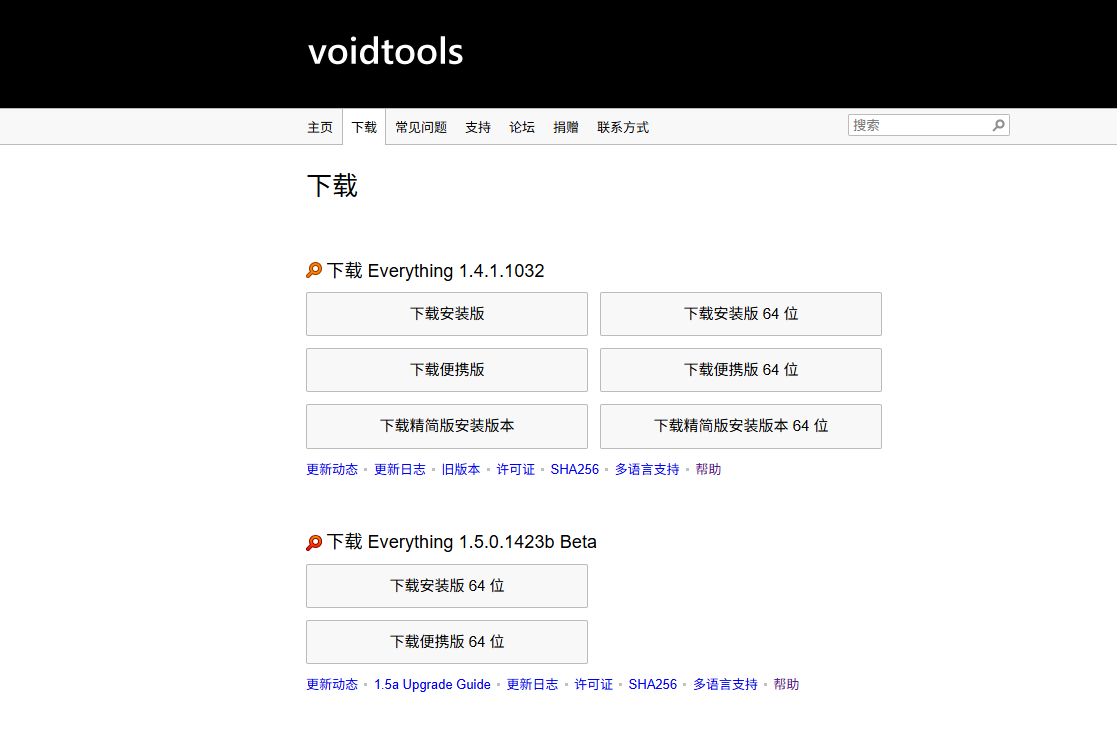
Please note the following when selecting a version:
- 32-bit (x86) version: The x86 version of Everything supports only x86 context menus. This version works on both Windows x86 and x64 platforms.
- 64-bit (x64) version: The Everything x64 version requires a 64-bit x64 operating system. It supports databases larger than 2GB. The Everything x64 version only supports x64 context menus and uses more memory than the x86 version.
- Portable Version: Users must extract Everything.exe to the specified path; this will not modify the system. Most of the options available in the installed version are also available in the portable version of Everything.
- Installer version:The installation version will guide users through the installation (Recommendations). The Everything.exe file in the installer version is identical to the one in the portable version.
- English (US):English version; you can install the language pack manually.
Step 2: Run the installer
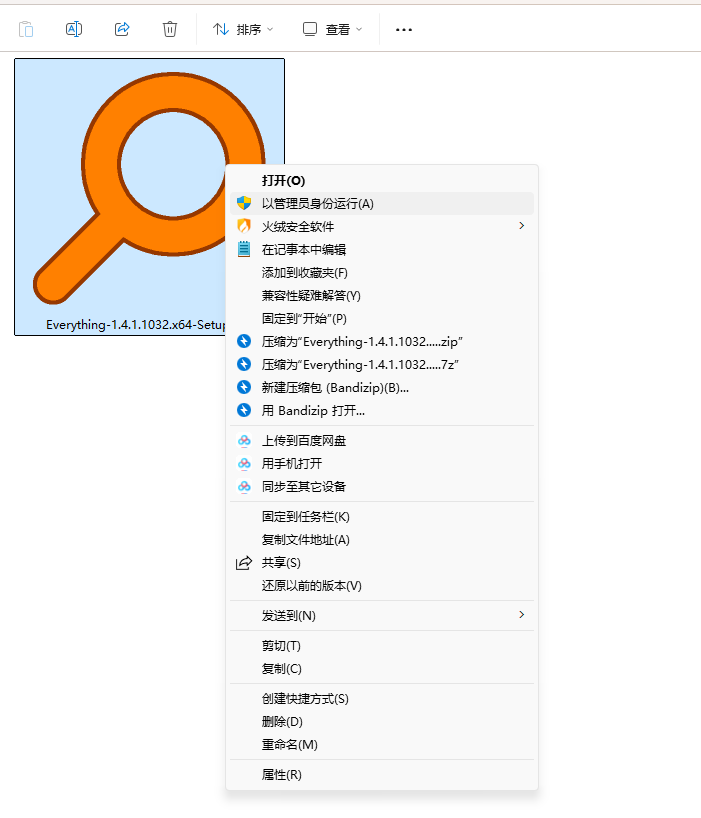
Double-click the downloaded file .exe Open the file (right-click and select ”Run as administrator”) to launch the installation wizard.
Step 3: Select a language
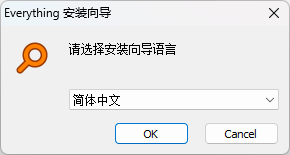
A language selection window will pop up, with ”Simplified Chinese” selected by default. Click OK。
Step 4: Accept the License Agreement
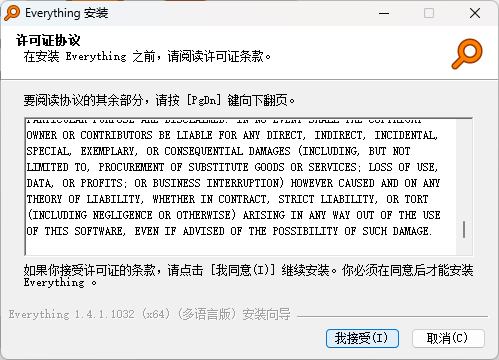
Scroll down, read the text, and then click ”I Accept.”
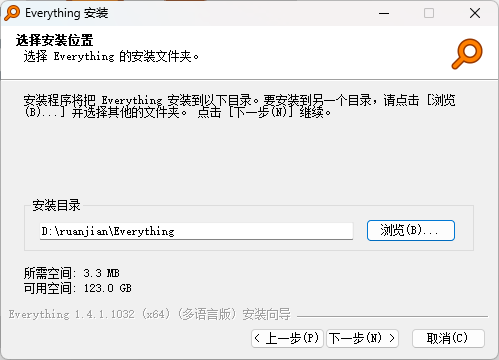
Step 5: Select an installation location
The default path is C:\Program Files\Everything。We recommend using the default path.If you really need to make changes, simply replace the drive letter (C) with D or another drive letter.
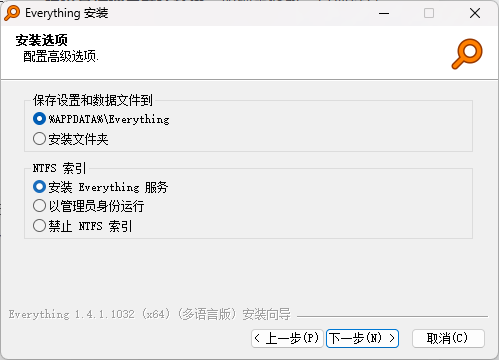
Step 6: Configure Installation Options
There are two key options on this page:
- Data Storage Location: Default
%APPDATA%\Everything, Generally, no changes are needed; - NTFS Index: We recommend selecting ”Install the Everything Service” for the fastest search speeds.
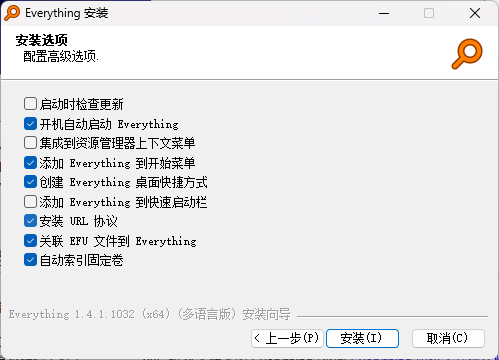
| Options | Note |
|---|---|
| Check for Updates | Once enabled, when you run Everything, it will connect to www.voidtools.com to check for updates. |
| Automatically start Everything at startup | Set Everything to start automatically at startup. This will load the Everything database into memory and create an Everything system tray icon. |
| Integrated into the File Explorer context menu | Integrate the “Search Everything…” context menu into Windows Explorer. Clicking this context menu item will open the Everything search window with the selected folder. |
| Add Everything to the Start Menu | Create shortcuts for "Search Everything" and "Uninstall Everything" in the Start menu. |
| Create an Everything Desktop Shortcut | Create a desktop shortcut for Everything. |
| Add Everything to the Quick Launch bar | Create a shortcut for "Everything" in the Quick Launch bar. |
| Install the URL Protocol | Allow Everything to be opened via es:urls. |
| Associate EFU Files with Everything | Associate Everything file lists (EFU files) with Everything. |
| Automatically Index NTFS Fixed Volumes | When enabled, Everything will automatically add all NTFS volumes to the index. Disable this option to add them manually. |
This setting can be found in "Everything" OptionChange in the middle.
Step 7: Complete the installation
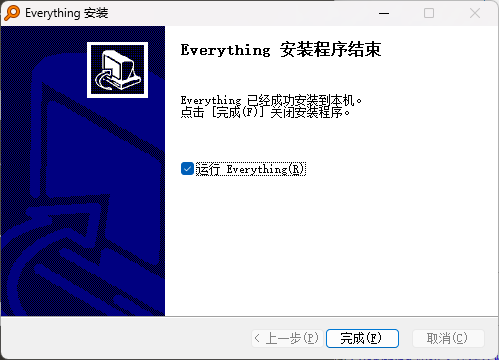
Once the installation is complete, check the ”Run Everything” box, click "Finish," and the software will launch.
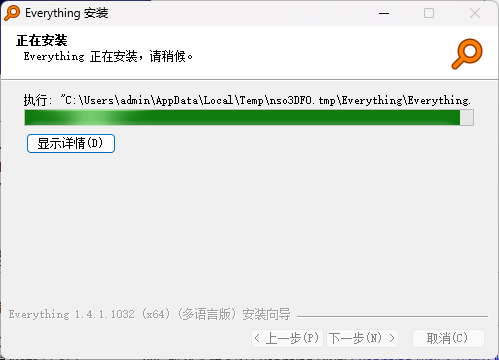
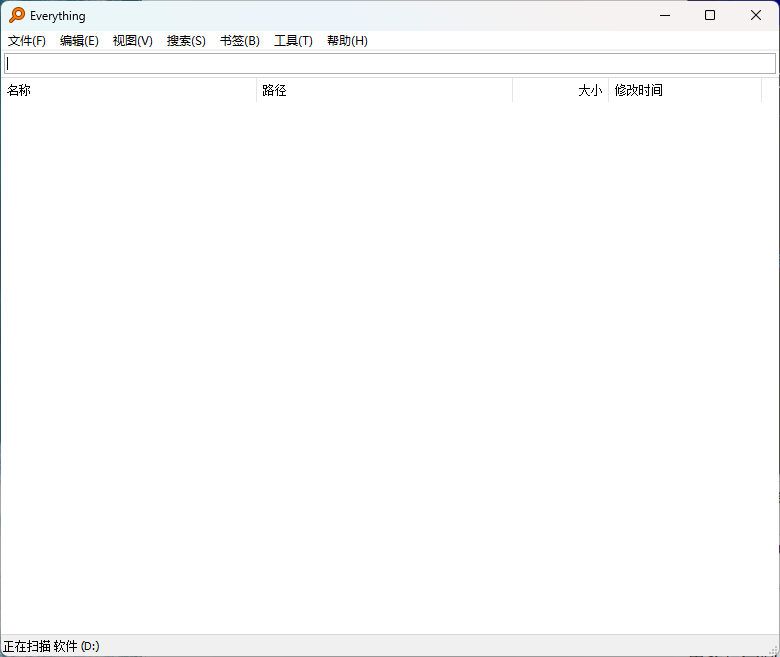
💡 Tip: The first time you run the app, it will take 1–2 minutes to build the index—please wait a moment. We recommend enabling ”Auto-start on boot” in the settings.
Basic Usage: Get Started in 3 Seconds
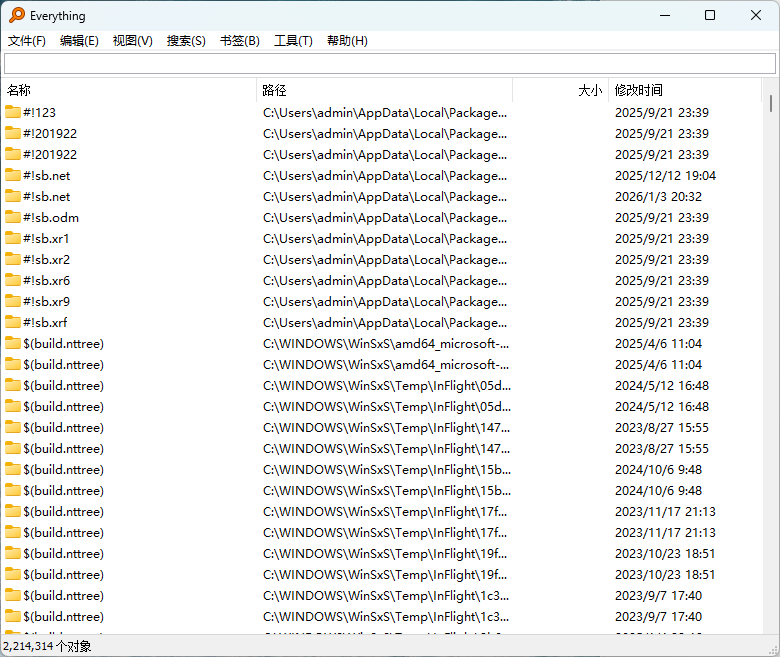
The Everything interface is extremely simple,The only core element is a search box.:
- Enter keywords related to the file name (such as ”thesis” or ”experimental data”) in the search box;
- ResultsReal-timeDisplays the file name, path, size, and modification time;
- Double-click to open the file directly; right-click to perform actions such as ”Open File Location,” ”Copy Path,” and ”Delete.”
It's that simple—Meets the everyday needs of the 90%—just install it and you're good to go.
Advanced Search Syntax (Key Points)
The true power of Everything lies in its syntax and accessibility.Searching – voidtools, for detailed instructions. Master the following points to double your efficiency:
| Grammar | Function | Example |
|---|---|---|
ext: | Search by File Extension | ext:pdf Search all PDFs |
folder: | Search only this folder | folder:Experiments |
file: | Search only files | file:Report |
size: | Filter by size | size: >100 MB Find Large Files |
dm: | By Date Modified | dm:today、dm:last60days |
! | Exclude Keywords | Report! Copy |
| ` | ` | or (match multiple at once) |
* / ? | Wildcard | Report*2024 |
Three Practical Combination Examples
- Find large files to free up disk space:
size: >500 MB— Identify space-hogging ”hidden culprits” with a single click; - Find recent files in a specific format:
ext:docx dm:last7days— Find Word documents that have been edited in the past week; - Path-Precise Search:
D:\Research Materials\ Reports— Search only in this folder.
A Few Highly Recommended Settings
Open Tools → Options, we recommend making the following adjustments:
- Integrated into the File Explorer right-click menu: Right-click any folder → “Search with Everything” to search only that folder—it's faster and more accurate;
- Do not display files when the search box is empty: Prevent files from filling the screen when opening the software and protect your privacy (Path: Results → Do not display results when the search term is empty);
- Exclusion List: Add private folders you don't want to be scanned to the exclusion list (path: Exclusion List → Add Folder);
- Custom Keyboard Shortcuts: Set a convenient shortcut key for ”New Search Window.”
⚠️ Security Issues
Everything Support HTTP Server / FTP ServerFeatures,This feature is turned off by default. Please be sure not to enable it without good reason!
If enabled, your computer's files may beAccessible to others on the local area network or even the Internet... resulting in serious privacy breaches. There have been numerous cases online where users accidentally enabled this feature, causing their files to be indexed by search engines.
Keep this rule in mind: Don't turn it on unless you need it; if you use it temporarily, turn it off immediately afterward.
Summary
”Everything" is the kind of—"Once you install it, you'll never be able to uninstall it.“The software:
- Free, ad-free, and compact;
- Search speed far surpasses that of the system's built-in search;
- Learn a few syntax rules, and you'll never have to search through folders to find files again.
For researchers and students, the time it saves could add up to several days over the course of a year.We strongly recommend installing it.