
A Step-by-Step Beginner's Guide to EndNote
📚 A Step-by-Step Beginner's Guide to EndNote: Installation → Creating a Library → Importing References → One-Click Citation in Word
Why Should Every Graduate Student Install EndNote?
One of the most frustrating moments when writing a thesis: when your reference format is wrong, and your advisor says, ”Change them all to the XXX journal format”—and then you have to manually adjust hundreds of citations…
EndNote was created specifically to solve this problem.:
- It is the flagship literature management software from Clarivate (the parent company of Web of Science);
- Built-in Reference formats for over 7,000 international journals, or you can customize it;
- 与 In-Depth Integration with Word: Insert citations within the text; automatically generate a reference list at the end of the document; switch between any journal formats with a single click;
- Supports document categorization, duplicate removal, note-taking, full-text PDF management, and multi-user sharing (up to 1,000 users).
In a nutshell:With its literature management and automatic formatting of reference lists, EndNote is the most reliable partner for publishing in SCI journals.
Step 1: Download and Install
Option 1: Official Channels
⚠️ Important Reminder: Use this firstGenuine! The vast majority of colleges and universities have purchased licenses, so please first check your school’s library or IT center for the ”genuine software platform.” The official website for purchasing EndNote is:EndNote – The Best Citation and Reference Management Tool
- Download from the School's Official Platform: Log in to your university’s library or IT center (e.g., Nanjing University, Peking University, Tongji University, etc., all have legitimate access channels) to download the EndNote X9 / 20 / 21 installation package;
- Unzip and then install: After downloading, firstExtract completelyMove them to a new folder (don't scatter the files from the archive); this folder will typically contain the installation files and
License.dat, both files must be placed in the same folder before running the installer; - Installation Options: Just click "Next" throughout the process; if you also have Word installed, the installer will automatically integrate the EndNote add-in (an EndNote tab will appear on the toolbar);
- Verification: Open Word, and you'll see the menu bar appear EndNote Tab = Installation successful.
If the school hasn't purchased a license: You can use the free, open-source version. Zotero Affordable alternative; if you prefer to use EndNote, please purchase a legitimate copy.
Method 2: Downloading and Installing EndNote 2025
EndNote 2025Download link:
You need to log in to view the full content
After downloading the resources, you'll get two files.
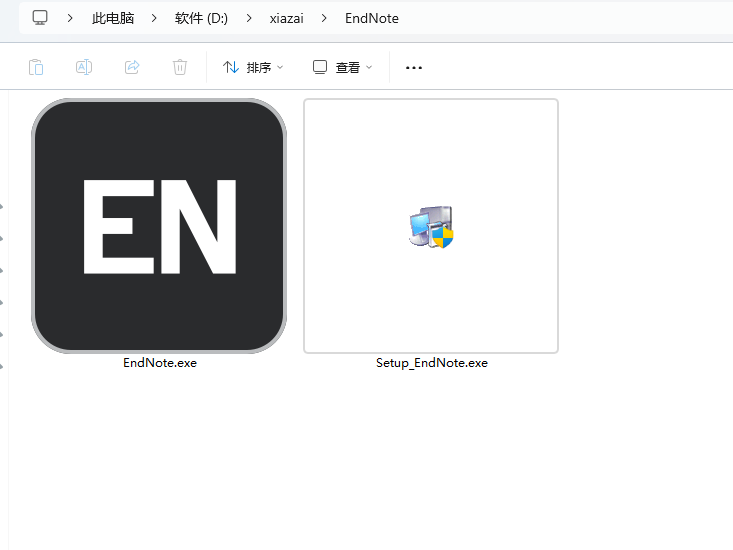
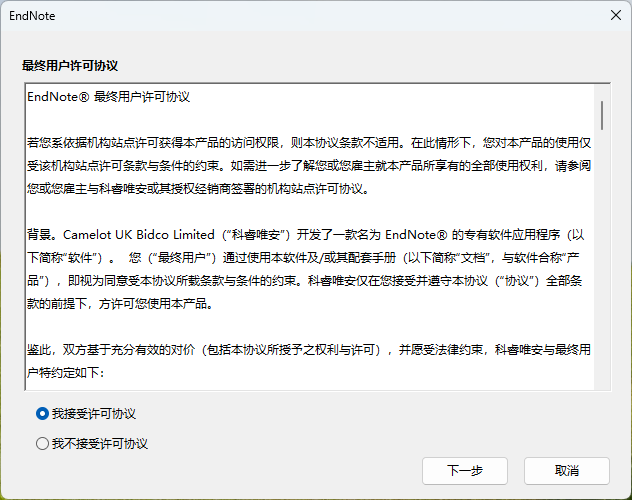
Double-clickSetup_EndNote.exeThe file is starting to install.
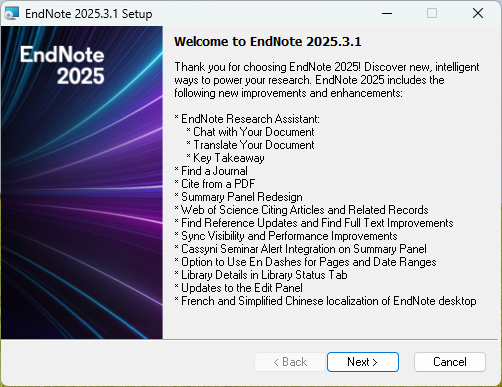
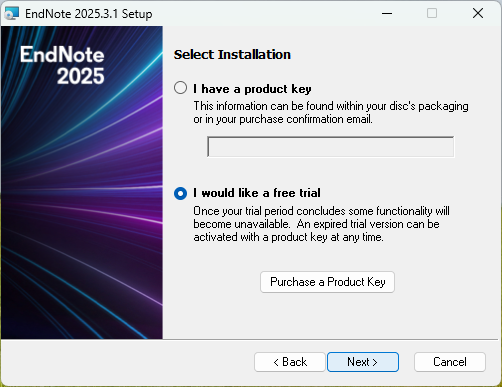
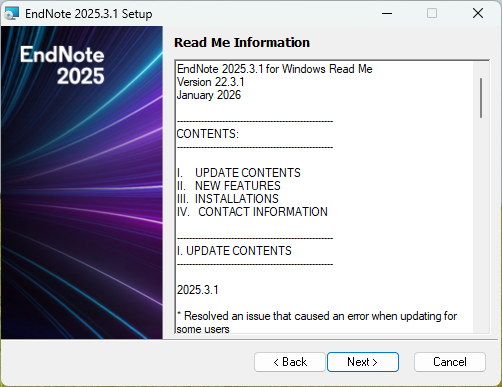
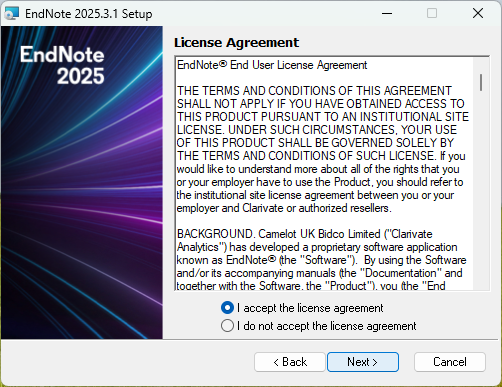
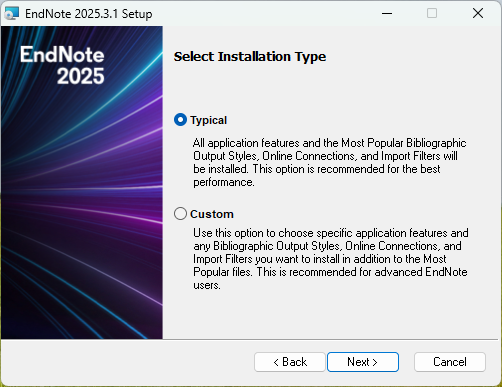
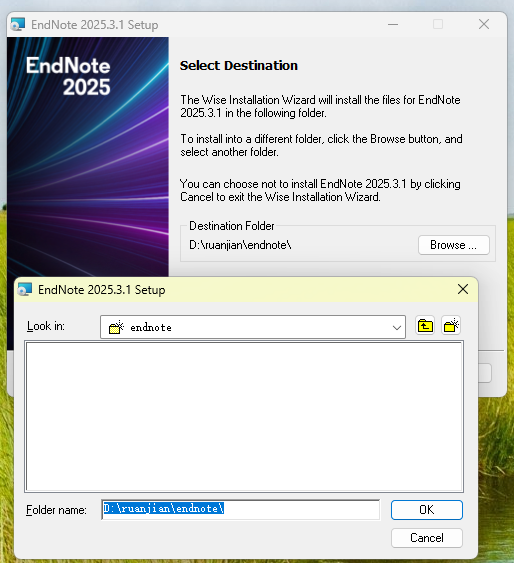
Choose an appropriate installation location; we recommend installing it on a drive other than Drive C.
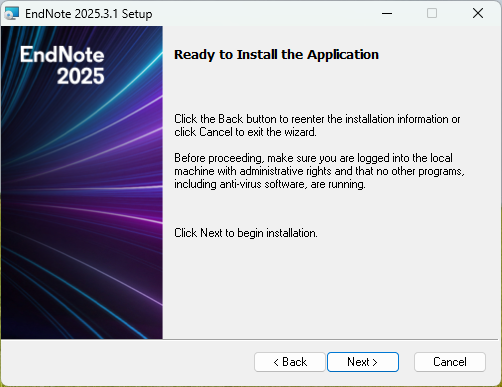
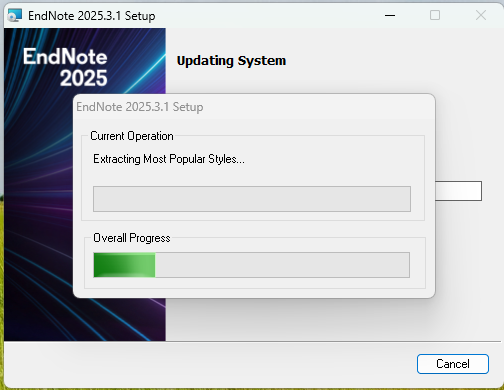
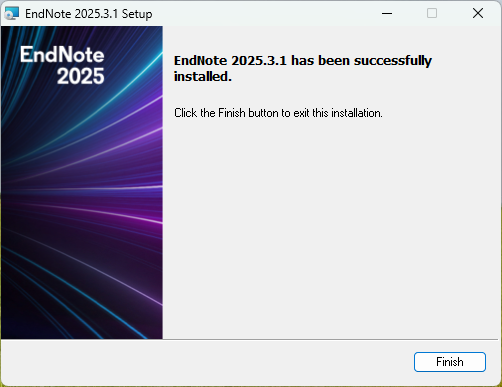
Please do not open the program after installation; you must activate it before you can use it normally.
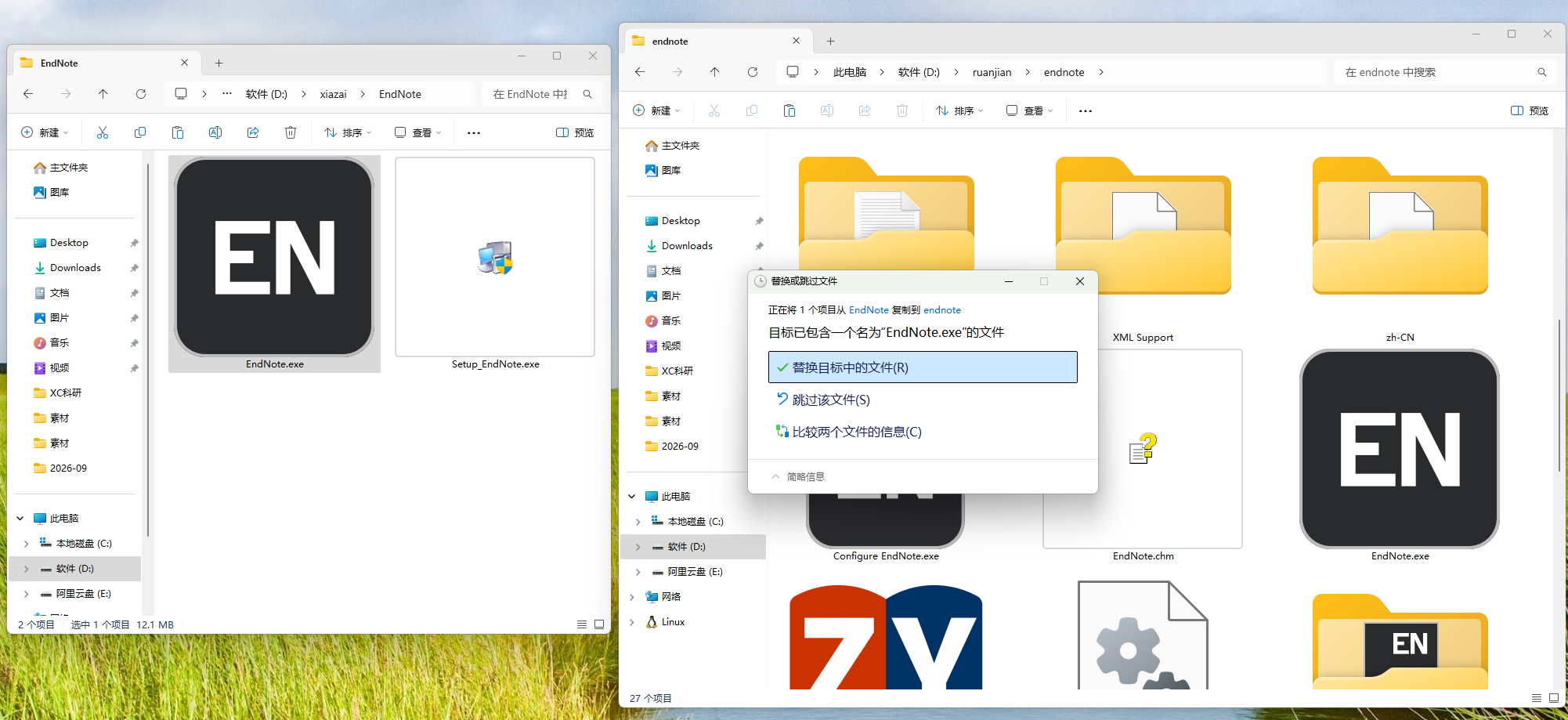
将Download Section的EndNote.exeCopy the files to the EndNote 2025 installation folder (seeThe steps described above(Selected folder)
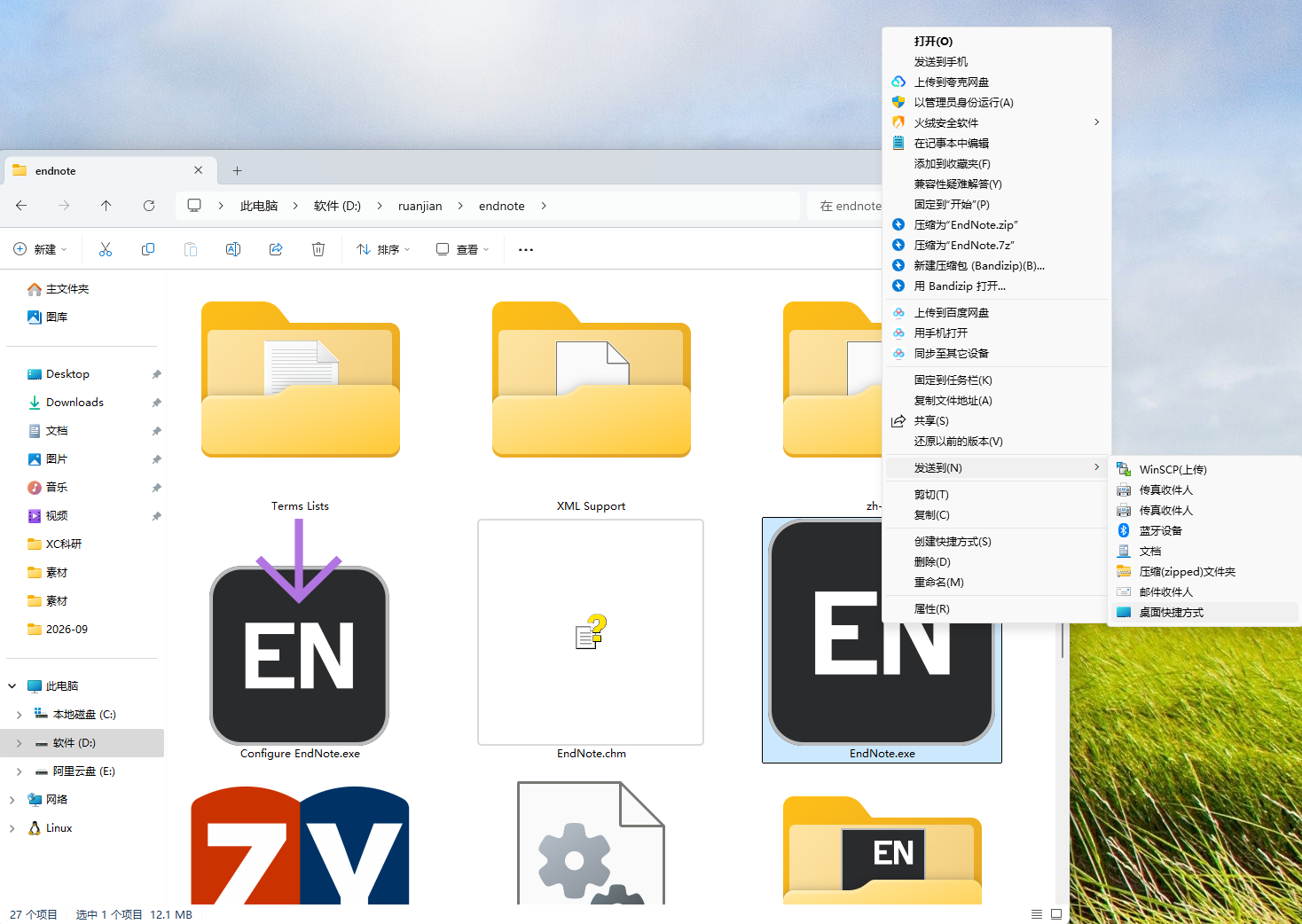
For your convenience, you can create a desktop shortcut.
Step 2: Create Your Personal Library
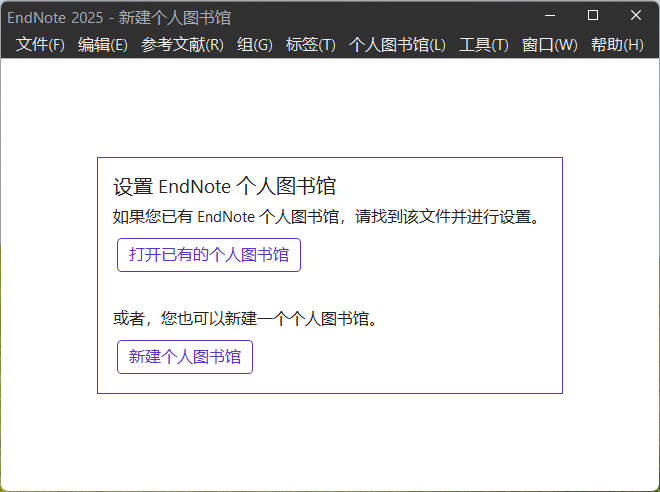
When you open the app for the first time, it’s normal for the interface to be empty. Start by creating a personal library, then add items to it:
- Click on the menu bar File → New…
- Enter the library name (for example,
My_Library), select a save location → OK
💡 Library files (.enl) can be copied to another computer for continued use (provided EndNote is installed). We recommend saving them to a cloud storage service like Jiaogou Cloud for backup, butWhen multiple people edit the same library file at the same time, conflicts are likely to occur., Please use the ”Shared Library” feature for collaboration.
Step 3: Add References to the Database (4 Import Methods)
Method 1: Import from Web of Science (.ciw file)
- Search for and select the desired articles in WOS;
- Click Export → EndNote Desktop;
- Downloaded via a browser
.ciwFile → Double-clickOnce this is done, the reference is automatically imported into the EndNote library.
Method 2: Import from CNKI (txt file)
- After searching on CNKI, select the literature → Export and Analyze → Export References → EndNote;
- Download
.txtFile—choose one of the following two options:- Method A: Change the extension to
.ciw, double-click to import automatically; - Method B: In EndNote File → Import, select the .txt file (set the "Import Option" to "EndNote Import") → Import.
- Method A: Change the extension to
Method 3: Batch Import Local PDF Files
- Single Article:File → Import → File, select the PDF (an internet connection and a DOI are required to automatically retrieve bibliographic information);
- Batch:File → Import → Folder, Select the entire PDF folder, and EndNote will automatically recognize and generate the references (a 📎 paperclip icon will appear next to the entry to indicate a successful import).
Method 4: Manual Entry (the most reliable fallback option)
When encountering rare publications without a DOI:
- Menu References → New Reference;
- Fill in the author, year, title, journal, volume, issue, and page numbers, etc., for each entry;
- At the same time Attach File Upload a PDF or image → Save.
Smart Ways to Take It Easy:Preferences → PDF Handling Link a local folder to the system, and any PDFs you add to it will be automatically imported into the database and their metadata updated—no more manual transfers.
Step 4: Insert a Citation with One Click in Word (Essential Skill!)
- Place the cursor where you want to insert the citation in the Word document;
- Cut to Word's EndNote Tab → Click Insert Citation;
- Enter keywords in the search box, select the desired document → Insert;
- List of References at the End of the TextAutomatically Generated, and they correspond one-to-one with the main text.
Switch Journal Formats = Done with One Click
- In the EndNote tab in Word, click Style drop-down menu → Select Another Style;
- Select the format of the target journal (e.g., Nature, ACS, IEEE…);
- Full-text citations and the list at the end of the document are automatically reordered instantly—That’s EndNote’s most valuable feature.
Not enough built-in formats? Go to the EndNote website to download the one for that journal.
.ensTemplate file—double-click to open → File → Save As After saving, restart Word, and you'll find it in the Styles list.
Must-Do Before Submitting: Remove Domain Codes
Citations generated by EndNote are essentially ”field codes” and must be converted to plain text before submission; otherwise, the journal’s system may display garbled characters:
- Convert Citations and Bibliography → Convert to Plain Text
- A new ”code-free” document will be generated → Submit this version for publication, and keep the original draft for further revisions.
Step 5: Quick Overview of Advanced Features
| Features | How to Use | What Problem Does It Solve? |
|---|---|---|
| Online Search | In EndNote, select a database (WOS, PubMed, etc.) under "Online Search" on the left side to search and import directly. | No need to switch back and forth between web pages |
| Group Management | Right-click "My Groups" → "Create Group," and create groups by topic or subject. | No More Chaos in Document Organization |
| Plagiarism Check and Duplicate Removal | References → Find Duplicates | Cleaning Up Duplicate Entries After Importing from Multiple Databases |
| PDF Annotations | Open the attachment to highlight and add comments directly | Take notes as you read; let your notes follow the text |
| Download Full Text | Right-click the selected entry and select “Find Full Text” (you can configure your school’s OpenURL settings in Preferences). | One-Click Full-Text Retrieval on Campus |
| Team Sharing | Share Library: Invite members to help maintain it | The research team shares a single literature database. |
Quick Reference: Frequently Asked Questions (Q&A)
Q1: Why isn't there an EndNote tab in Word?
First, make sure you checked the box for the Word add-in during installation; if it's still not there, you can load it manually: Word → File → Options → Add-ins → Go to COM Add-ins → Check the box next to "Cite While You Write."
Q2: After importing the PDF, only the attachments appear—no record details?
Most are PDFs without a DOI or without an online link. Right-click the entry → Select "Find Reference Updates" to match it manually; or enter the information manually instead.
Q3: Did the numbering get messed up after switching formats?
First, refresh the citations and bibliography in Word by selecting "Update Citations and Bibliography"; if the problem persists, clear the field codes and reinsert them.
Q4: Can an EndNote library be synced to a cloud storage service?
Do not use iCloud or OneDrive for real-time synchronization of your library files (as this may cause the library to become locked or corrupted); we recommend manually backing up the entire library on a regular basis or using EndNote's built-in Sync cloud synchronization feature.
Summary: Three Steps to Getting Started with EndNote
- Create a Database(File → New) — Have your own ”personal library”;
- Bibliography(WOS/CNKI Export / Drag and Drop PDF / Manual Entry) — Import all the references you’ve reviewed;
- Writing a Thesis(Word Add-in: Insert Citation + One-Click Format Switch + Convert to Plain Text Before Submission) — No more late nights formatting references.
Once you master EndNote, your ”reference anxiety” when writing papers will disappear completely. Here’s hoping you submit your first SCI paper soon! 🎉