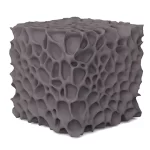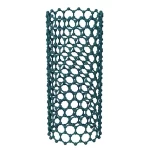

Cinema 4D white transparent render settings

Share the infinite white background rendering settings commonly used by the author in scientific illustration.
Redshift Rendering
For renderings used in scientific research, complex and flashy backgrounds are generally not required; only a white transparent background is needed. CommonRedshiftAfter rendering with an HDRI map, the background often shows the color of the lights. Although the background can be removed after exporting, it still doesn't look aesthetic enough. Here I am sharing the render settings for a pure white background in Redshift. This method refers to a Bilibili creator.Max is the besttutorial, shared for informational purposes only, thank you!
Render settings
Taking a simple modeling example

AddRS Dome light。

给Dome lightAddHDRI Link。

ChooseDome light下GENERAL,TexturePress and hold the left mouse button and drag toDome lightThe one on the rightHDRI LinkOn,HDRI LinkChanging from gray to yellow indicates successful activation.


ClickOpen Plus Library, select an environment texture under HDRIs. The author usually prefersPro studiosDownloadHDRI STUDIO vol2 005for reference only.


After rendering, we got the initial image, which looks pretty good, but the background is not appealing. Adjusting for an infinite white background.

White background
Create a new disk, adjust the radius to 1000 cm, and drag it to the bottom of the model.

Add a render tag to the disk, selectRS Object。

Check the discRS ObjectUnder the tagMatteinOverried,GENERALinEnabled和SHADOWinEnabled。

CheckRS Dome light下back plate中Enabled。

TextureSelect a solid-color image.Max is the bestA gray picture was provided.


At this point, an infinitely solid-colored background is obtained.

AdjustmentExposure Value (EV)value, for example, adjusting it to 5 will turn the background pure white.

This gives you the modeling and rendering effect with an infinite white background.