

Syncthing Practical Tutorial

Syncthing Practical Tutorial: Automatically Synchronize Research Files Across Multiple Computers and Create Your Own File Collaboration Space
Syncthing is an open-source, cross-platform continuous...File synchronizationThis tool allows lab computers, personal laptops, and other trusted devices to automatically maintain consistency of specified folders without relying on traditional cloud storage accounts. This article uses a Windows computer as an example to introduce download and installation, device pairing, folder sharing, version revocation, ignore rules, and research data security settings, and explains its differences from cloud storage and backup software.
Scientific research requires file synchronization tools
Research documents are often scattered across multiple devices: lab computers store raw data exported from instruments, laptops are used for organization and analysis, and home computers are used for further writing. The most common practice is to manually transfer files via USB flash drives, external hard drives, instant messaging software, or cloud storage. These methods can solve some problems, but they are also prone to issues such as version inconsistencies, forgetting to copy files, duplicate saving, and inconvenience in transferring large files.
Syncthing The idea is to run a sync program on the devices you control, specify the folders to be shared, and enable the devices to recognize each other. When files change, Syncthing detects the changes and syncs the data to the authorized devices.
It is suitable for the following scenarios:
- Synchronize experimental records, analysis scripts, and project documents between laboratory computers and personal laptops.
- Share course materials, handouts, code, and presentation files across multiple computers.
- Copy the project directory from one computer to another device to reduce manual transfers.
- Synchronize images, videos, and large research project files between your devices.
It needs to be clarified first: Syncthing isA synchronization tool is not a complete backup system, nor is it a multi-user real-time collaborative document platform.If a file is accidentally deleted on one device, the deletion operation may be synchronized to other devices; if two devices are editing the same file simultaneously, conflicting copies may also be created. Therefore, original research data should still be kept on independent backups.
Syncthing's working principle and features
Syncthing uses a direct synchronization method between devices. Each device generates its own Device ID and key upon initial startup. A device relationship is established only after both parties add and accept each other. Communication between devices during transmission uses TLS encryption; device discovery and relay services help devices find each other, but the relay server does not receive the plaintext content of the synchronized files.
Its features include:
- Open source and cross-platform: It supports Windows, macOS, Linux, BSD and other systems, and there is also a community-maintained system integration version.
- Synchronization between devices: The folder can be shared across multiple authorized devices without first uploading it to a specific cloud storage account.
- Automatic change detection: File system monitors and regular scans work together to help detect newly added, modified, and deleted files.
- Supports selecting the synchronization direction: You can set up bidirectional, send-only, or receive-only configurations by folder.
- Configuration file version recycling: Version management policies can be enabled for overwrite or delete operations received from other devices.
This does not mean that all data is transmitted only within the local area network. When devices are on different networks, Syncthing may use global discovery and relay mechanisms to assist in connection; the actual data is still transmitted through an encrypted connection. If your organization's network has special restrictions, you should consult your network administrator first.
Download and Installation
Obtain the official core program
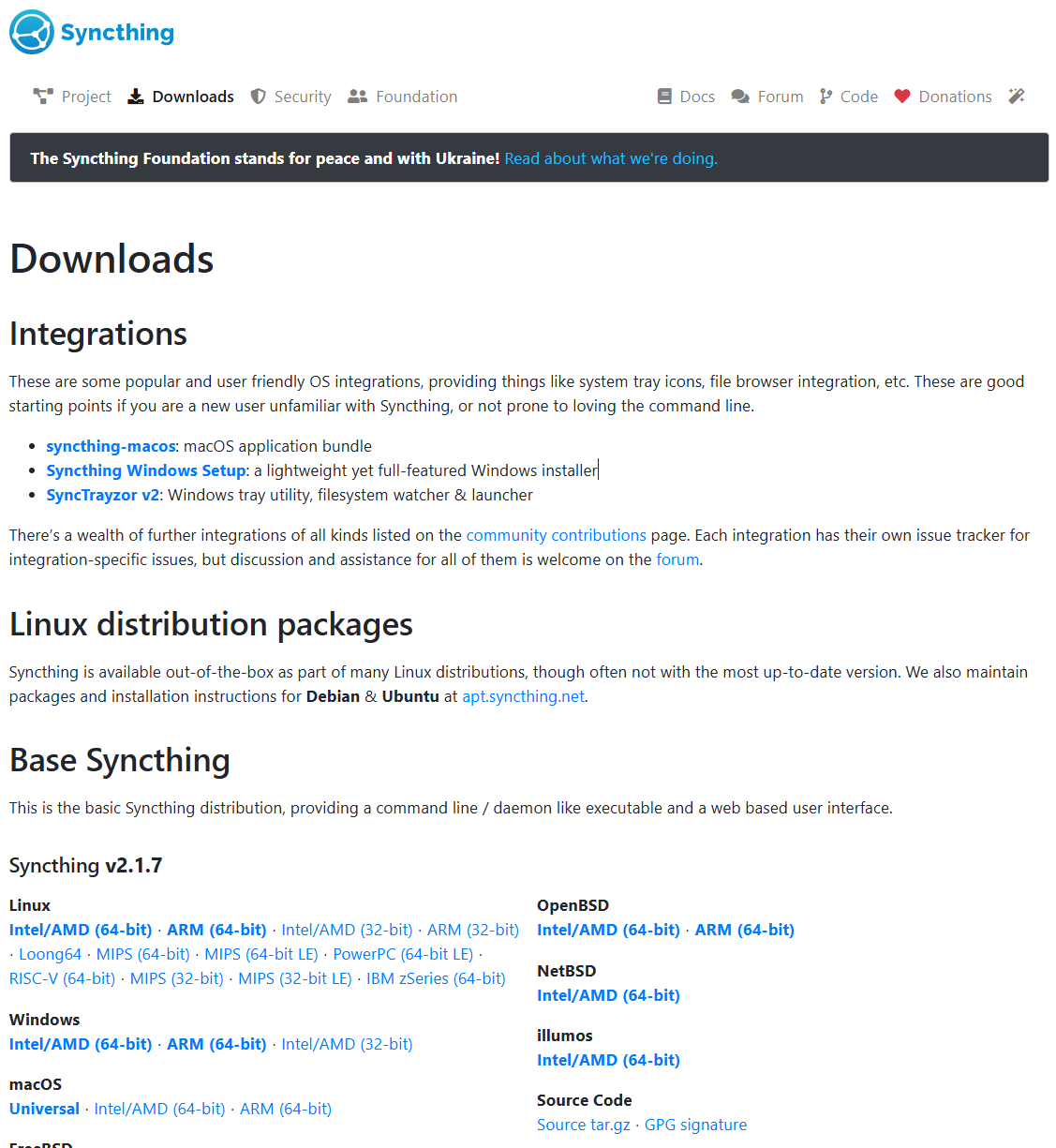
Visit Syncthing official download page,choose Base Syncthing Choose the version that matches your system and processor architecture. Typical Windows computers usually choose Intel/AMD 64-bit.
As of November 14, 2026The latest stable version listed on the official version page is v2.1.7 (Released on October 21, 2026)For formal use, it is recommended to choose Stable and not to use Candidate or Nightly for a single research data working directory.
The official core program is available on Windows. syncthing.exeAfter decompression, it can be run. The official Downloads page also lists community integration solutions such as Windows Setup and SyncTrayzor v2, which come with a system tray or installation experience; these are not the official Windows installers for the Syncthing core project itself, and you should check their maintainers, release pages, and update status before using them.
Official download link:
Windows First Startup
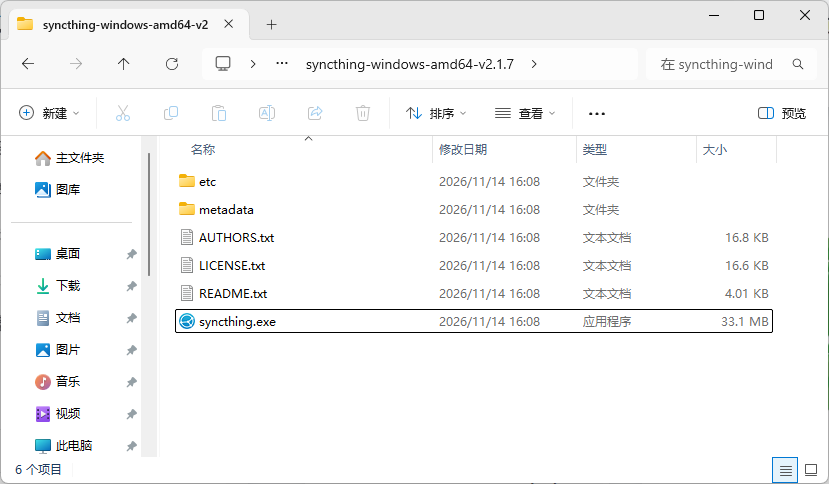
- Extract the downloaded compressed file to a fixed directory, for example...
C:\Tools\Syncthing。 - Double-click to run
syncthing.exe。 - Upon first launch, the program generates a configuration file and device identity information, and attempts to open the management interface in a browser.
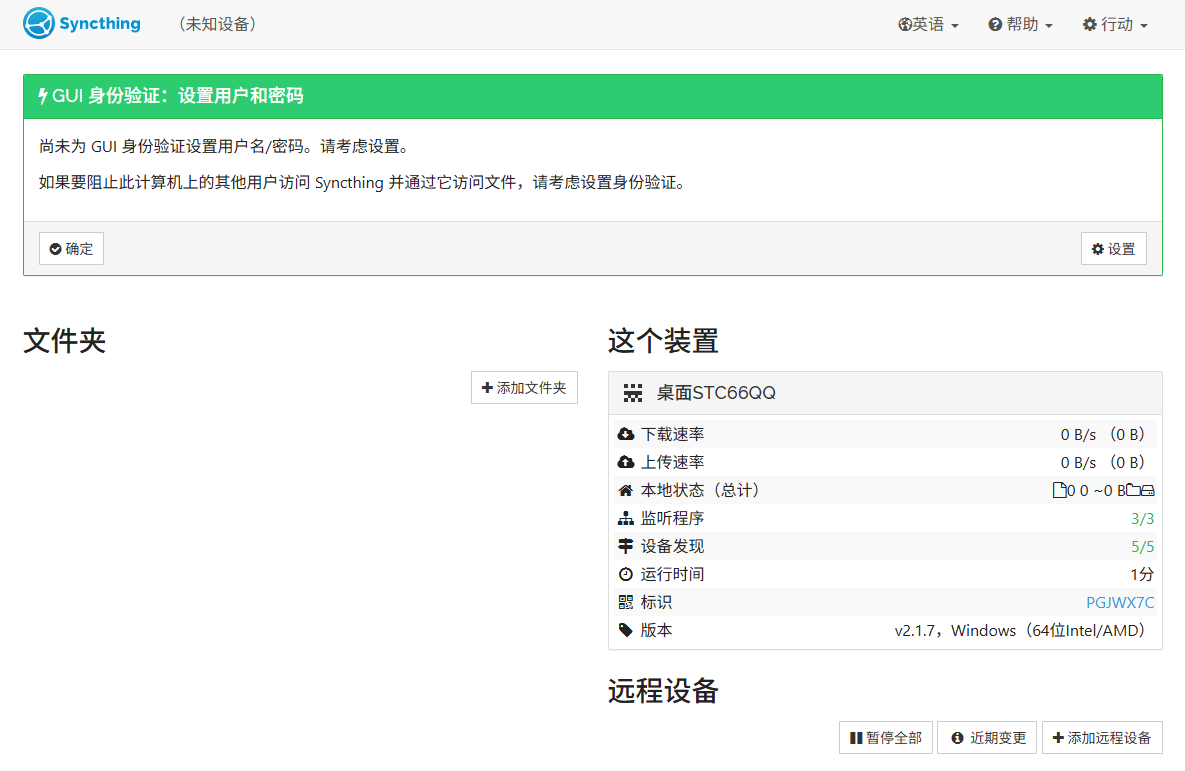
- The default management address is usually
http://127.0.0.1:8384/或http://localhost:8384/。 - If your browser does not open it automatically, you can manually copy and paste the above address to access it.
By default, the web management interface only listens to the local loopback address and should not be exposed to the public network for convenience. Upon initial startup, it is recommended to confirm the device name, folder path, and local machine status before starting file sharing.
Make Syncthing start with Windows
The Syncthing core program can be started manually; if you want it to run automatically every time you log in to Windows, please refer to the official documentation. Starting Syncthing Automatically The document can be configured via Task Scheduler or Startup Folder.
For personal computers, you can first use the “start at user login” method. If the device belongs to a computer managed by the organization or laboratory, do not create system services or modify firewall policies yourself; you should follow the administrator's requirements.
How to pair two computers
The following example uses computer A (lab computer) and computer B (personal laptop). It is recommended that both devices start Syncthing simultaneously and maintain a network connection.
View device ID
Open the Web GUI in the upper right corner of computer A. Actions → Show IDYou can then view the local Device ID or display a QR code. Perform the same operation on computer B.
Device ID is an identity generated from a device certificate and used to verify the connection object. It is not a password, but should still only be shared with trusted collaborators or your own devices.
Add remote device
On computer A:
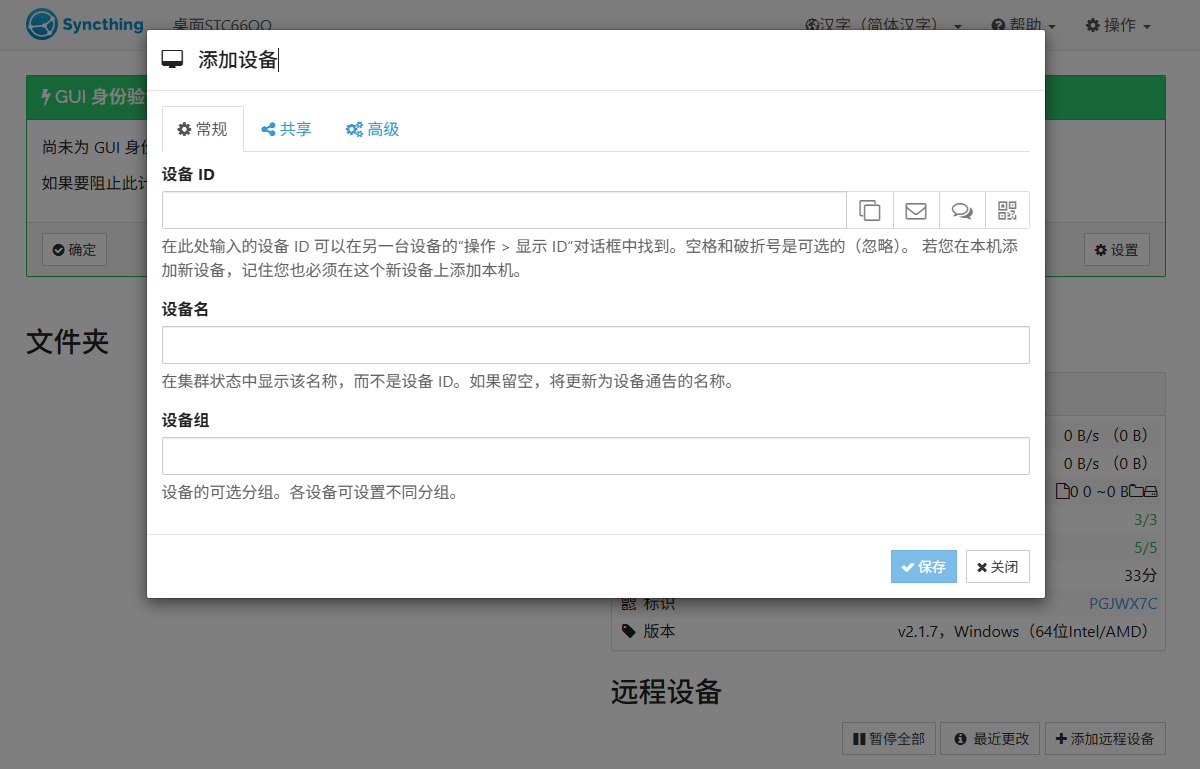
- Click Add Remote Device。
- Enter the Device ID of computer B, or scan the QR code to add it if both devices can see the QR code.
- Enter an easily recognizable name for the device, such as
Personal Laptop。 - Select the folder you want to share (you can also configure it later).
- Save settings.
Then add the Device ID of computer A to computer B. Device pairing requires both devices to be configured with mutually recognized device identities; adding it only on one end usually will not allow for a proper connection.
When the other end receives a device request, check if the device ID and name match expectations before accepting the connection. Do not accept device requests from unknown sources.
Check connection status
Return to the main interface and check if the remote device displays as Connected. If it continues to display as Disconnected, check the following in sequence:
- Are both devices running Syncthing?
- Have both parties added each other's Device ID?
- Does the system firewall block Syncthing's connection?
- Does the organization's network restrict point-to-point connections, UDP, or related ports?
- Do the connection errors and logs in the GUI provide more specific information?
Do not disable the entire system firewall in an attempt to troubleshoot. First, check the application rules related to Syncthing and follow the network administrator's advice.
Create a synchronized folder for research projects
It is recommended not to sync the entire user directory or the entire hard drive at the beginning. First, create a dedicated project folder, for example:
D:\Research\Project_A ├── 00_Admin ├── 01_Notes ├── 02_Data_Processed ├── 03_Scripts ├── 04_Figures └── 05_ReportsThis is just one example of a catalog organization method. The actual structure should be adjusted according to the research group's data specifications and experimental record requirements.The raw data directory should ideally be managed separately from the daily editing directory.And set up a separate read-only copy or backup strategy.
Add a folder to computer A
- Click on the Syncthing homepage Add Folder。
- Fill in the Folder Label
Project_A。 - Folder Path Selection
D:\Research\Project_A。 - In the Sharing tab, select the remote device B that you want to share.
- save.
Shared on computer B
Computer B will receive a new folder sharing request. When accepting, specify the local save path, for example:
E:\Research\Project_AThe local paths on the two computers do not need to be the same, but the folder contents will be synchronized according to the sharing relationship. Please confirm that the path is correct before accepting, and avoid putting the project directory on the system drive, temporary directory, or disk with insufficient space.
Conduct a small-scale test
Don't import tens of gigabytes of experimental data right away. First, create a new test text file in a shared directory on computer A:
sync-test.txtWrite a line of text and save it. Wait for a file with the same name to appear on computer B, open it, and check if the content is the same. Then try modifying the file, creating subdirectories, and deleting the test file, and observe the changes in the status on both ends.
After the test is passed, the actual project files will be gradually added to the shared directory. When syncing a large directory for the first time, Syncthing needs to scan and calculate file blocks, and the speed depends on the number of files, disk performance, network bandwidth, and device status.
Recommended configuration for scientific research scenarios
Folder types: Two-way, Send-only and Receive-only
Syncthing offers different folder synchronization directions to suit devices used by different users.
| Type | Behavior | Suitable scenarios |
|---|---|---|
| Send & Receive | Changes made on this machine are sent to other devices, and changes are also received from other devices. | I edit a regular project file using both of my work computers. |
| Send Only | The local machine, acting as the sender, should not use modifications returned by the remote device. | Using a specific device as a relatively fixed source of distribution or reference copy. |
| Receive Only | Receives and applies remote changes, but local modifications are not propagated. | Receiver mirror, demo unit, or read-only working copy |
Note: Send Only does not mean absolutely read-only and immutable; Receive Only does not mean a full backup. When folder status deviates, the interface may display incorrectly. Override Changes 或 Revert Local Changes These buttons may overwrite or delete files on other devices; please verify which device's data is the correct version before proceeding.
File version management: reducing the risk of accidental overwriting
Syncthing's file version management archives older versions that are replaced or deleted when file changes from remote devices are synchronized to the local machine. It can be configured by folder and by device, and is disabled by default.
Find it in the folder editing settings. File VersioningYou can choose:
- Trash Can: When remotely deleting or replacing files, place the old version in...
.stversions。 - Simple: Retain a specified number of historical versions.
- Staggered: Retaining older versions at time intervals is more suitable for directories where you want to control the number of historical versions.
Research projects may consider enabling version control on the receiving end, such as retaining the most recent versions or setting a reasonable maximum retention period. Please note an important limitation: the official documentation states that version control is primarily for…Changes received from other devicesIf a file is modified or deleted directly on the local machine, Syncthing will not archive older versions of that file locally. Therefore, it cannot replace a separate backup.
Ignore rule: Do not sync temporary files and cache.
The project directory may contain virtual environments, caches, temporary files, and hidden files generated by the operating system. This content typically does not need to be synchronized across devices.
Create in the root directory of the shared folder .stignore,For example:
# Common temporary files for Windows/macOS: Thumbs.db .DS_Store ~$* *.tmp *.temp # Python caching and virtual environments: __pycache__ .venv .pytest_cache .mypy_cache .ipynb_checkpoints # Common build outputs (optional, depending on project requirements) build.stignore The pattern in the rule matches the root directory of the shared folder. Example rules affect files or directories with the corresponding names; for example, excluding... .venvThis means that the other device will not receive the virtual environment. If the project's dependent environment is reproducible, it should be synchronized. pyproject.tomlInstead of copying the entire virtual environment directory, use lock files or environment descriptions.
Don't simply copy all ignore rules. Some projects may indeed require synchronization. build Directory, hidden files, or specific caches; after adding rules, check the list of ignored files in the interface to confirm that no raw data, analysis results, or scripts have been mistakenly excluded.
Syncthing is used in actual scientific research workflows
Scenario A: Lab computers and personal laptops
- Share on two devices
Project_A/01_Notes、03_Scripts和05_Reports。 - Use Send & Receive for documents that require frequent editing.
- For the raw data generated by the instrument, first confirm the research group's data management system before deciding whether to synchronize it; it is recommended to keep at least one copy of the raw data that is not involved in daily synchronization.
- Avoid editing the same binary project file on two devices simultaneously, such as certain statistical software project files or large image project files.
Scenario B: Using the workstation as a data publishing terminal
If the workstation stores reviewed project files intended for use by other devices, consider setting that folder to Send Only and other devices to Receive Only. This reduces the risk of local modifications at the receiving end being propagated back.
However, changes made on the Send Only device may still propagate to other devices. If a workstation accidentally deletes or overwrites a file, the error may also be synchronized, so version rollback and independent backups still need to be configured.
Scenario C: Synchronizing Python projects without copying virtual environments
Synchronization is recommended:
pyproject.toml uv.lock README.md src/ notebooks/ data_dictionary.mdSynchronization is generally not recommended.
.venv/ __pycache__/ .ipynb_checkpoints/On another computer, simply recreate the environment according to the project instructions. This is more reliable than copying the entire virtual environment and reduces problems caused by differences in operating systems and paths. Syncthing handles file synchronization, while the Python environment is still managed by uv, conda, or other environment management tools.
The difference between Syncthing and cloud storage/backup software
| need | Syncthing | Traditional cloud storage | standalone backup software |
|---|---|---|---|
| Automatic synchronization between multiple devices | Main uses | Common functions | It's usually not the point. |
| Relying on third-party cloud storage | No need to rely on | Typically depends on the service provider | Depends on the backup target |
| Offline device restore historical version | Version management or other backups need to be configured in advance. | Depending on the service package and version history policy | Normally, recovery can be performed according to the backup plan. |
| To prevent accidental deletion and syncing to other devices | Synchronization alone cannot guarantee | Depending on the recycle bin and version history | This can be achieved through an independent backup strategy. |
| Multi-person real-time collaborative editing | Unsuitable | Some services are supported. | Unsuitable |
If the requirement is to keep files consistent across multiple devices, Syncthing is suitable; if team permissions, web previews, online collaboration, and unified management are needed, cloud storage or a team document platform may be more convenient; if the goal is to prevent permanent loss due to hard drive failure, ransomware, or accidental operation, then a separate backup solution is required.
Troubleshooting
Both devices kept showing "Disconnected"
First, confirm that both parties are running Syncthing and have added each other's Device IDs. Then check firewalls, routers, organizational network restrictions, and error messages in the GUI. Refer to the official documentation if necessary. Firewall SetupDo not open unnecessary public ports without understanding the network environment.
The folder keeps showing Scanning or Syncing.
The initial scan of a large number of small files may take a long time. You can check if the disk is busy, if there are too many files, if any programs are continuously modifying files, and if both devices are in sleep mode. First, verify the connection with a small number of files, then gradually increase the amount of data.
The file has a sync-conflict copy.
This usually means that multiple devices have made modifications to the same file that cannot be automatically merged. Do not delete conflicting files directly. First, compare the modification times and file contents to determine which version should be kept, and then put the final version back in the shared directory. For formats unsuitable for concurrent editing, such as databases, Office documents, and statistical engineering files, try to avoid modifying both ends simultaneously.
After deleting the file, it also disappeared from other devices.
This is the fundamental difference between synchronization and backup: deletion may be considered a change that needs to be propagated. Check if file version management is enabled on the receiving device and view... .stversionsIf the older version is not available, it should be restored from a separate backup.
The computer did not sync after being shut down.
Syncthing requires the device to be running and connected to a network to synchronize. Changes made while offline are usually processed after the device comes back online, but files will not be transferred while the device is powered off. Devices that need to be online for extended periods can be deployed using a suitable NAS or server, but proper management of permissions, updates, and backups is essential.
Safety recommendations for the use of scientific data
- Don't treat synchronization as backup. Keep at least one backup separate from the synchronization directory. Important data can be backed up using the 3-2-1 backup principle.
- First, use a non-sensitive test file. Once you confirm that device pairing, shared paths, deletion behavior, and version policies meet expectations, then process the formal project data.
- Limit the scope of sharing. Share only the directories you actually need; do not include the entire user directory or folders containing passwords, keys, and personal data in the sync.
- Protect device identity files. Anyone with access to the Syncthing configuration directory and TLS keys could impersonate the device and access its synchronization relationships. If the device is lost, access should be revoked immediately on another device.
- Sensitive data is handled in accordance with institutional regulations. For human data, clinical data, sample information restricted by agreements, and unpublished research data, the data management policies of the research group, hospital, or university should be confirmed first. Encrypted transmission does not equate to obtaining authorization to release the data externally.
- Use remote management with caution. The Web GUI is only accessible locally by default. Do not expose the management port to the public network without protection.
Conclusion
Syncthing's advantage lies in keeping control of file synchronization on your own device. For researchers who frequently switch between lab computers, personal laptops, and workstations, it reduces the problems of manually transferring files and version inconsistencies. What's truly worthwhile to spend time configuring isn't just device pairing, but also synchronization direction, ignore rules, version rollback, and independent backups.
It is recommended to start with a small project directory containing no sensitive information, complete the testing between the two devices, and then gradually expand to daily workflows. Clearly defining data boundaries and recovery plans before pursuing automation is a more reliable approach to managing research documents.
Reference Links
- Syncthing official download page
- Syncthing Official Getting Started
- Syncthing Official Version and Release Notes
- Syncthing Official Security Principles
- Syncthing folder type
- Syncthing file version management
- Syncthing ignore file rules
- Syncthing Windows Automatic Startup Instructions
- Syncthing official GitHub repository