Table of contents
Hide
OpenRefine: A Powerful Tool for Processing Experimental Data
OpenRefine is an interactive tool suitable for scientific data preparation. This tutorial, based on version 3.10.1, demonstrates CSV import, Facet data inspection, GREL text conversion, Clustering for similar names, duplicate record checking, and JSON operation recipe reuse using simulated cell viability experimental data, helping researchers establish a traceable data cleaning workflow.

OpenRefine 3.10.1 Practical Tutorial: Scientific Research Data Cleaning, Duplicate Value Identification, and Batch Normalization
Version Notes (verified November 18, 2026): The OpenRefine GitHub Releases page will 3.10.1 Marked as Latest. This version was released on March 4, 2026. The maintainer notes that 3.10.1 has the same functional code as 3.10.0; the main difference is that the macOS build has been notarized. The official Download page still lists 3.10.0 as the primary download version. Therefore, macOS users should prioritize the notarized 3.10.1 version; Windows/Linux users can install the 3.10.0 package provided on the official Download page, or check the corresponding platform assets in GitHub Releases. The 3.10 series features described in this article are based on the official release notes; the interface text may change slightly with minor version updates.
Before experimental data can be processed for statistical analysis, issues such as inconsistent sample names, inconsistent spacing and capitalization, duplicate records, numerical columns being recognized as text, and inconsistent instrument names often need to be addressed. OpenRefine is a free local data processing tool that can handle these issues. Facet、Clustering、GREL Expressions and a traceable operation history help researchers inspect, clean, and transform tabular data such as CSV, TSV, Excel, and JSON. This article uses... OpenRefine 3.10.1 Based on the version, this document introduces the installation, project creation, data inspection, text normalization, approximation clustering, duplicate record verification, operation reuse, and result export, and demonstrates the complete process using a simulated cell activity data set.
Use OpenRefine for cleaning scientific experimental data
Data processing in scientific research is not always about complex statistical modeling. Often, the real time-consuming part is the preparation work before analysis: the same experimental group is written with different names, spaces are mixed in with sample numbers, numerical columns exported by the instrument are recognized as text, column names in tables from different batches are inconsistent, or there are duplicate records in a single dataset that require manual verification.
If these issues are directly handled by statistical software, they may affect grouping, filtering, summarizing, and subsequent analysis. While Excel can handle some manual cleanup, manual operation can become cumbersome when the data contains many similar strings, multiple files need to be processed according to the same rules, or when it is desirable to retain the cleaning process.
OpenRefine is not positioned as a replacement for Python, R, or databases, but rather as a providing interactive environment for organizing tabular data. It excels particularly at:
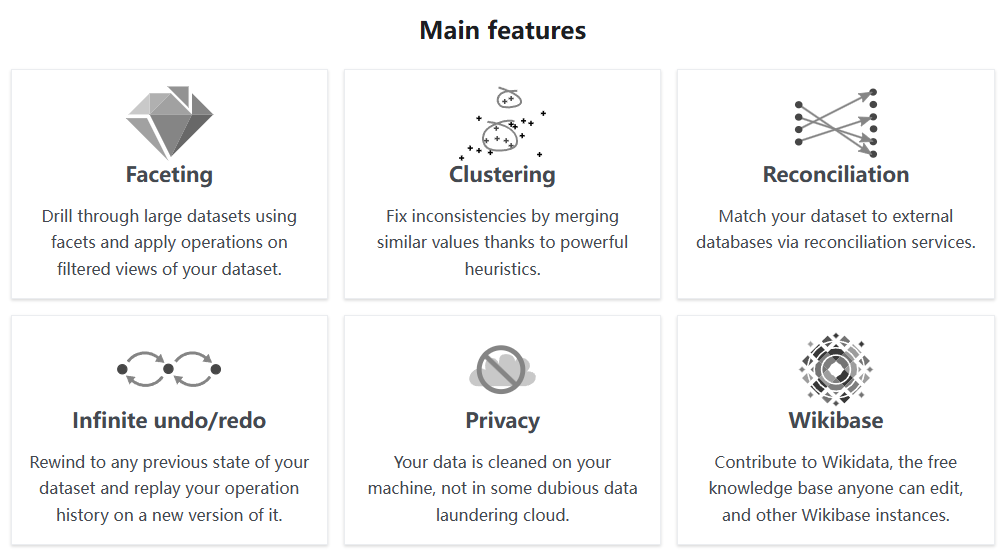
- Use Facet to see what different values a column can take, and how many times each value appears;
- Use Clustering to find values that differ in spelling, capitalization, spaces, or punctuation but may point to the same entity;
- Use GREL to perform previewable batch transformations of entire columns of data;
- View, undo, and redo data changes;
- The cleaning process is extracted into JSON and then applied to other datasets with similar structures.
- Export the processed results in formats such as CSV, TSV, XLSX, and ODS.
OpenRefine is suitable for scientific research scenarios.
| Scene | Typical problems | OpenRefine can handle the following tasks |
|---|---|---|
| Cell experimental data | Group names have different capitalization and instrument names are inconsistent. | Text faceting, clustering, and batch normalization |
| Material characterization data | The sample number and batch number fields are formatted incorrectly. | Clean up spaces, standardize fields, and check for duplicate numbers. |
| Questionnaires and behavioral data | The category options contain typos and similar spellings. | Clustering candidate values, unified category after manual confirmation |
| Multi-batch instrument export table | Inconsistent column names or data formats | Import preview, column adjustment, type conversion, and merging/organizing |
| Document or institutional metadata | There are multiple ways to write the names of authors, institutions, and countries. | Entity matching and alignment with the controlled thesaurus (manual review required) |
OpenRefine is also used in library, archive, digital humanities, data science, and research data processing. Its advantage lies in its ability to integrate the entire process of “anomaly detection—rule judgment—transformation execution—results inspection” into a single, traceable project.
Differences between OpenRefine, Excel, Python, and DuckDB
| Tools | Core positioning | More suitable tasks |
|---|---|---|
| Excel / LibreOffice Calc | Spreadsheet viewing and manual editing | Small-scale table browsing, data entry, simple formulas, and manual review. |
| OpenRefine | Interactive data cleaning and entity normalization | Approximate text clustering, batch replacement, data quality checks, and data cleaning operations are reused. |
| Python pandas / R | Programmatic data processing and statistical analysis | Complex transformations, statistical modeling, automated analysis, and reproducible scripts |
| DuckDB | Analytical-oriented SQL query engine | Filtering, joining, aggregating, and formatting large CSV/Parquet files |
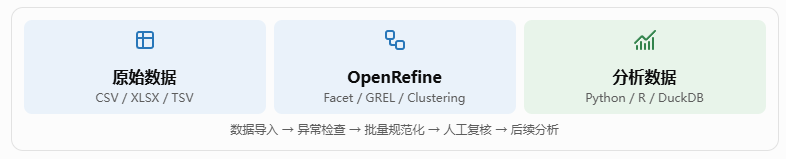
A practical approach is to first use OpenRefine to handle naming inconsistencies and obvious formatting issues in the original tables, and then hand the cleaned data over to Python, R, or DuckDB for statistical analysis. For data pipelines with mature scripts, cleaning can also be done directly in the code, without adding unnecessary steps just to use the software.
OpenRefine 3.10.1 Update
OpenRefine 3.10.0 is the first stable release in the 3.10 series, with 3.10.1 being a subsequent stable patch. The release notes for 3.10.1 explicitly state that it has the same functional code as 3.10.0, primarily adding notarization for macOS builds. Compared to 3.9.5, the 3.10 series includes several practical improvements:
- Import format extension: Added support for XZ, LZMA, 7z, Zstandard, and Unix compress (
.ZImport support for compressed formats such as ). - Keep matching rows after filtering: Add the option to keep only the currently matching rows and delete the rest, reducing the need for post-filter reorganization. Before execution, the filter criteria and the range of rows to retain should still be confirmed.
- Facet and column name linkage: When renaming a column, the relevant Facets can be updated synchronously, reducing the risk of subsequent operations referencing the old column names.
- Operation history prompts: Add an "Undo" prompt when applying operation recipes to make it easier to confirm whether changes have been executed.
- GREL string normalization: Added support for GREL functions related to the internal fingerprint normalization logic.
- Improved clustering capabilities: It supports the use of custom clustering functionality for non-GREL expressions, making it easier to handle domain-specific name differences.
- Other improvements: Adjustments include column movement, import preview, batch processing for database import, and error handling for export.
These updates do not mean that OpenRefine will automatically determine the scientific meaning of each experimental record. It provides candidate findings and batch conversion tools; whether to merge two names or delete a record still requires researchers to make judgments based on the experimental design and the original records.
Download and Installation
Official download link:
- Official download page:https://openrefine.org/download
- GitHub Releases:https://github.com/OpenRefine/OpenRefine/releases
- Official installation documentation:https://openrefine.org/docs/manual/installing
- Official User Manual:https://openrefine.org/docs.html
OpenRefine is a BSD 3-Clause licensed software and is free to use. It is not an online spreadsheet service that requires a cloud connection to function: after installation, a small web server starts on your local machine, and users access the interface through a browser at a local address. Basic data import, cleaning, and export can be done offline; an internet connection is only required when importing from a web page, calling an external reconciliation service, or exporting to a web service.
Windows installation
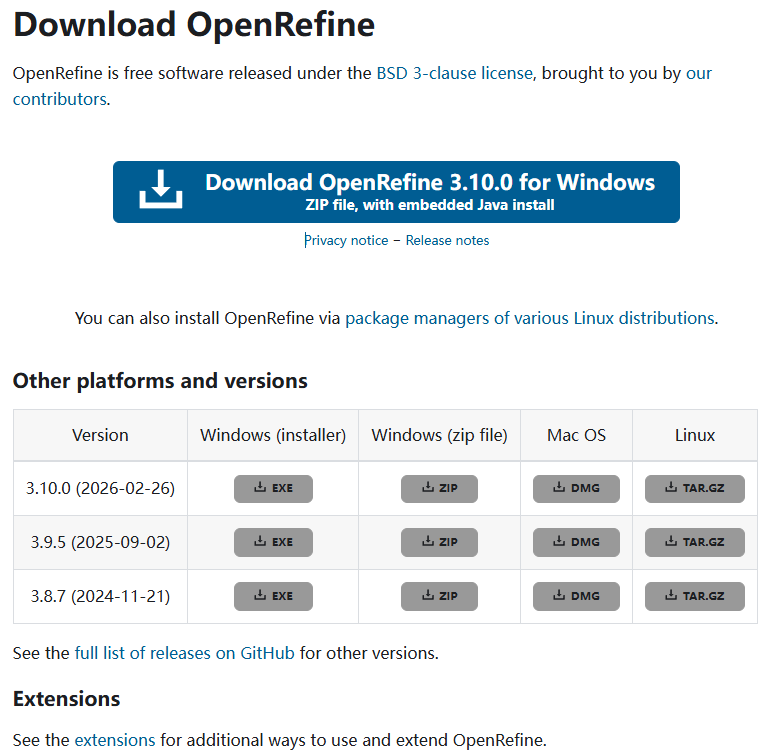
Windows users are advised to choose the installer with Java or the ZIP package from the official Download page. If using the ZIP package:
- Download a Windows ZIP file that matches your system architecture;
- Extract the compressed file to a fixed directory, for example...
D:\Tools\OpenRefine; - Enter the extracted directory and double-click
openrefine.exe或refine.batstart up; - Wait for the program to start; the browser will usually open the local interface automatically.
- If your browser does not open it automatically, you can access it manually.
http://127.0.0.1:3333/。
Prioritize using Windows packages that include Java, as this reduces the need for separate Java configuration. If using a distribution without Java, you will need to install a compatible Java Runtime Environment yourself.
macOS installation
macOS users should first confirm their chip type: select x64 for Intel processors and arm64 for Apple Silicon. After downloading the DMG file, open it and drag OpenRefine into the Applications folder. The macOS 3.10.1 build has been certified and is more suitable for direct installation and first-time launch than 3.10.0.
If the system still prompts that it cannot verify the developer, first confirm that the installation package comes from the official GitHub Release, and then follow the macOS security prompts; do not disable the overall system security protection in order to run software from unknown sources.
Linux installation
Linux users can download and extract the official TAR.GZ package, then navigate to the extracted directory in the terminal and run:
cd ~/Downloads/openrefine-3.10.1 ./refineThe directory name should be based on the actual decompression result. Linux compressed packages require Java to be installed on the system. The OpenRefine 3.10.1 startup script requires Java 11 or higher, and gives an untested warning for versions higher than Java 21. Therefore, it is recommended to use a compatible runtime environment within the Java 11-21 range.
You can check Java using the following command:
java -versionIf the system prompts that it cannot be found JavaIf the version is lower than required, you need to install the appropriate JRE/JDK first and confirm. JAVA_HOME Pointing to the correct directory.
First launch
After OpenRefine is started, the browser will access the local machine. http://127.0.0.1:3333/By default, the program only listens on the local loopback address and does not automatically expose the management interface to the local area network or the public network. Do not arbitrarily change the listening address for remote access; if you really want to run it as a server, you must first understand access control, firewall, and reverse proxy configurations.
OpenRefine saves program files and project workspaces separately. The project workspace contains imported data, transformation results, and operation history. Before upgrading the software, it is recommended to back up the workspace; if third-party extensions are installed, you should also confirm that the extensions are compatible with the target version.
Creating a project: Importing simulation experiment data
OpenRefine projects start with imported existing data; unlike regular spreadsheets, they cannot create arbitrary data directly from blank grids. It imports a copy of the original data and saves the project file in its own workspace; the original CSV is not directly overwritten when edited within OpenRefine.
For demonstration purposes, a simulated cell activity dataset is constructed below. This data is for software instruction only and does not represent actual experimental results.
Prepare CSV file
New cell_assay_raw.csvWrite the following content:
sample_id,group,concentration_uM,time_h,viability_pct,instrument S001,Control,0,24,98.4,PlateReader-A S002, control ,0,24,97.9,Plate Reader A S003,CONTROL,0,24,99.1,PlateReader A S004,Drug A,1,24,88.2,PlateReader-A S005,drug-a,1,24,87.6,plate reader a S006, Drug A ,1,24,89.0,PlateReader-A S007,Drug B,5,48,76.5,PlateReader-B S008,drug b,5,48,78.1,PlateReader B S009,Drug-B ,5,48,77.4,PlateReader-B S010,Control,0,48,95.8,PlateReader-A S011,control,0,48,96.3,Plate Reader A S012,Drug A,1,48,80.2,PlateReader-AField description:
sample_idSample number;groupExperimental group;concentration_uMDrug concentration, in μM;time_hProcessing time, in hours;viability_pct: Percentage of simulated cell viability;instrumentInstrument name.
The data is intentionally formatted with differences in capitalization, spaces, hyphens, and instrument name spelling to facilitate demonstration of the cleaning process.
Import data
- On the OpenRefine homepage, select Create Project;
- Select This Computer, choose from local selection.
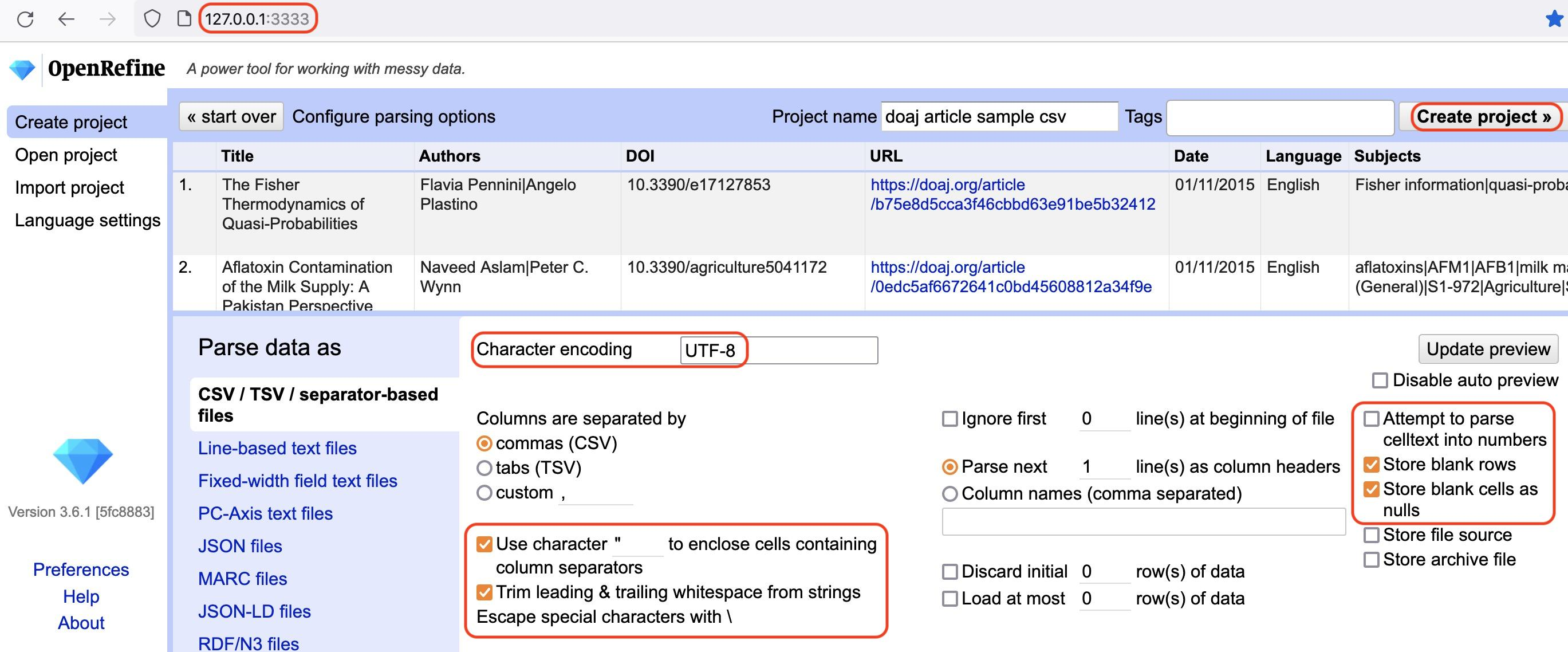
cell_assay_raw.csv; - In the import preview, check the character encoding, delimiter, whether the first row is used as a column name, and whether the values are correctly recognized;
- Confirm that the preview table does not misread an entire row as a single field;
- Click "Create Project," and enter a project name, for example...
Cell Assay Cleaning。
OpenRefine also supports importing data from the clipboard, web URLs, databases, and Google Sheets. When importing multiple files, the software can append records to the project in the order they are selected, preserving source file information. If column names from different sources are not entirely consistent, the column mappings should be checked first; do not assume that all files can be automatically merged correctly according to scientific meaning.
Check the data first, then start cleaning.
Before cleaning, understand what values, missing values, and abnormal records are in the data. Don't start by deleting rows or performing batch replacements.
Use Text Facet to view category fields
以 group For example:
- Click the drop-down menu to the right of the column name;
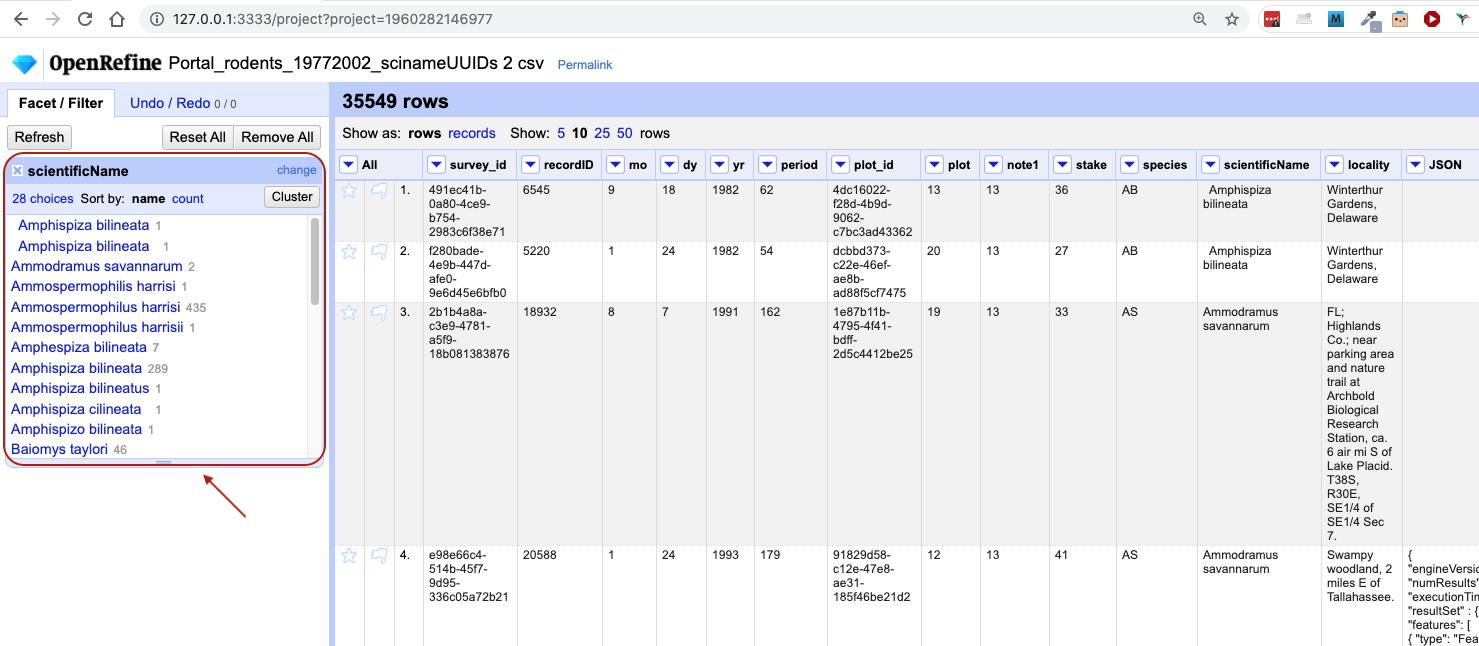
- Select Facet → Text facet;
- The Facet/Filter panel on the left will list the different text values that have appeared in this column and the number of records there.
- Clicking on a value will temporarily filter out matching rows;
- To restore all data, click Reset All.
Text Facet can quickly display the distribution of categorized fields. For example,Control、control 和 control These will be treated as different text values. Facet does not automatically guess whether these values represent the same experimental group; it simply displays the existing strings and their frequencies.
Check numeric columns and missing values
对 concentration_uM、time_h 和 viability_pct Check the data type and value range separately. You can use Numeric Facet to view the numerical distribution and range, or filter for missing data by null/error values.
If a column that should contain numbers is being recognized as text, first check for unit characters, commas, decimal points, or extra spaces. Do not convert directly without checking the original units.
Check duplicate sample numbers
对 sample_id Create a Text Facet and sort it by count. If a certain number appears multiple times, filter it out and check it first:
- Is it the same record that was imported repeatedly?
- Are they different time points of the same sample?
- Is it a technical duplication or a biological duplication?
- Is there an error in entering the serial number?
Duplicate IDs do not equate to duplicate data rows. Only by combining the experimental design, sample table, and original records can it be determined whether to merge or delete.
Batch normalize text:
Trim, capitalization, and GREL
For pure format differences, you can use the built-in conversion menu to handle them first, instead of writing expressions at the beginning.
Remove leading and trailing spaces
以 group For example:
- Click
groupList menu; - Select Edit cells → Common transforms → Trim leading and trailing whitespace;
- Observe the preview or Facet changes;
- Execute after confirming that no meaningful characters have been accidentally deleted.
Leading and trailing whitespace is a common cause of inconsistent category values. If a string contains consecutive whitespace or tabs, you can use "Collapse consecutive whitespace" to compress consecutive whitespace into a single space.
Unified capitalization
If the research design is confirmed Control、control 和 CONTROL Belonging to the same group, can group Perform Common transforms → To lowercase on the column to unify it to lowercase. You can also use capitalization for the first letter in the cleaned display fields, but it's recommended to retain the original fields or keep a copy of the original data for traceability.
Batch conversion using GREL
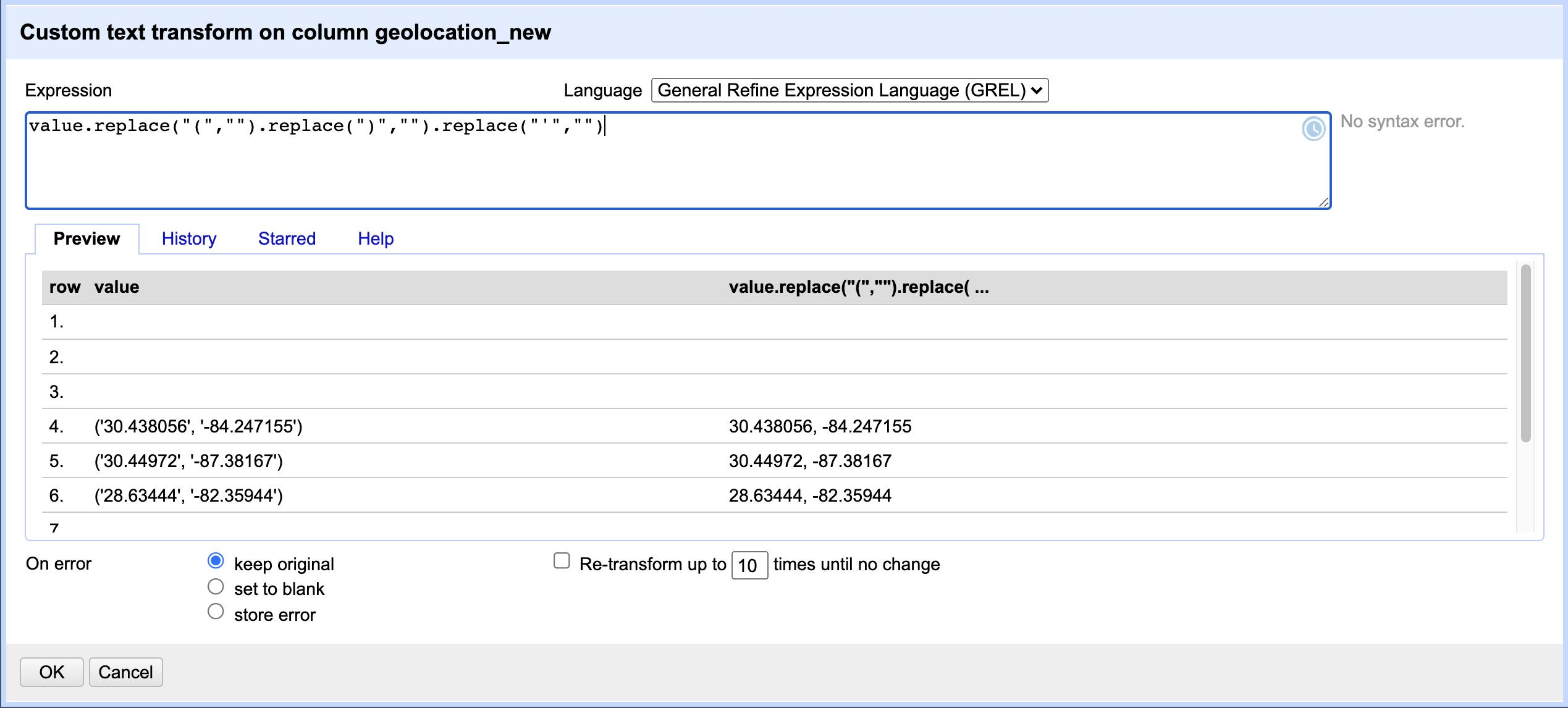
GREL (General Refine Expression Language) is the built-in expression language of OpenRefine. Its syntax is similar to JavaScript, making it suitable for string processing, numerical calculations, and conditional judgments of cell content.
For example, in Edit cells → Transform, use the following on a column:
value.trim()This removes leading and trailing spaces. To use lowercase only:
value.trim().toLowercase()To mark an empty string as a missing value, you can use a conditional expression after checking the data source, for example:
if(value.trim() == "", null, value.trim())The expression window provides a conversion preview. It is recommended to check the output of the first few rows before performing the conversion on the entire column. Different columns have different data types and business rules, so do not mechanically apply the same expression to all fields.
Convert numeric columns to numbers
if concentration_uM、time_h 或 viability_pct Once recognized as text, first remove leading and trailing spaces, then select Edit cells → Common transforms → To number from the column menu. After conversion, check for errors or unconverted original values.
If the data contains units (e.g.) 1 μM、500 nMDo not directly convert the entire column to numbers. First, clarify the unit conversion rules, and if necessary, split the numerical and unit columns, and then generate a new field with a unified unit.
Use Clustering to identify similar names
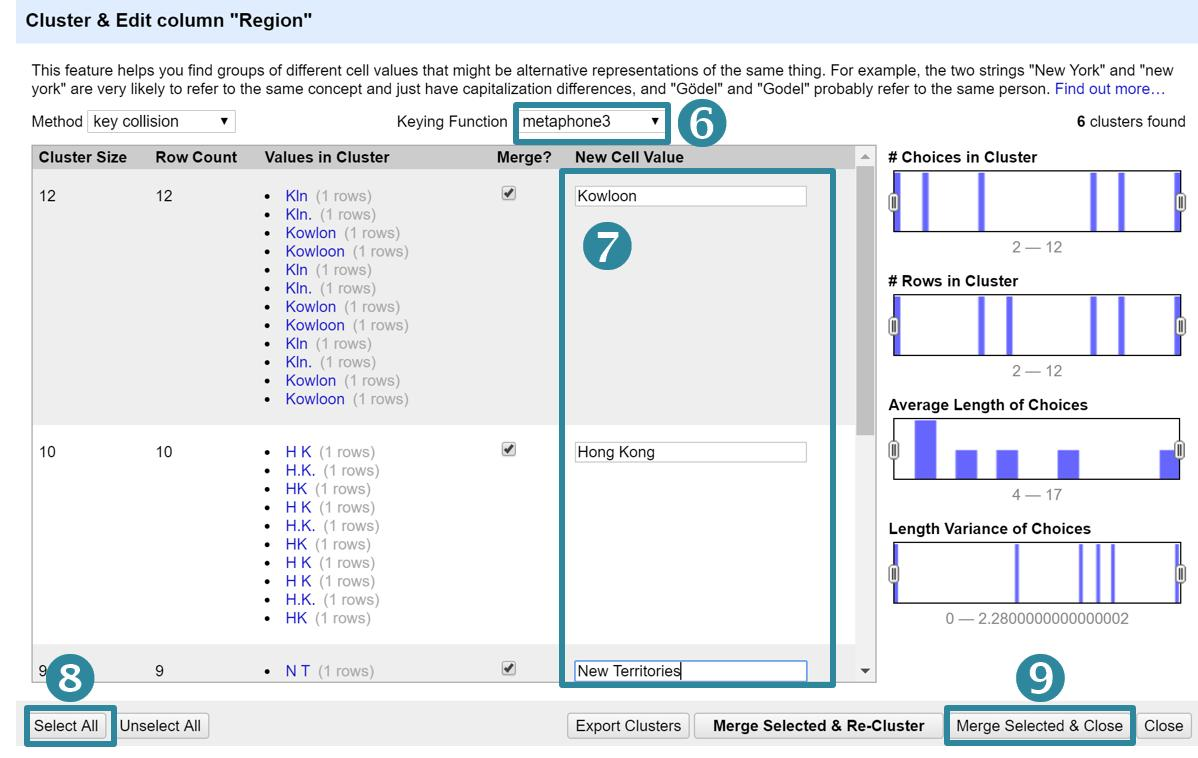
Case conversion and whitespace removal alone are not enough to achieve uniformity. Drug A、drug-a 和 Drug A This is how it's written. OpenRefine's Clustering feature can group potentially similar text values together, allowing users to decide whether to merge them.
Open the clustering tool
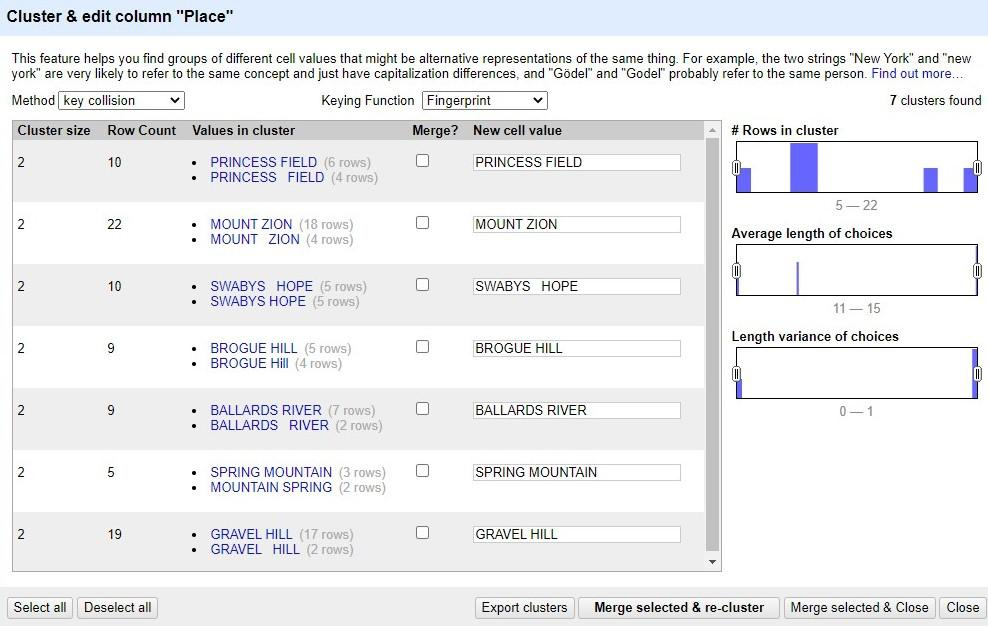
- 在
groupColumns create Text Facets; - Click Cluster in the Facet panel;
- First, choose a more stringent Key Collision method, such as Fingerprint;
- View the candidate clusters, original values, and number of records listed by the system;
- Determine whether each cluster truly belongs to the same category;
- Only when semantic consistency is confirmed should merging be selected and a unified name specified.
The Fingerprint method normalizes text, such as standardizing capitalization, handling whitespace, removing punctuation, removing some diacritics, and adjusting word order according to rules. It's suitable for identifying common formatting differences but doesn't understand the scientific meaning of experimental groupings.
Start with rigorous methods and use the nearest neighbor algorithm with caution.
OpenRefine offers several key-collision and nearest-neighbor clustering methods. Fingerprints are often suitable as a first step; N-gram fingerprints can discover some spelling differences; nearest-neighbor methods such as Levenshtein may find more similar values, but are also more likely to generate candidates that require manual review.
For example:
Drug A与drug-aThis could be due to differences in syntax within the same processing group;Control与VehicleThe results may differ in some experiments, and they should not be automatically merged simply because they have similar uses.PlateReader-A与Plate Reader AThis could be due to differences in the format of the same instrument name;PlateReader-A与PlateReader-BAlthough the strings are similar, they likely represent different devices and cannot be merged.
Clustering only provides candidates and does not provide experimental interpretations for researchers. It is recommended to process only one field at a time, starting with the strictest algorithm and gradually using more lenient methods, and record the final merging rules in the experimental data processing instructions.
Custom clustering
For institution names, instrument names, or domain-specific terms, custom clustering functions can be managed in the Clustering window. The OpenRefine 3.10 series supports custom clustering for non-GREL expressions. Custom rules are suitable for naming systems with high repetition, but it is necessary to first verify the false merging rate with a small number of samples before applying them to the complete dataset.
Filtering, checking and processing duplicate records
After completing the text normalization, check it again. sample_id、group And other key fields. For suspected duplicate records, it is recommended to process them in the following order:
- First, use Facet to find duplicate numbers or duplicate combinations;
- Simultaneously view the time point, processing conditions, batch, and instrument fields;
- Compare the original experimental records or exported instrument files;
- Determine whether the issue is due to duplicate imports, repeated techniques, multiple time points for the same sample, or incorrect numbering.
- Record the reasons for processing, and then decide whether to keep, merge, mark, or delete.
If you absolutely need to keep only the records that match the current filter, you can use the Keep only matching rows operation added in the 3.10 series. Before executing, you should confirm the filter criteria, the number of matching rows, and the range to keep; a more reliable approach is to first export a copy of the project, or confirm in Undo/Redo that you can roll back.
It is not advisable to interpret “duplicate removal” as simply deleting all duplicate values. In scientific research data, the same subject, sample, or experiment number may correspond to different time points, different treatment conditions, or repeated measurements. Whether to merge records must be based on the data dictionary and experimental design, rather than simply looking at whether a single column is duplicated.
Use operation history to reuse cleaning rules
A key feature of OpenRefine is its ability to record data changes within a project. Each transformation, column operation, or row operation is entered into the Undo/Redo history, allowing users to revert to a specific step or re-execute undone operations.
Undo and Redo
Open the Undo/Redo panel on the left to see the order of operations performed since the project was created. Clicking on a historical step will return the project to the state it was in after that step was completed; clicking on a subsequent step will allow you to redo the corresponding operation.
Note: If several steps have been undone and new data changes have been performed, previously undone subsequent branches may be deleted. Therefore, it is recommended to export the project archive or extract the operation recipe before trying new cleaning rules.
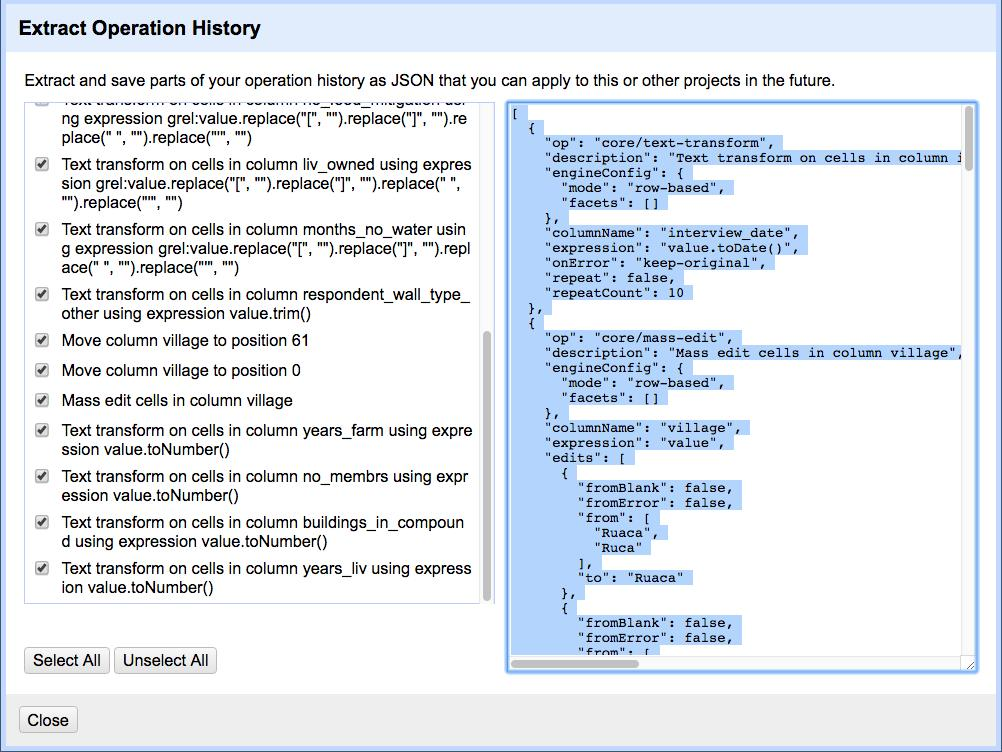
JSON Extraction Operation Recipe
If the same cleaning process needs to be applied to the next batch of experimental data:
- Open Undo/Redo in projects that have already been cleaned;
- Click Extract;
- Select the operations you wish to reuse;
- Save the generated JSON on the right to a text file;
- Open Undo/Redo in the new project and click Apply;
- Paste the JSON and execute it;
- Check that the column names, field structure, and preview results are consistent with the original project.
Not all operations can be extracted and reused. For example, manual editing of a single cell may not be applicable as a general operation to another dataset. Therefore, when performing batch cleaning, try to use column-level transformations, GREL expressions, and reusable clustering rules.
Valuable for scientific research data management
If each batch of experimental data is processed according to the same rules, saving the cleaning operation as a JSON recipe can reduce duplicate clicks and human error. The recipe can also be saved as part of the data processing record, along with the experiment date, software version, original file name, operator, and processing instructions.
However, JSON recipes are not a complete record of scientific research and cannot replace data dictionaries, lab notebooks, and version control. After applying a recipe, it is still necessary to check the new data for new categories, field changes, or outliers.
Export cleaning results and project archive
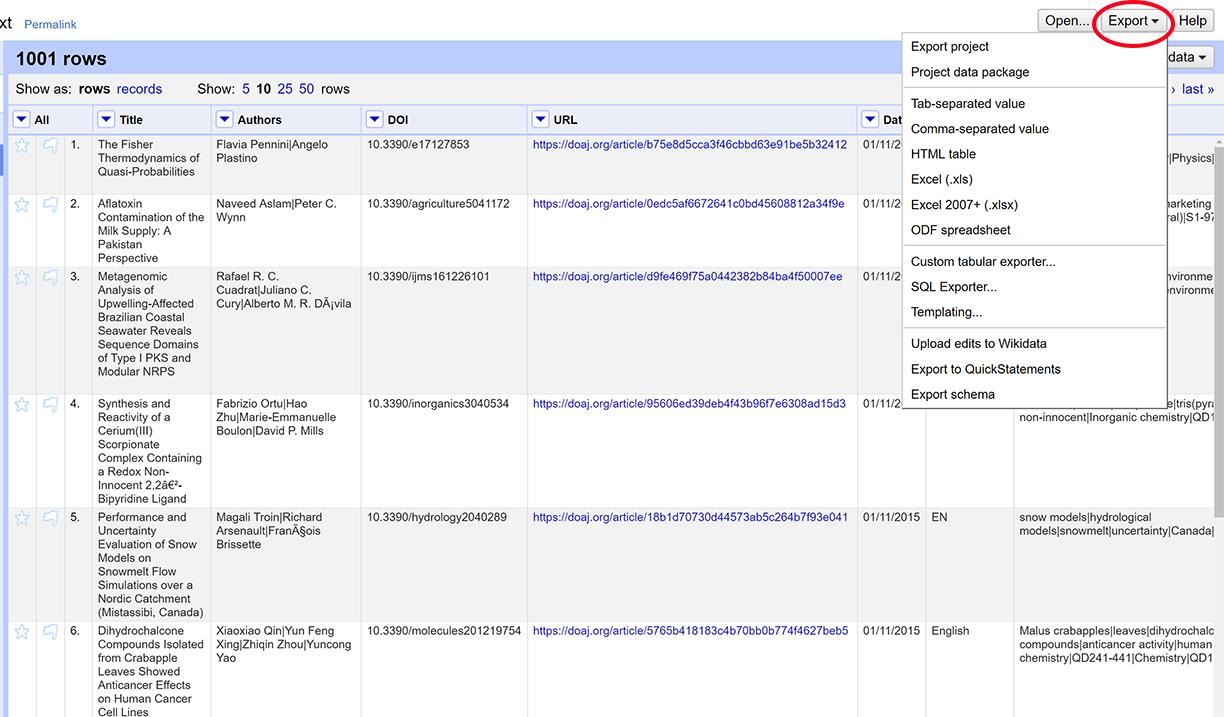
After completing the data cleaning, click the Export menu in the upper right corner of the project. OpenRefine supports exporting CSV, TSV, XLS/XLSX, ODS, HTML tables, as well as custom tables, SQL, and JSON templates.
Export to CSV or Excel
If further processing is required in Python, R, GraphPad Prism, or other statistical software, you can choose CSV, TSV, or XLSX. Pre-export checks:
- Did only the current filtered view or the entire dataset get exported?
- Have all the necessary columns been retained?
- Are the date and numeric fields output as expected?
- Are null values correctly preserved?
- Are the column names consistent and free of extra spaces?
Some OpenRefine export methods export based on the current facet and filter view, while others allow selection of the entire project. Please check the scope in the export dialog box and do not assume that all export formats have the same row selection behavior.
Export OpenRefine project archive
If you wish to retain the complete project and workflow history, you can select Export → OpenRefine project archive to file. Project archiving is suitable for sharing the cleansing process with colleagues or for continuing work on another computer.
Important privacy notice: Project archives may contain raw data and sensitive information that appeared in historical operations. If you use OpenRefine for past identity verification or anonymization, the exported project archive may still contain the original fields and historical data from before the cleansing process. Do not directly upload project archives containing patient information, participant identities, unpublished research results, or restricted data from collaborators to public cloud storage or send them to unauthorized personnel.
Recommended output directory
Cell_Assay_Project/ ├── raw/ │ └── cell_assay_raw.csv ├── openrefine/ │ ├── Cell_Assay_Cleaning.tar.gz │ └── cleaning_recipe.json ├── processed/ │ └── cell_assay_cleaned.csv └── README.mdThe original files are saved in read-only format; the cleaned data is exported separately; project archives and JSON recipes are used for traceability and reuse. The README can record the OpenRefine version, data source, cleansing date, field explanations, merging rules, and manual review items.
Optional advanced options:
Entity alignment and external data matching
If the data contains organization names, country names, species names, place names, or controlled terms, reconciliation can be used further. Its function is to match strings in the current data with entities in an external data source; it is also known as record linkage or entity resolution.
Reconciliation is typically a semi-automatic process: the system matches strings against candidate entities returned by the service, but the user still needs to check whether the candidates fit the research context. Similar spellings do not necessarily mean identical entities; institution names may also involve name changes, mergers, affiliations, or historical names.
Using external reconciliation services requires a network connection. When processing sensitive data, do not send patient names, unpublished sample identifiers, or other restricted fields to external services. If the laboratory has a local thesaurus or internal entity library, it may also be worthwhile to evaluate building a local matching service.
Official Reconciliation Documentation:https://openrefine.org/docs/manual/reconciling
Frequently Asked Questions and Troubleshooting
The browser cannot open the OpenRefine page.
Confirm that the OpenRefine process is still running, check the startup window for Java errors, and then access it again. http://127.0.0.1:3333/If the port is occupied by another program, you can first close the conflicting process, or configure a different port according to the official documentation.
The startup process indicates that Java cannot be found.
Windows users should first confirm that they have downloaded the installer that includes Java; Linux users need to install the Java Runtime Environment themselves. The OpenRefine 3.10.1 startup script requires Java 11 or later, and indicates that versions higher than Java 21 have not been tested. Check... java -version 和 JAVA_HOME Does it point to the correct installation?
Chinese characters are garbled after importing CSV
Check the character encoding in the import preview interface, prioritizing confirmation of the original file's actual encoding. If the file was exported from different software, it may use UTF-8, UTF-8 with BOM, or local encoding. Do not directly overwrite the original file simply because of Chinese character display errors; you should first confirm the source file's encoding using a text editor.
Numeric columns cannot be converted
Check for mixed units, thousands separators, non-standard decimal points, or invisible spaces. Normalize the text first, then use To number. After conversion, check for error values and unconverted values; do not just look at whether the column headers have become numeric types.
Clustering puts different experimental groups together.
Reduce the looseness of clustering, starting with strict methods like Fingerprint; examine candidate clusters one by one. Control、Vehicle、Blank For labels with different experimental meanings, do not merge them solely based on string similarity. Use a separate normalized mapping table when necessary, and retain the original value field.
Third-party extensions cannot be loaded after the upgrade.
OpenRefine does not guarantee cross-version compatibility for all third-party extensions. Before upgrading, record a list of extensions and back up your workspace and project archive. If critical extensions are not yet compatible with the 3.10 series, test them in a copy environment before deciding whether to migrate.
The project folder is getting bigger and bigger
Project history saves change information, and project archives may contain raw data and intermediate states. Regularly export final data and necessary archives, and clean up unnecessary test projects according to the lab's data management strategy. Do not delete files within the workspace without backup.
The applicability boundaries of OpenRefine
OpenRefine is suitable for interactively organizing small to large tabular data, but it should not be regarded as a universal data analysis platform.
- It does not determine whether the experimental design is reasonable, nor does it replace statistical testing;
- Its clustering algorithm only recognizes text similarity and cannot replace domain knowledge;
- It is not suitable for multiple people to edit the same data simultaneously in real time;
- It does not replace Git, databases, or standalone backup systems;
- For particularly large, complex, or fully automated, repetitive data pipelines, Python, R, DuckDB, or specialized data engineering tools may be more suitable.
For scientific research, the most important thing is not to “organize the tables neatly”, but to ensure that each step of the process is based on evidence, can be checked, can be rolled back, and does not destroy the meaning of the original data.
Conclusion
OpenRefine's value lies not in performing statistical analysis for researchers, but in making easily overlooked details in data cleaning visible, inspectable, and reusable. Facet helps identify outliers, Clustering provides candidate merging schemes with similar names, GREL makes column transformation rules more explicit, and Undo/Redo and JSON recipes provide a traceable basis for handling repeated batches of data.
If your experimental data frequently comes from different instruments, different batches, or multiple data entries, it is recommended to first select a CSV copy without sensitive information and complete a cleaning exercise following the procedures outlined in this article. After the rules have been verified, apply the formula to the official data. The original files, cleaning results, and processing records should be saved separately, and if necessary, a second researcher should review key merging operations. This will ensure that the data obtained is more suitable for subsequent statistical, graphical, and paper analysis processes.
Reference Links
- OpenRefine official website:https://openrefine.org/
- OpenRefine official download page:https://openrefine.org/download
- OpenRefine GitHub Releases:https://github.com/OpenRefine/OpenRefine/releases
- OpenRefine 3.10.1 Release:https://github.com/OpenRefine/OpenRefine/releases/tag/3.10.1
- OpenRefine Installation Instructions:https://openrefine.org/docs/manual/installing
- OpenRefine project creation and import:https://openrefine.org/docs/manual/starting/
- Facets and Filtering:https://openrefine.org/docs/manual/facets/
- Cell editing and clustering:https://openrefine.org/docs/manual/cellediting/
- GREL expression explanation:https://openrefine.org/docs/manual/grel/
- Data transformation overview:https://openrefine.org/docs/manual/transforming/
- Undo/Redo and its execution instructions:https://openrefine.org/docs/manual/running/
- Reconciliation:https://openrefine.org/docs/manual/reconciling
- Export and Project Archiving:https://openrefine.org/docs/manual/exporting/
- OpenRefine 2026 User Survey Results (2026-10-26):https://openrefine.org/blog/2026/10/26/2026-survey-results
- OpenRefine Usage:https://openrefine.org/usage