Docling Practical Tutorial

Docling Practical Tutorial: Batch Parsing of Scientific Research PDFs, Extracting Text, Tables, and Images
In scientific research, PDFs are more than just containers of text. Two-column papers, supplementary materials, scanned experimental records, and technical manuals with complex tables often contain headings, headers and footers, formulas, figure captions, tables, and embedded images. Directly copying the text can easily disrupt the reading order; and ordinary PDF-to-text tools often compress tables into a string of characters without column relationships.
If you plan to use Python for statistical analysis, data organization, or building local data processing workflows, simply obtaining a plain text file is usually insufficient. An ideal outcome would be: the main text retains its paragraph structure, tables can be exported separately, images can be positioned correctly, and the data format is consistent enough for machines to read.
Docling This is an open-source document parsing tool specifically designed for such tasks. It can analyze document layout and reading order, identify tables and image areas, and export the parsing results in formats such as Markdown, HTML, and JSON. This article uses... Docling 2.149.0 Based on this version, we demonstrate the basic workflow from converting a single PDF to batch processing, Chinese OCR, table and illustration extraction.
Version Notes: Docling 2.149.0 was released on November 8, 2026. The commands and function descriptions in this article are based on the official documentation available as of November 10, 2026; command-line parameters may vary between versions, so it is recommended to run the command-line test before use.
docling --helpCheck the version of your machine.
What problem does Docling solve?
Shifting from “extracting text” to “understanding document structure”
Traditional text extraction typically only focuses on the characters themselves. This approach is sufficient for simple single-column PDFs; however, when dealing with two-column papers, the program might read the left column before the right, or it might mix headers, footnotes, and body text together. If tables rely on space alignment, they may lose their row and column relationships after conversion.
Docling's processing goal is closer to document structure parsing:
- Identify elements such as titles, paragraphs, lists, tables, and images on the page;
- Try to restore the reading order of multi-column documents;
- Call OCR on scanned documents or image areas;
- Organize the parsing results into a unified format.
DoclingDocumentData structures; - Export to Markdown, HTML, JSON, DocTags, and other formats as needed.
This means it doesn't just convert PDFs to TXT, but rather preserves as much of the document's structural information as possible for subsequent processing. The official documentation also lists input formats such as DOCX, PPTX, XLSX, HTML, EPUB, images, audio, and video; however, this article focuses on the processing workflow for research PDFs.
What jobs is it suitable for?
| Work scene | What aspects can Docling handle? | Contents still requiring manual inspection |
|---|---|---|
| Batch organize thesis PDFs | Convert PDF to Markdown or JSON | Are the heading levels, references, and formulas complete? |
| Extracting tables from lab reports | Convert the identified tables into DataFrame/CSV | Merge cells, units, footnotes, and numerical precision |
| Processing scanned records | OCR recognition of text in images | Blurred text, tilted page, handwritten content |
| Organize chart materials | Export pages, tables, and image areas | Is the image the original embedded image? Is the cropping accurate? |
| Build a local document processing workflow | The structured results are then passed to subsequent Python scripts. | Data source, version, and parsing failure records |
Difference between Doling and Gemini Notebook
The two types of tools handle different stages. Gemini Notebook is more suitable for adding information to a knowledge base and then conducting source Q&A, content summarization, and learning organization; Docling is more suitable for parsing the file itself into Markdown, JSON, CSV, or images, etc., which can be further processed.
These two tasks can be understood as working at different levels: the former focuses on “asking questions about the data,” while the latter focuses on “converting the data into structured input.” Docling does not automatically judge the correctness of your research conclusions, nor is it a reference management software or citation manager.
Install Docling
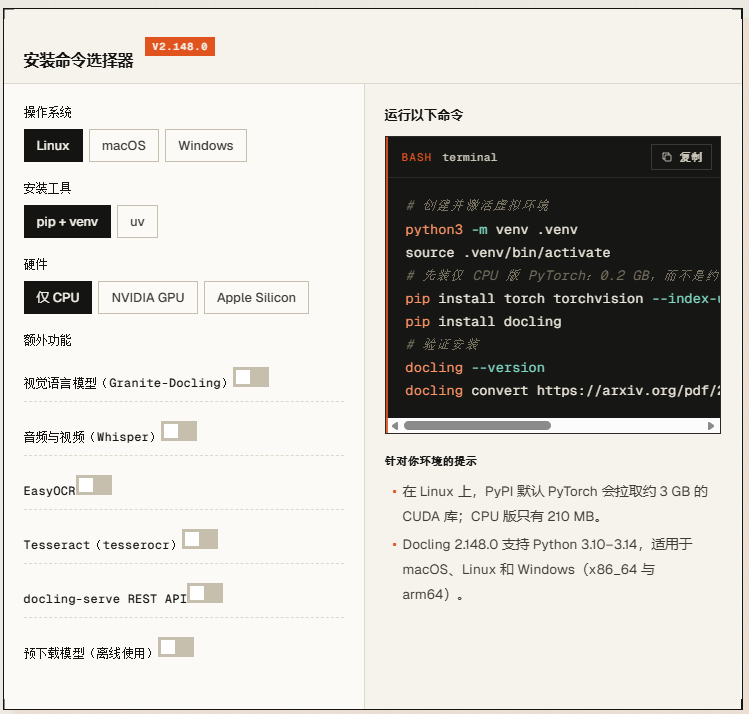
Docling is installed via a Python package manager and supports Windows, macOS, and Linux. The current official version requires Python 3.10 or later. To reduce compatibility issues with third-party dependencies, it's recommended to use Python 3.12 for first-time users and create a separate virtual environment for each project. [Link to documentation]Official installation pageGet detailed installation instructions and tutorials.
Windows installation
Open PoweRSHello, navigate to the directory where you want to store the project, and execute:
# Create and activate a virtual environment py-3.12 -m venv .venv .venv\Scripts\activate pip install docling # Verify docling installation --version docling convert https://arxiv.org/pdf/2408.09869 --to md --no-ocr
If PowerShell does not allow the execution of activation scripts, you can use the command prompt instead:
.venv\Scripts\activate.bat
macOS installation
# Create and activate a virtual environment: python3 -m venv .venv source .venv/bin/activate pip install docling # Verify docling installation: --version docling convert https://arxiv.org/pdf/2408.09869 --to md --no-ocr
Linux installation
# Create and activate a virtual environment python3 -m venv .venv source .venv/bin/activate # Install CPU-only PyTorch first: 0.2 GB instead of the approximately 3 GB CUDA packages pip install torch torchvision --index-url https://download.pytorch.org/whl/cpu pip install docling # Verify docling installation --version docling convert https://arxiv.org/pdf/2408.09869 --to md --no-ocrIf the terminal indicates that it cannot be found... docling First, confirm that the virtual environment is activated, then check for any errors during the installation process. Do not mix packages between your system Python, project virtual environments, and other Conda environments; otherwise, you may encounter the error message “Installed, but the current interpreter cannot import.”
Installation reminder: Docling's PDF parsing capabilities rely on PyTorch and model components. The first run may require downloading model files; the time taken and disk usage will vary depending on the system, network, and the selected model. If using a special GPU, CPU-only environment, or an Intel-powered Mac, you should first read the official installation instructions and not directly copy PyTorch installation commands from other platforms.
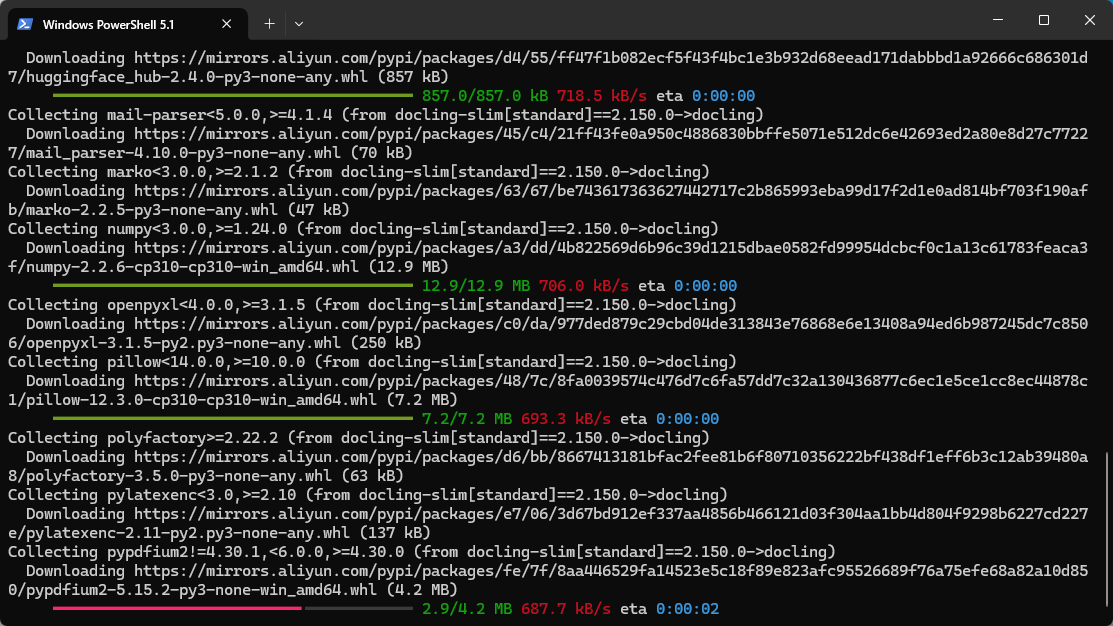
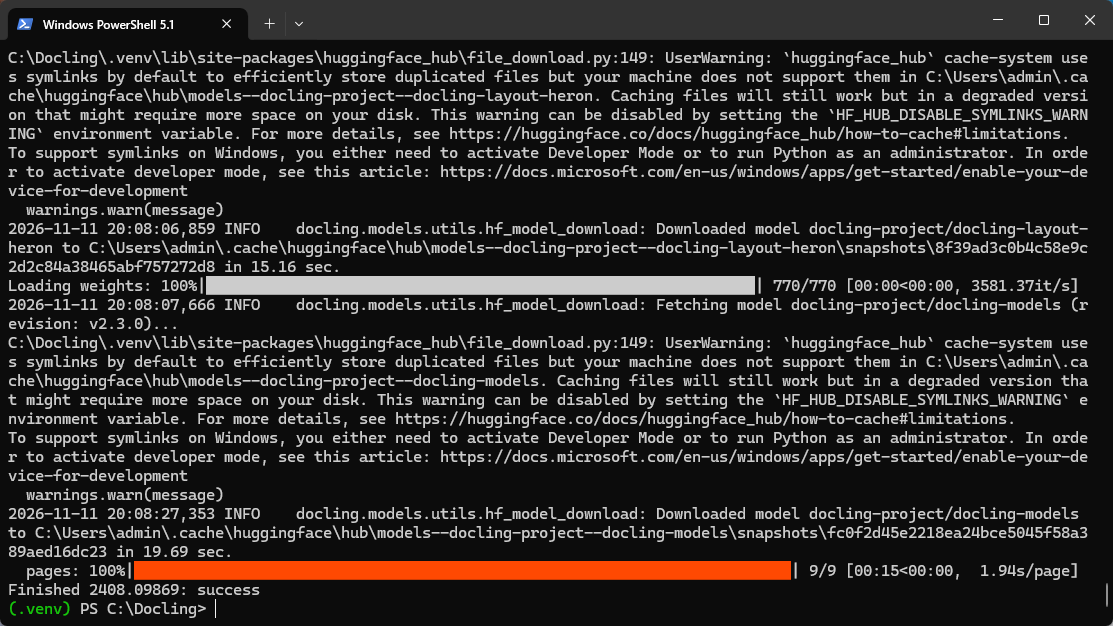
Convert PDF to Markdown
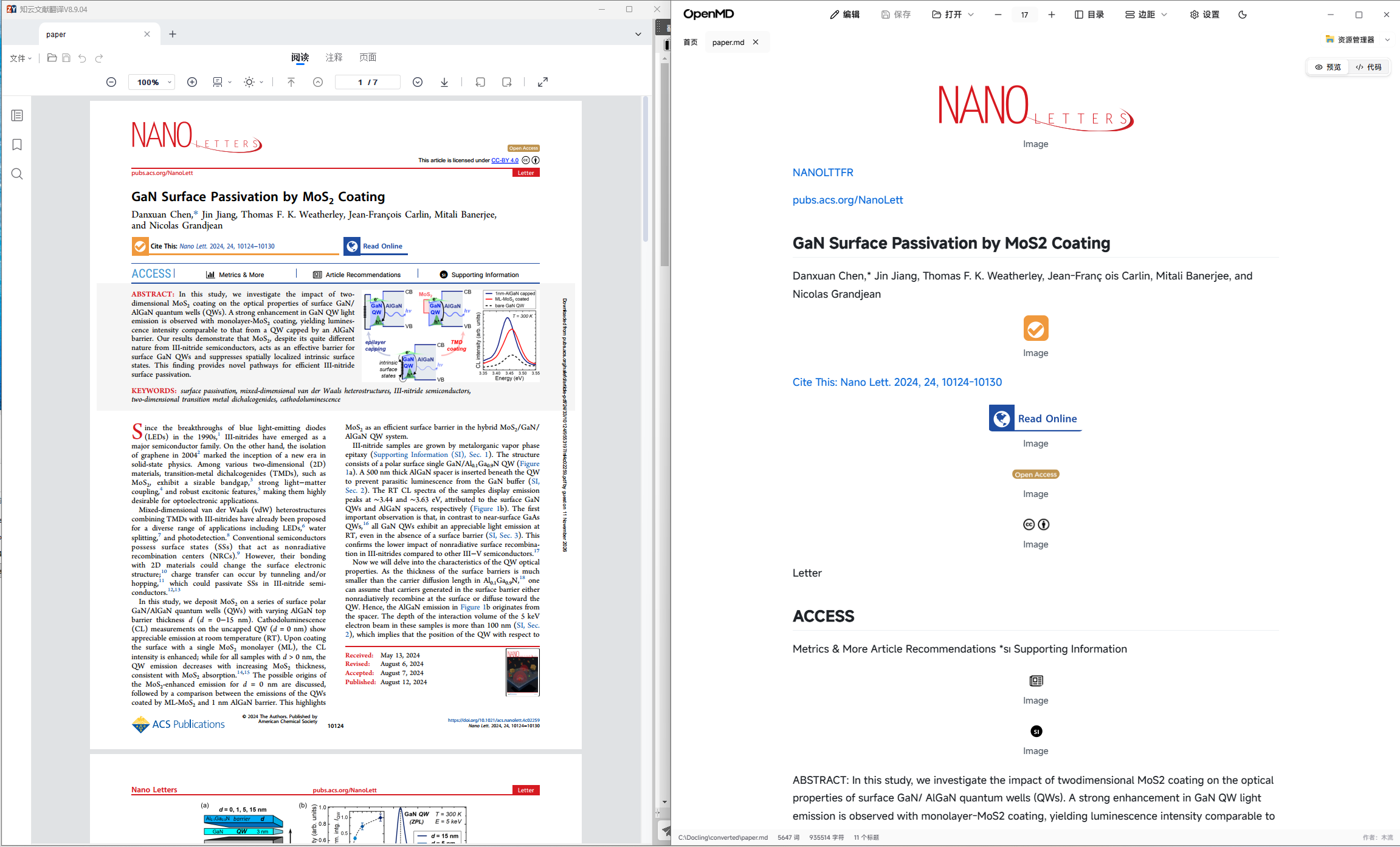
The simplest way to use it is via command-line conversion. Assume there is a copy in the current directory. paper.pdf:
docling convert paper.pdf --to md --output ./converted
Docling will converted Markdown files will be generated in the directory. If you wish to retain structured JSON as well, you can specify it again. --to:
docling convert paper.pdf --to md --to json --output ./converted
You can also use the abbreviation directly:
docling paper.pdf
The default output is Markdown. When working on projects, it is recommended to explicitly specify the output directory to avoid mixing the generated files with the original PDF.
Batch convert PDFs in folder
When a project accumulates dozens of papers, lab reports, or equipment manuals, manually entering the filenames one by one is impractical. Docling CLI supports using directories as input sources and... --from Specify the format to be processed.
First, create a directory:
project/ ├─ pdfs/ # Original PDF └─ converted/ # Conversion result
Put the PDF you need to process into... PDFsThen run the following in the project root directory:
docling convert ./pdfs --from pdf --to md --to json --output ./converted
This command scans PDFs in the input directory and outputs Markdown and JSON to the specified directory. If there are many files, it is recommended to test the command with 2-3 files of different types first to confirm the output quality and resource usage before processing the entire directory.
Write re-executable batch scripts using Python.
If you need to log the success or failure status of each file, you can control the conversion process through the Python API:
from pathlib import Path from docling.document_converter import DocumentConverter input_dir = Path("pdfs") output_dir = Path("converted") output_dir.mkdir(parents=True, exist_ok=True) converter = DocumentConverter() for pdf_path in sorted(input_dir.glob("*.pdf")): try: result = converter.convert(pdf_path) markdown_path = output_dir / f"{pdf_path.stem}.md" json_path = output_dir / f"{pdf_path.stem}.json" result.document.save_as_markdown(markdown_path) result.document.save_as_json(json_path) print(f"Complete: {pdf_path.name}") except Exception as exc: print(f"Failed: {pdf_path.name}; Reason: {exc}")
This script is suitable for processing single-level directories first. If the PDF is scattered across multiple levels of subdirectories, you can... glob("*.pdf") Change to rglob("*.pdf")And add subdirectories or unique numbers to the output files as needed to avoid files with the same name appearing in different folders.
Extract tables from PDF and save as CSV
Tables in research PDFs often contain multi-level headers, units, footnotes, and merged cells. Docling can recognize table structure and... export_to_dataframe() Convert the table to a Pandas DataFrame for easier statistical or plotting using Python.
First, install Pandas:
install pandas with pip
Then run:
from pathlib import Path import pandas as pd from docling.document_converter import DocumentConverter pdf_path = Path("paper.pdf") output_dir = Path("tables") output_dir.mkdir(parents=True, exist_ok=True) result = DocumentConverter().convert(pdf_path) doc = result.document for index, table in enumerate(doc.tables, start=1): dataframe = table.export_to_dataframe(doc=doc) output_path = output_dir / f"table_{index}.csv" dataframe.to_csv(output_path, index=False, encoding="utf-8-sig") print(f"Exported: {output_path}")
The exported CSV file can be read using Excel, Pandas, or R. Note that the CSV file itself does not retain complex cell merging, coloring, or footnote formatting; if the original table has multiple levels of headers, you should return to the PDF to verify the header correspondences and, if necessary, reorganize it into a data table suitable for analysis.
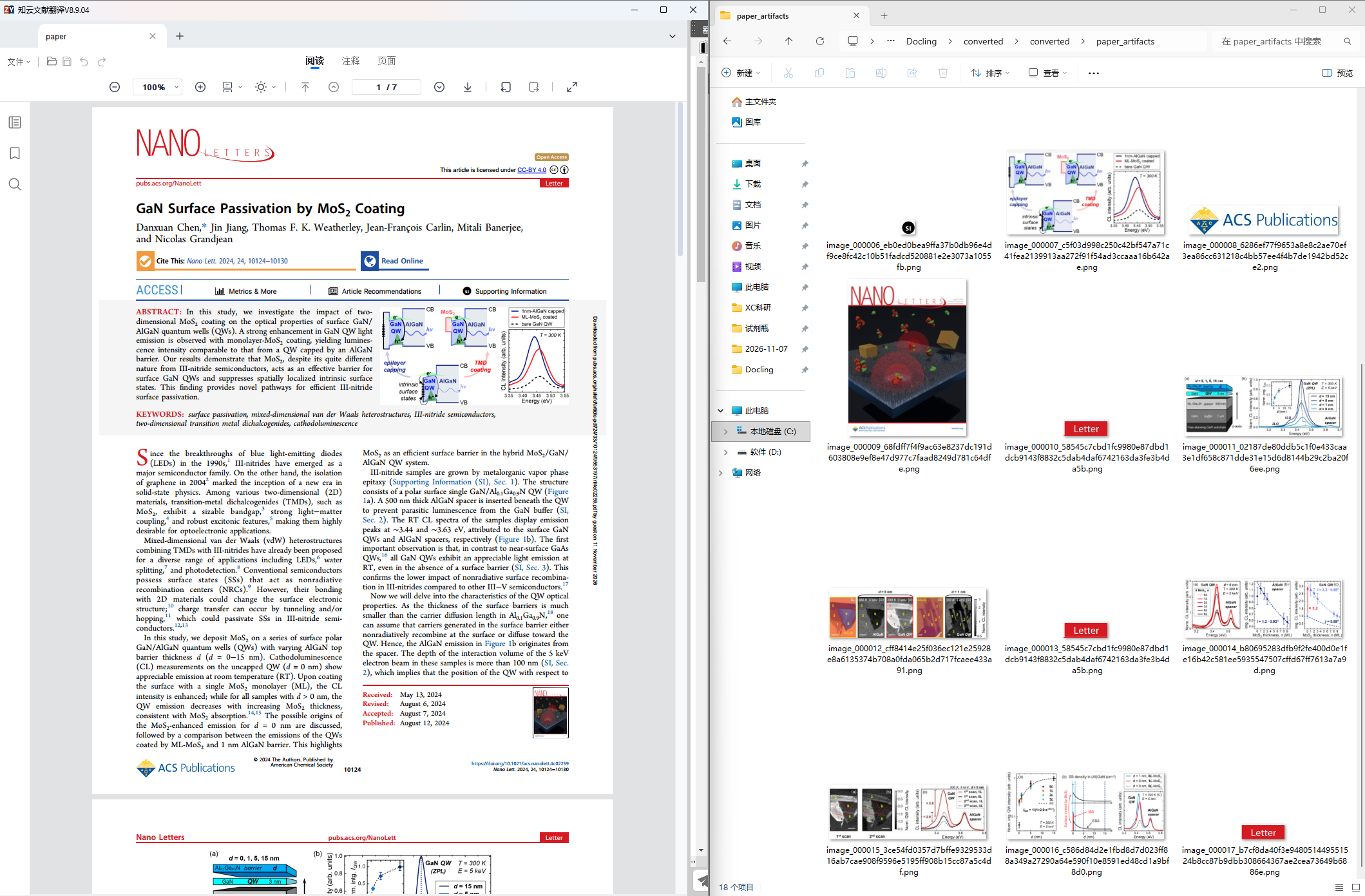
Extracting image and chart areas from a PDF
If you need to save diagrams, micrographs, or tables from a paper separately, Docling provides an interface for accessing image elements. The following example extracts image regions from the parsed results:
from pathlib import Path from docling_core.types.doc import PictureItem from docling.document_converter import DocumentConverter pdf_path = Path("paper.pdf") output_dir = Path("figures") output_dir.mkdir(parents=True, exist_ok=True) doc = DocumentConverter().convert(pdf_path).document for index, (element, _level) in enumerate(doc.iterate_items(), start=1): if isinstance(element, PictureItem): image = element.get_image(doc) if image is not None: image.save(output_dir / f"figure_{index:03d}.png")
Docling 2.149.0 adds an optional ability to directly extract embedded images from PDFs. If you wish to prioritize using images originally embedded in the PDF, rather than cropping them from the rendered page, you can add the following command during the command-line conversion:
docling convert paper.pdf --to md --image-export-mode referenced --use-embedded-picture-images --output ./converted
referenced The mode saves the image as a separate file and preserves references within the Markdown. Direct extraction only applies to embedded images that meet certain criteria; if direct extraction is not safe, the tool will fall back to rendering the page area. Therefore, the exported image may not be exactly the same as the source file in the original graphics software.
Chinese OCR for scanned PDFs
Scanned PDF pages are essentially images, and text cannot be directly copied like in regular text PDFs. In this case, an OCR engine is needed to recognize the page content.
Docling supports multiple OCR backends. For Simplified Chinese scanned documents, you can try RapidOCR first and explicitly specify the language:
docling convert scan.pdf --ocr-engine rapidocr --ocr-lang ch --to md --output ./ocr_output
Here ch This is the Simplified Chinese language tag used by RapidOCR/PP-OCR. Alternatively, you can use the corresponding language code or BCP-47 language tag depending on the selected OCR backend. Different OCR engines support different languages and have different installation methods; please refer to the official OCR documentation for details.
The OCR results still need to be verified.
OCR recognition quality can be affected by scan resolution, page tilt, background noise, font, table lines, and mixed Chinese and English text. The following are particularly worth checking:
- Decimal point, minus sign, superscript and subscript, and Greek letters;
- Sample number, gene name, chemical formula, and unit;
- Are the values in adjacent columns of the table misaligned?
- Are figure captions, footnotes, and main text incorrectly merged?
- Are page numbers, headers, and footers mixed into the main text?
For critical experimental data, it is not recommended to use the OCR output directly as the final data source. A more prudent approach is to retain the original PDF, extract the data, compare it page by page, and record any manual revisions.
[Image 5: Comparison of scanned document before and after OCR]
- Placement: After the OCR quality description.
- Suggested layout: The left side shows the scanned page, and the right side shows the OCR-generated Markdown. Circle a table or formula area.
- Caption: OCR can reduce the workload of manual data entry, but key values still need to be verified against the original document.
How to organize and analyze results in scientific research projects?
Batch conversion is only the first step. If you want the results to be available for review and reuse several months later, it's recommended to manage the input files, parsed files, and manually verified results separately.
project-docs/ ├─ source-pdf/ # Original PDF, read-only ├─ parsed-md/ # Markdown text ├─ parsed-json/ # Structured JSON ├─ extracted-tables/ # CSV tables ├─ extracted-figures/ # Image areas ├─ review/ # Manually checked records └─ README.md # Processing date, version, command, and exception description
Record at least the following for each processing:
- Docling version and Python version;
- Enter the file name and source;
- The OCR engine and language parameters used;
- Output file list;
- Files that failed to parse or partially succeeded;
- Page numbers of tables, formulas, and images that have been manually checked.
The significance of this record lies not in increasing paperwork, but in preventing subsequent analysis from being unable to explain “which PDF the data came from, what processing it underwent, and whether anyone modified it.” If the same batch of documents needs to be re-parsed, retaining the version and commands makes it easier to pinpoint differences.
Frequently Asked Questions and Troubleshooting
Installation successful, but cannot be found. docling Order
First, confirm that the project's virtual environment is activated on the current terminal, then execute. python -m pip show docling Check if the package is installed in the current interpreter. If using an IDE, check if the Python interpreter selected by the IDE matches the terminal.
The scanned PDF did not recognize the text.
Confirm that OCR is enabled and check that the corresponding OCR engine is installed. If using Tesseract, the official documentation requires that the system program and language data be installed separately, and the corresponding backend be explicitly selected; the automatic selection mode will not automatically call the Tesseract CLI.
The conversion result contains garbled characters or the reading order is incorrect.
First, determine if the original PDF contains corrupted text layers. For files with errors in the text layers themselves, further investigation is needed. --replace-broken-text-layer Options include [list of options]; for scanned documents, the OCR language and image quality should be checked. For double-column documents, complex formulas, and multi-page tables, it is recommended to check each page carefully and not directly treat the converted result as a lossless copy of the original text.
Column misalignment after table export
Check the original table for merged cells, multi-level headers, tables spanning multiple pages, or cells without borders. If necessary, switch the table structure mode, or only process the problematic page, then compare it with the original PDF. The exported DataFrame is a data representation for analysis purposes and may not perfectly replicate the original layout.
It was very slow the first time it ran.
Docling may require preparing model files. It is recommended to test with a small number of pages first; for digital PDFs that already have a reliable text layer, you can assess whether OCR is needed. For image-based scanned documents, you should not turn off OCR directly for speed, otherwise you may only get incomplete text.
Will the document be uploaded to the cloud?
Docling supports local execution, with the default local conversion process handling files locally; however, it also offers integration methods such as remote services and remote models. When using sensitive experimental records, unpublished data, or materials subject to institutional agreements, ensure that a local pipeline is being used, check that remote services are enabled, and comply with the institution's data management regulations. The initial download of model files and the uploading of document content are two different things.
Advantages and limitations of Doling
| aspect | Advantages | Limitations |
|---|---|---|
| Document Format | Supports multiple formats including PDF, Office, web pages, and images. | Different formats do not have completely consistent parsing capabilities and maturity levels. |
| PDF Structure | It can recognize page layout, reading order, tables, and images. | Even with extremely complex layouts, misordering or missed detections may still occur. |
| OCR | Supports multiple OCR backends and language configurations. | Low-quality scans, handwriting, and formula recognition still require proofreading. |
| Output | Markdown, HTML, JSON, etc. are convenient for subsequent processing. | The conversion result is not a pixel-by-pixel copy of the original document. |
| working methods | It can run locally and is suitable for scripting and batch processing. | Installing dependencies, models, and hardware environments requires maintenance. |
The most valuable aspect of Docling is its ability to transform documents that are originally only readable by humans into structured data that can be further processed by programs. It cannot guarantee that every table, formula, and figure caption is 100% accurate, nor can it replace researchers' judgment of data sources and scientific meaning.
Conclusion
If your daily work only involves occasionally opening a single PDF, a regular reader is sufficient. However, if you frequently need to process multiple papers, supplementary materials, lab reports, or scanned documents, and wish to pass the text, tables, and images to subsequent analysis workflows, Docling is worth adding to your toolbox.
It's recommended to start with a well-structured digital PDF, first completing the Markdown conversion, then trying table export and batch processing. Once you're familiar with the resulting structure, then move on to scanned documents and complex documents. Establishing a verifiable workflow first, and then scaling up batch processing, is more reliable than pursuing “fully automated” from the outset.
Reference Links
- Docling official documentationFeatures, architecture, format support, and examples.
- Installation InstructionsNotes on Python version, system support, OCR backend, and PyTorch installation.
- Quickstart: Basic conversion between Python API and CLI.
- CLI Reference:
--to、--outputParameters such as OCR, table, and image export. - Batch convert exampleBatch conversion of multiple PDFs and output in multiple formats.
- Export tables exampleConvert tables to DataFrames, CSVs, and HTML.
- Export figures exampleExtracting page, table, and image areas.
- Docling 2.149.0 ReleaseVersion update notes for November 8, 2026.
- PyPI Project PageVersion, Python requirements, platform, and license information.