

Table of contents
Hide
DuckDB Practical Tutorial

DuckDB 2.0.0 Practical Tutorial: Using SQL Efficient analysis of large CSV files and Parquet Scientific data
Release Notice: This article is based on the official DuckDB 2.0.0 LTS documentation. The software interface, CLI download link, and API may be updated with patch versions; before using it for your research data, please verify the SQL, type inference, result export, and version compatibility on a separate copy. The measurement data in this article are simulated examples and do not constitute real experimental data or statistical conclusions.
Experimental data, instrument export results, and publicly available datasets are often stored as CSV, TSV, or Parquet files. As data volumes increase, loading, filtering, and merging operations in Excel can become slow, and repeatedly importing files into different software can easily lead to version inconsistencies. DuckDB is an embedded database designed for analytical tasks that can directly read CSV, Parquet, and JSON files and use SQL to perform filtering, grouping statistics, joins, format conversions, and result export. This article uses... DuckDB 2.0.0 LTS Based on this, the installation, command line, and Python usage are introduced, and a set of simulated experimental measurement data is used to demonstrate the complete process from file reading, quality checking, grouping and summarizing to Parquet export.
Using DuckDB for scientific data processing
Research data is often scattered across multiple files: CSV files exported from instrument software, measurement tables from different batches, Parquet files downloaded from public databases, and intermediate results generated by Python or R programs. Common tasks involving these files include:
- Filter specified samples, time points, or experimental groups from multiple files;
- Grouping and summarizing by sample, experimental conditions, or batch;
- Check for missing values, duplicate records, and out-of-range conditions;
- Merge multiple batches of files into a unified dataset;
- Convert large CSV files into Parquet format, which is more suitable for analysis;
- The results can then be fed into Python, R, or statistical plotting software for further analysis.
Manually opening, filtering, copying, and merging spreadsheets each time is not only repetitive but also prone to introducing human error. DuckDB offers an alternative approach:Instead of manually organizing each file into a table, use SQL to describe the required data, treating the data files as query objects.
Introduction to DuckDB
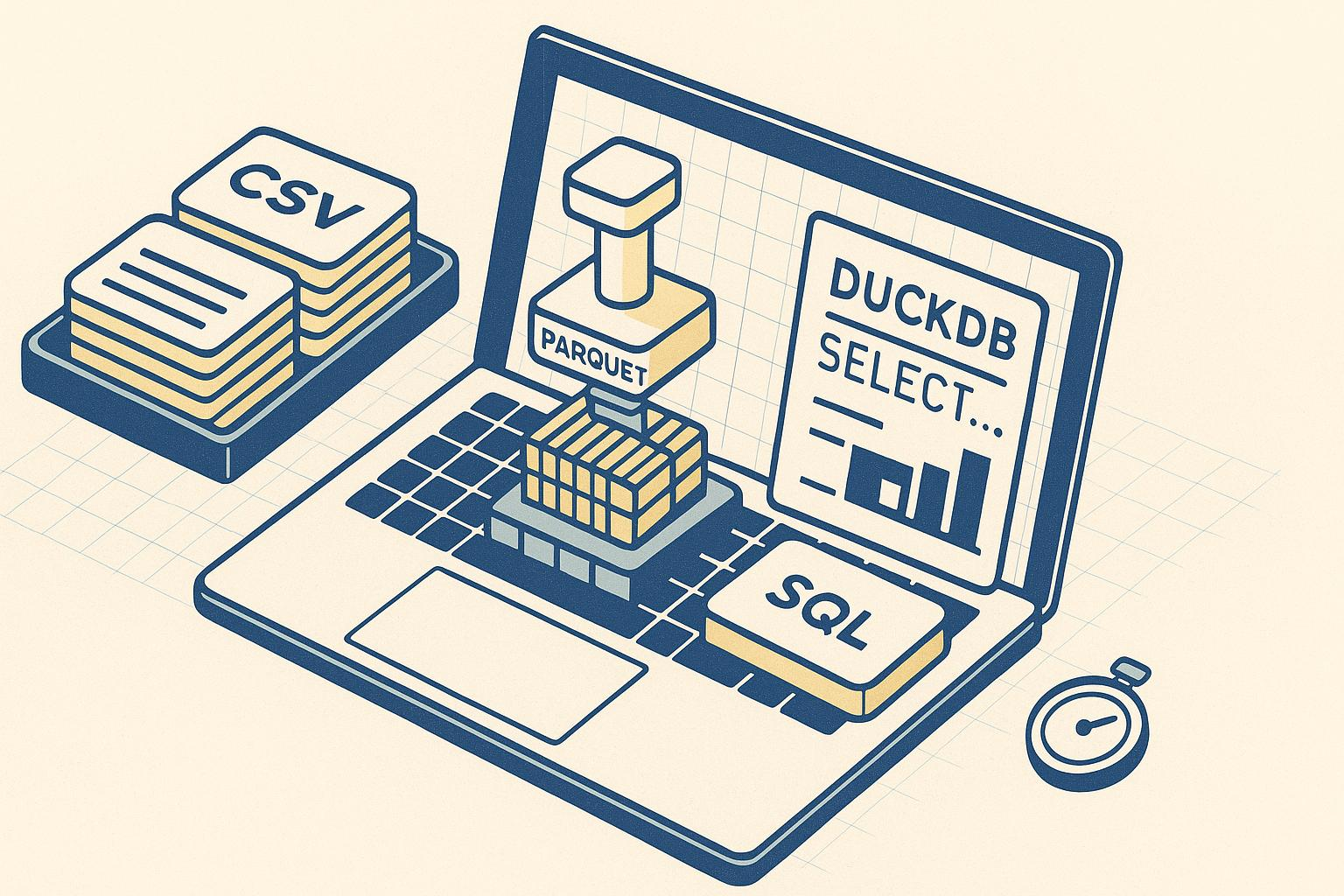
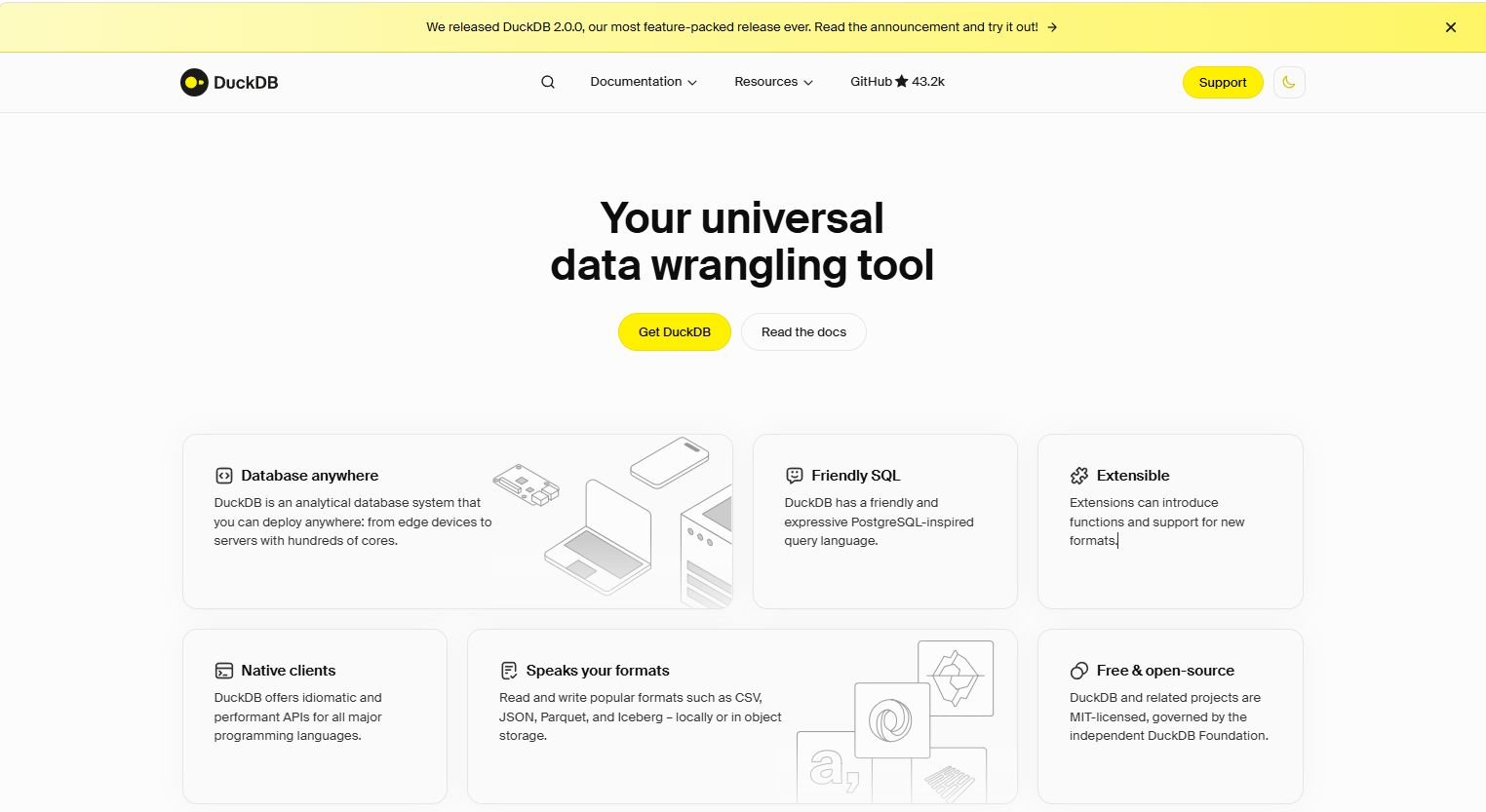
DuckDB is an open-source, embedded analytical database. It can run within Python, R, command-line applications, or other systems, eliminating the need for a separate database server for routine local analysis. It is particularly well-suited for scanning, filtering, aggregating, and transforming file-based data.
Compared to traditional databases, one of the most useful features of DuckDB is its ability to directly query external files. For example, CSV files can appear directly in... FROM Subsequently, Parquet files can also be read via file paths. For ad-hoc analysis, it is not necessary to create database tables first; if long-term storage of structured data is required, persistent database files can be created.
DuckDB is not a complete replacement for Excel, nor is it a universal database server for all scenarios. It is better suited for analytical tasks such as batch filtering, summarizing, joining, and format conversion. For systems requiring simultaneous editing by multiple users, frequent writes, complex access control, or online business transactions, other database solutions should be evaluated based on specific needs.
Differences between DuckDB and common scientific data tools
| Tools | Main uses | More suitable for solving problems |
|---|---|---|
| Excel / LibreOffice Calc | Spreadsheet viewing, manual organization, and basic statistics | Small-scale form browsing, manual data entry, and quick check. |
| Python pandas | Data cleaning and analysis in Python | Data transformation, statistical calculation, and integration with scientific research codes |
| R / RStudio | Statistical analysis, modeling and visualization | Statistical inference, model analysis, and results charts |
| DuckDB | Use SQL to query files and analytical data | Multi-file filtering, aggregation, joining, CSV/Parquet conversion |
| SQLite | Lightweight embedded relational database | Structured records, application data, and transactional storage |
DuckDB can be used with tools such as pandas, Polars, Arrow, and R. A common workflow is to first use DuckDB to filter and summarize from a large number of raw files, and then hand the smaller result tables over to Python or R for statistical modeling and plotting.
Changes in DuckDB 2.0.0
DuckDB 2.0.0 was released on [date]. October 21, 2026This release is a Long Term Support (LTS) version. Key updates listed in the official announcement include:
- Improve the Quack remote protocol and
CONNECTThe connection method allows DuckDB to adopt a client-server model; - Asynchronous I/O is introduced to improve some file and object storage access scenarios;
- Increase by one class
VARIANTTypes used for semi-structured data; - Add capabilities such as agent mode, triggers, and an extensible SQL parser;
- Improvements were made to the query optimizer and several underlying components.
This article focuses on demonstrating local operation.Scientific data analysisTherefore, we will not be expanding on server modes and all new features one by one. For most users new to DuckDB, learning how to reliably read, inspect, summarize, and export data is more valuable than exploring advanced features at the outset.
As of November 16, 2026, the official support policy indicates that DuckDB 2.0 LTS is planned to be supported until at least October 2027; support for the 1.5 series is extended to March 2027; and support for 1.4 LTS will end on November 17, 2026. If projects are already running on the 1.4 series, testing and migration should be planned in advance, rather than directly upgrading to the production data environment.
Install DuckDB 2.0.0
DuckDB can be used via a Python package or as a standalone command-line program. Beginners can choose the Python method first; if you prefer to run SQL directly in the terminal, you can install the CLI separately.
Official entrance:
- Official website:https://duckdb.org/
- Official installation page:https://duckdb.org/docs/installation/
- Official GitHub Releases:https://github.com/duckdb/duckdb/releases
- Python API documentation:https://duckdb.org/docs/2.0/clients/python/overview
Python version requirements
Python client requirements for DuckDB 2.0.0 Python 3.11 or laterFree-threaded CPython builds are not supported. If your computer is still using Python 3.10, executing the normal installation command may result in version 1.x instead of 2.0.0. Therefore, check your Python version before installation.
python --versionIf multiple versions of Python are installed on the system, Python 3.11 or a later version should be explicitly called.
Installing Python on Windows
In PowerShell, navigate to the directory where you want to store your project, and then create a separate virtual environment:
py -3.11 -m venv .venv .\.venv\Scripts\Activate.ps1 python -m pip install --upgrade pip python -m pip install duckdb==2.0.0After installation, check the version:
python -c "import duckdb; print(duckdb.__version__)"If the output is 2.0.0This indicates that the corresponding version of Python is already installed in the current Python environment.
If the computer does not have py -3.11 For this command, please first install Python 3.11 or later and ensure that the installer has added the Python Launcher to your system. Alternatively, you can create a virtual environment using the full path to the interpreter in your Python installation directory.
macOS and Linux installation
macOS or Linux users can use Python 3.11+ that is already installed on their system:
python3.11 -m venv .venv source .venv/bin/activate python -m pip install --upgrade pip python -m pip install duckdb==2.0.0 python -c "import duckdb; print(duckdb.__version__)"If the Python command names in your system are different, please... Python 3.11 Replace with actual, usable Python 3.11+ commands.
Install the command-line version (CLI)
If you prefer to type SQL directly in the terminal without writing Python code, you can download the DuckDB CLI. The official installation page provides pre-compiled versions for Windows, macOS, and Linux. The CLI is a standalone executable and does not require Python to be installed first.
Basic steps:
- Open the official DuckDB installation page;
- Select the CLI client and the corresponding operating system;
- Download the stable version of DuckDB 2.0.0;
- Unzip the program or place it in a fixed directory;
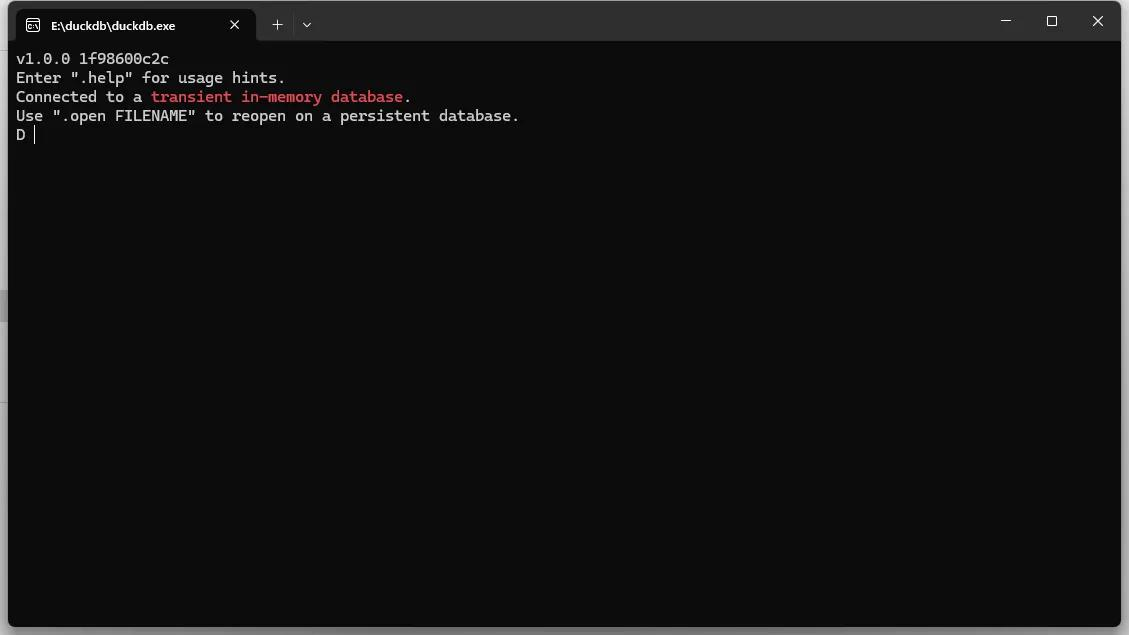
- Navigate to the directory in the terminal and check the version.
Windows PowerShell example:
.\duckdb.exe --versionmacOS / Linux examples:
./duckdb --versionIf you want to run it in any directory duckdb This command adds the program's directory to the system PATH. The installation page for different versions may have different download options; please refer to the official page for the current stable version 2.0.0.
Practiceable research data
This tutorial uses one copy.Simulated experimental measurement dataDemonstration process. The data is for illustrative purposes only and does not represent actual experimental results, nor should it be cited as data in academic papers.
Suggested project directory
First, create a project folder:
DuckDB_Research/ ├── data/ │ └── measurements.csv ├── output/ ├── scripts/ └── research.duckdbin:
data/: Stores the original CSV, TSV, or Parquet files;output/Stores the results after cleaning, summarizing, and format conversion;scripts/: Stores Python or SQL scripts;research.duckdbDuckDB persists database files, creating them on demand.
Please create it manually first. data 和 output Two directories. DuckDB will not automatically create all output paths for you.
Create simulated measurement data
在 data/measurements.csv Write the following content in:
sample_id,group,replicate,time_h,signal S001,Control,1,0,0.12 S001,Control,2,0,0.14 S001,Treatment,1,0,0.18 S001,Treatment,2,0,0.20 S002,Control,1,24,0.15 S002,Control,2,24,0.16 S002,Treatment,1,24,0.31 S002,Treatment,2,24,0.29 S003,Control,1,48,0.17 S003,Control,2,48,0.19 S003,Treatment,1,48,0.38 S003,Treatment,2,48,0.35The meanings of the fields are as follows:
| Fields | meaning | Recommendation type |
|---|---|---|
| sample_id | Sample number | VARCHAR |
| group | Experimental Groups | VARCHAR |
| replicate | Duplicate number | INTEGER |
| time_h | Time point, in hours | INTEGER |
| signal | Measure signal value | DOUBLE |
Sample numbers should typically be saved as text. If automatic type recognition... 001 When such serial numbers are recognized as numbers, leading zeros may be lost. For fields such as sample numbers, barcodes, and instrument serial numbers, it is recommended to explicitly specify them as such. VARCHAR。
Using SQL to query CSV files
One of the key features of DuckDB is that it can read data directly from CSV files without having to manually import them into a database table first.
View the first few lines of the file
Open the DuckDB CLI, or execute it via Python:
SELECT * FROM read_csv('data/measurements.csv', header = true) LIMIT 10;read_csv() It will attempt to identify the CSV delimiter, quotation rules, header, and field types. For well-formatted CSVs, automatic identification can usually be used directly; however, if the file's delimiter, encoding, or field types are unusual, the parameters should be explicitly set.
You can also use the abbreviation:
SELECT * FROM 'data/measurements.csv' LIMIT 10;DuckDB can identify common formats based on file extensions.
View field structure
Before processing the actual data, check the field names and types:
DESCRIBE SELECT * FROM read_csv('data/measurements.csv', header = true);If the field type recognition does not meet expectations, it can be done through... columns The parameter specifies the field structure:
SELECT * FROM read_csv( 'data/measurements.csv', header = true, columns = { 'sample_id': 'VARCHAR', 'group': 'VARCHAR', 'replicate': 'INTEGER', 'time_h': 'INTEGER', 'signal': 'DOUBLE' } );Another approach is to use all_varchar = trueFirst, read all columns as text, then perform explicit conversions as needed. This makes it easier to check for mixed formats, leading zeros, and abnormal characters, but type conversion must be performed before subsequent calculations.
Selecting specific experimental groups and time points
For example, to view only the data for the Treatment group after 24 hours:
SELECT * FROM read_csv('data/measurements.csv', header = true) WHERE "group" = 'Treatment' AND time_h >= 24 ORDER BY time_h, sample_id;In SQL WHERE Used to filter records.ORDER BY Used for sorting. Because group In SQL, it has a special meaning; in the example, the field name is enclosed in double quotes.
Calculate the mean and standard deviation according to the experimental group.
The following queries summarize the sample size, mean, and sample standard deviation by experimental group and time point:
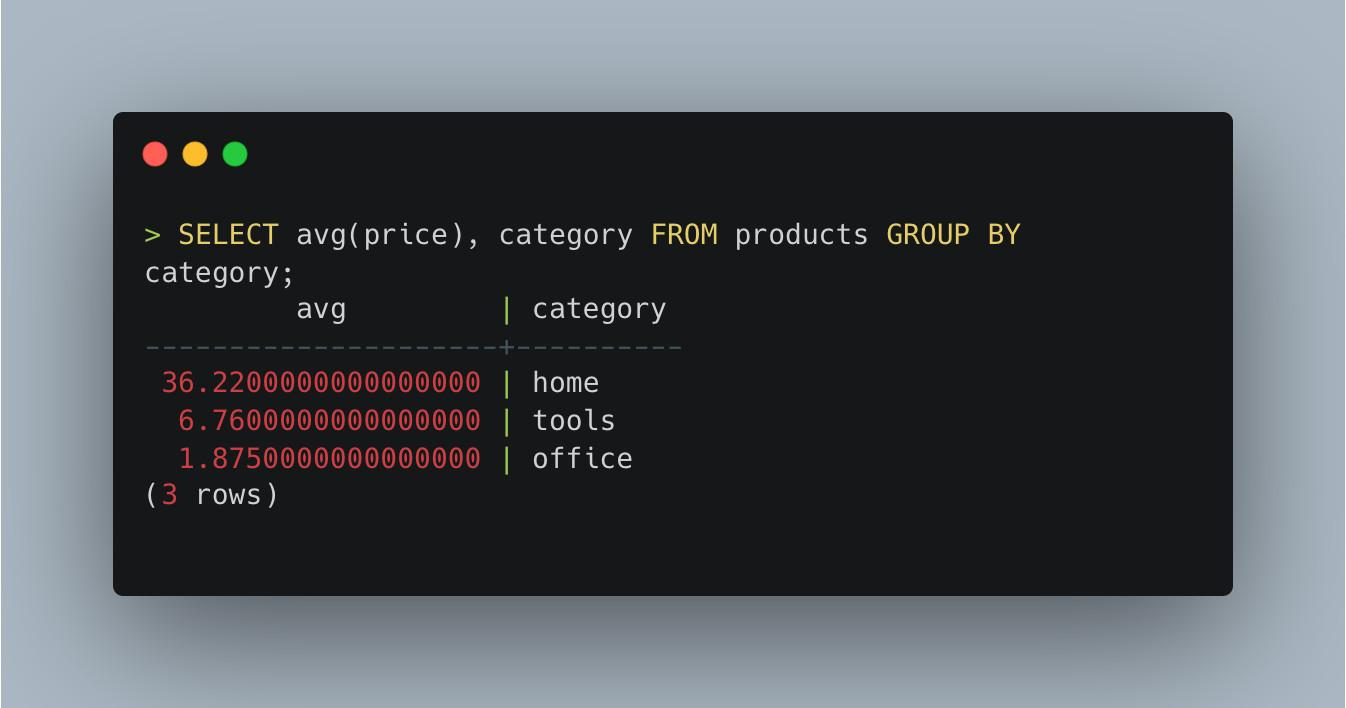
SELECT "group", time_h, COUNT(*) AS n, ROUND(AVG(signal), 3) AS mean_signal, ROUND(STDDEV_SAMP(signal), 3) AS sd_signal FROM read_csv('data/measurements.csv', header = true) WHERE signal IS NOT NULL GROUP BY "group", time_h ORDER BY time_h, "group";In this SQL statement:
COUNT(*): Count the number of records in the current group;AVG(signal): Calculate the average of the signal values;STDDEV_SAMP(signal): Calculate the sample standard deviation;GROUP BYGrouped by experimental group and time point;ORDER BY: Sort the output results by time and group.
Here n This refers to the number of rows recorded, and is not necessarily equal to the number of independent biological replicates. In formal research, technical replicates, biological replicates, and sample strata should be distinguished according to the experimental design, and the statistical unit should not be determined solely based on the database summary results.
Use DuckDB for data quality checks
Before conducting statistical analysis, it is recommended to check for missing values, outliers, and duplicate records. DuckDB can quickly perform these basic checks using SQL.
Check missing values and numerical range
SELECT COUNT(*) AS total_rows, COUNT(*) FILTER (WHERE sample_id IS NULL) AS missing_sample_id, COUNT(*) FILTER (WHERE "group" IS NULL) AS missing_group, COUNT(*) FILTER (WHERE signal IS NULL) AS missing_signal, MIN(signal) AS min_signal, MAX(signal) AS max_signal FROM read_csv('data/measurements.csv', header = true);This query can help determine the total number of rows, the number of missing key fields, and the range of measured values. It cannot automatically determine whether a value is scientifically abnormal; the abnormality threshold should still be determined based on the experimental protocol, instrument range, and data distribution.
Find duplicate records
If each record is theoretically uniquely determined by the sample, group, duplicate number, and time point, the following statement can be used to check for duplicate combinations:
SELECT sample_id, "group", replicate, time_h, COUNT(*) AS duplicated_rows FROM read_csv('data/measurements.csv', header = true) GROUP BY sample_id, "group", replicate, time_h HAVING COUNT(*) > 1;If the query returns records, it means that these field combinations appeared in multiple rows. Whether it constitutes an error needs to be determined in conjunction with the original experimental records; some experiments inherently allow for multiple readings under the same conditions, and these should not be deleted indiscriminately.
Explicit handling of outliers
For example, if the experimental protocol clearly specifies signal The value should not be negative; it can be used to filter out suspicious records first.
SELECT * FROM read_csv('data/measurements.csv', header = true) WHERE signal < 0;It is recommended to first output suspicious rows and manually verify them before deciding whether to exclude, correct, or keep them. Do not directly delete data that does not meet expectations just to make the chart look neater.
Batch read multiple CSV files
In actual experiments, a batch may generate a single CSV file, or separate files may be generated for each sample, each time point, or each instrument. DuckDB can read multiple files at once using wildcards.
Assuming the directory contains:
data/ ├── batch_01.csv ├── batch_02.csv └── batch_03.csvYou can use:
SELECT * FROM read_csv('data/batch_*.csv', header = true);If multiple files have completely identical field structures, they can be directly filtered and summarized uniformly:
SELECT "group", COUNT(*) AS n, AVG(signal) AS mean_signal FROM read_csv('data/batch_*.csv', header = true) GROUP BY "group" ORDER BY "group";If field names or column order differ between batches, first verify the table headers and data types. Do not assume that the file structure is inherently consistent. For cases where column names differ but have the same meaning, unify the column names in the reading logic of each file before merging.
Managing large datasets with Parquet
CSV is easy to view and exchange, but Parquet is often more suitable for large datasets requiring repetitive analysis. Parquet is a columnar storage format that preserves field types and supports compression. During queries, DuckDB can read only the necessary columns and push some filtering conditions to the Parquet scan process, reducing unnecessary data reads.
Convert CSV to Parquet
First ensure output/ The folder already exists; then run:
COPY ( SELECT * FROM read_csv('data/measurements.csv', header = true) ) TO 'output/measurements.parquet' (FORMAT PARQUET, COMPRESSION ZSTD);This will write the query results to a Parquet file and compress it using Zstandard. For large datasets, conversion time and file size will be affected by field types, row group sizes, compression methods, and data content; a fixed performance improvement cannot be inferred solely from the format name.
Directly query Parquet files
Parquet files can also be used directly as query objects:
SELECT "group", COUNT(*) AS n, AVG(signal) AS mean_signal FROM read_parquet('output/measurements.parquet') GROUP BY "group";If you only need some of the fields, try to explicitly write the field names instead of using `field_name` every time. SELECT *:
SELECT sample_id, time_h, signal FROM read_parquet('output/measurements.parquet') WHERE time_h >= 24;This is beneficial for utilizing Parquet's columnar reading and filter pushdown mechanisms.
Merge multiple Parquet files for a single query.
SELECT "group", time_h, AVG(signal) AS mean_signal FROM read_parquet('output/batch_*.parquet') GROUP BY "group", time_h ORDER BY time_h, "group";Suitable for scenarios where results need to be saved in batches but require unified analysis. Multiple Parquet files should maintain as consistent a data dictionary, field types, and units as possible.
Export as CSV and use it with other software.
If you need to export the summary results to Excel, GraphPad Prism, R, or other software, you can export a CSV file.
COPY ( SELECT "group", time_h, COUNT(*) AS n, AVG(signal) AS mean_signal, STDDEV_SAMP(signal) AS sd_signal FROM read_parquet('output/measurements.parquet') GROUP BY "group", time_h ) TO 'output/group_summary.csv' (FORMAT CSV, HEADER, DELIMITER ',');This creates a workflow of “original file → DuckDB query → summary file → subsequent statistics and plotting”.
Using DuckDB
If the research process already uses Python, you can directly use... duckdb The package runs SQL and then converts the results into pandas, Polars, or Arrow data structures.
Establish persistent database connection
Create in the project directory scripts/analyze.py:
from pathlib import Path import duckdb project_dir = Path(__file__).resolve().parents[1] data_file = project_dir / "data" / "measurements.csv" db_file = project_dir / "research.duckdb" con = duckdb.connect(str(db_file)) query = """ SELECT "group", time_h, COUNT(*) AS n, AVG(signal) AS mean_signal, STDDEV_SAMP(signal) AS sd_signal FROM read_csv(?, header = true) WHERE signal IS NOT NULL GROUP BY "group", time_h ORDER BY time_h, "group" """ summary = con.execute(query, [str(data_file)]).df() print(summary) output_file = project_dir / "output" / "group_summary.csv" summary.to_csv(output_file, index=False) con.close()Here we use ? Pass the file path as a parameter; avoid directly concatenating the path into the SQL string. Please confirm. output/ The folder has been created.
If you only need to perform temporary queries and do not require database persistence, you can use:
import duckdb result = duckdb.sql(""" SELECT * FROM 'data/measurements.csv' LIMIT 5 """).df() print(result)Running in Jupyter Notebook
In a Python environment where DuckDB 2.0.0 is already installed, Notebook cells can be run directly:
import duckdb con = duckdb.connect("research.duckdb") con.sql(""" SELECT "group", AVG(signal) AS mean_signal FROM read_csv('data/measurements.csv', header = true) GROUP BY "group" ORDER BY "group" """).df()In Notebook, SQL query results can be passed to pandas or other plotting libraries. It's recommended to consistently use the same DuckDB version within a project and save the query scripts to avoid confusion about which software version generated the results later.
When should data be written to the database?
DuckDB has two common uses:
- Directly query the file: Suitable for temporary filtering, one-time statistics, and quick checks, without needing to copy all data to the database;
- Create a persistent table: Suitable for repeated queries, requiring unified data structure management, or where intermediate data is stored.
.duckdbThe items in the file.
For example:
CREATE TABLE measurements AS SELECT * FROM read_csv('data/measurements.csv', header = true);Once created, it can be queried repeatedly:
SELECT "group", AVG(signal) FROM measurements GROUP BY "group";Whether to import data into a database should be determined based on the data size, frequency of repeated analysis, disk space, and team collaboration style. The original files should still be retained; do not store the sole original data in a single, modifiable database file.
Compatibility issues with DuckDB 2.0.0
DuckDB 2.0.0 is a major version upgrade. For new projects, it can be used directly after confirming Python version and dependency compatibility; for existing projects, the following changes should be understood first.
Python version 3.11 or higher is required.
The DuckDB 2.0.0 Python client requires Python 3.11 or later. If your existing project is still using Python 3.10, do not directly upgrade the DuckDB package in your environment to 2.0.0; you should first create a new Python environment and test the dependencies.
Newly created database files cannot be read by older versions of DuckDB.
DuckDB 2.0.0 uses the new database storage format (storage version 69) by default. Versions of DuckDB prior to 2.0.0 cannot read database files created using this format.
This means that if a computer creates a new... .duckdb The file may not be openable on another computer still using version 1.5.x. If multiple people in the lab are sharing the database file, a unified version or a compatibility strategy must be established first.
DuckDB 2.0.0 can read database files created in earlier versions, but this should not be taken as unconditional bidirectional compatibility with all versions. Back up the database before upgrading and verify on a copy.
Production or key research processes should not be directly covered by the upgrade.
The official migration guide recommends creating a shadow environment for mission-critical workloads and running the same workload on the existing system for comparison. It also suggests migrating in the following order:
- Copy existing
.duckdbFiles and scripts; - Create a standalone environment for Python 3.11+;
- Install DuckDB 2.0.0;
- Compare key SQL statements, exported files, and statistical results;
- Check if the Python API and Arrow/Polars output code need adjustment;
- After confirming that all processes accessing the same database file are version compatible, switch to the official process.
If your project depends on the DuckDB 1.x Python API, especially the code related to Arrow, Polars, and Relation objects, you should consult the official migration documentation and not just change the installation version number.
Frequently Asked Questions and Troubleshooting
The version displayed after installation is not 2.0.0.
First, check the current Python version and the current virtual environment:
python --version python -m pip show duckdb python -c "import duckdb; print(duckdb.__version__)"Ensure that Python is version 3.11 or later and that the correct virtual environment is activated when executing the command. If multiple Python installations exist, a situation may occur where the Python is installed in one environment but runs in another.
Chinese character encoding issues in CSV files
First, confirm the actual encoding of the file. DuckDB CSV read supports common encoding options such as UTF-8, UTF-16, and Latin-1. If the file is UTF-8, save it as UTF-8 first; if you confirm the file is in another supported encoding, then set the encoding according to the official CSV documentation. encoding Parameters. Do not repeatedly attempt conversion without knowing the original encoding, as this may damage the characters.
The CSV file automatically identified the wrong field type.
It can be used DESCRIBE Check the field type and pass through columns Explicitly specify the structure. Sample numbers, postal codes, barcodes, batch numbers, etc., even if they contain only numbers, should often be saved as text.
Multiple CSV files cannot be merged
Check that the column names, number of columns, delimiters, encoding, and data types of the files are consistent. CSV files exported from different instruments may use commas, semicolons, or tabs as delimiters; it cannot be assumed that all files follow the same format. If necessary, check each file individually before standardizing the field structure.
Parquet files are smaller than CSV files, but the results are different when opened.
Check that data type conversions, null value handling, date parsing, and exported fields are consistent. Parquet saves type information, while CSV relies on type inference at read time or explicit configuration. Sampling comparisons of row counts, fields, null values, and key values should be performed before and after the conversion.
The SQL query returned many results, yet Python's memory usage remained high.
If the entire query result is converted to a pandas DataFrame all at once, the data still needs to be loaded into the Python process's memory. For very large result sets, prioritize filtering and aggregation within DuckDB, exporting only the columns and records truly needed for subsequent analysis. If streaming processing is required, refer to interfaces such as Arrow RecordBatchReader in the DuckDB 2.0 Python API.
DuckDB Usage Guidelines for Scientific Research Projects
To ensure that analysis results are reviewable, it is recommended to establish the following practices in projects:
- Preserve the original file: The original instrument's exported files are read-only backups; do not directly overwrite or modify them.
- Unified field dictionary: Establish a unified naming rule for sample number, experimental group, unit, time point, and duplicate number.
- Recording software version: Document the DuckDB, Python, and related extensions in the project description.
- Save the SQL script: Write the filtering, cleaning, summarizing, and exporting processes into...
.sql或.pyFile. - Distinguishing between technical replication and biological replication: The database is only responsible for performing calculations by field; the statistical units must be determined by the experimental design.
- Retain data quality reports: Record missing values, duplicate records, outliers, and the basis for manual processing.
- Implement proper version compatibility management: Do not allow different versions of DuckDB processes to read and write the same database file without a plan.
- Make a backup: 对
.duckdbFiles and raw data are backed up independently to avoid single points of failure.
DuckDB's value lies not only in “running SQL faster,” but more importantly in its ability to transform data processing steps into savable and repeatable queries. For research groups that need to process similar experimental data multiple times, this approach helps reduce discrepancies in manual operations and facilitates the reuse of analytical logic in subsequent projects.
Conclusion
When research data expands from a single spreadsheet to multiple batches, multiple instruments, and different formats, simply relying on spreadsheets for copying, filtering, and merging often makes data processing a repetitive burden in the research process. DuckDB offers a lightweight and flexible option: without having to set up a database server first, you can directly read CSV, Parquet, and JSON files using SQL, and write reviewable scripts for filtering, grouping, joining, quality checks, and format conversions.
For beginners, it's recommended to start with a small CSV file to master file reading, field type checking, grouping and summarizing, and result export, before gradually migrating to multi-file and Parquet workflows. If you plan to use DuckDB 2.0.0 to process existing research projects, pay special attention to Python 3.11+ requirements and compatibility changes brought about by the new database storage format.
DuckDB does not replace Python, R, or GraphPad Prism, but it can handle the data filtering and preparation work that they previously performed. Breaking down data reading, cleaning, statistics, and plotting into clear steps is often more conducive to long-term maintenance and result reproducibility.
Reference Links
- DuckDB Official Website:https://duckdb.org/
- DuckDB 2.0.0 LTS Release Announcement (October 21, 2026):https://duckdb.org/2026/10/21/announcing-duckdb-200
- DuckDB official GitHub Releases:https://github.com/duckdb/duckdb/releases
- DuckDB official installation instructions:https://duckdb.org/docs/installation/
- DuckDB 2.0 Python API:https://duckdb.org/docs/2.0/clients/python/overview
- Importing documents into DuckDB 2.0 CSV:https://duckdb.org/docs/2.0/data/csv/overview
- DuckDB 2.0 Parquet document reading and writing:https://duckdb.org/docs/2.0/data/parquet/overview
- DuckDB 2.0 Data Import Overview:https://duckdb.org/docs/2.0/data/overview
- DuckDB COPY statement:https://duckdb.org/docs/2.0/sql/statements/copy
- DuckDB 2.0 Upgrade and Migration Guide:https://duckdb.org/docs/2.0/operations_manual/migration
- DuckDB Python Migration Guide:https://duckdb.org/docs/2.0/clients/python/migration
- DuckDB Official FAQ:https://duckdb.org/faq